How to Convert DOC to DOCX, XLS to XLSX and PPT to PPTX Online for Free
An old report saved as .doc, a budget in .xls, slides in .ppt: they still open, but they are bigger, they miss newer features and many online tools refuse them. Converting them to DOCX, XLSX and PPTX takes a minute. This guide shows how to do it online with ToolTiny, how many files you can convert at once, and what to check afterwards.
Why Convert Legacy Office Files
- Smaller files. The modern formats are compressed packages, so the same content is often much smaller.
- Works with more tools. Cloud editors and online tools usually require DOCX, XLSX or PPTX. For example, Compare Word Documents and Unlock Office accept only the modern formats.
- Better compatibility. Current versions of Microsoft Office, LibreOffice and Google Workspace handle them best.
- Safer to share. The modern formats are easier to scan and to clean of hidden information.
- No software needed. You can convert on any computer with a browser, without installing Office.
Watch the Whole Process
The recording converts a legacy Word file to DOCX, saves it and checks both files in the folder.
How to Convert DOC to DOCX, XLS to XLSX and PPT to PPTX, Step by Step
-
Open Office Format Converter
In the top bar open Document Tools and choose Office Format Converter, or go to tooltiny.com/office-format-converter.html.
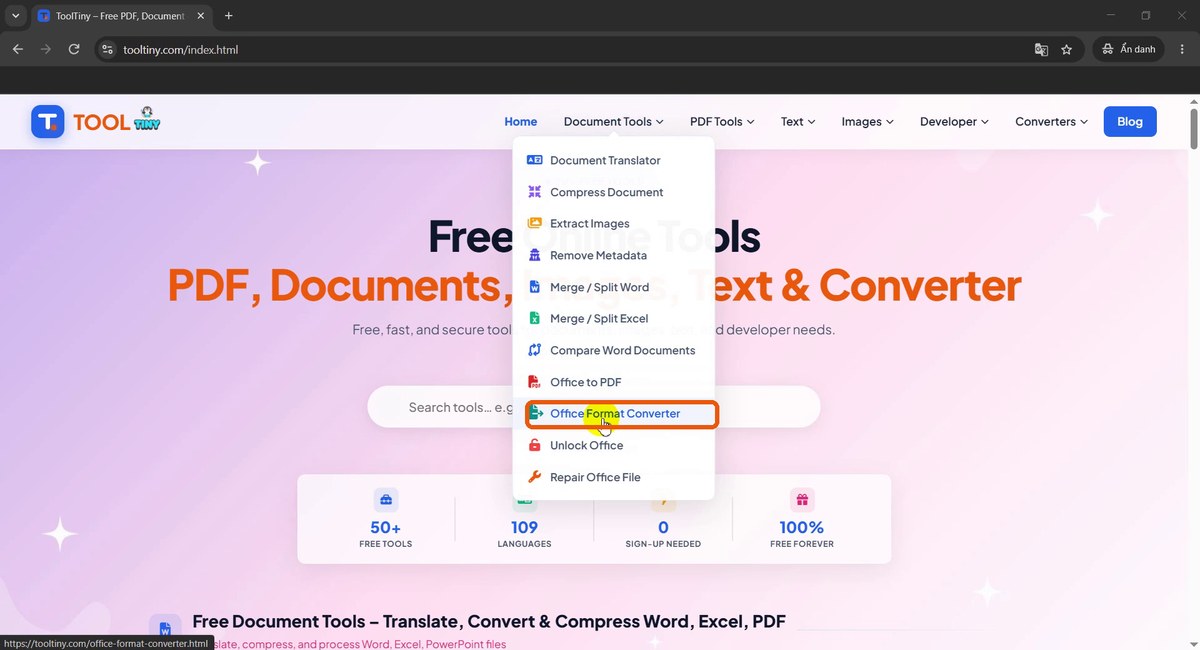
Document Tools → Office Format Converter -
Find the upload area
The page says Convert legacy DOC, XLS and PPT files into modern DOCX, XLSX and PPTX formats. Convert one file or a batch. The box accepts DOC, XLS or PPT files, 20 MB total. Under it a line explains that the output format is selected automatically: DOC → DOCX, XLS → XLSX, PPT → PPTX.
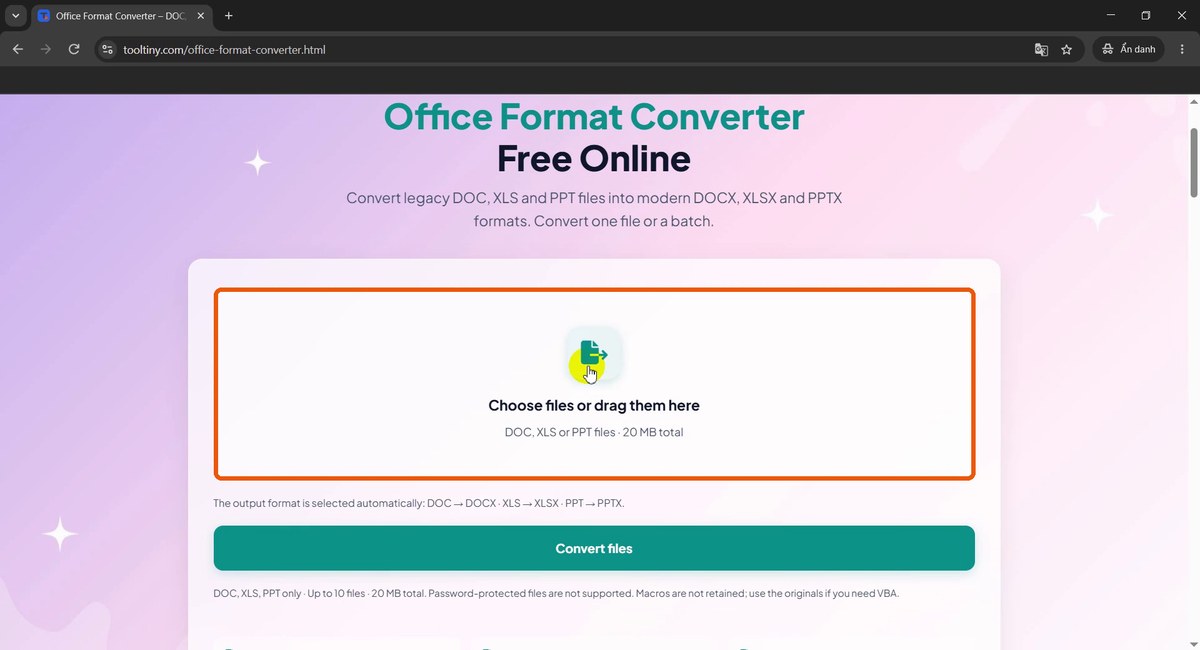
Choose files or drag them here -
Choose your old Office file
Click the box and pick a file from your computer. Our example is
sample-office-format-converter.doc, a legacy Word document. You can add several files, up to 10 per batch.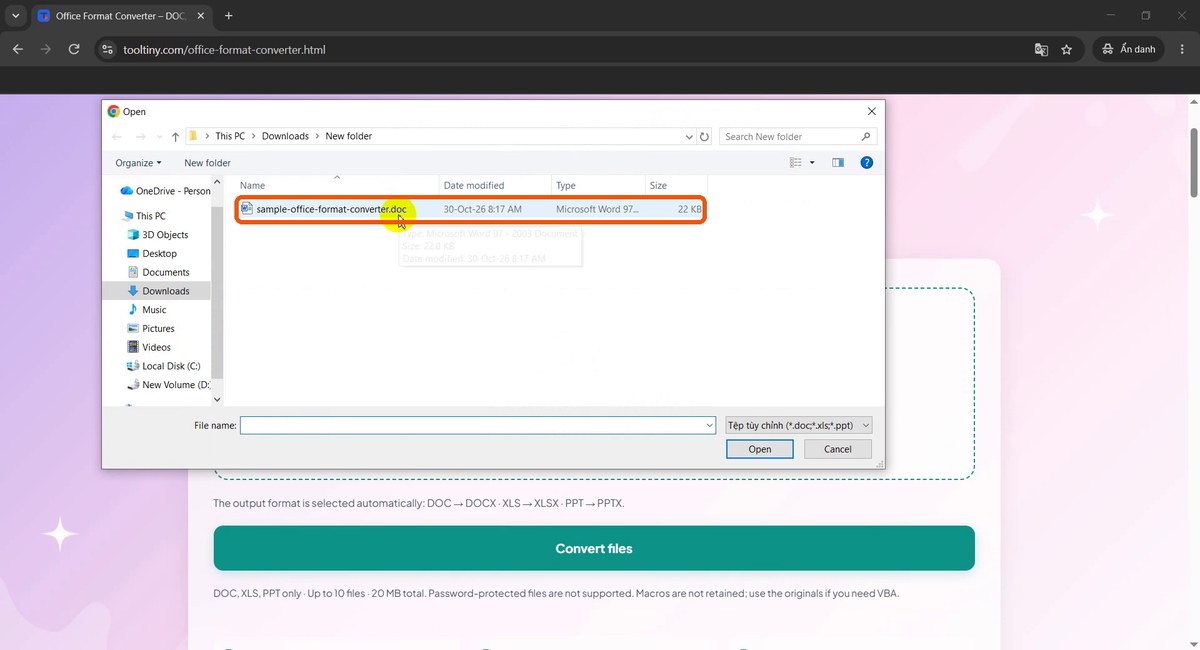
sample-office-format-converter.doc -
Check the file list
The file appears with its name and size (22.0 KB). There is nothing else to set: no format menu, because the tool picks the matching modern format for you.
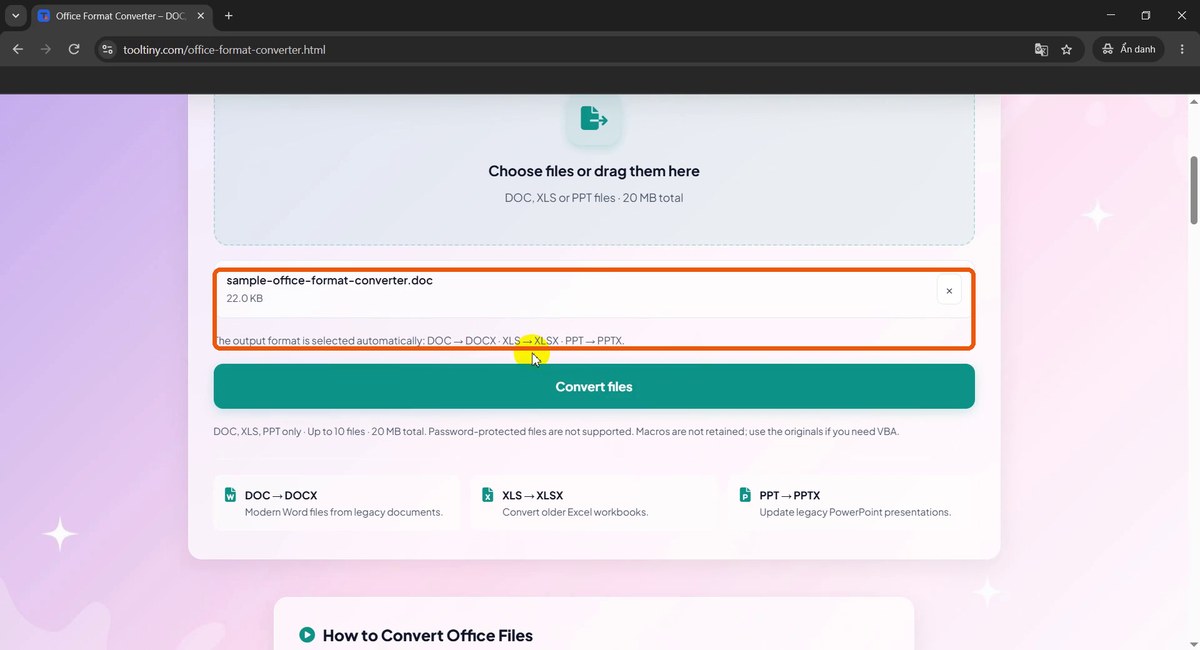
One file ready -
Click Convert files
Press Convert files. The button changes to Processing... please keep this page open and a note says Uploading and processing your files. This may take a few minutes. A small file usually takes seconds.
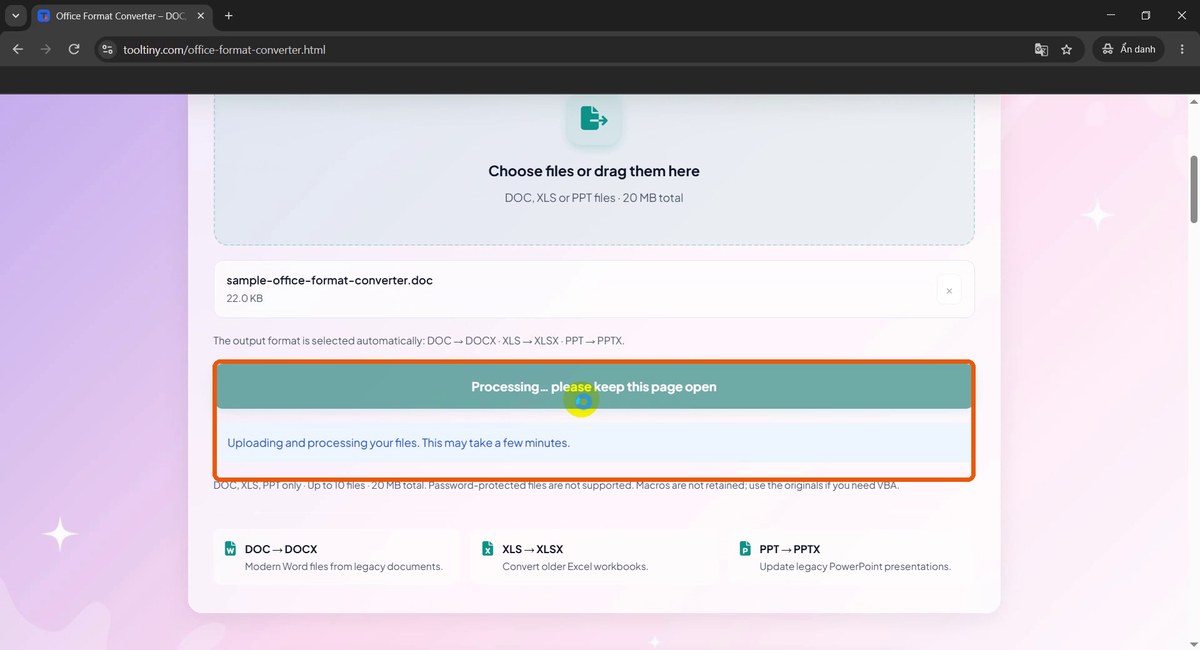
Keep the page open while it converts -
Download the converted file
Your file is ready. Download and review the result. The green button carries the new name, Download sample-office-format-converter.docx. Below it a note reminds you that conversion uses LibreOffice and that VBA macros are not retained.
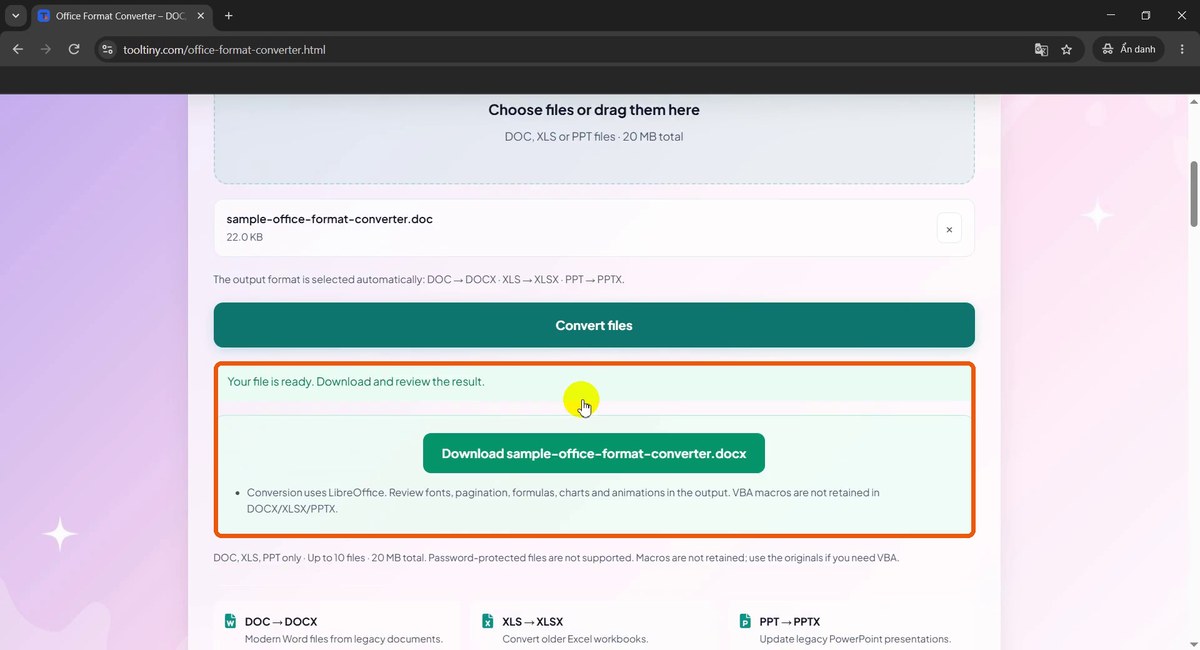
Your file is ready -
Save the file
Your browser opens a Save As window with the new name and type already filled in (Microsoft Word Document (*.docx)). Pick a folder and click Save.
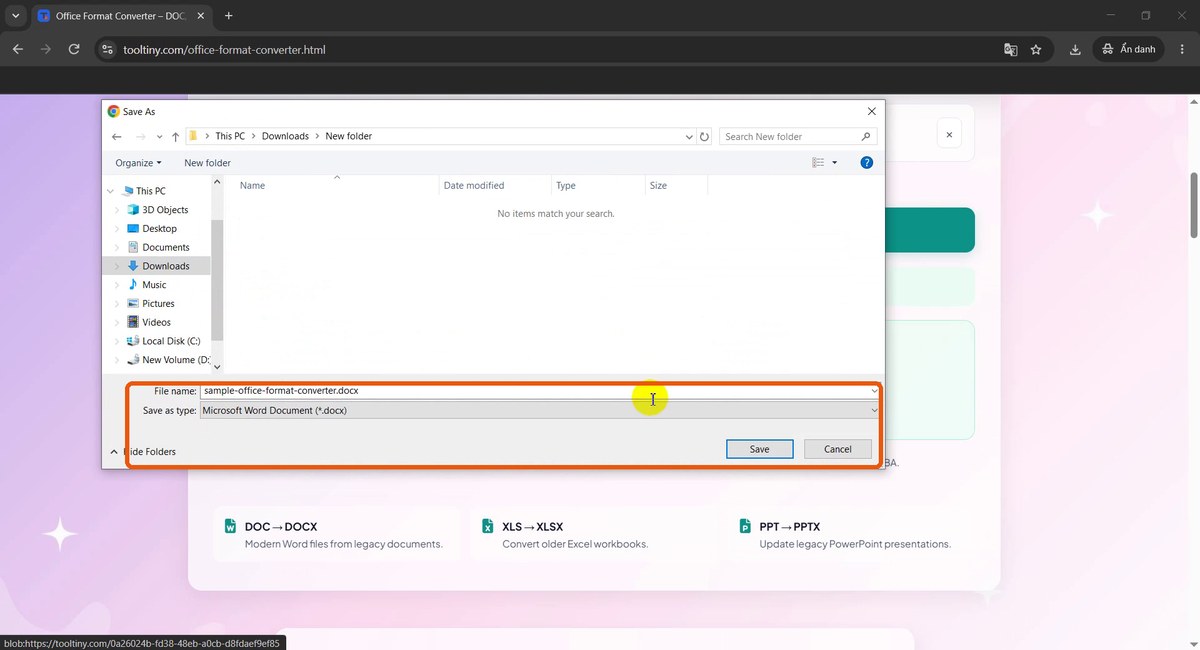
Save as .docx -
Open the converted file
In the folder you now have both versions side by side: the original
.docand the new.docx. Your original is never changed. If Word opens the new file in Protected View, click Enable Editing.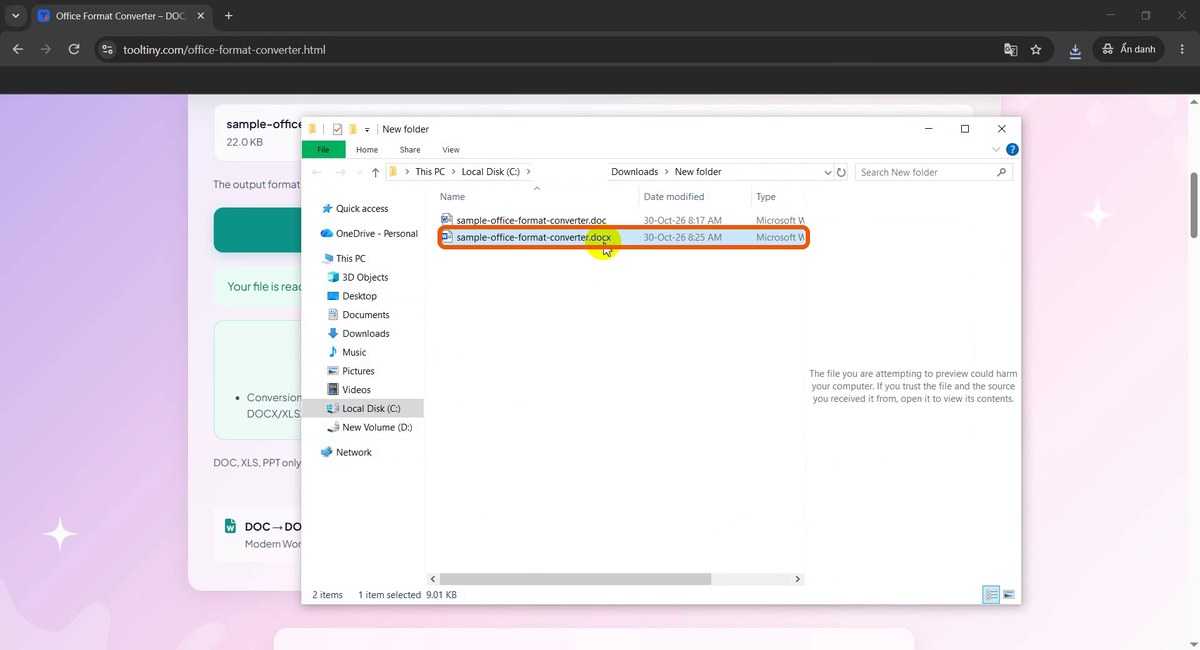
Original and converted file
Supported Conversions and Limits
| From | To | For |
|---|---|---|
| DOC | DOCX | Modern Word files from legacy documents |
| XLS | XLSX | Older Excel workbooks |
| PPT | PPTX | Legacy PowerPoint presentations |
- Up to 10 files per batch and 20 MB in total. You can mix Word, Excel and PowerPoint files.
- Password-protected files are not supported. Remove the password in Office first.
- Macros are not retained. Use the original file if you need VBA.
- Only these three upgrades are offered. To get a PDF, use Office to PDF.
Check the Result Before You Rely on It
The conversion uses LibreOffice, and the page itself tells you to review the output. A quick check takes a minute:
- Word: scroll through the pages. Look at fonts, page breaks, tables and headers.
- Excel: check formulas, number formats, charts and column widths.
- PowerPoint: run through the slides and test animations and transitions.
Keep the original file until you have checked the new one. The tool never changes your original, so you can always convert again or fix the difference by hand.
Tips
- Convert in a batch. If you have a folder of old files, add up to 10 at once instead of one by one.
- Mind the size limit. The 20 MB limit is the total of the batch, so split a large batch into two.
- Need to edit a locked file? Convert it first, then use Unlock Office to remove sheet protection or editing restrictions.
- Share as PDF. When the converted file is final, send it with Office to PDF.
- Mind confidentiality. Files are uploaded for conversion. Do not upload documents you are not allowed to share.
Convert to DOCX, XLSX and PPTX in a few clicks. Free, no sign-up.