How to Convert Word, Excel and PowerPoint to PDF Online for Free
You finished the report, the budget or the slides, and now someone needs a PDF: it keeps the layout, opens on any device and cannot be edited by accident. You do not need Word, Excel or PowerPoint on the computer you are using, and you do not need to sign up for anything. This guide shows how to convert Office files to PDF online with ToolTiny, how to add a watermark or a password, and how to check the result.
When You Need to Convert Office Files to PDF
- Sending a final version. A PDF looks the same for every reader, whatever fonts or software they have.
- Contracts, quotes and reports. Share a read-only copy, and keep the DOCX or XLSX as your working file.
- Presentations. Email slides to people who just need to read them, or print handouts from the PDF.
- Printing and archiving. PDF is the safe format for printing, records and uploads to portals that do not accept Office files.
- Working away from your own computer. Convert in the browser on a shared or borrowed machine with nothing to install.
Watch the Whole Process
The recording converts a PowerPoint file, downloads the ZIP, extracts it and opens the PDF to check every slide.
How to Convert Word, Excel or PowerPoint to PDF, Step by Step
-
Open the Office to PDF tool
In the top bar open Document Tools and pick Office to PDF, or go to tooltiny.com/office-to-pdf.html.
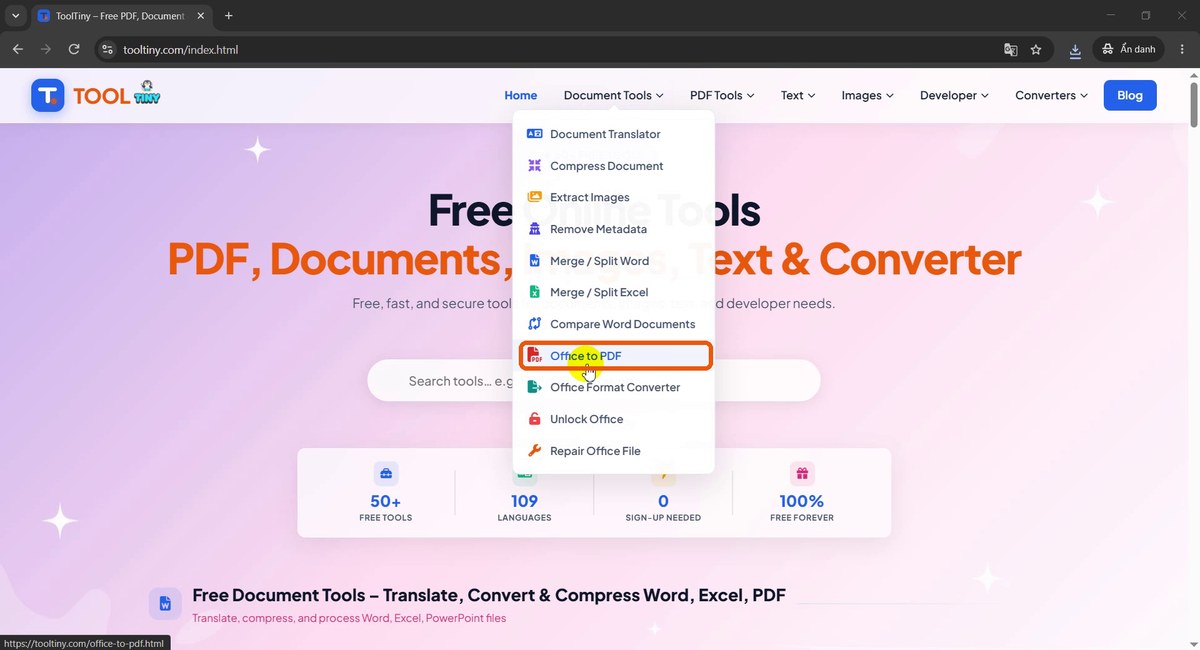
Document Tools → Office to PDF -
Find the upload area
The page opens on Upload files to convert. Drop files into the box or click it. Supported types are shown as tags: DOC, DOCX, XLS, XLSX, PPT and PPTX, max 20 MB each. Each file becomes its own PDF. The Batch Convert and Merge to One PDF tabs sit above the box.
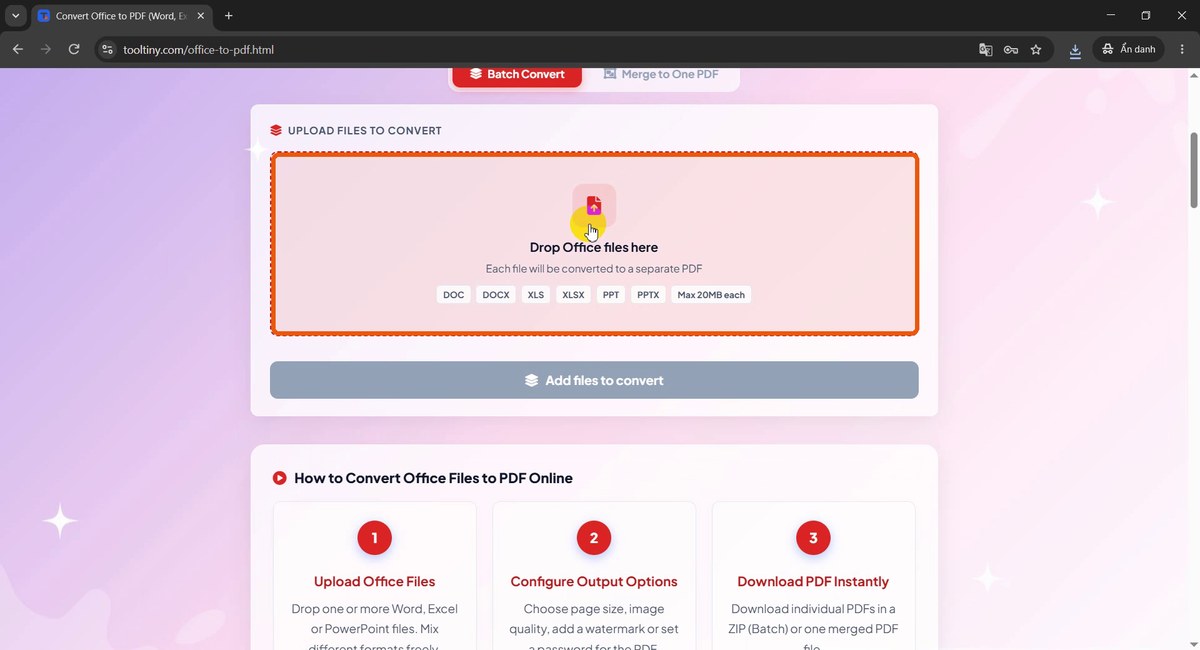
Drop Office files here -
Choose your file
Click the box and pick a file from your computer. We used
sample-presentation-5-slides.pptx, a five-slide PowerPoint with a table and a chart.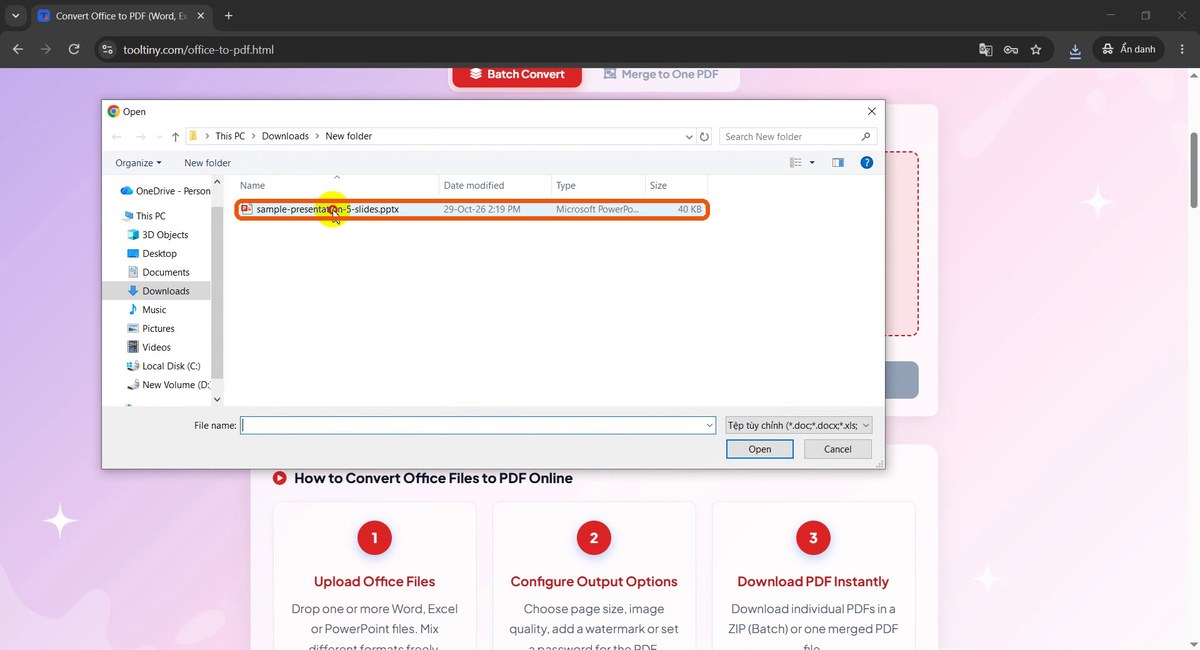
sample-presentation-5-slides.pptx -
Check the file and the basic options
The file is listed with its size (39.4 KB). Below it you can set the Page Size (A4, 210 x 297 mm by default) and the Image Quality (Medium, balanced, by default). Add more files at this point if you want a batch.
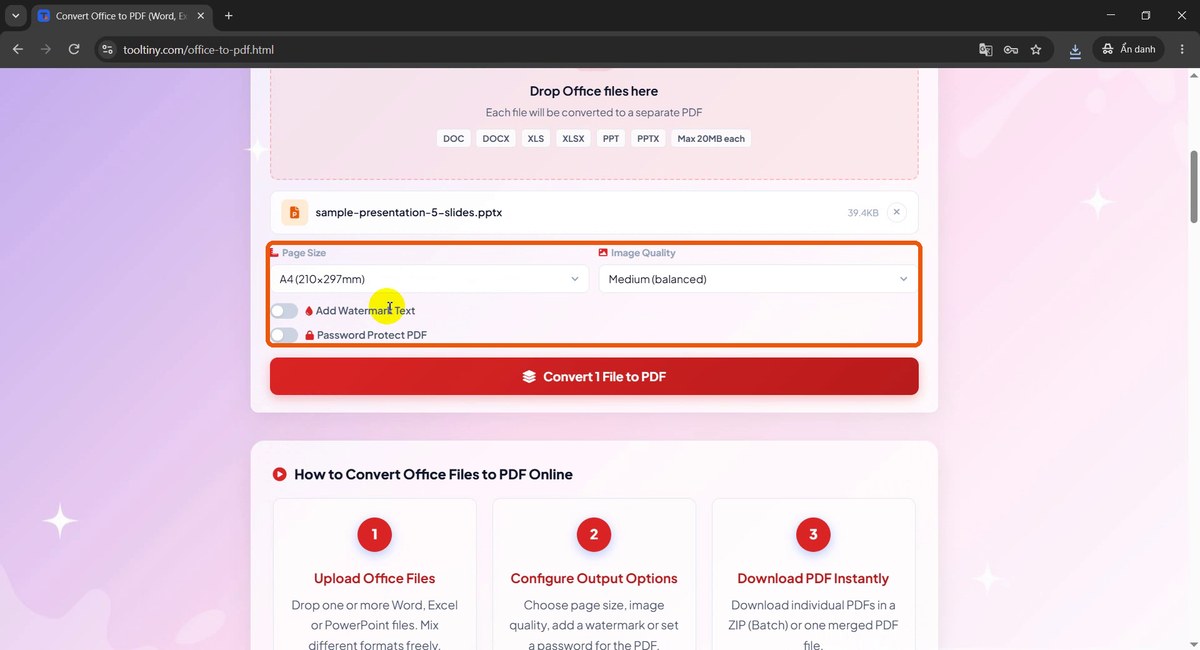
Page size and image quality -
Add a watermark if you need one
Switch on Add Watermark Text to reveal the watermark text box, the Opacity (Light 25% by default) and the Color (Gray). Type a word such as DRAFT or CONFIDENTIAL. Leave the switch off for a clean PDF.
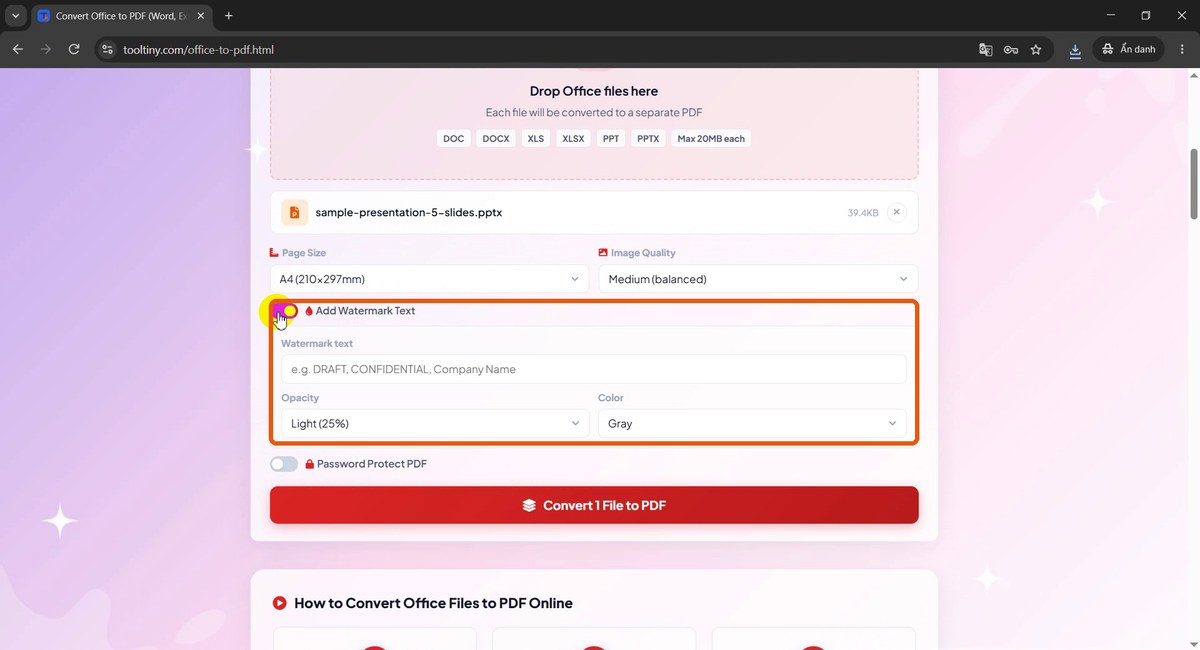
Optional watermark -
Protect the PDF with a password (optional)
Switch on Password Protect PDF to set an Open password that is needed to open the file and a Permissions password that is needed for editing. Skip it if the PDF is not sensitive.
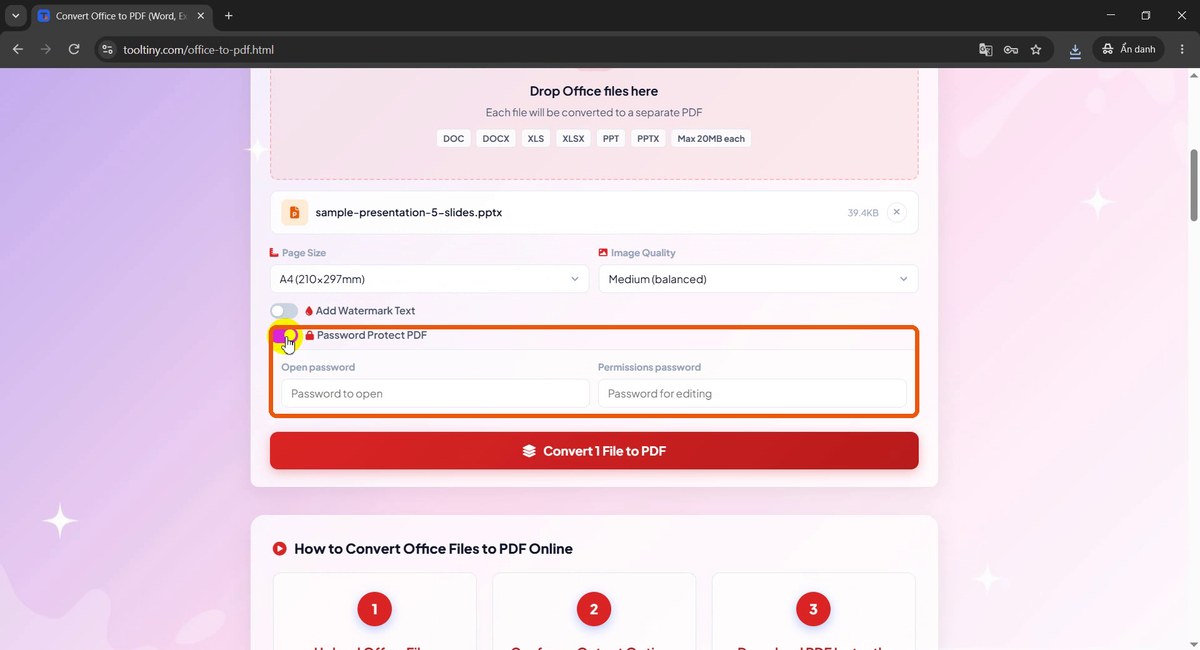
Open password and permissions password -
Click Convert File to PDF
Press the red Convert 1 File to PDF button (the number changes with your files). A progress bar shows Uploading files and then Converting files with a percentage.
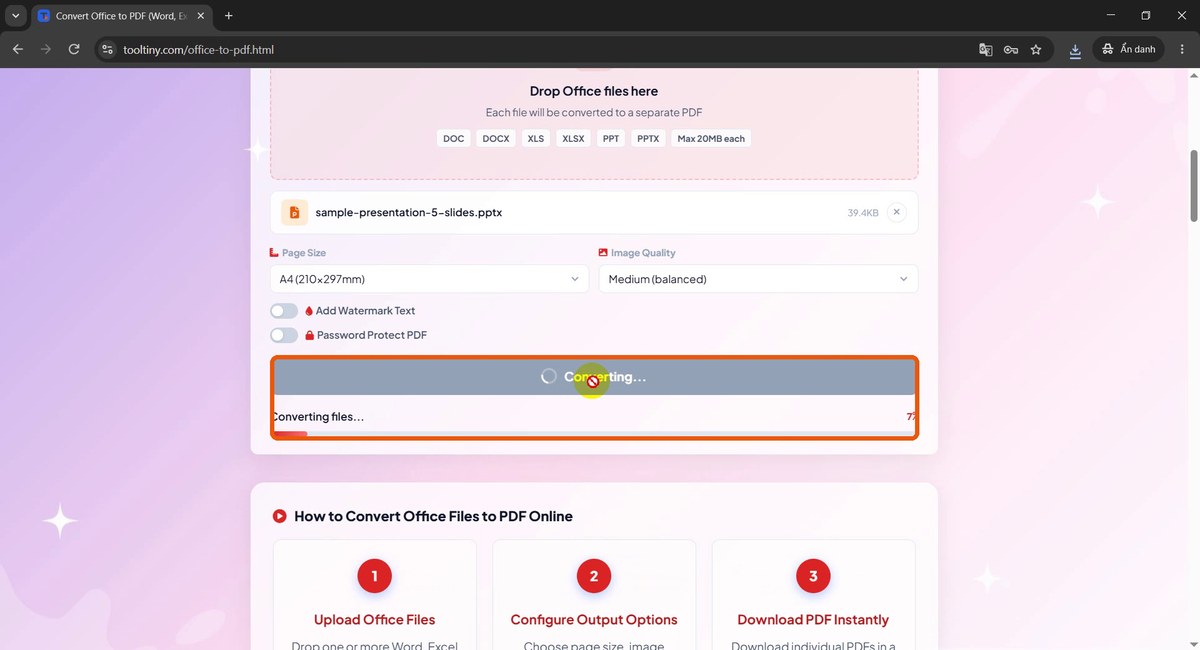
Converting files -
Download the result
At 100% the page shows All files converted and Conversion complete!. Click Download All as ZIP and save the file, or Convert More to start again.
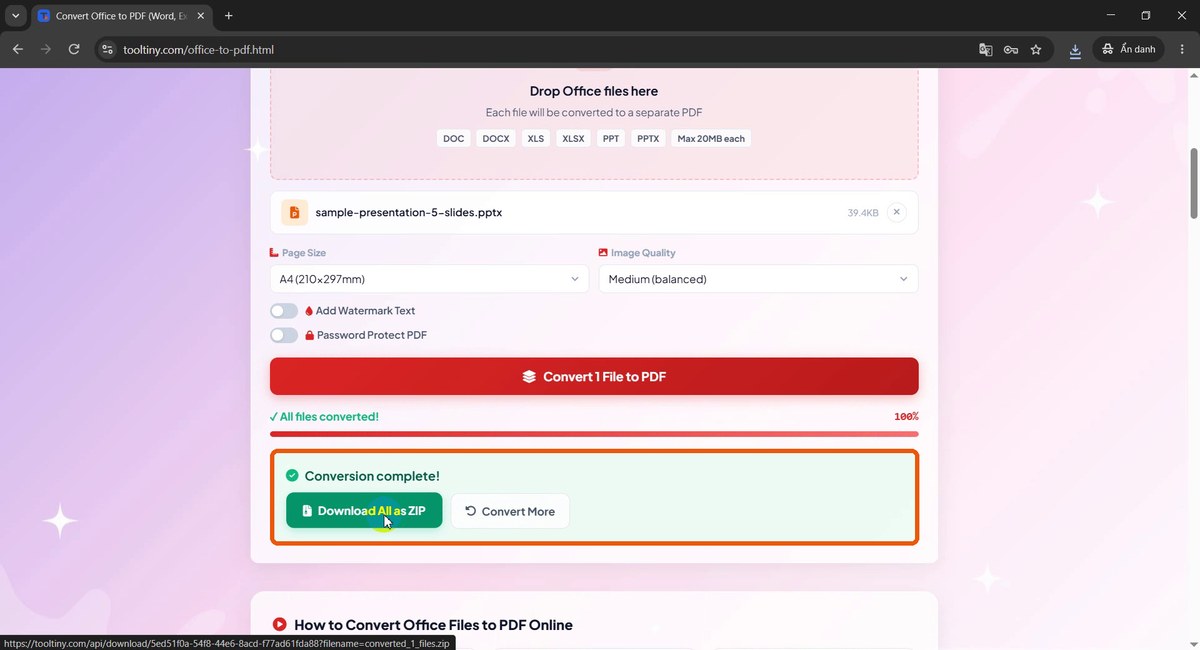
Conversion complete -
Extract the ZIP
The download is named like
converted_1_files.zip. In your Downloads folder right-click it and choose Extract All (or use any unzip tool).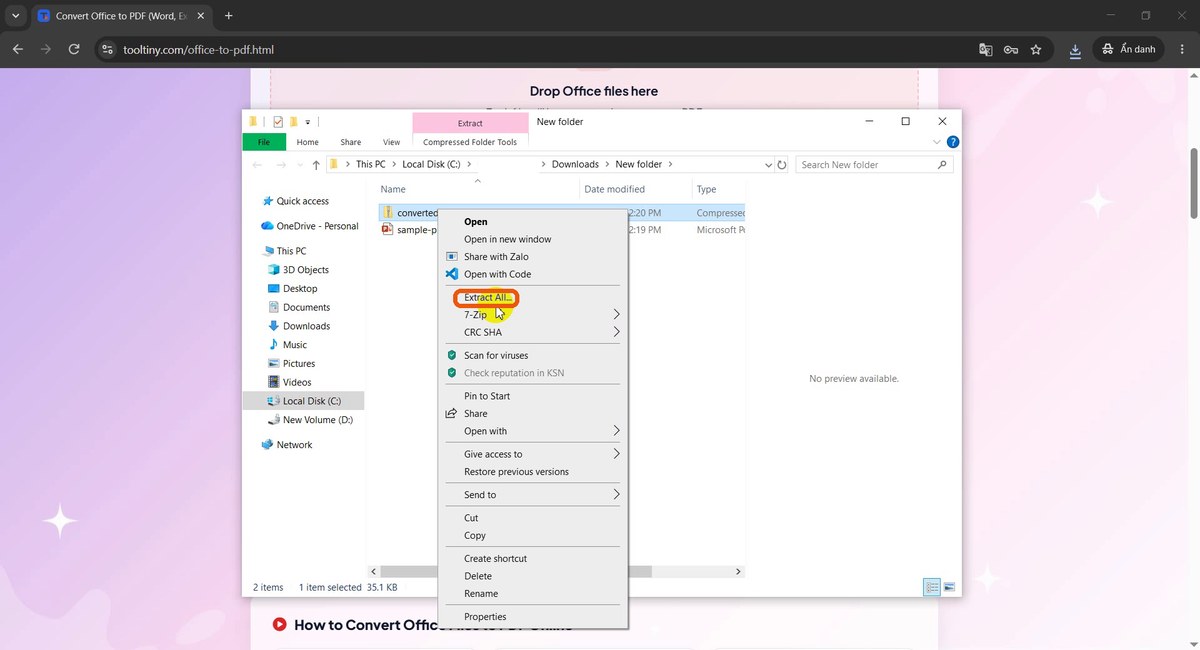
Extract All -
Find the PDF
Inside the extracted folder you get one PDF per original file, with the same name, for example
sample-presentation-5-slides.pdf. Windows can show a preview in the Explorer pane.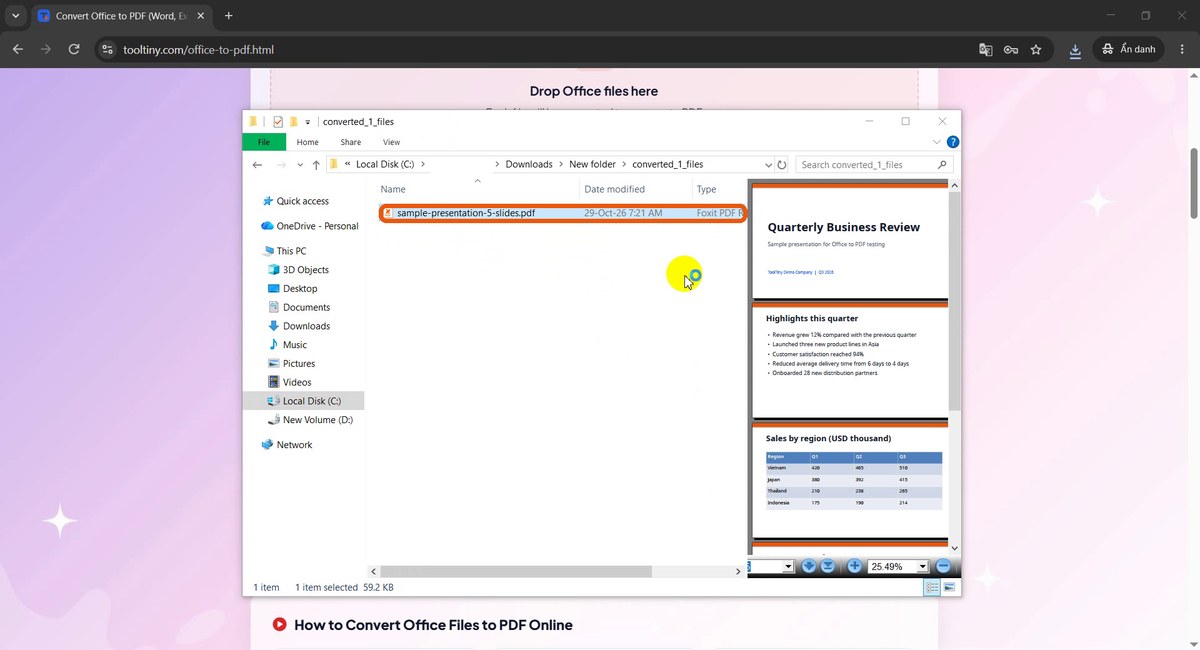
One PDF per file -
Open and check the PDF
Open it in any PDF reader. In our test all five slides were kept: the title, the bullet list, the sales table and the revenue chart. Scroll through before you send it on.
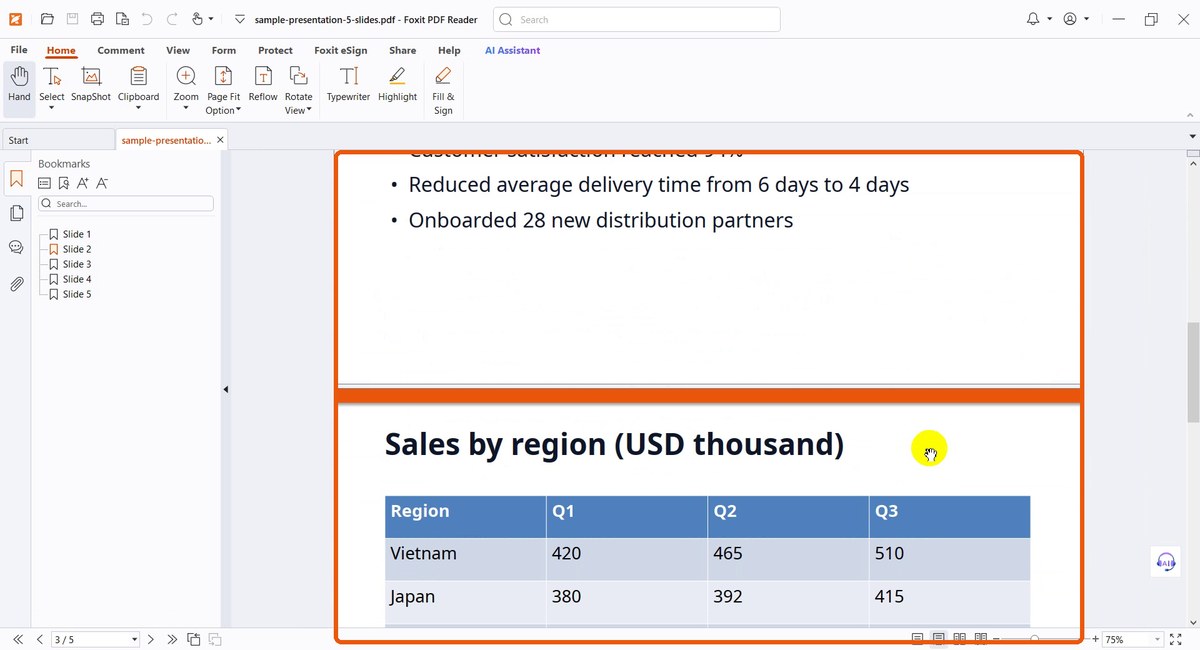
The converted PDF
The Options Explained
| Option | Default | Use it when |
|---|---|---|
| Page Size | A4 (210 x 297 mm) | You need a specific paper format for printing or a form. |
| Image Quality | Medium (balanced) | Pick a higher quality for photos and a lower one when the PDF must stay small. |
| Add Watermark Text | Off | You want DRAFT, CONFIDENTIAL or your company name on each page. Opacity defaults to Light (25%) and color to Gray. |
| Password Protect PDF | Off | The file must not be opened or edited by everyone. Set an open password, and optionally a permissions password. |
| Batch Convert / Merge to One PDF | Batch Convert | Convert several files at once, each to its own PDF, or combine them into a single PDF. |
Keep the passwords somewhere safe. A PDF protected with an open password cannot be opened without it, and ToolTiny cannot recover a lost password.
Supported Files and Limits
| Type | Extensions | Notes |
|---|---|---|
| Word | DOC, DOCX | Text, tables, images and headings are converted page by page. |
| Excel | XLS, XLSX | Sheets become PDF pages. Check wide tables and page breaks before sending. |
| PowerPoint | PPT, PPTX | Each slide becomes a PDF page, including tables, charts and shapes. |
The limit is 20 MB per file, and every file in a batch is converted to its own PDF, which you receive together in one ZIP. Files that are password-protected or damaged cannot be converted; use Unlock Office or Repair Office File first.
Tips for a Clean PDF
- Check the source first. Look at your Word page breaks, Excel print area and PowerPoint slide layout, because the PDF follows them.
- Use common fonts. A font that is not available on the server can be replaced, which may change line breaks slightly. Standard fonts convert most reliably.
- Mind the size. If the PDF is too large to email, run it through Compress PDF, or choose a lower image quality.
- Remove hidden data. Before sharing outside the company you can remove author and company info from the file.
- Sign when needed. Add a signature to the finished PDF with Sign PDF.
- Mind confidentiality. Files are uploaded for conversion and temporary files are deleted when processing finishes. Do not upload documents you are not allowed to share.
Upload your file, pick the options and download the PDF. Free, no sign-up.