How to Remove Excel Sheet Protection and Word Editing Restrictions Online (Free)
You open a workbook and every cell refuses to change. You receive a Word file that you can read but not edit. Often the protection was added for a good reason, and sometimes the password was lost years ago. This guide shows how to remove Excel sheet protection and Word editing restrictions online with ToolTiny, with a real example for each, and it explains clearly what the tool cannot do.
When Removing Protection Is Useful
- You forgot the sheet password. It is your own budget or template, but the sheet has been locked for years.
- A colleague left the company. Their workbook is locked and nobody knows the password.
- A read-only Word file. The document is limited by Restrict Editing, and you are allowed to update it.
- A locked workbook structure. You cannot add, delete or rename sheets until the structure protection is removed.
- A template you inherited. You need to adjust formulas or text that the previous owner locked.
Use the tool only on files you own or are allowed to edit. Protection exists to prevent accidental changes and sometimes to keep controls in place; do not remove it from someone else's file without permission.
Watch the Whole Process
The recording unlocks a protected Excel workbook and a read-only Word document, then edits both files.
How to Unlock a Protected Excel or Word File, Step by Step
-
Check that the file really is locked
Open the file first. In our Excel workbook, typing into a cell shows The cell or chart you're trying to change is on a protected sheet. If you can type freely, you do not need the tool.
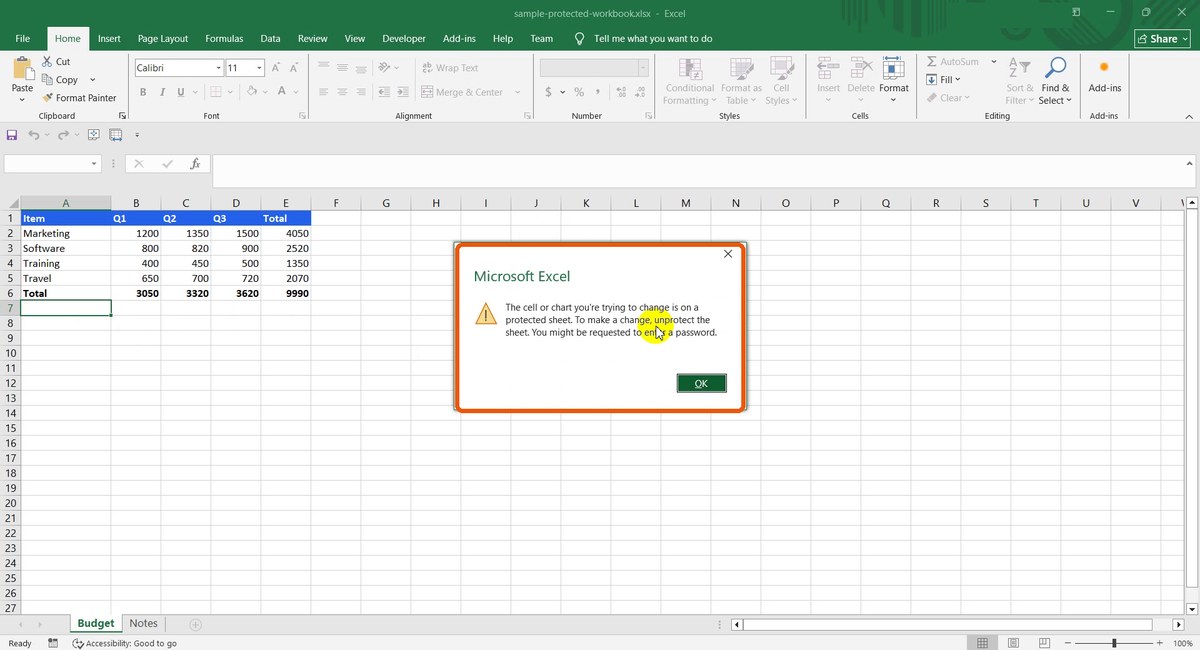
Excel blocks the edit -
Open Unlock Office
In the top bar open Document Tools and choose Unlock Office, or go to tooltiny.com/unlock-office.html.
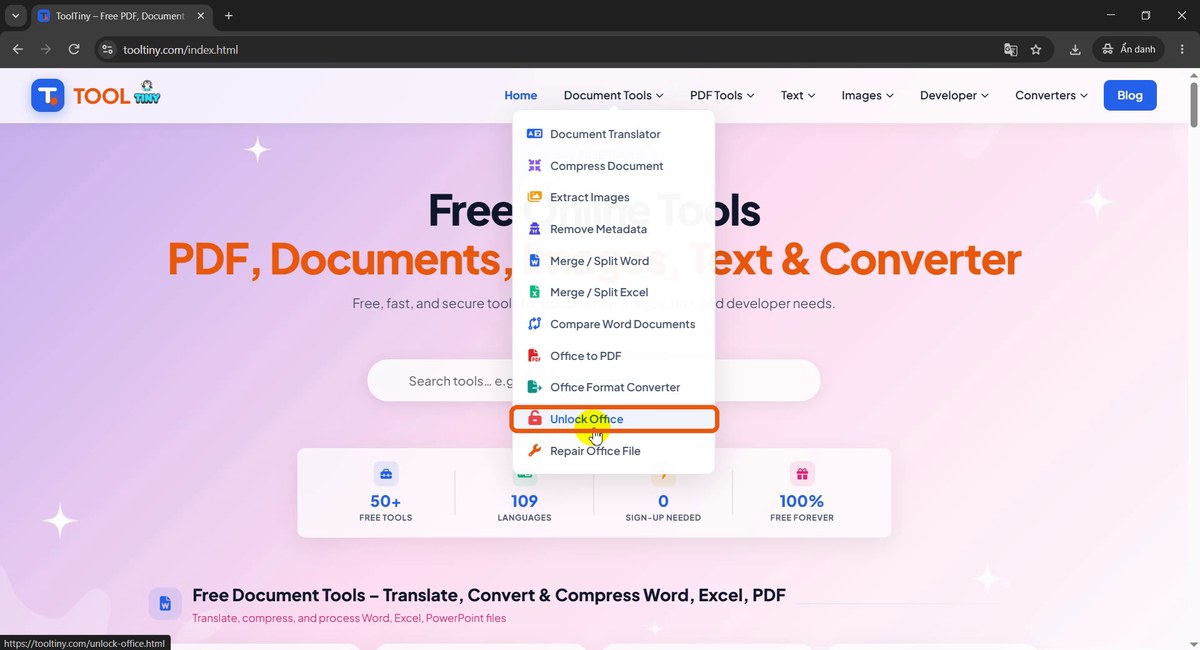
Document Tools → Unlock Office -
Choose the protected file
Click the upload box and pick your .xlsx or .docx. Older .xls and .doc files are not accepted.
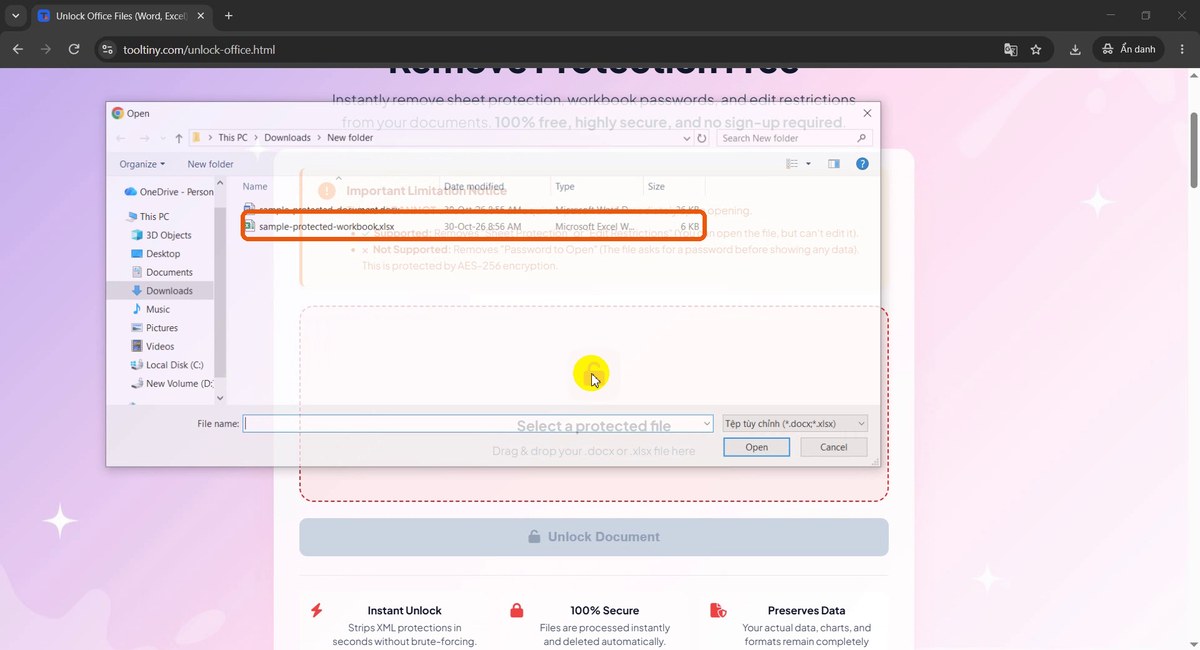
sample-protected-workbook.xlsx -
Read the notice and click Unlock Document
The file appears with its name and size, under an Important Limitation Notice. It explains that the tool removes Sheet Protection and Edit Restrictions, but not a Password to Open. Then click the red Unlock Document button.
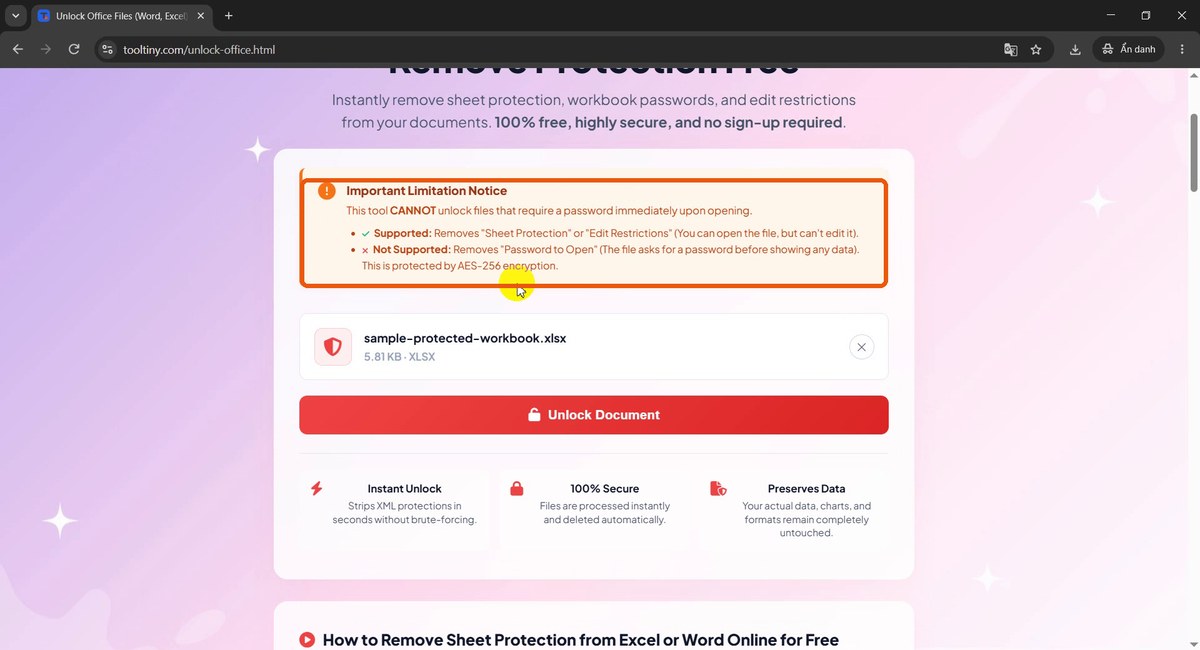
Read the notice before unlocking -
Wait a moment
A bar reads Uploading and unlocking. It only takes a few seconds for a normal file.
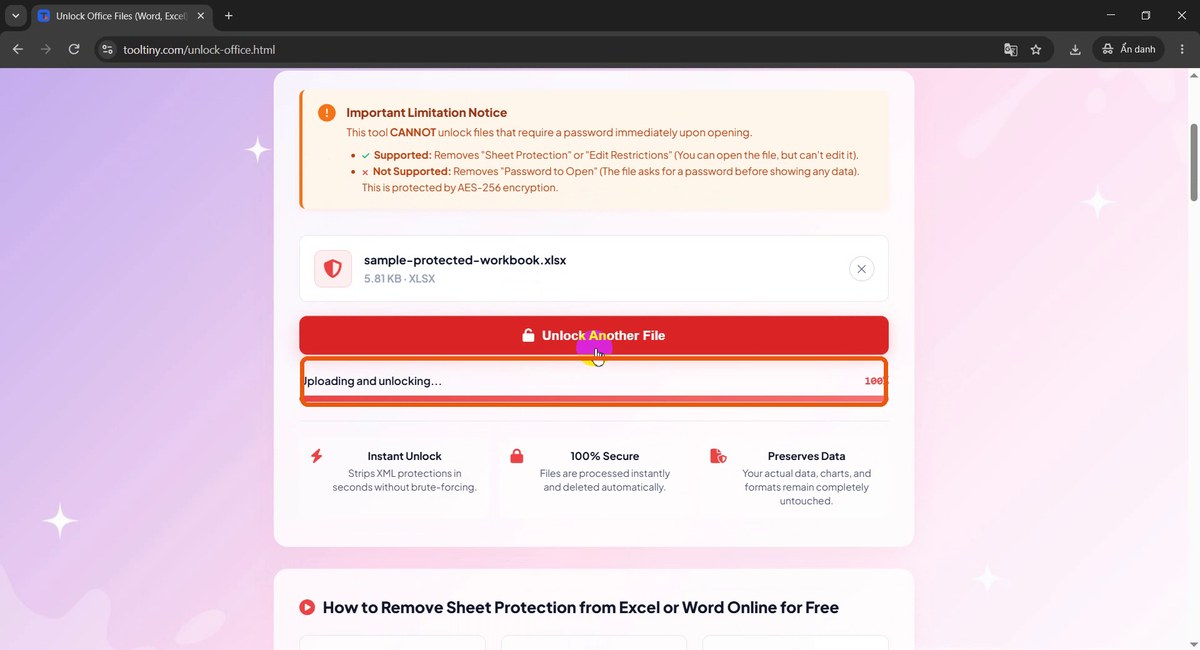
Uploading and unlocking -
Download the unlocked file
Document Unlocked! confirms that all edit restrictions and sheet protections have been removed. Click Download Unlocked File and save it. The new file is named
unlocked_plus the original name, and the original stays untouched.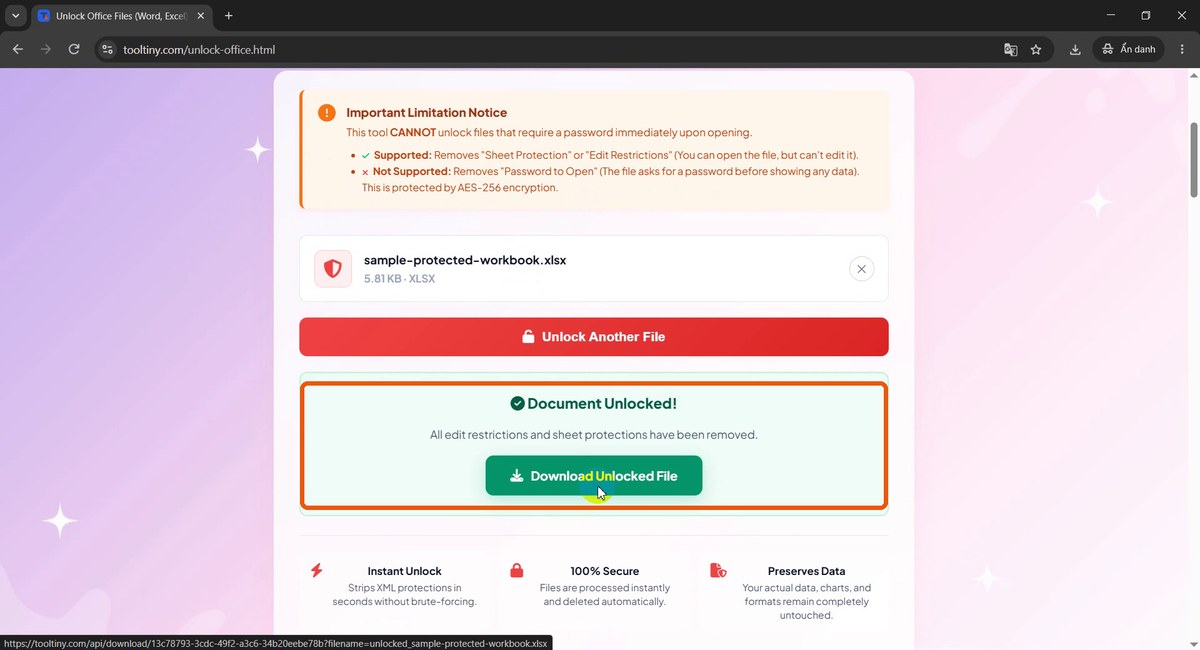
Document Unlocked
Example 1: Unlocked Excel Workbook
Our sample workbook has two sheets, Budget and Notes, both protected. After unlocking, the downloaded file opens in Excel and every cell can be changed. We typed new values below the table in row 7, and the original formulas, header colors and totals were still in place.
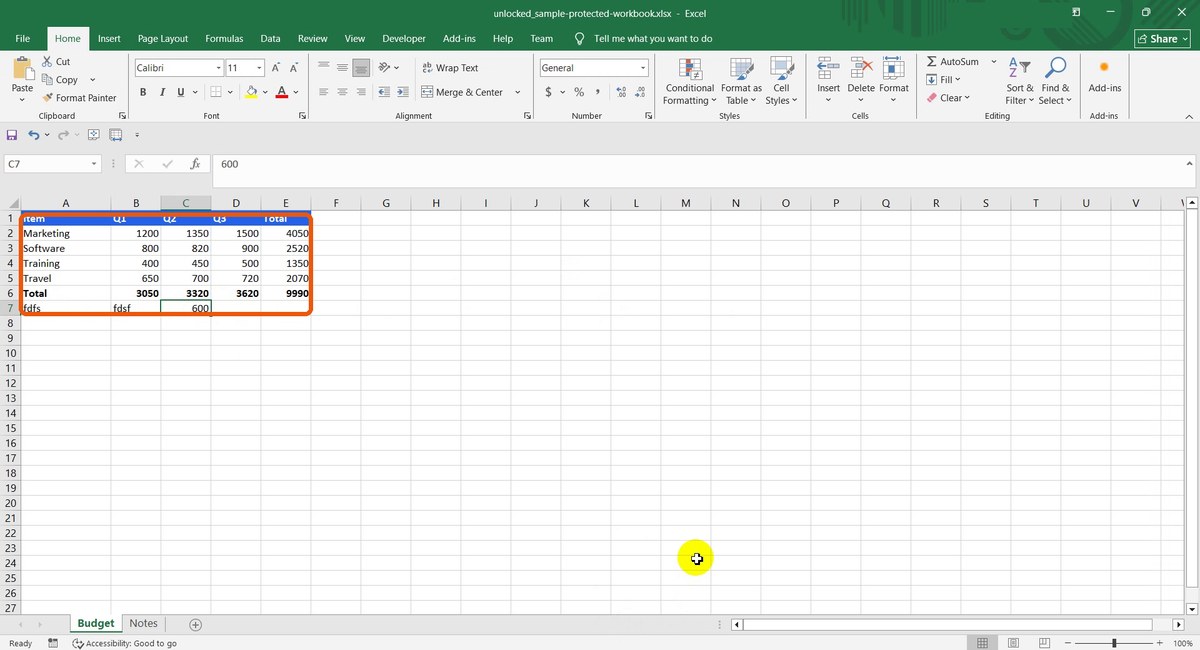
Example 2: Word Document With Editing Restrictions
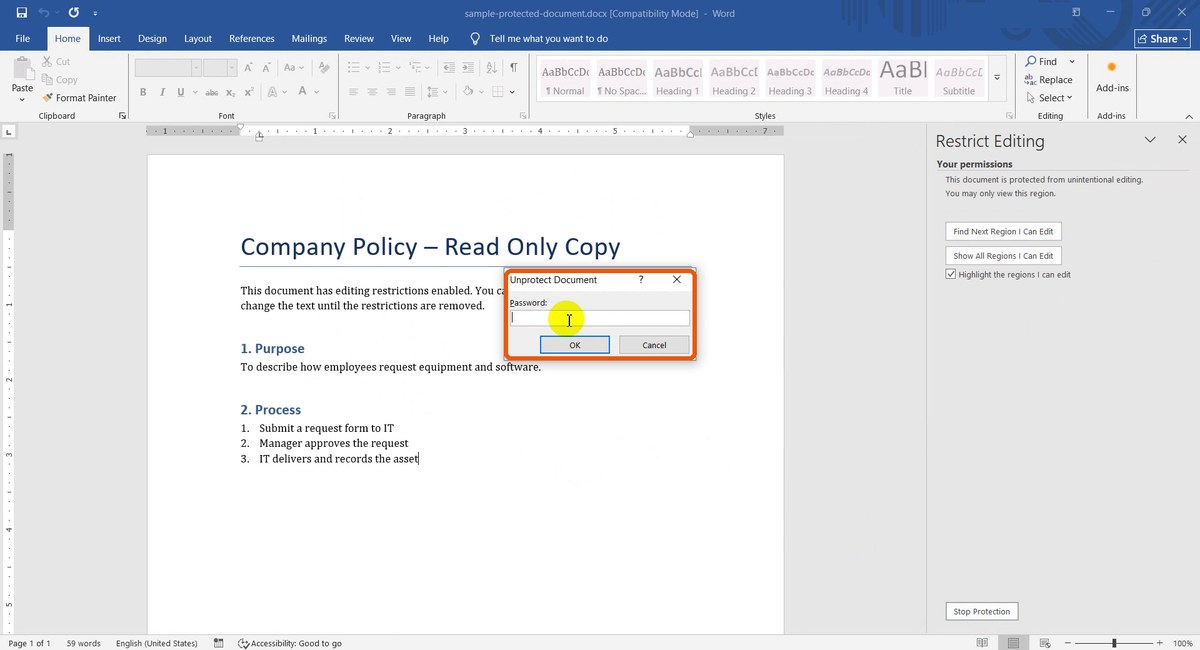
The Word sample uses Restrict Editing. In Word the pane says This document is protected from unintentional editing. You may only view this region, the ribbon is greyed out and the status bar shows You can't make this change because the selection is locked.
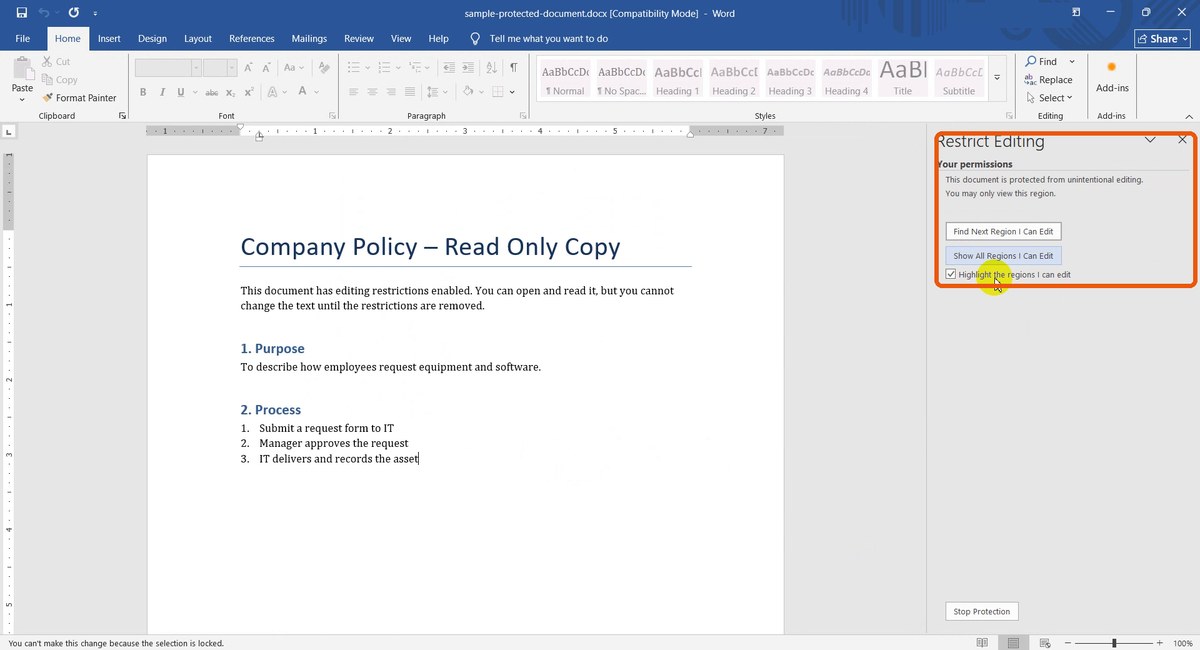
Normally you would click Stop Protection, and Word asks for a password. If you do not have it, you are stuck:
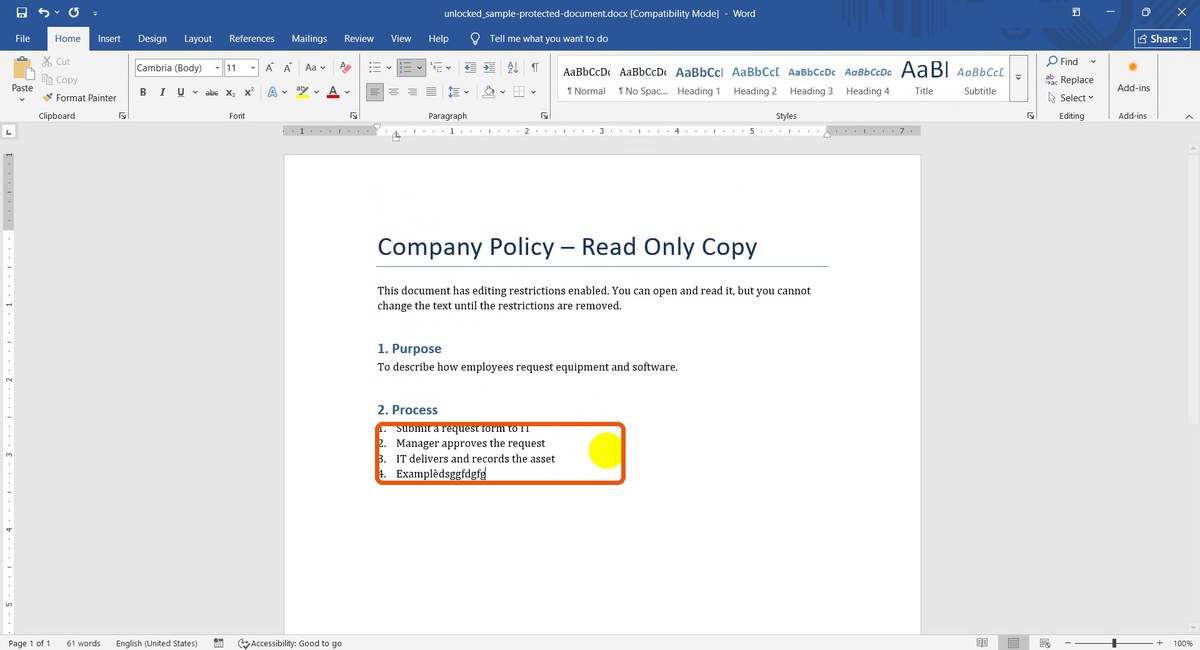
Upload the DOCX to Unlock Office as in the steps above and download unlocked_sample-protected-document.docx. Word may open it in Protected View because it came from the internet; click Enable Editing. The Restrict Editing pane is gone and the text, numbering and styles can be edited normally. We added a fourth item to the list:
What the Tool Can and Cannot Do
| Supported | Not supported |
|---|---|
| Excel worksheet protection (cells locked) | A password that is needed to open the file |
| Excel workbook structure protection (sheets locked) | Files encrypted with AES-256 |
| Word editing restrictions and read-only settings | Old .doc and .xls files |
| .docx and .xlsx files | PowerPoint files |
The simple test is this: if the file asks for a password before showing any data, this tool cannot help. If you can open and read it but cannot edit it, the tool can usually remove the restriction. It removes the protection settings only, so formulas, formatting, charts and images stay intact.
Tips
- Keep the original. Your file is not modified; the download is a new file with the
unlocked_prefix. - Enable Editing in Word. If the unlocked file still looks read-only, it is probably Protected View, not a restriction.
- Convert old files first. Save .doc and .xls as DOCX and XLSX, or use Office Format Converter.
- Damaged file? If a file will not open at all, try Repair Office File first.
- Protect again if needed. After editing, add protection back in Excel or Word, and remove hidden metadata before sharing outside the company.
- Mind confidentiality. The file is uploaded for processing and deleted afterwards. Do not upload documents you are not allowed to share.
Remove sheet protection and editing restrictions in seconds. Free, no sign-up.