How to Compare Two Texts and Find Differences Online for Free (Word by Word or Line by Line)
Someone sends back a “final” version and swears they only fixed a typo. Reading both versions side by side to check that is slow, and the one changed number is exactly the one your eyes skip. The ToolTiny Text Compare tool puts the two versions in two boxes and marks every difference for you, either word by word or line by line. This guide follows a real recording of a short agreement, explains what each result number means and shows how to merge the two versions into one.
When Is a Text Comparison Useful?
- Contracts and policies: find out which clause, amount or deadline changed between two drafts.
- Essays, articles and e-mails: see what an editor or a colleague really changed.
- Code and configuration files: compare two versions of a script, an nginx or firewall file, or a log.
- JSON and data: check two API responses or settings files without being fooled by key order.
- Your own revisions: compare today's draft with last week's before you send it.
The tool compares plain text. For Word files keep reading, because there is a separate tool for those, mentioned at the end.
Watch the Whole Process
The recording copies two versions of an agreement from Word, pastes them into the tool, compares them word by word, builds a merged text and exports the result.
How to Compare Two Texts, Step by Step
-
Open Text Compare
Open the Text menu in the top bar and choose Text Compare, or go straight to tooltiny.com/text-compare.html.
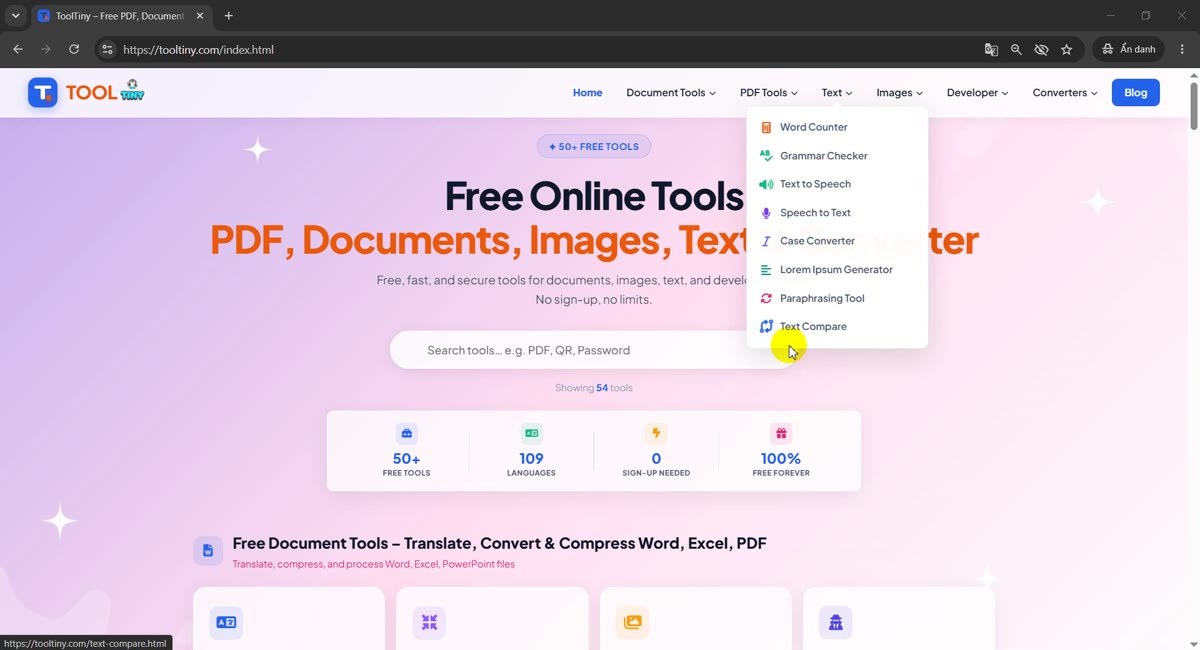
Text → Text Compare -
Find the two boxes
The page has Original Text on the left and Changed Text on the right. Each box has a Load File button. Under them you will find the Word by Word and Line by Line switch, three checkboxes and the blue Find Differences button.
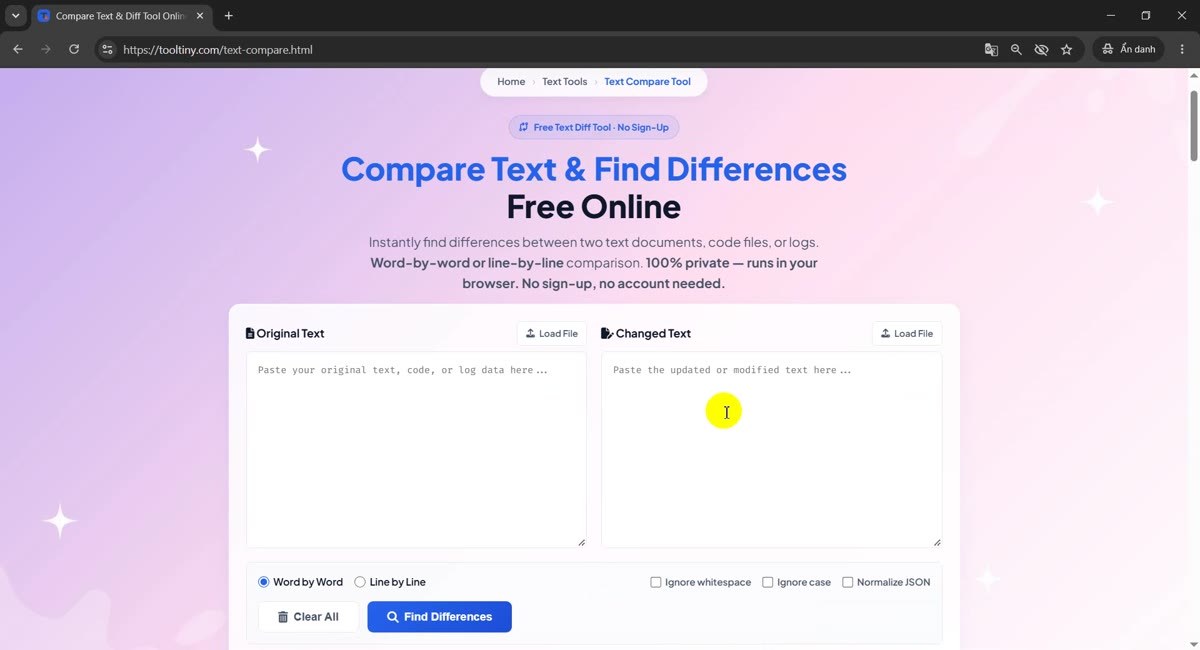
Original on the left, changed on the right -
Get your two versions ready
Open both versions in the program you already use. In our recording they are two copies of a short service agreement in Word: the first draft on top, the second draft below. Select the text of the first one and copy it.
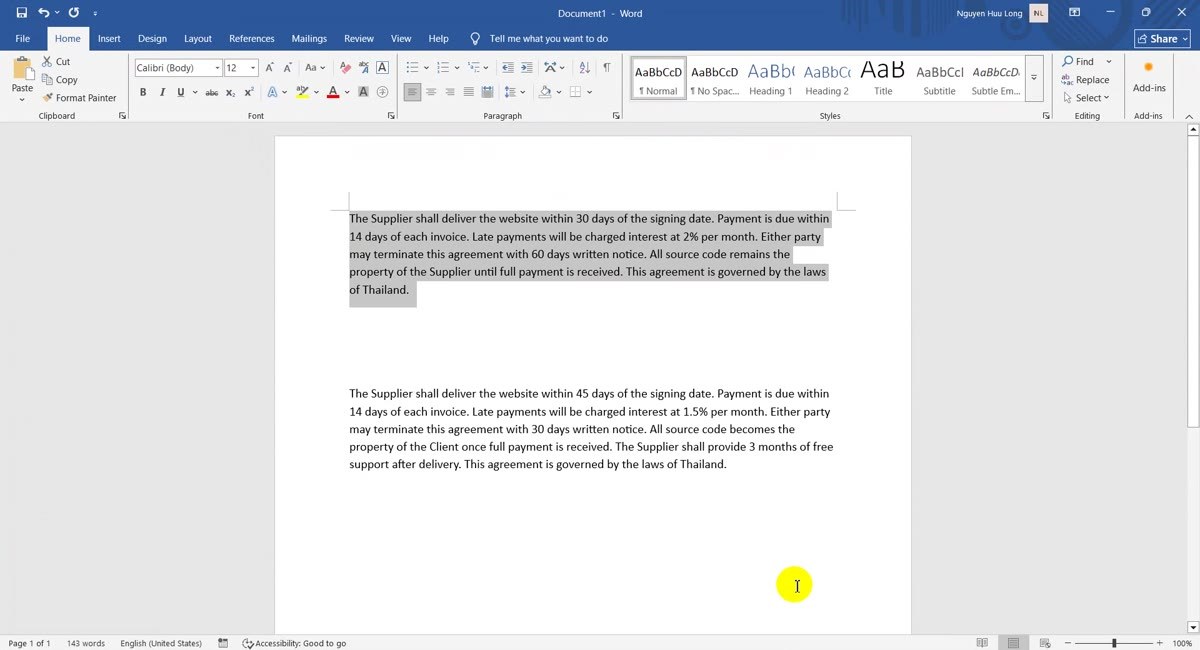
Copy the first version -
Paste the original
Click the Original Text box and paste. The red wavy lines are only your browser's spell checker and have nothing to do with the comparison.
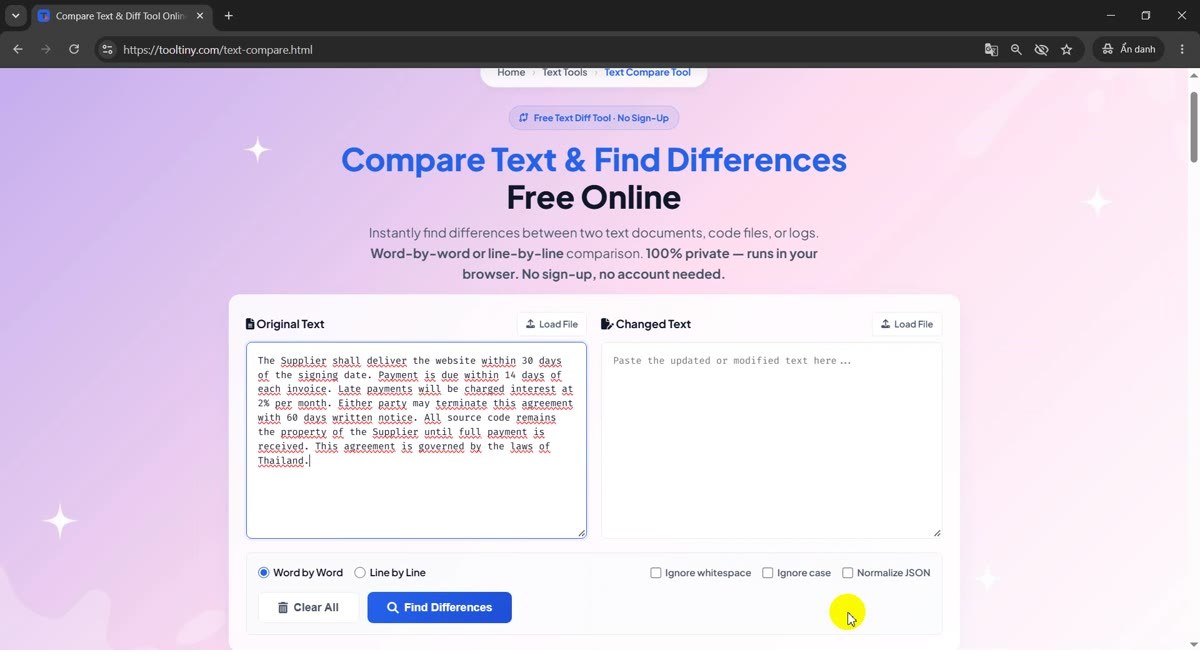
Original pasted on the left -
Paste the changed version
Copy the second version and paste it into the Changed Text box. Our two versions have 66 and 77 words. You can also use Load File above each box to read a text file instead of pasting.
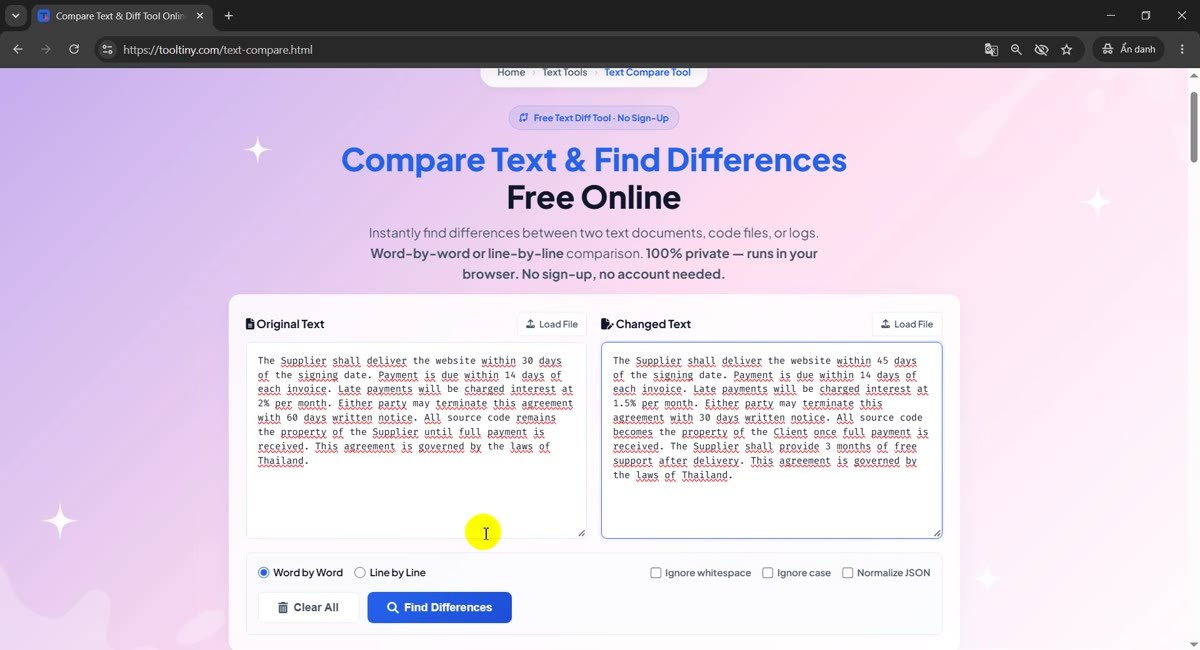
Both versions in place -
Choose how to compare
Word by Word is selected by default and suits contracts and normal writing. Line by Line suits code, configuration files and logs. The three checkboxes on the right, Ignore whitespace, Ignore case and Normalize JSON, are explained below. We kept the defaults.
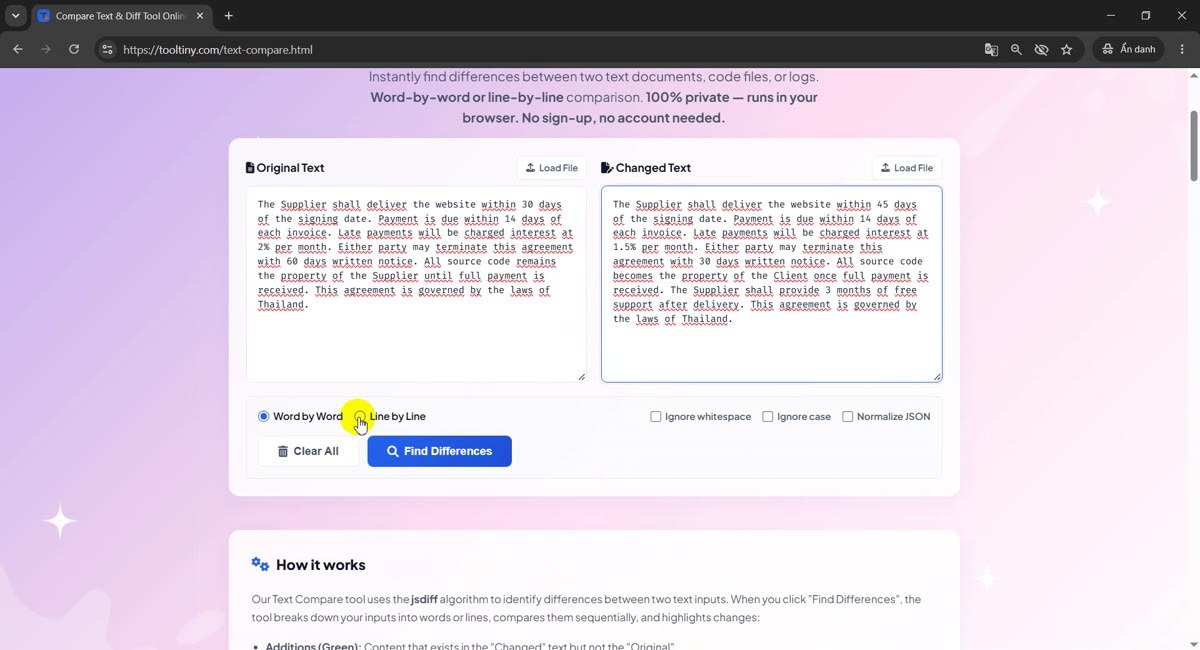
Word by Word, no options -
Click Find Differences
Press the blue Find Differences button. The result appears right under the two boxes, so there is nothing to wait for or download.
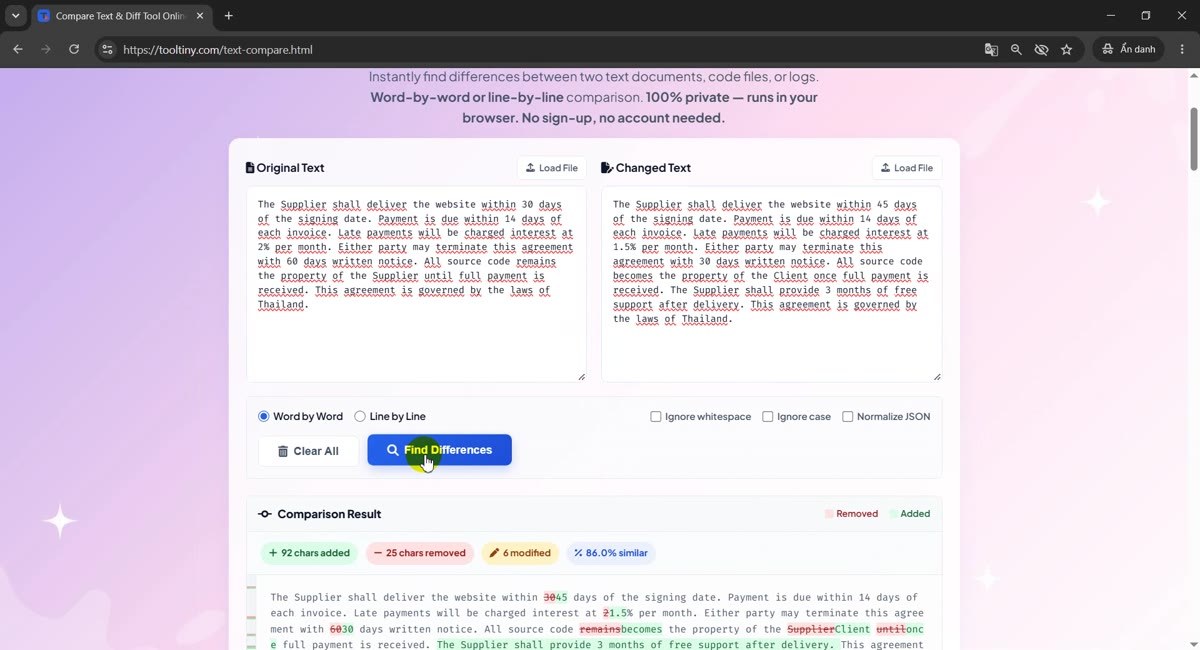
Find Differences -
Read the result
Removed text is red with a strikethrough and added text is green. The bar above the text counts the changes: 92 chars added, 25 chars removed, 6 modified and 86.0% similar. In our example you can see 30 became 45, 2 became 1.5, 60 became 30, remains became becomes, Supplier became Client, until became once, and a whole new sentence was added.
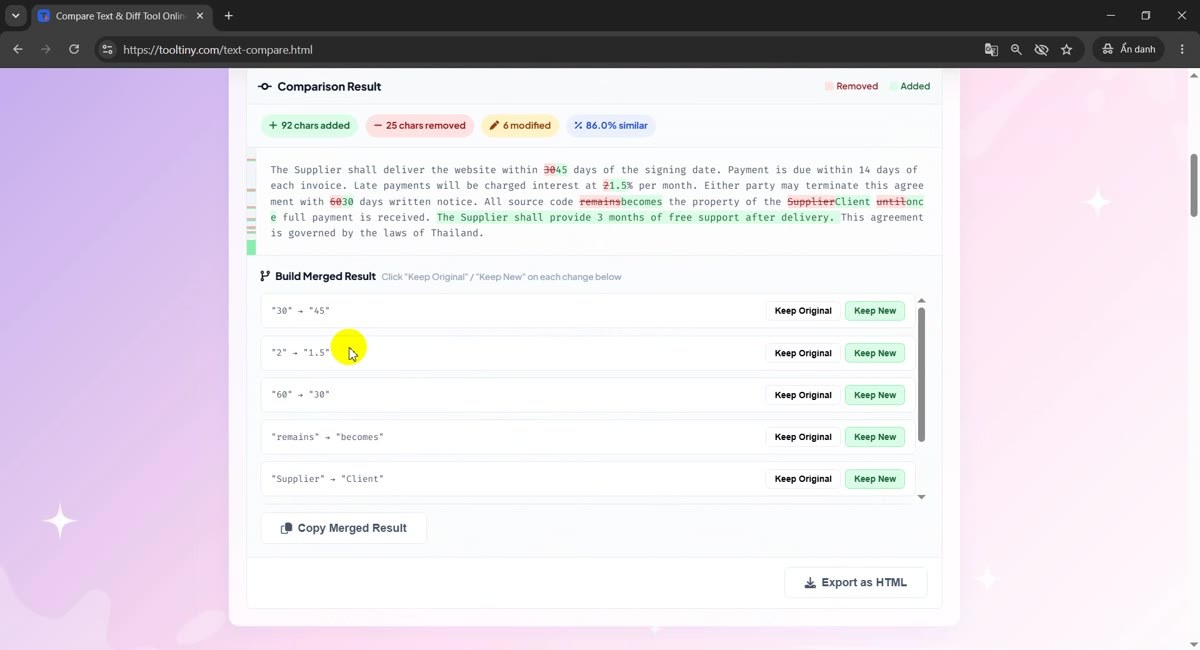
Red is removed, green is added -
Build a merged text
Under the result, Build Merged Result lists every change. Each change has Keep Original and Keep New. A sentence that was only added has Keep It and Discard. By default everything keeps the new version, so the merged text starts out equal to the Changed Text. Click the buttons for the changes you want to undo.
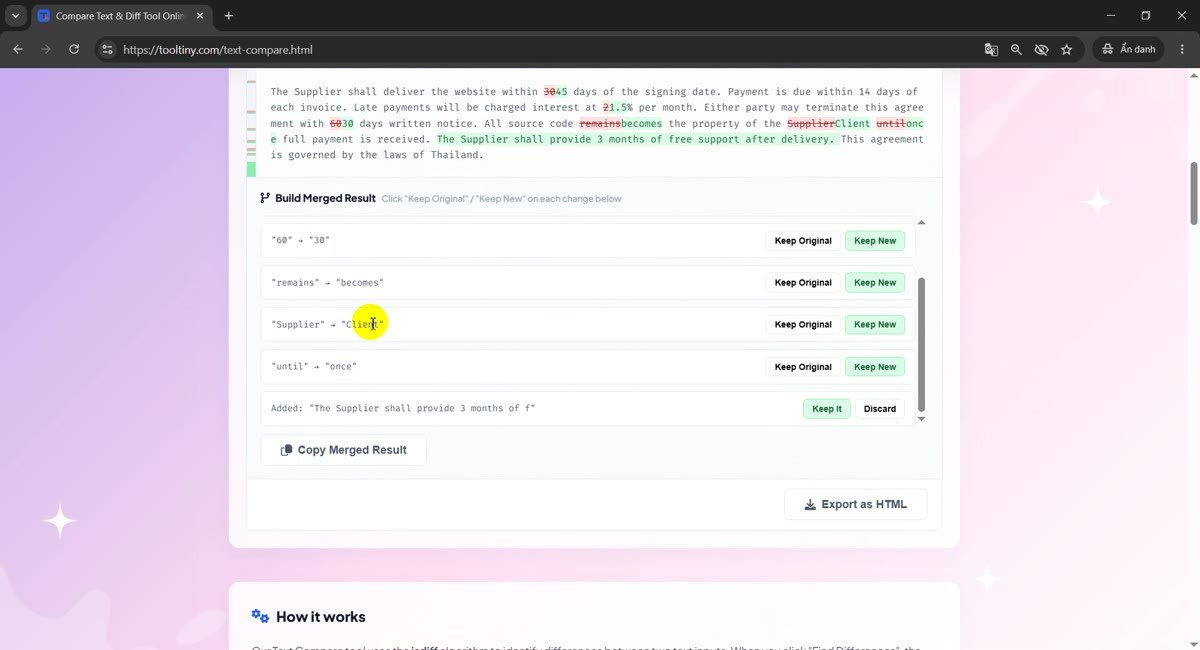
One row per change -
Copy the merged result
Click Copy Merged Result. The text you built is copied to the clipboard, ready to paste into your document or e-mail.
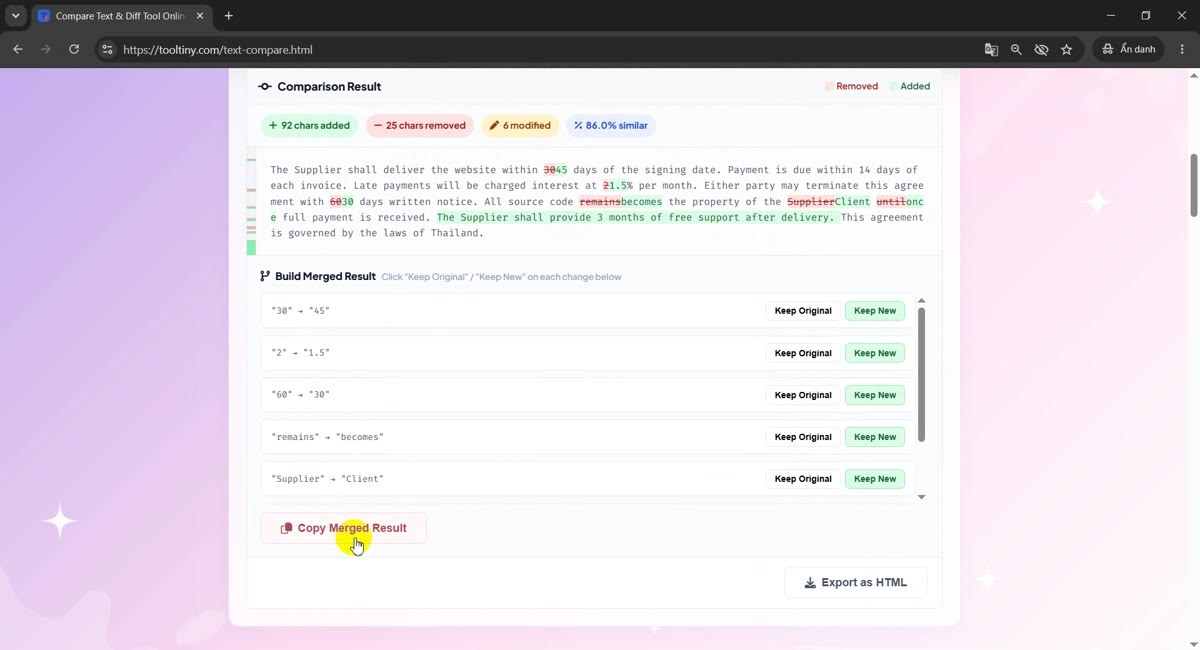
Copy Merged Result -
Export the comparison
Click Export as HTML to download text-compare-result.html. It is a single file that keeps the red and green highlighting and the statistics, so you can attach it to an e-mail or a ticket.
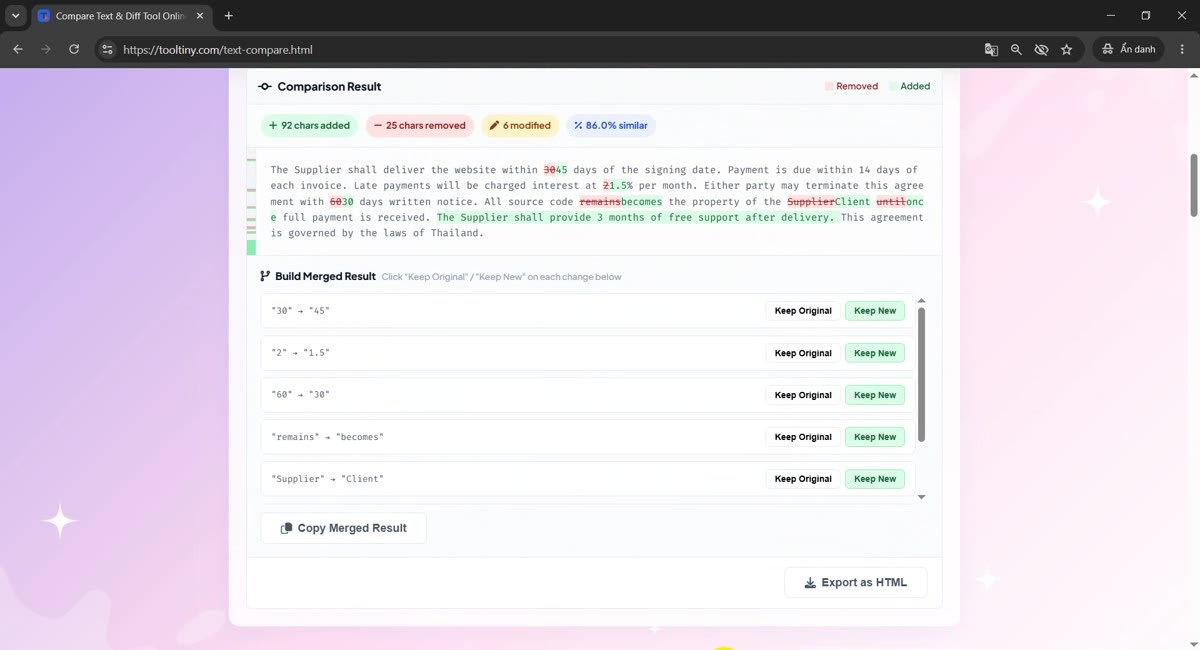
Export as HTML
Word by Word or Line by Line?
The two modes use the same comparison engine but cut the text into different pieces before they compare it. That decides what you see highlighted:
| Word by Word | Line by Line | |
|---|---|---|
| Compares | Words, one after the other | Whole lines |
| What gets highlighted | Only the words that changed inside a sentence | The entire line that changed |
| Best for | Contracts, essays, e-mails, notes | Code, configuration files, logs, lists |
| Spaces and line breaks | Differences in spacing are not reported | A line that differs in any way is reported (see the options below) |
| The statistics bar counts | Characters | Lines |
A simple rule: if the text is written for people, use Word by Word; if each line stands on its own, use Line by Line. If the result in one mode is hard to read, switch the mode and click Find Differences again.
A Real Example: Two Drafts of an Agreement
The two versions in our recording differ only in a few places, but the eye easily misses them in a block of text. This is everything the tool found in Word by Word mode:
| Original | Changed | Why it matters |
|---|---|---|
| within 30 days | within 45 days | Delivery deadline changed |
| interest at 2% per month | interest at 1.5% per month | Late-payment rate changed |
| with 60 days written notice | with 30 days written notice | Termination notice changed |
| source code remains the property | source code becomes the property | Ownership wording changed |
| property of the Supplier | property of the Client | The owner changed |
| until full payment | once full payment | The condition changed |
| (nothing) | The Supplier shall provide 3 months of free support after delivery. | A whole new obligation |
Six of these seven changes are replacements, and that is the 6 modified in the statistics bar: a removed piece directly followed by an added piece counts as one modification. The new sentence is only an addition, so it is not counted there. The other numbers say 92 chars added, 25 chars removed and 86.0% similar. The last figure is the share of characters the two texts have in common, so a high number does not mean the change is small: a single changed number can be the most important change in the whole text.
What Do the Three Options Do?
| Option | What it does | Use it when |
|---|---|---|
| Ignore whitespace | In Line by Line mode, extra spaces and tabs do not make a line different. Word by Word does not report spacing differences anyway. | One file is indented differently or has trailing spaces |
| Ignore case | Upper and lower case letters count as equal. | You do not care about capitalisation |
| Normalize JSON | Parses both texts as JSON, sorts the keys, re-indents them and compares line by line. | You compare two JSON documents whose key order or formatting differs |
If one of the two texts is not valid JSON, the tool tells you so and compares the texts as ordinary text instead. The same happens when a JSON file contains a number with more than 15 digits, because turning such a number into a standard JSON value would round it and two different IDs could then look equal.
Good to Know
- Plain text only. The boxes and the Load File button read text files (.txt, .log, .conf, .py, .js, .html, .json, .md, .csv). Word, Excel and PDF files are not plain text. Copy their text into the boxes, or use Compare Word Documents for .docx files.
- A move is a removal plus an addition. If you move a paragraph, the tool shows it as deleted in one place and added in another.
- The comparison runs in your browser. The text you paste is not sent to our server. Very large texts that differ a lot take longer on a slow device.
- A difference is not an error. The tool shows what changed, not whether the change is right. You still decide that.
- Formatting is not compared. Fonts, colours and styles do not exist in plain text.
- Free: no sign-up needed.
Tips for Better Comparisons
- Put the older text on the left. Red then means “gone” and green means “new”, the way you read a history.
- Start with the statistics bar. If the similarity is very low, you may have pasted the wrong two texts.
- Click the strip next to the result. The narrow strip on its left edge is a map of the whole comparison, and clicking a coloured block scrolls to that change.
- Clean the line endings first for code. If two files differ only by indentation, tick Ignore whitespace.
- Normalize before you compare JSON. It removes noise from key order and indentation.
- Check numbers twice. Dates, amounts and percentages are the changes people miss most, and the tool marks them as clearly as any other word.
- Use Export as HTML as a record. Attach the exported file to the e-mail where you asked for approval.
- Count what you compare. The Word Counter tells you how long each version is. More guides are on our blog.
Paste both versions and click Find Differences. Free, no sign-up.