How to Repair Corrupted Word, Excel, PowerPoint and PDF Files Online (Free)
You double-click an important report and Word answers with an error. Or Excel says it found a problem with some content. The file may be damaged by an interrupted save, a bad download, a full disk or a USB drive that was pulled out too early. This guide shows how to try to repair a corrupted Word, Excel, PowerPoint or PDF file online with ToolTiny, what the repair log tells you, and what you can realistically expect to get back.
When Office Files Get Corrupted
- An interrupted save. The power went off or the app crashed while writing the file.
- An incomplete download or copy. The file on disk is only part of the original.
- A failing drive or USB stick. Some data blocks could not be read back.
- An email or sync problem. An attachment was cut or a cloud sync stopped half way.
- Software conflicts. Another program changed the file while it was open.
First make a copy of the damaged file and work on the copy. Check the Recycle Bin, Windows Previous Versions, your cloud history and any backups too, because a good older version is always better than a repaired one.
Watch the Whole Process
The recording shows the errors in Word and Excel, repairs both files with ToolTiny and opens the results.
How to Repair a Corrupted Office File, Step by Step
-
Recognize the problem
The usual signs are an error as soon as you open the file. Word says Word experienced an error trying to open the file and suggests the Text Recovery converter. Excel says We found a problem with some content and offers to recover as much as it can.
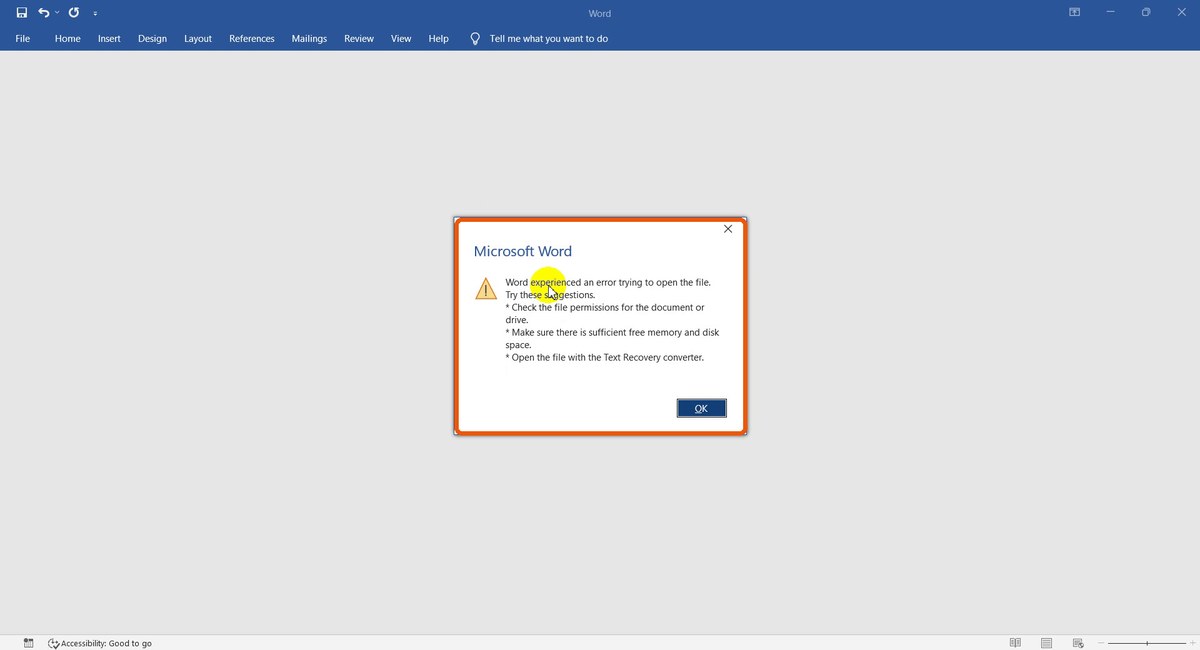
Word cannot open the file -
Do not overwrite the file
If Excel offers recovery, you can try it, but keep a copy of the damaged original first. The repair tool never changes your original, so it stays available for other attempts.
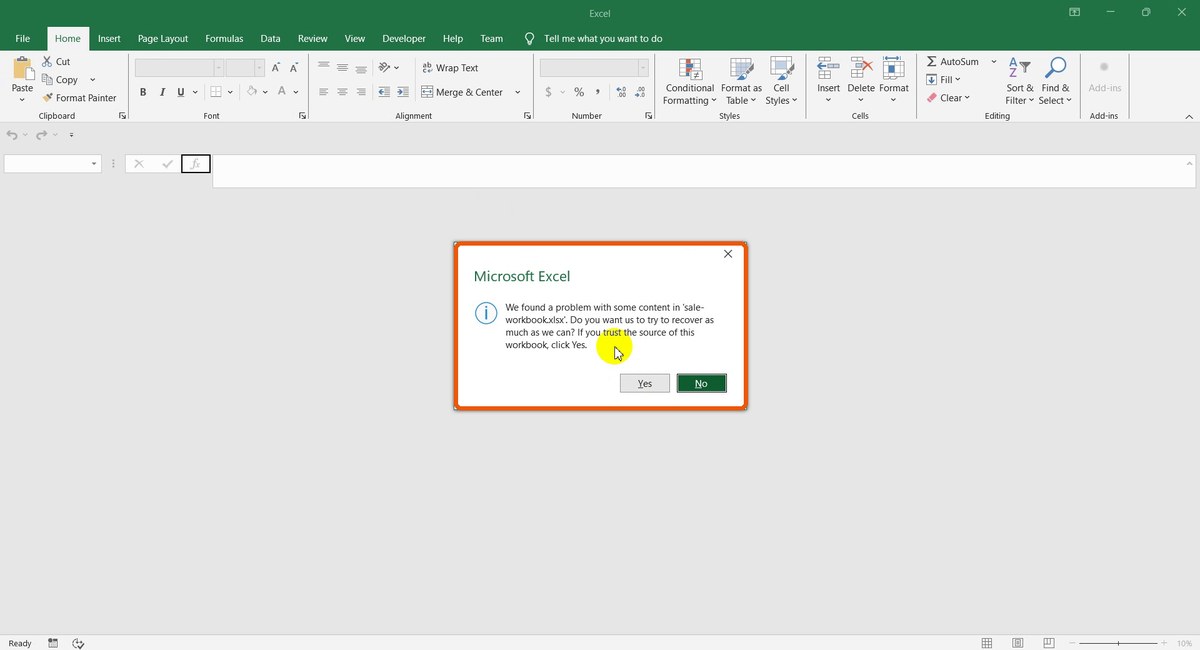
Excel found a problem -
Open Repair Office File
In the top bar open Document Tools and choose Repair Office File, or go to tooltiny.com/repair-office-file.html.
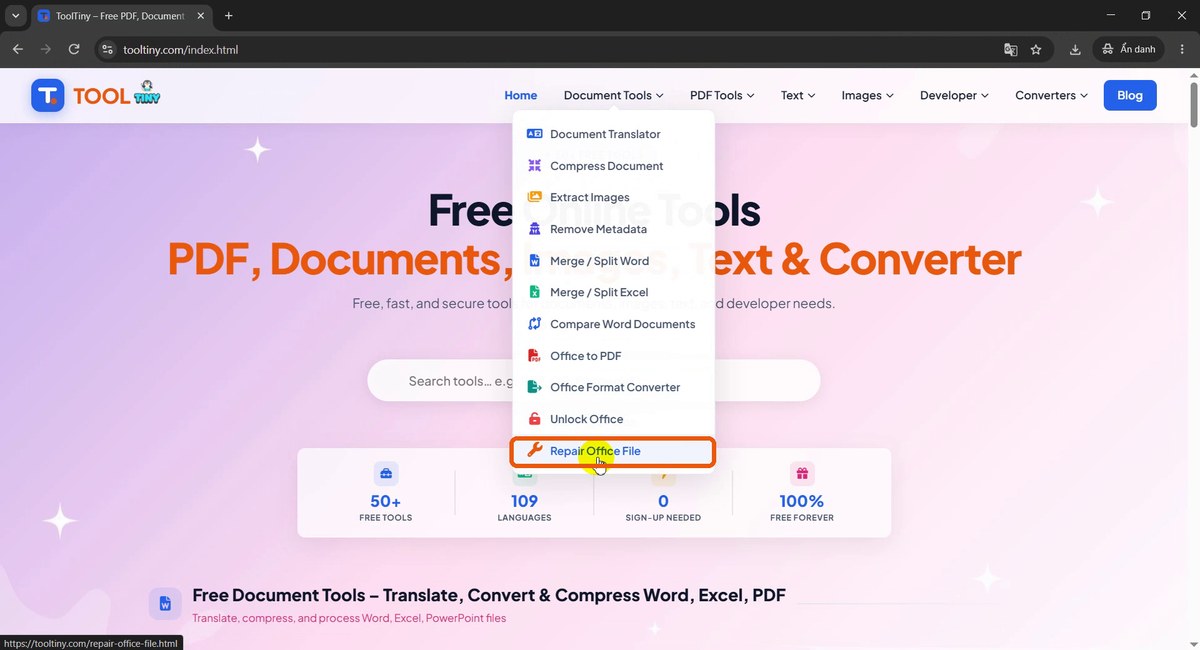
Document Tools → Repair Office File -
Find the upload box
The page is titled Repair Corrupted Office & PDF Files Online. Under the tags DOCX / DOC, XLSX / XLS, PPTX / PPT and PDF, the box says Drop your corrupted file here, or click to browse. We'll try to recover it. The limit is 50 MB.

Drop your corrupted file here -
Choose the damaged file
Click the box and pick the file. We used a damaged Word report and, later, a damaged Excel workbook.
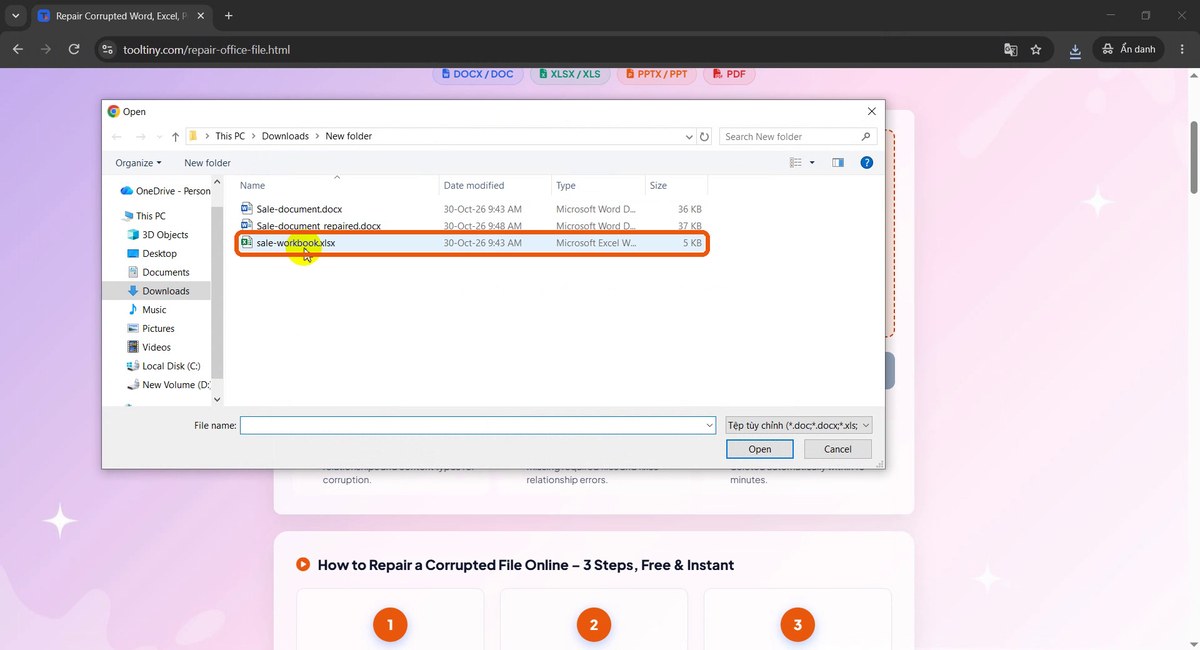
Pick the damaged file -
Click Repair File
The file appears with its name and size, and the orange Repair File button becomes active. Click it.
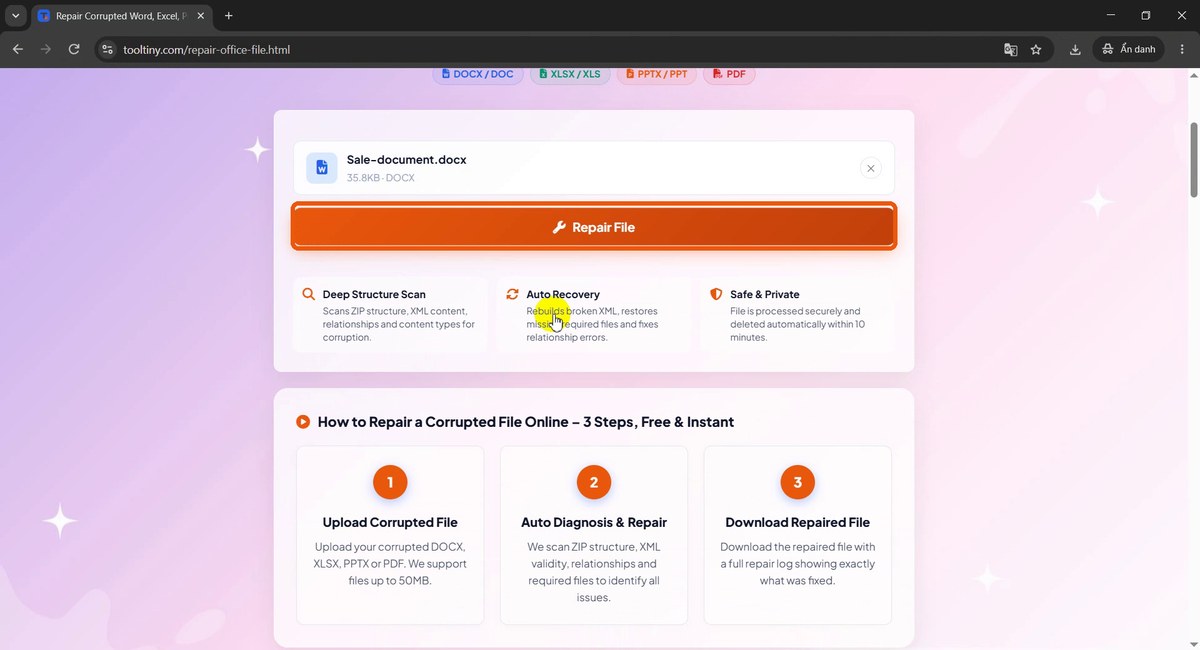
Damaged file ready -
Read the repair log
A progress bar runs to 100% and the Repair Log lists what happened: the ZIP structure is readable,
[Content_Types].xmland_rels/.relswere found, Fixed malformed XML: word/document.xml and Removed 1 broken file reference(s) from relationships. It ends with Repair complete - 2 issue(s) fixed.
Repair log -
Download the repaired file
File repaired successfully! shows the number of fixed issues and the new name,
Sale-document_repaired.docx. Click Download Repaired File and save it, or Repair Another to continue with a second file.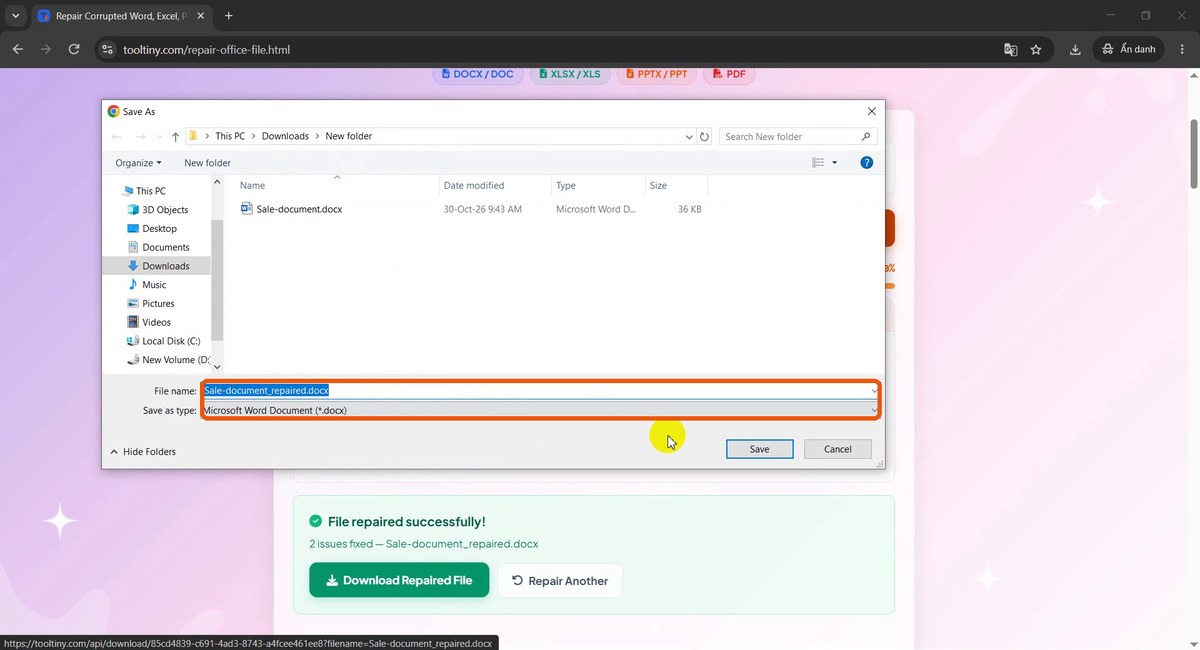
Save the repaired file -
Find the new file
The repaired copy sits next to the original with
_repairedadded to its name. The original is untouched.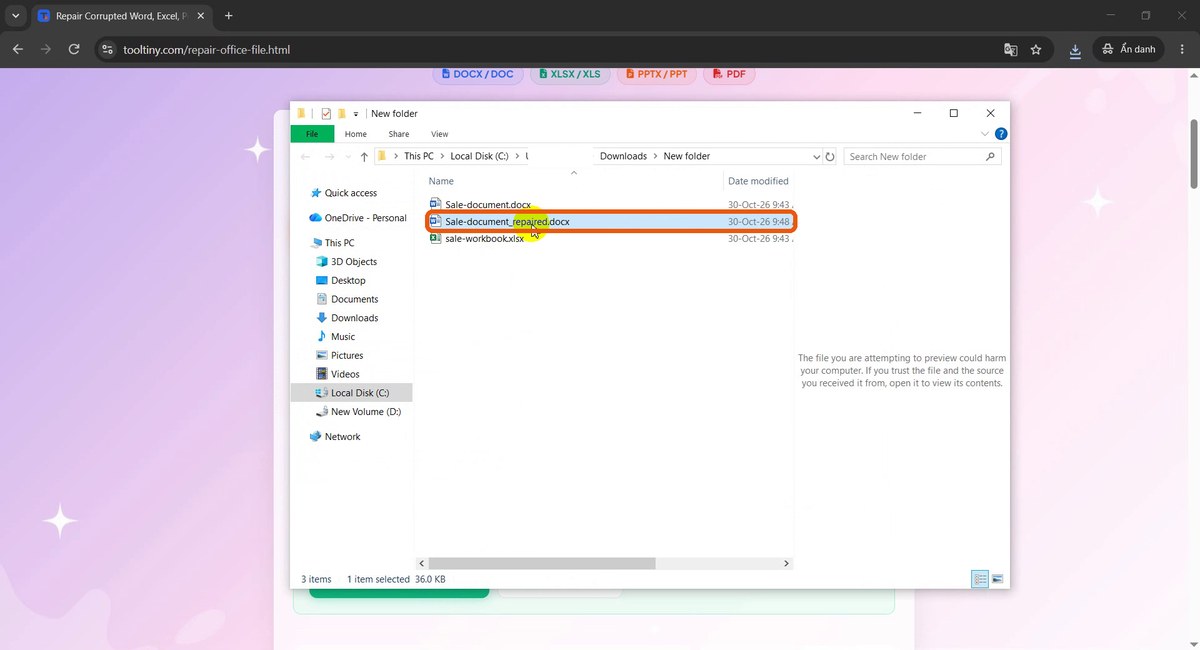
Original and repaired file
What You Get Back: Two Real Examples
We damaged the files on purpose by cutting off the end of the main XML part, which is what happens when a save is interrupted. Both were then repaired with the steps above.
Word document
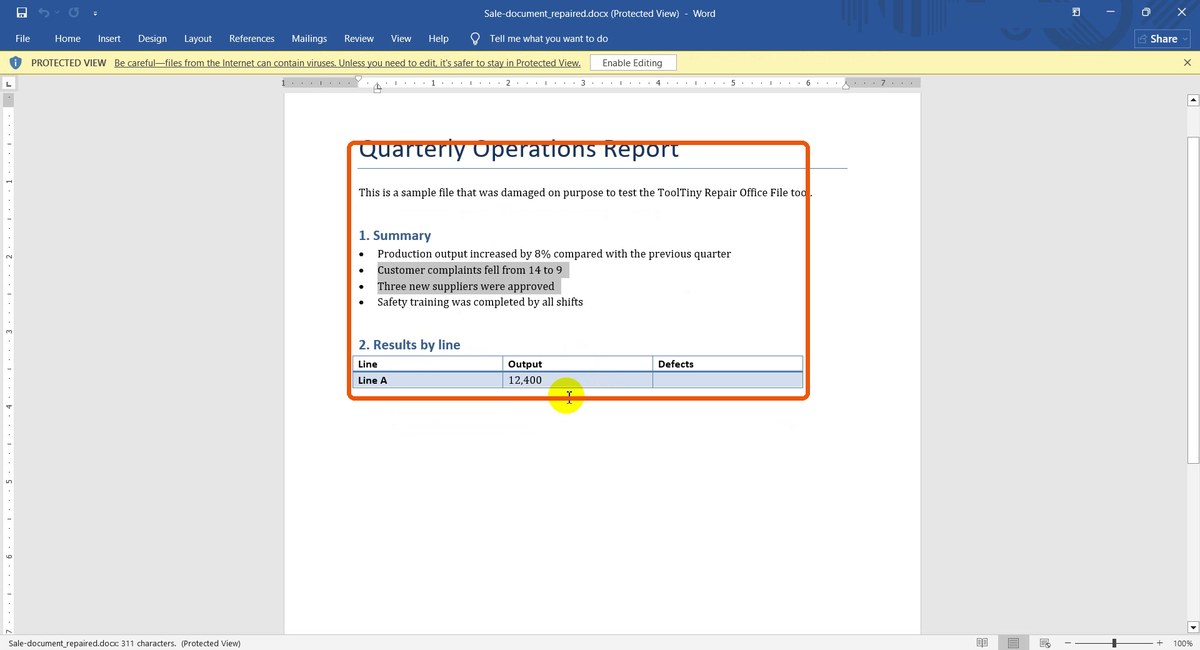
The repaired file opened in Word (in Protected View, because it came from the internet) with the title, the introduction, the Summary list and the start of the results table. Everything after the point where the file was cut, including the rest of the table, could not come back, because that content no longer existed in the file.
Excel workbook
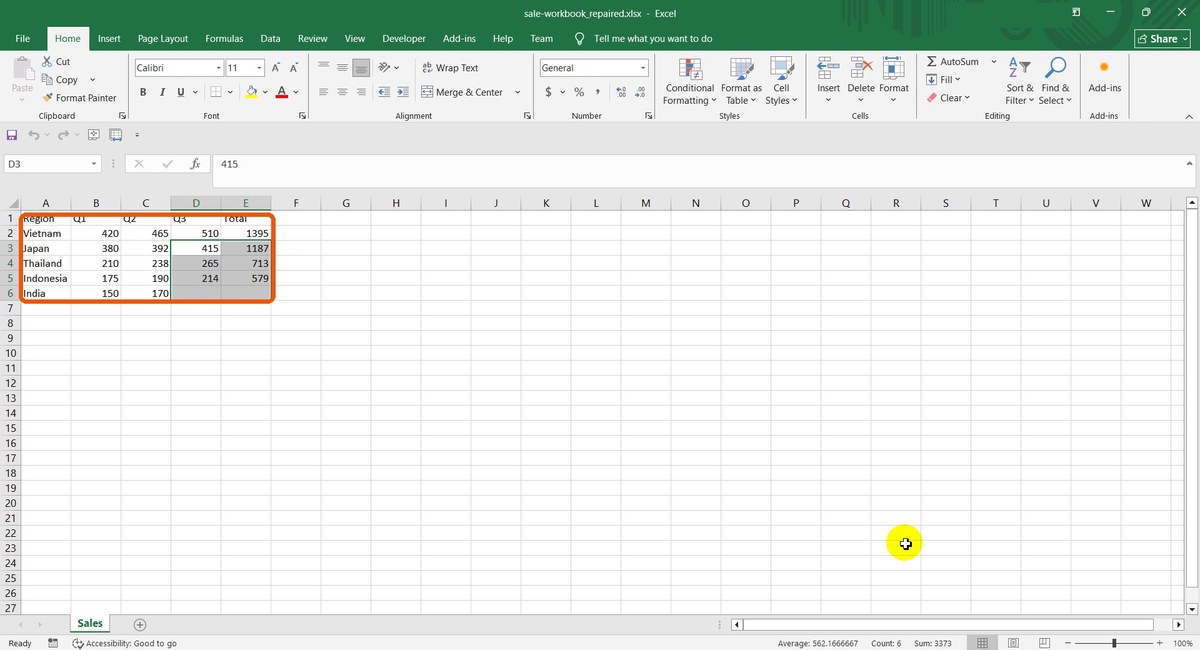
The workbook was repaired with 1 issue fixed (Fixed malformed XML: xl/worksheets/sheet1.xml). Excel opened it and showed the header and the first rows with their totals; the last rows, which came after the damaged point, were missing.

A repair can rebuild structure, but it cannot invent data that was never written to the file. The page says it clearly: severe corruption may result in partial recovery, and text is recovered before formatting and images. Always compare the repaired file with what you expect to see.
Supported Files and Limits
| Type | Extensions | What is checked |
|---|---|---|
| Word | DOCX, DOC | ZIP structure, XML content, relationships, content types |
| Excel | XLSX, XLS | Sheet XML, relationships, references |
| PowerPoint | PPTX, PPT | Slide XML, relationships, media references |
| The document structure is rebuilt | ||
| OpenDocument | ODT, ODS, ODP | Package and content structure |
The maximum size is 50 MB. Old binary formats (DOC, XLS, PPT) are repaired with LibreOffice recovery. Empty files, completely invalid ZIP files and files without their core content cannot be repaired automatically, and the tool may answer that it could not fully repair the file.
Tips to Avoid Losing Files
- Save a copy before experimenting. Keep the damaged original untouched.
- Turn on AutoRecover and version history. OneDrive, SharePoint and Google Drive keep earlier versions that you can restore.
- Eject drives properly. Never pull a USB stick while a file is being saved.
- Check the result in the real app. Open the repaired file in Word, Excel or PowerPoint and look at every page, sheet or slide.
- Convert old files. Move legacy DOC, XLS and PPT files to modern formats with Office Format Converter.
- Mind confidentiality. Files are uploaded for repair and deleted automatically afterwards. Do not upload documents you are not allowed to share.
Upload the file, read the repair log and download the result. Free, no sign-up.