How to Organize PDF Pages Online for Free (Reorder, Drag and Delete Pages)
A report where the appendix comes before the conclusion, a scan with blank pages in the middle, a contract whose confidential page must go last: pages are rarely in the right place the first time. You do not need desktop software to organize PDF pages. This guide shows how to delete pages and drag the rest into a new order online with ToolTiny, with a real 8-page example that ends as a clean 6-page file.
Why Organize the Pages of a PDF
- Wrong order. Scans and merged files often put pages in the wrong sequence.
- Blank or duplicate pages. Remove them before printing or sending.
- Sensitive pages. Move internal notes to the end or delete them from the version you share.
- Applications and forms. Portals often want pages in a fixed order.
- One pass. Delete and reorder in the same tool instead of using two.
Watch the Whole Process
The recording uploads an 8-page PDF, deletes pages 3 and 7, drags the confidential page to the end, applies the changes and checks the 6-page result.
How to Organize PDF Pages, Step by Step
-
Open Organize PDF
In the top bar open PDF Tools and choose Organize PDF, or go straight to tooltiny.com/organize-pdf.html.
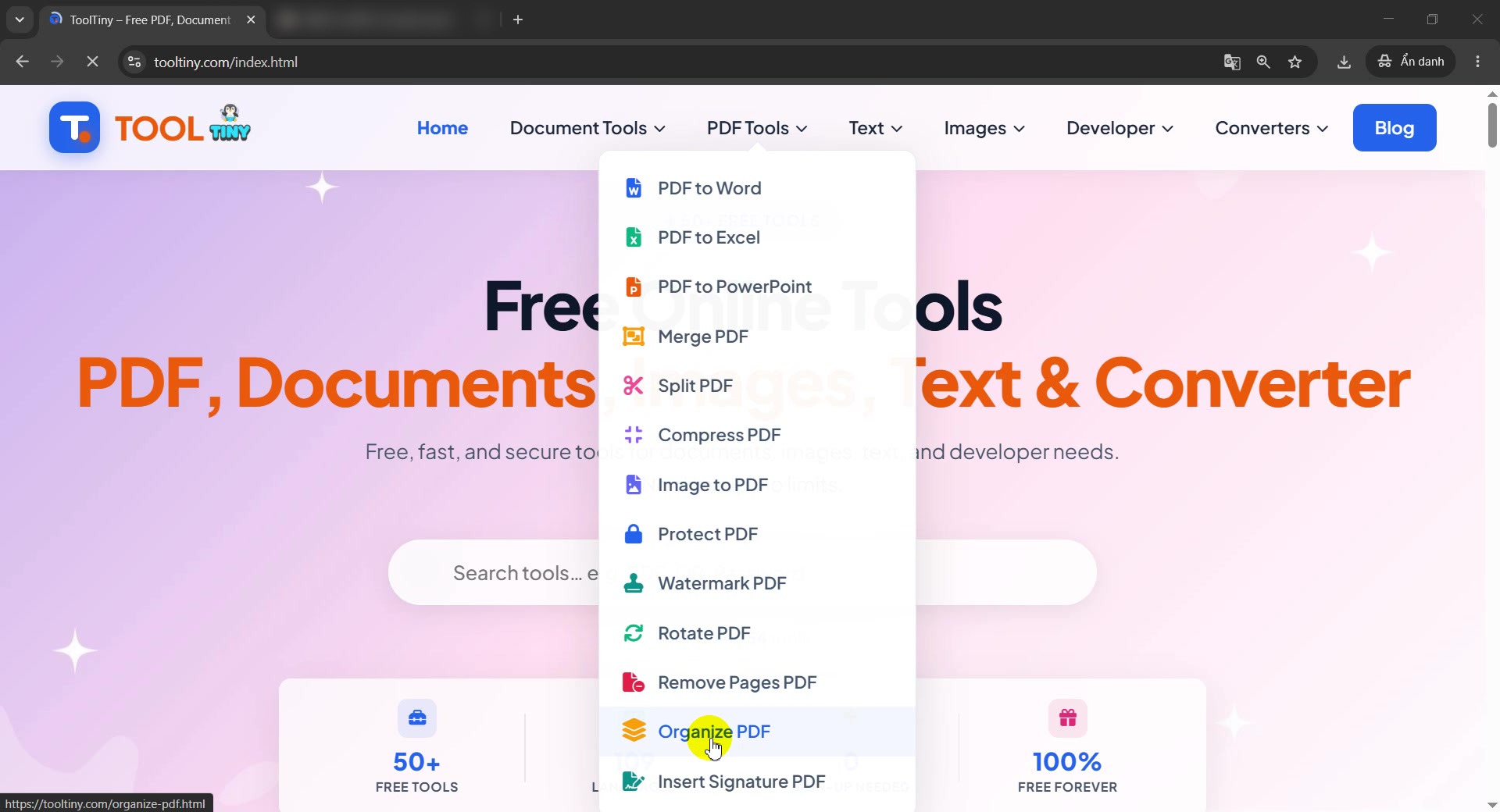
PDF Tools → Organize PDF -
Check you are on the right page
The page is titled Organize PDF Pages. It promises that you can reorder and delete pages with drag and drop, with no sign-up and no account.
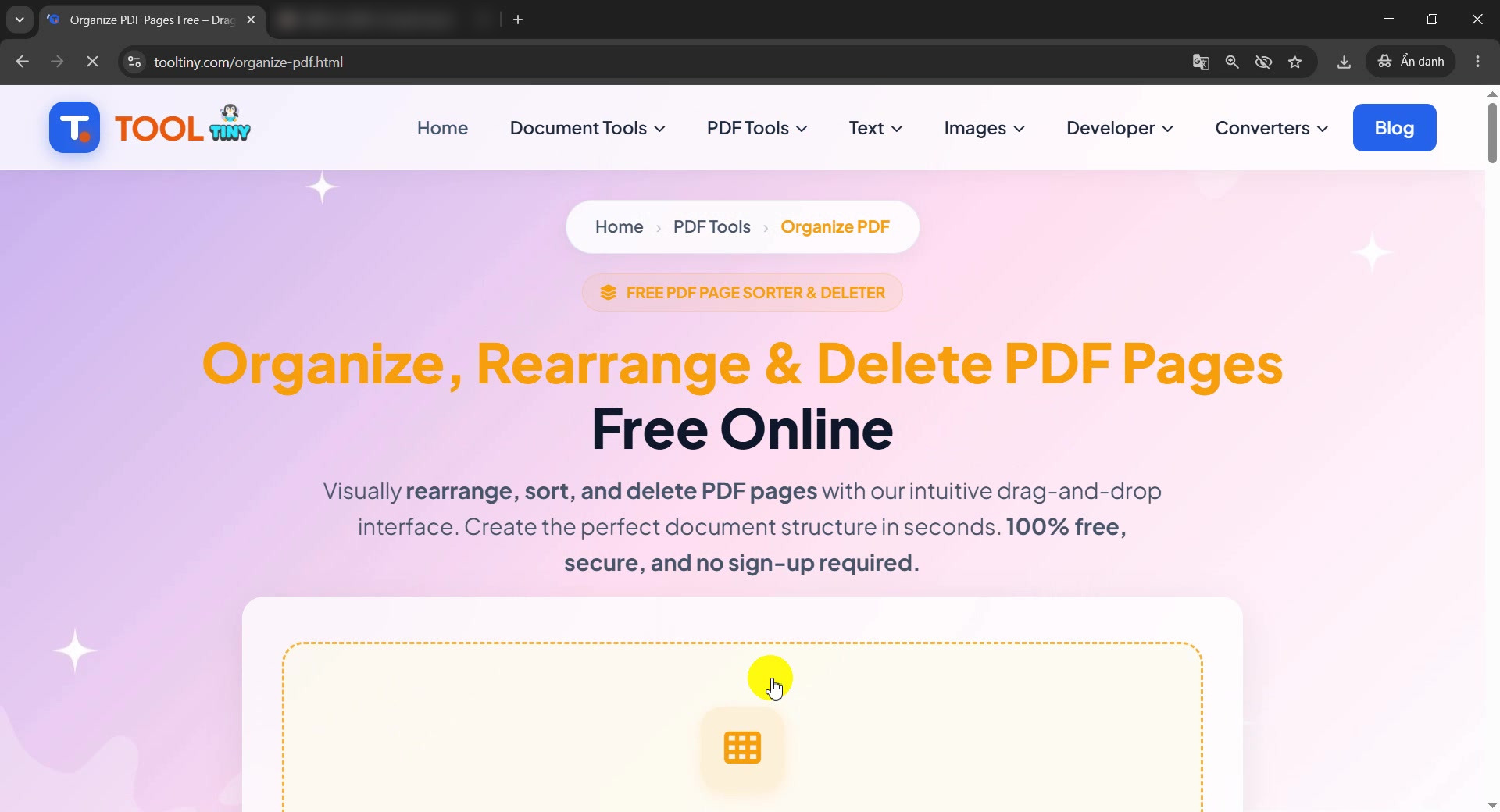
The Organize PDF tool page -
Find the upload box
Scroll down to the dashed upload box. You can drag a PDF into it or click it to browse your computer.
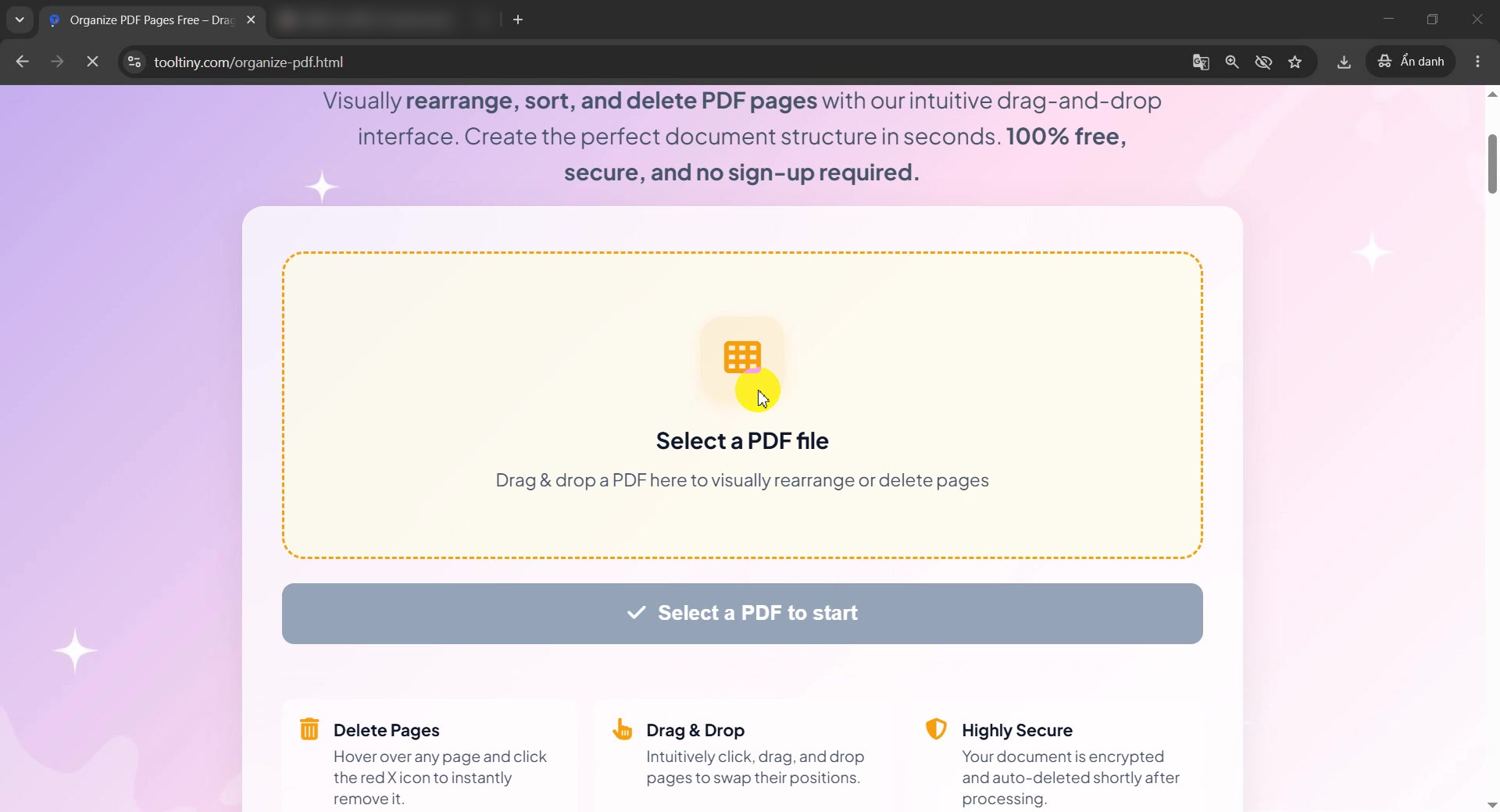
Click the upload box -
Choose your PDF
Pick the document in the Open dialog. Our test file is sample-pages.pdf, a short report with 8 pages, one of them marked confidential.
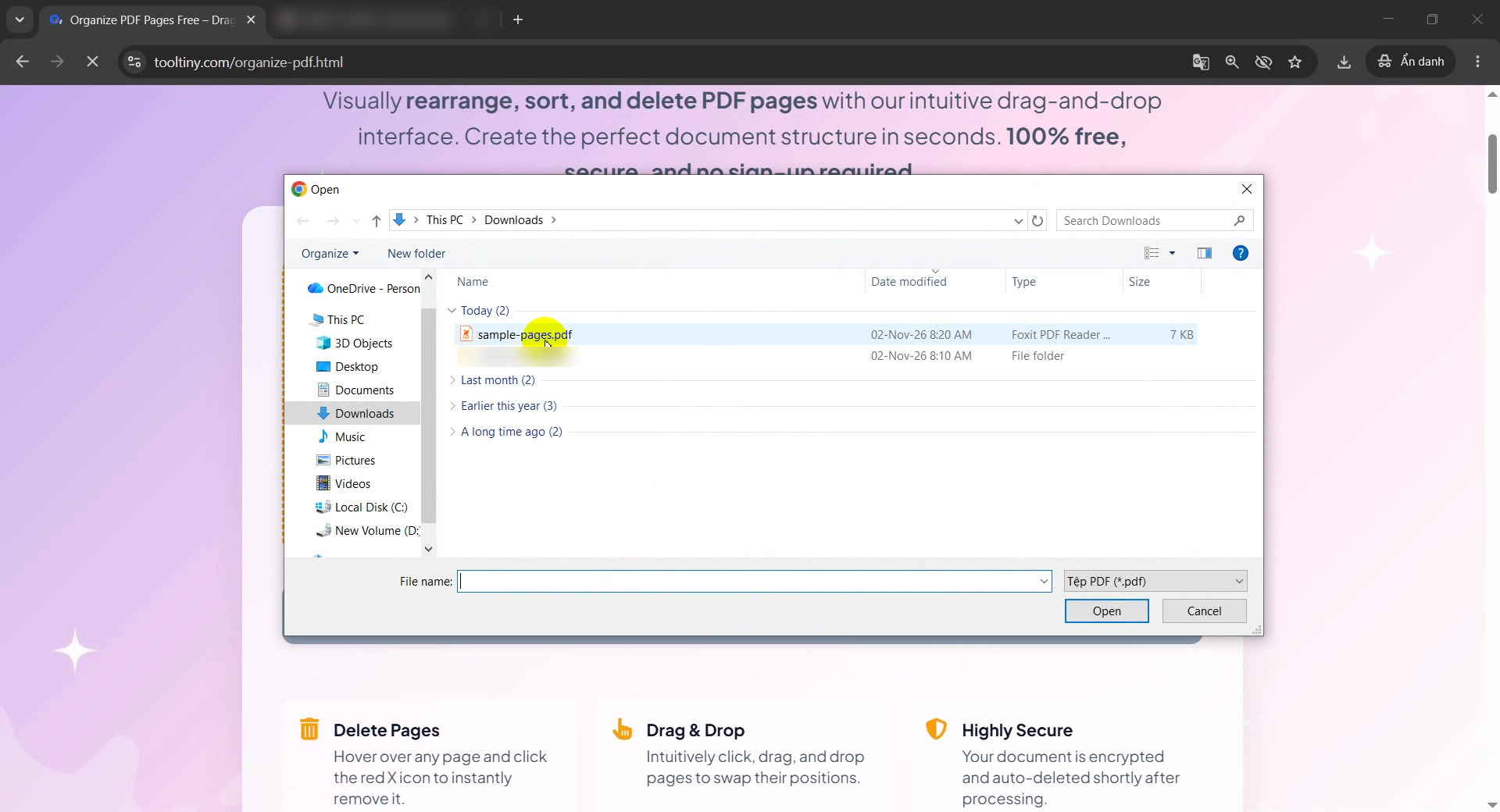
Choose the PDF -
See the file added
The file appears with its name and the number of pages: 8 pages.
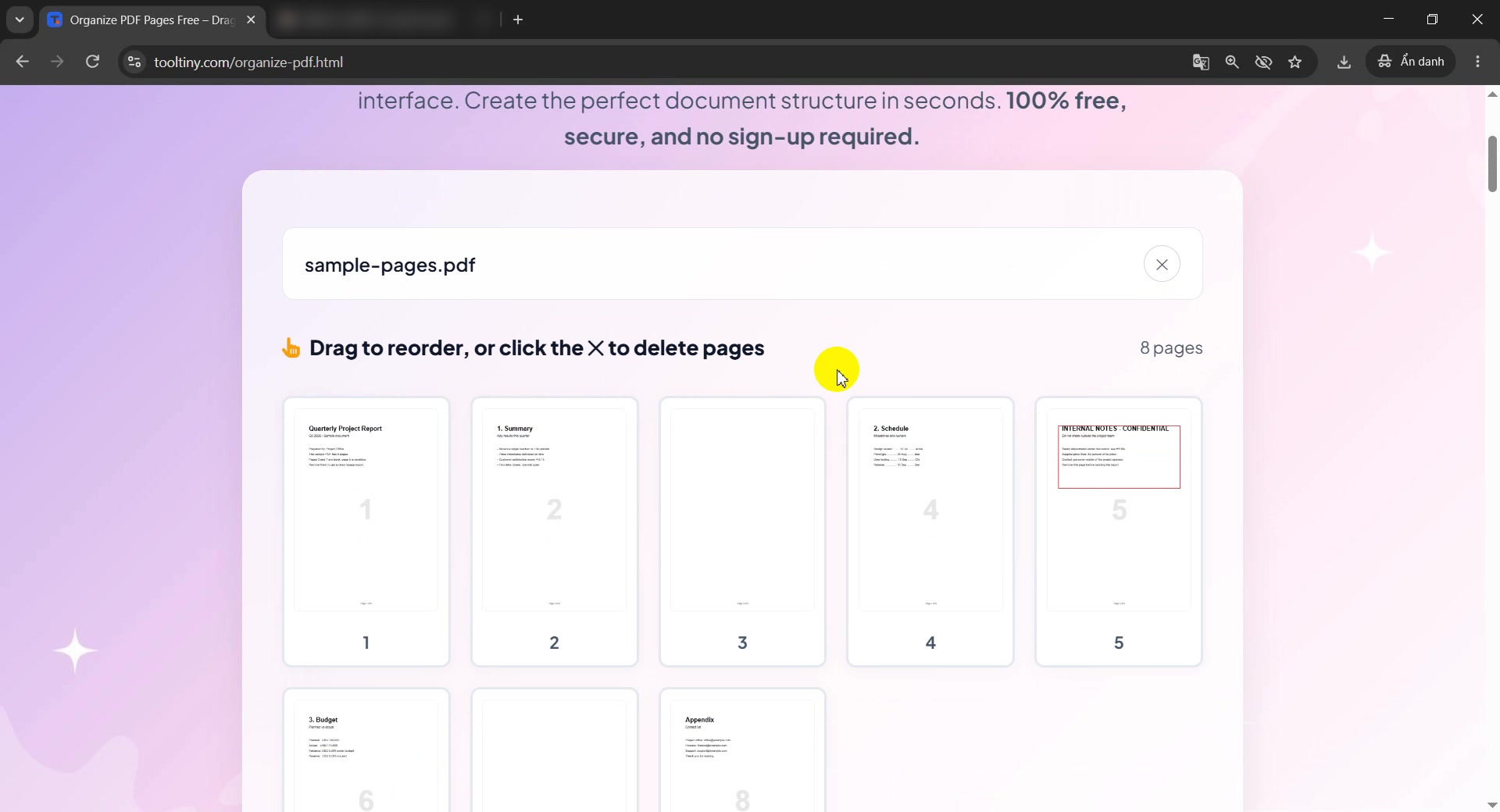
File added: 8 pages -
Look at the page thumbnails
Every page is shown as a thumbnail. Below them you see the Apply Changes button, which stays ready until you are happy with the new layout.
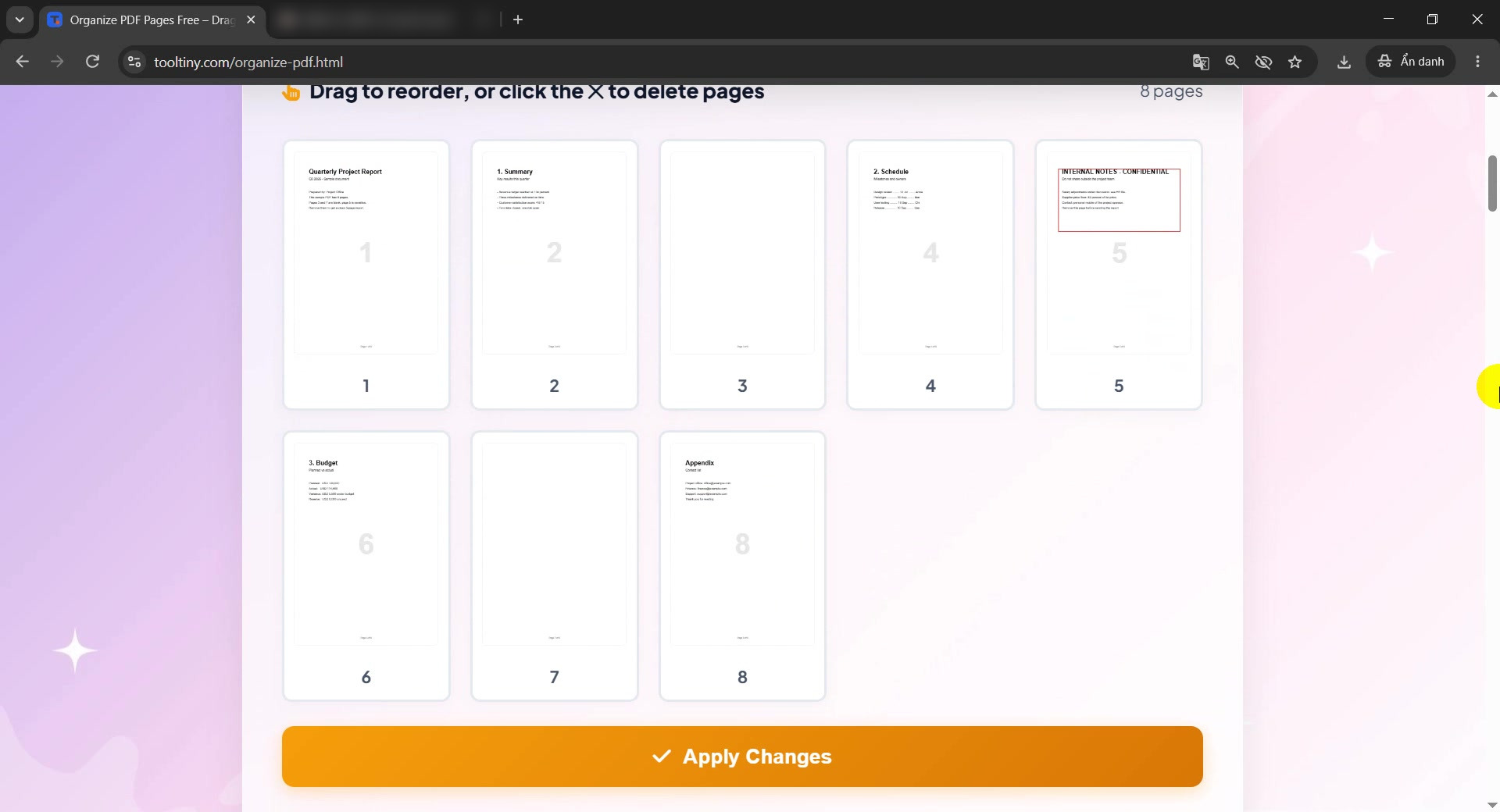
Thumbnails and Apply Changes -
Delete the first unwanted page
Move the mouse over a thumbnail and a small X appears in its corner. Click it to delete that page. We removed page 3, a blank page.
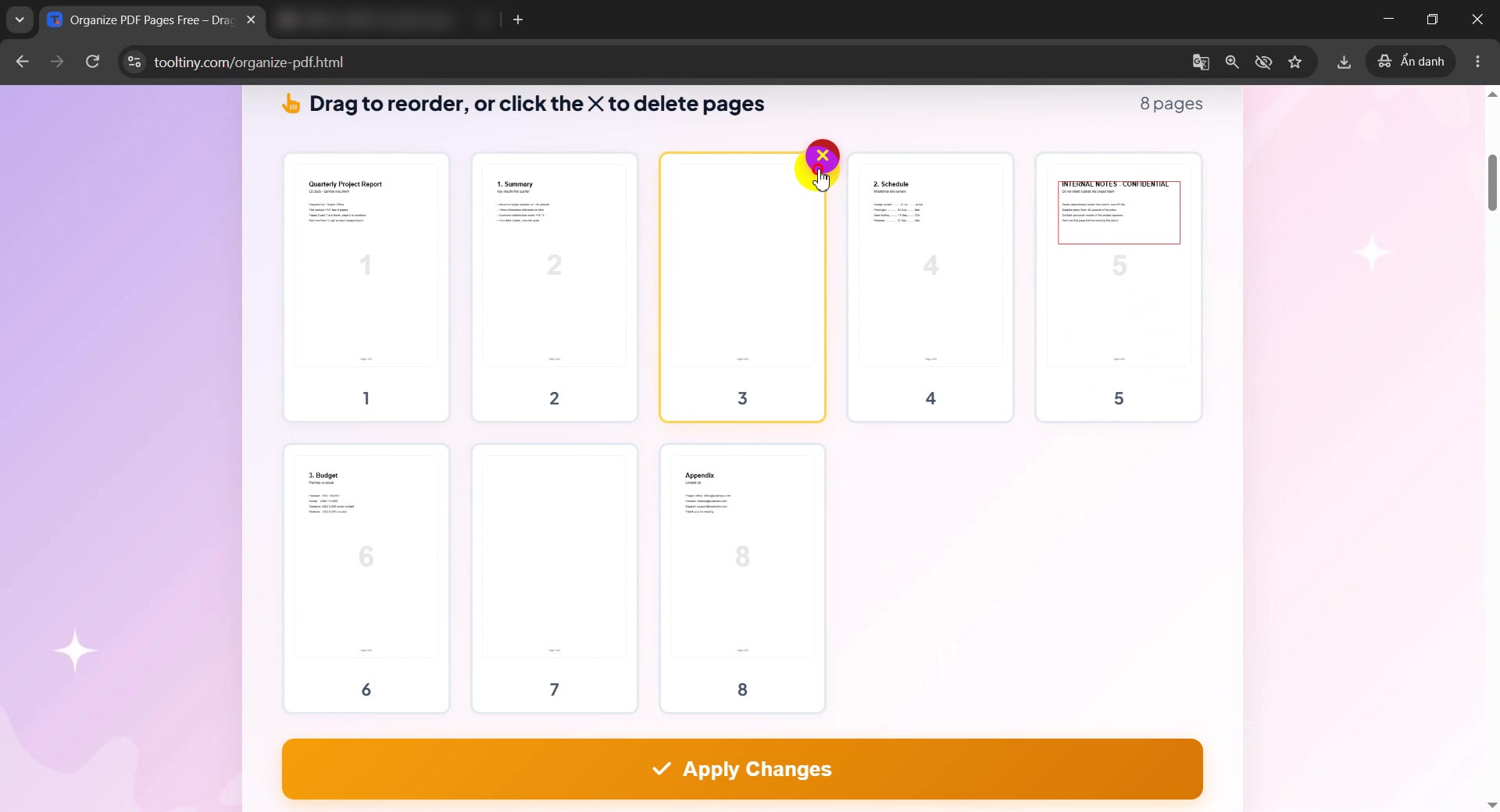
Click the X on page 3 -
Delete another page
Hover over the next unwanted page; the tooltip says Remove this page. We removed page 7, also blank, and the counter dropped to 7 pages.
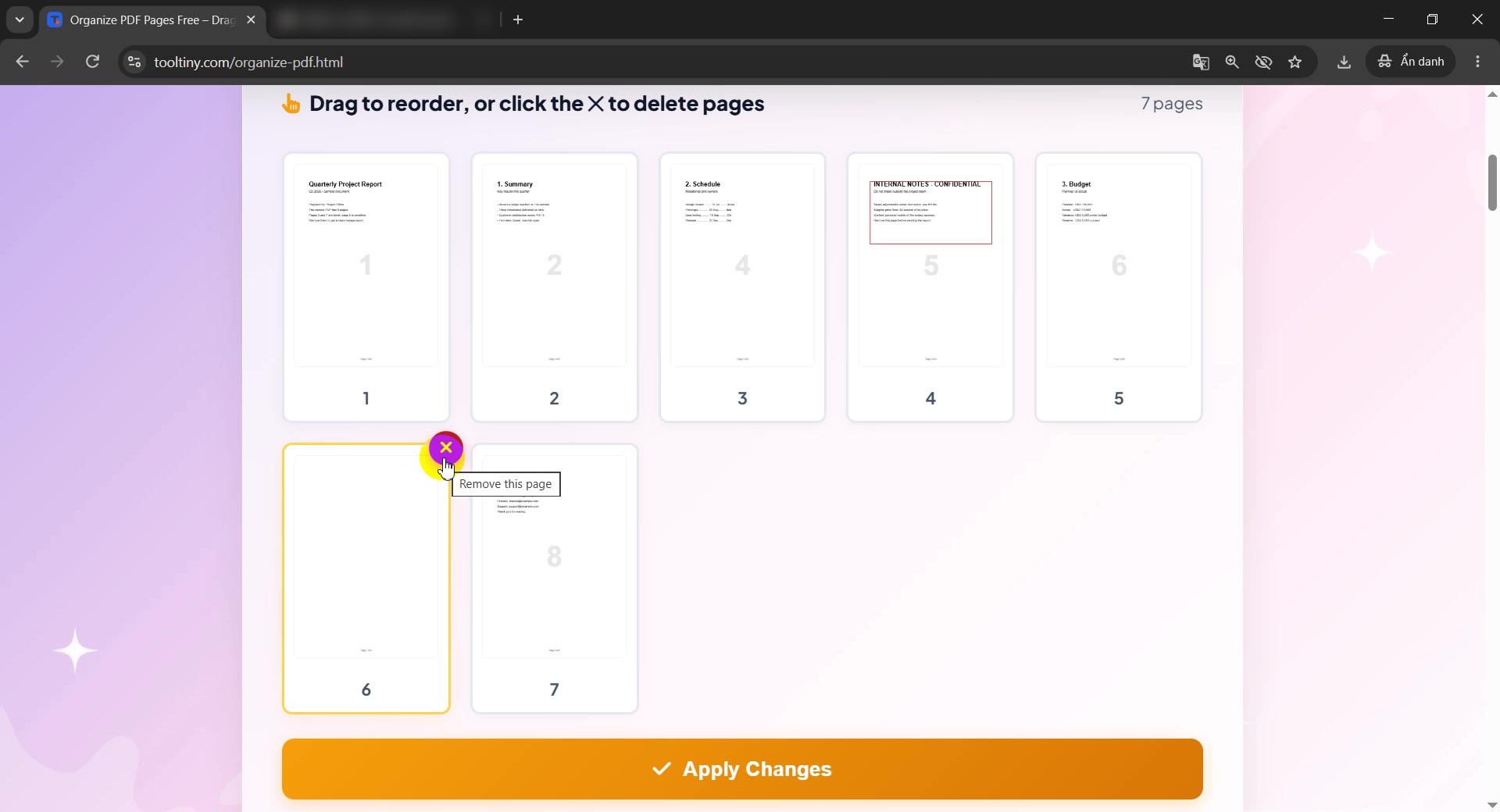
Remove this page -
Check the remaining pages
After the two deletions 6 pages are left: the document is already shorter, and nothing has been saved yet, so you can still change your mind.
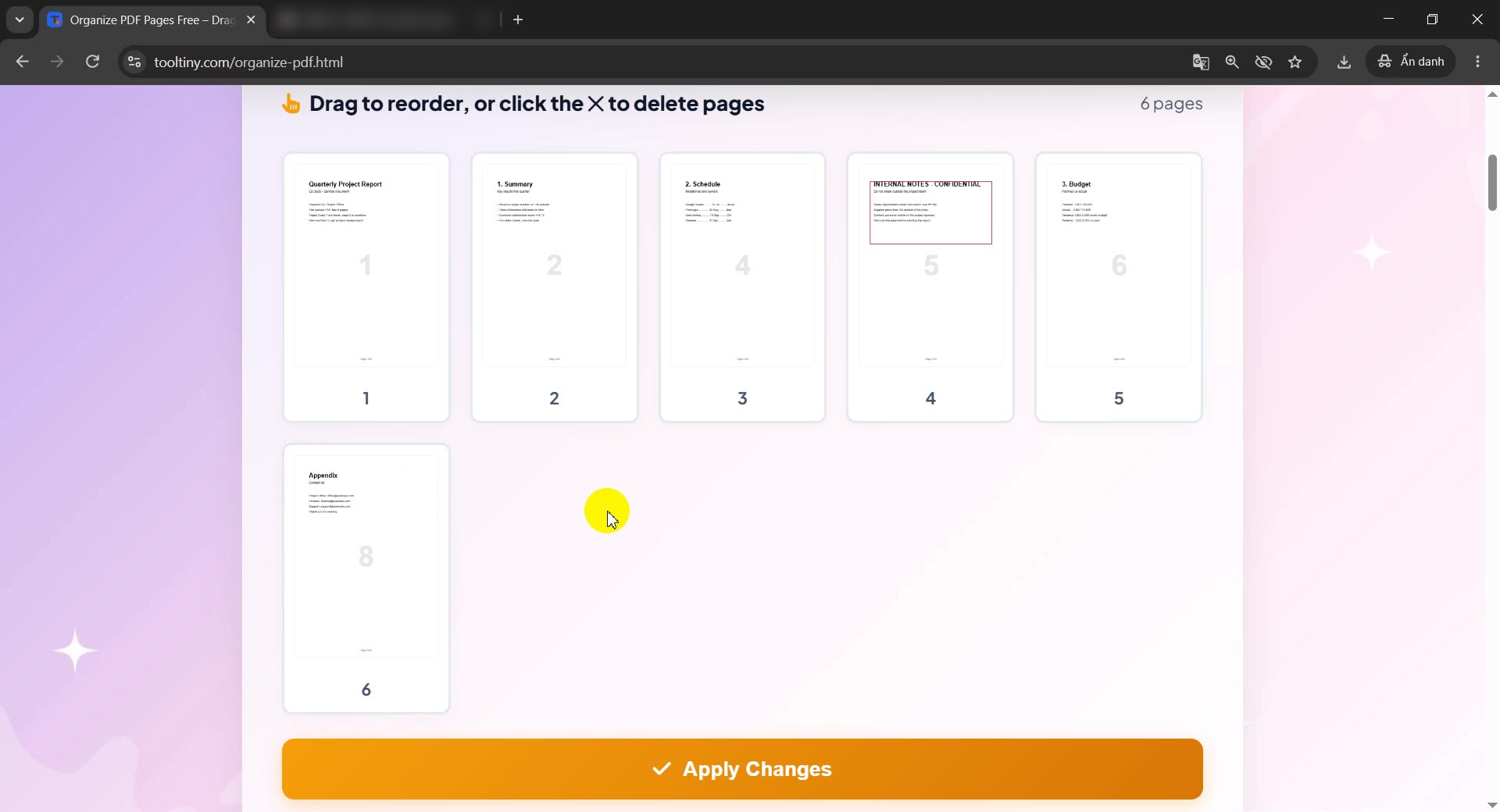
Six pages left -
Drag a page to a new position
Press and hold a thumbnail, then drag it to where you want it. We dragged the confidential page towards the end of the document.
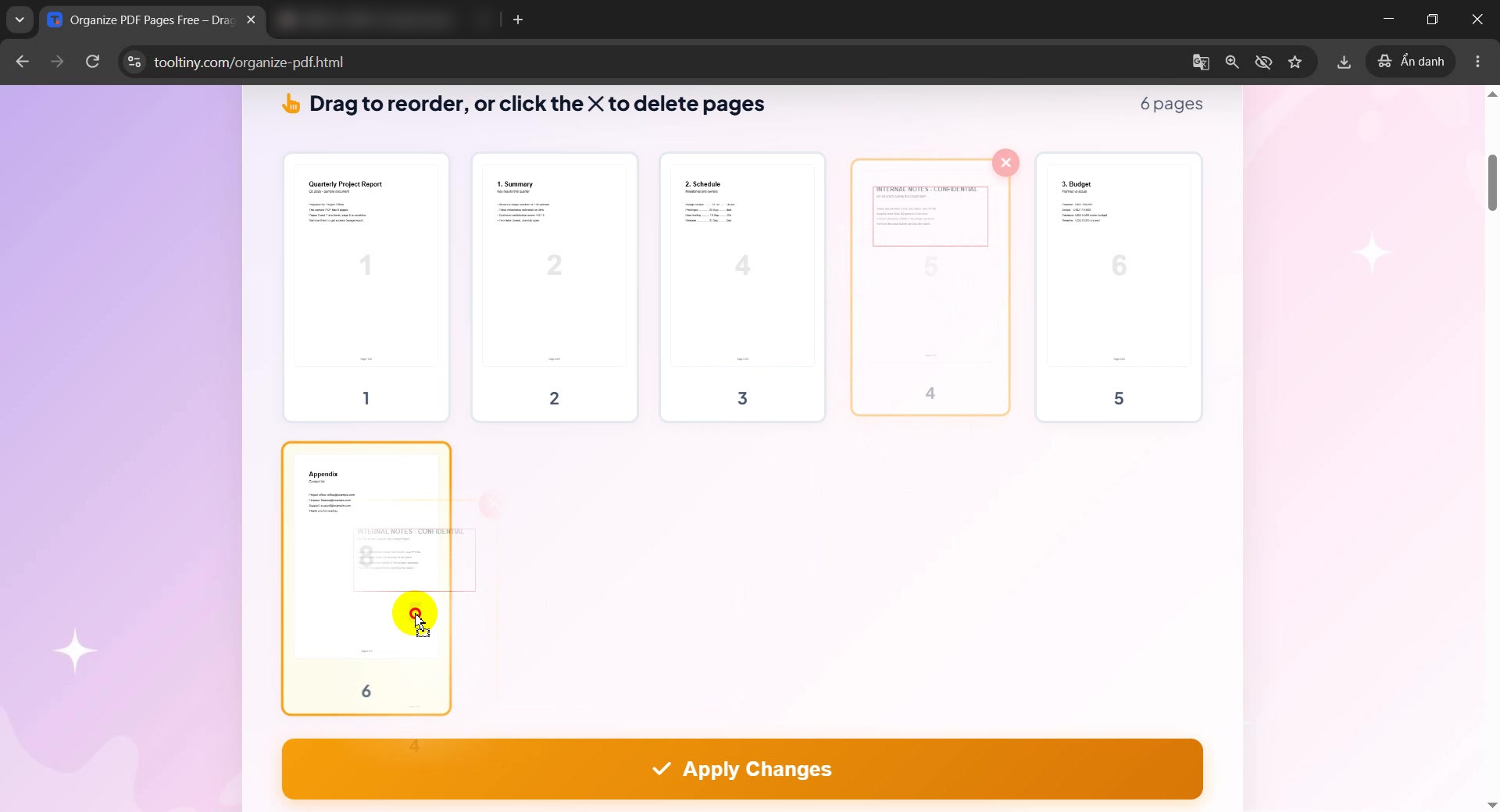
Drag the page -
Check the new order
Drop the page and the thumbnails rearrange. The confidential page is now the last one, so a reader reaches the appendix first.
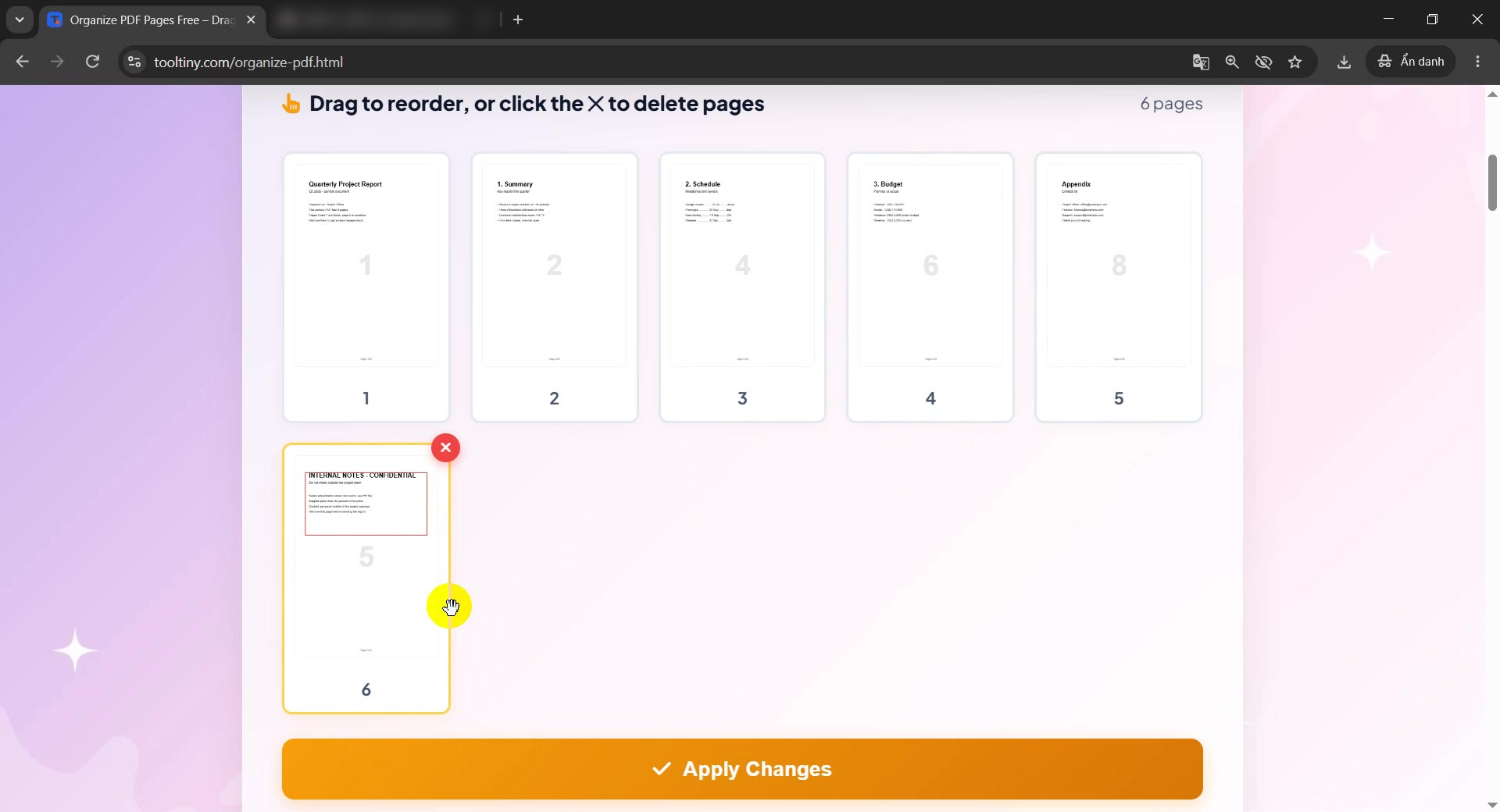
Confidential page is now last -
Click Apply Changes
When the layout looks right, click Apply Changes once. The button shows Processing… for a few seconds.
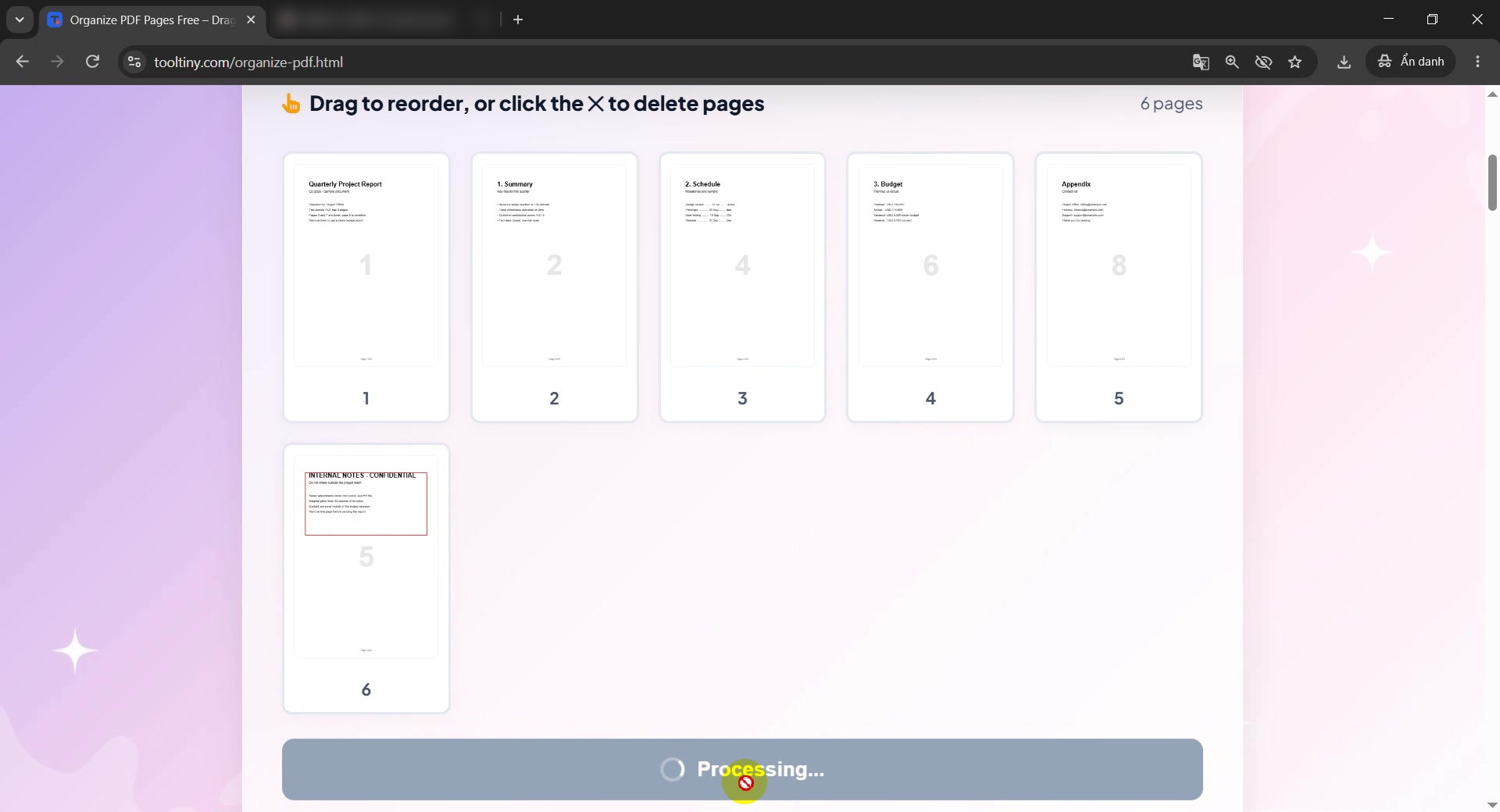
Apply Changes → Processing -
Download the new PDF
The message Document Reordered Successfully! appears with a download button. Click it to get the new file.
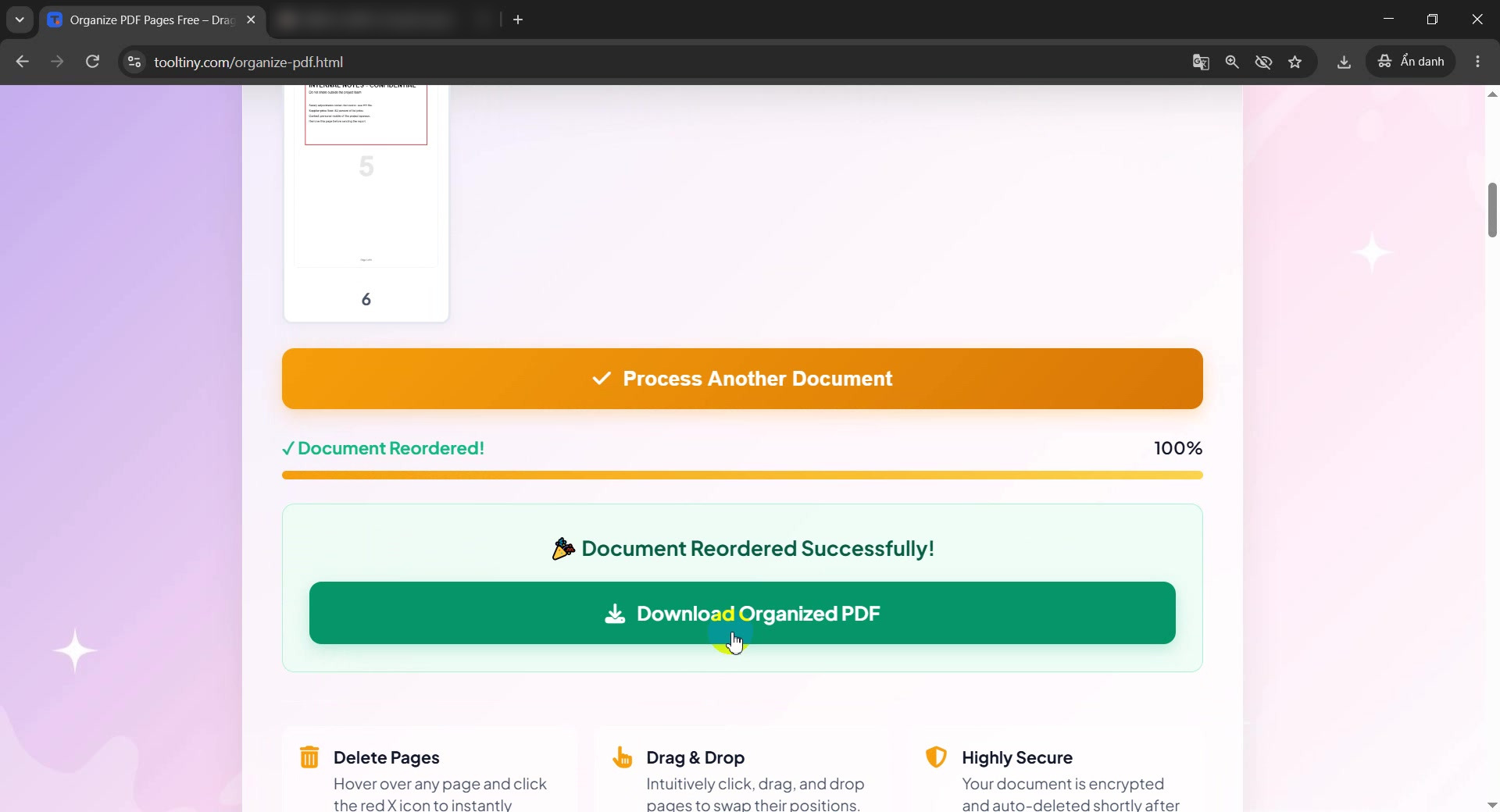
Document Reordered Successfully! -
Save the file
Your browser asks where to save the file. The suggested name is
sample-pages_organized.pdf: your original name with_organizedadded.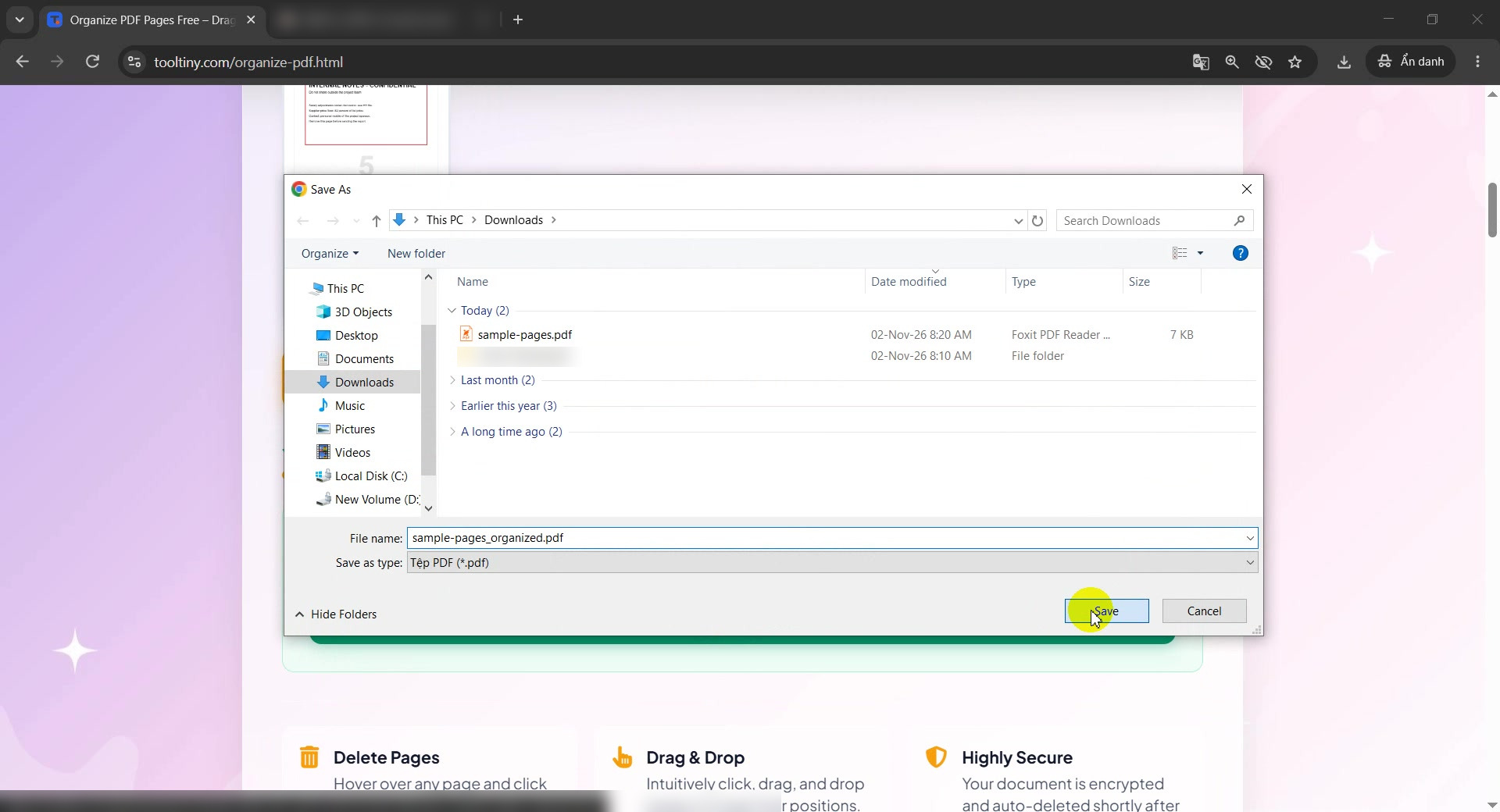
Save the organized PDF -
Open the new PDF and check page 1
Open the file in any PDF reader. The counter reads 1 / 6: the document now has 6 pages instead of 8 and starts as before.
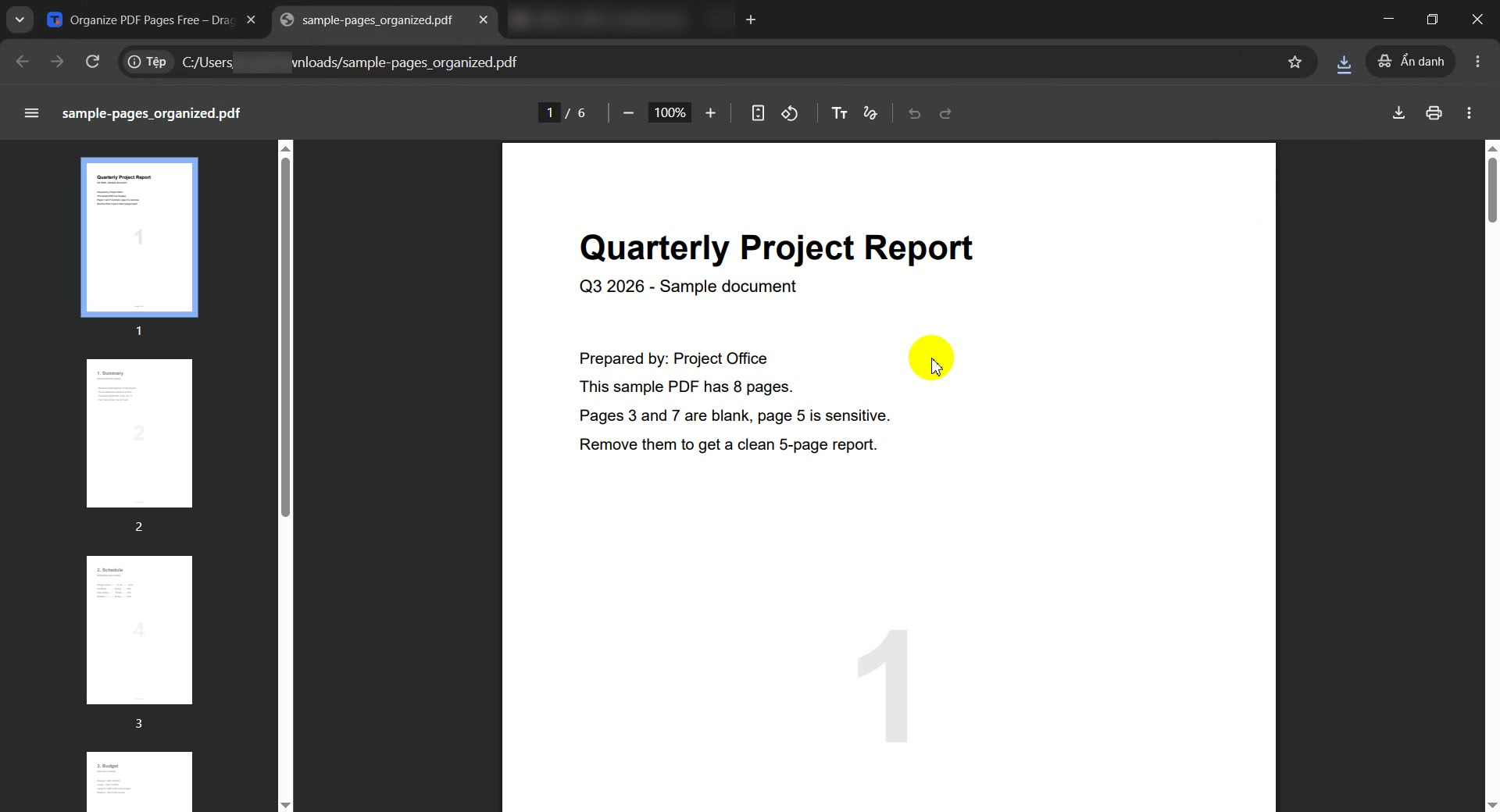
Page 1 of 6 -
Scroll to the later pages
Near the end you find the Appendix as page 5 of 6. It used to sit after the confidential page.
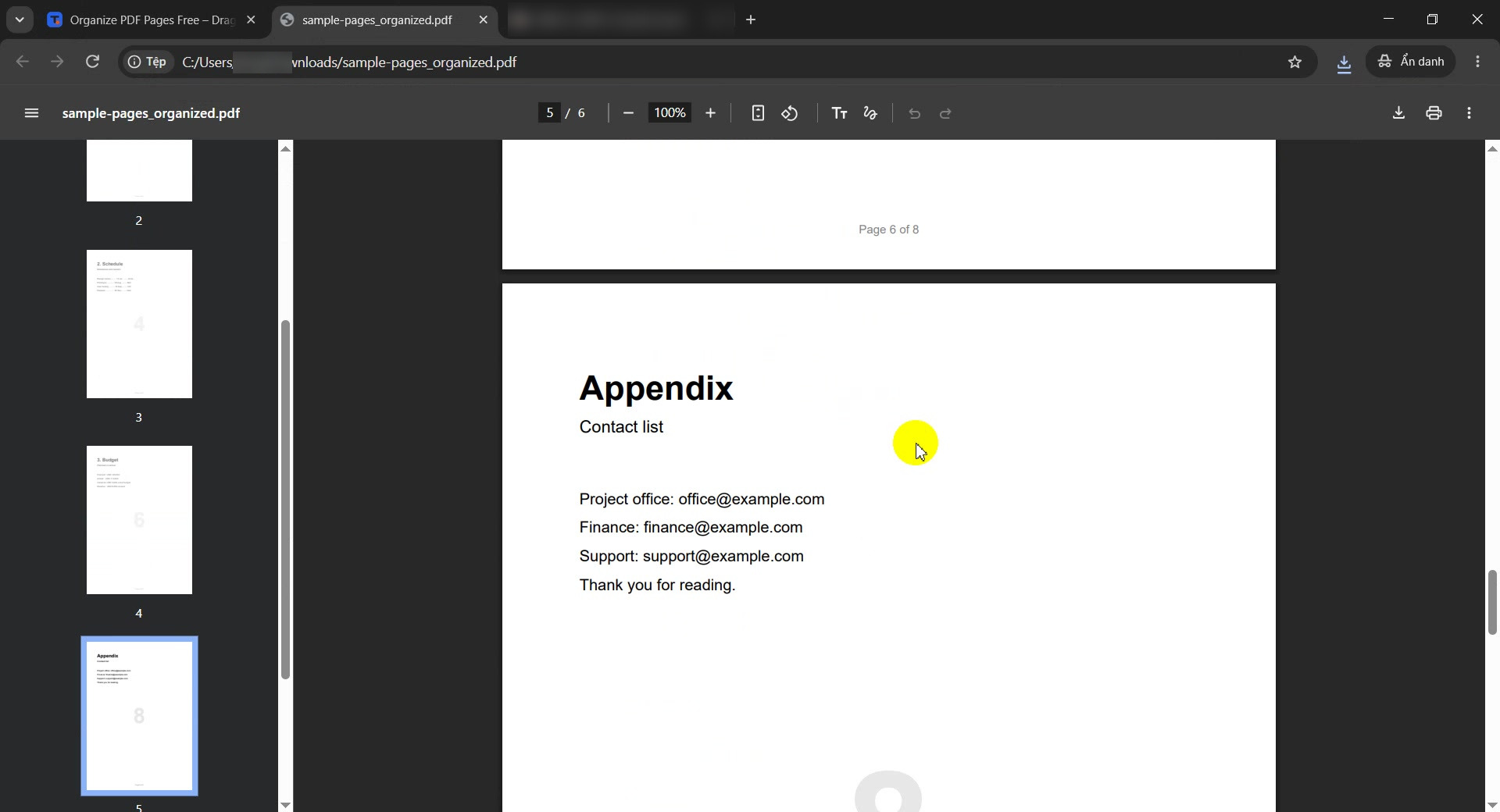
Appendix is page 5 of 6 -
Check the last page
The last page, 6 / 6, is the confidential page we dragged to the end. Delete and reorder both worked in one pass.
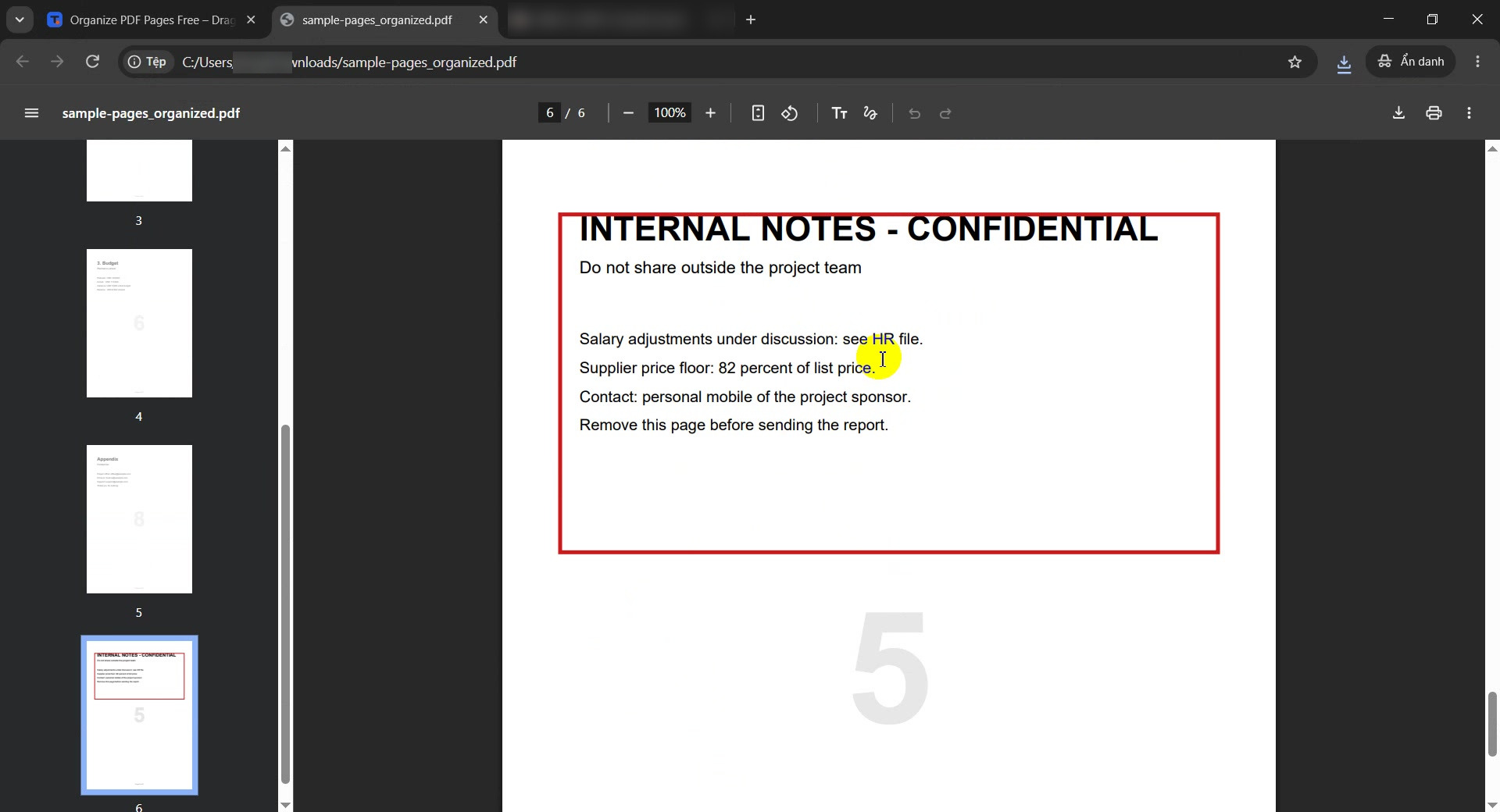
Page 6 of 6
What We Got
The tool created a new PDF with the changes applied and left the original alone:
| Before | After |
|---|---|
| 8 pages | 6 pages |
| Page 3 and page 7 blank | Deleted |
| Confidential page in the middle | Moved to the end (page 6 of 6) |
| Appendix after the confidential page | Appendix is page 5 of 6 |
File name sample-pages.pdf | sample-pages_organized.pdf |
A quick check: open the new file, look at the page counter and scroll from the first page to the last.
Delete vs Reorder: Which Action Does What
| You want to | Do this |
|---|---|
| Remove a page | Hover over its thumbnail and click the X (Remove this page) |
| Move a page | Press, hold and drag the thumbnail, then drop it in the new position |
| Save the result | Click Apply Changes, then download |
| Only delete pages by number | Use Remove Pages, where you can type 3,5,7 |
Good to Know
- Nothing is saved until Apply Changes: you can drag and delete freely first.
- Original untouched: you get a new file with
_organizedadded to the name. - Whole pages only: the tool moves and deletes entire pages; it does not edit text inside them.
- Privacy: files are deleted automatically from the servers about 10 minutes after processing.
- Cost: free, with no sign-up.
Tips for Organizing PDF Pages Without Surprises
- Plan the order first. Note which pages go where before you start dragging.
- Delete before you move. A shorter document is easier to arrange.
- Check the thumbnails. A page that looks blank may hold a faint stamp or footer.
- Fix sideways pages. Use Rotate PDF before or after organizing.
- Need only a few pages? Extract them with Split PDF.
- Combine files first. Merge PDF several documents, then reorder the pages here.
- Reduce the size. Use Compress PDF before emailing.
- Mind confidentiality. Files are uploaded for processing. Do not upload documents you are not allowed to share.
Select your file, drag the pages and download the new PDF. Free, no sign-up.