How to Remove Pages from a PDF Online for Free (Blank, Unwanted or Sensitive Pages)
A report with a blank page after every chapter, a contract that still contains the internal notes, a scan with an empty back side: most PDFs need a few pages taken out before they are ready to send. You do not need desktop software to remove pages from a PDF. This guide shows how to delete blank, unwanted or sensitive pages online with ToolTiny, either by clicking page thumbnails or by typing page numbers, with a real 8-page example that ends as a clean 5-page file.
When You Need to Remove Pages from a PDF
- Blank pages. Scanners and exports often add empty pages that waste paper and look careless.
- Sensitive pages. Internal notes, price floors or personal details should not travel with the version you send to a customer.
- Unwanted pages. A cover sheet, an old appendix or a duplicate page that no longer belongs.
- Forms and applications. Many portals accept only the pages they ask for, so extra pages must go.
- Printing. Removing pages first saves ink and paper.
Watch the Whole Process
The recording uploads an 8-page PDF, types the pages to remove, deletes pages 3, 5 and 7, downloads the result and checks that 5 pages are left.
How to Remove Pages from a PDF, Step by Step
-
Open Remove Pages PDF
In the top bar open PDF Tools and choose Remove Pages PDF, or go straight to tooltiny.com/remove-pages-pdf.html.
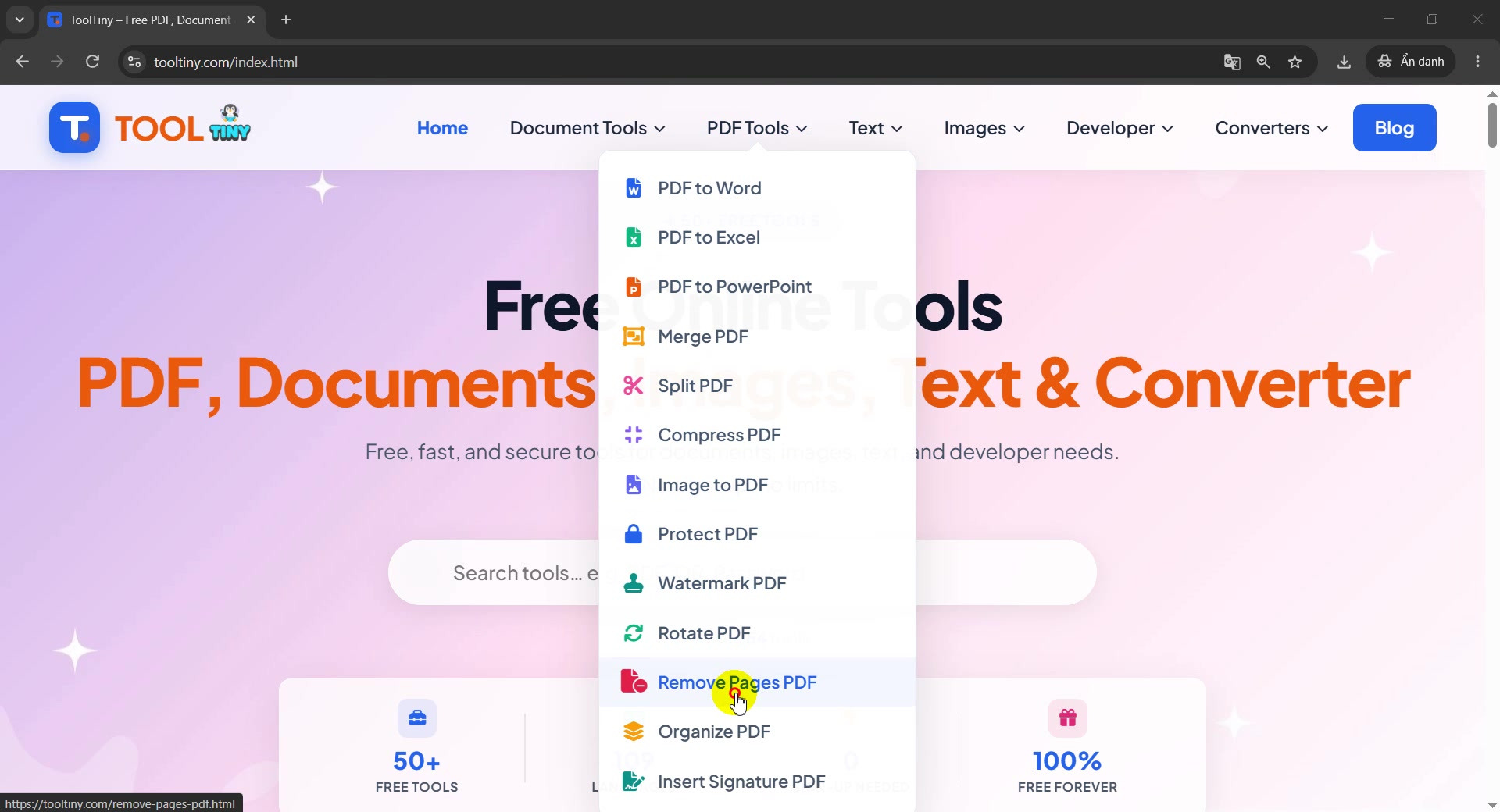
PDF Tools → Remove Pages PDF -
Check you are on the right page
The tool is titled Remove Pages from PDF Documents Free Online and carries the label Free PDF Page Deleter. The text under the title promises to delete blank, unwanted or sensitive pages, with no sign-up and no account.
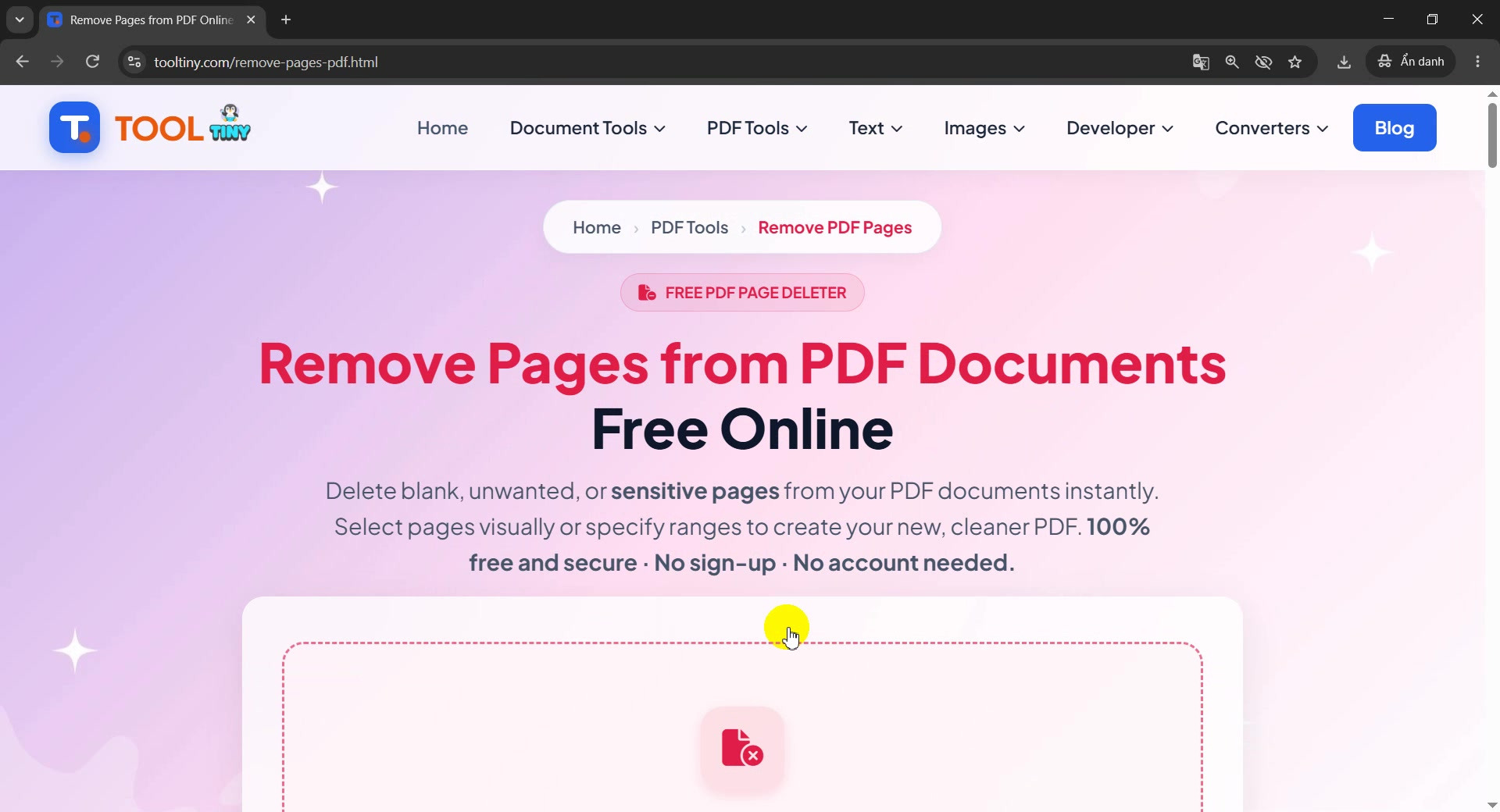
The Remove Pages tool page -
Find the upload box
Scroll down to the dashed box that says Select a PDF file and Drag & drop a PDF here, or click to browse. The button under it, Select a PDF to start, stays grey until a file is added.
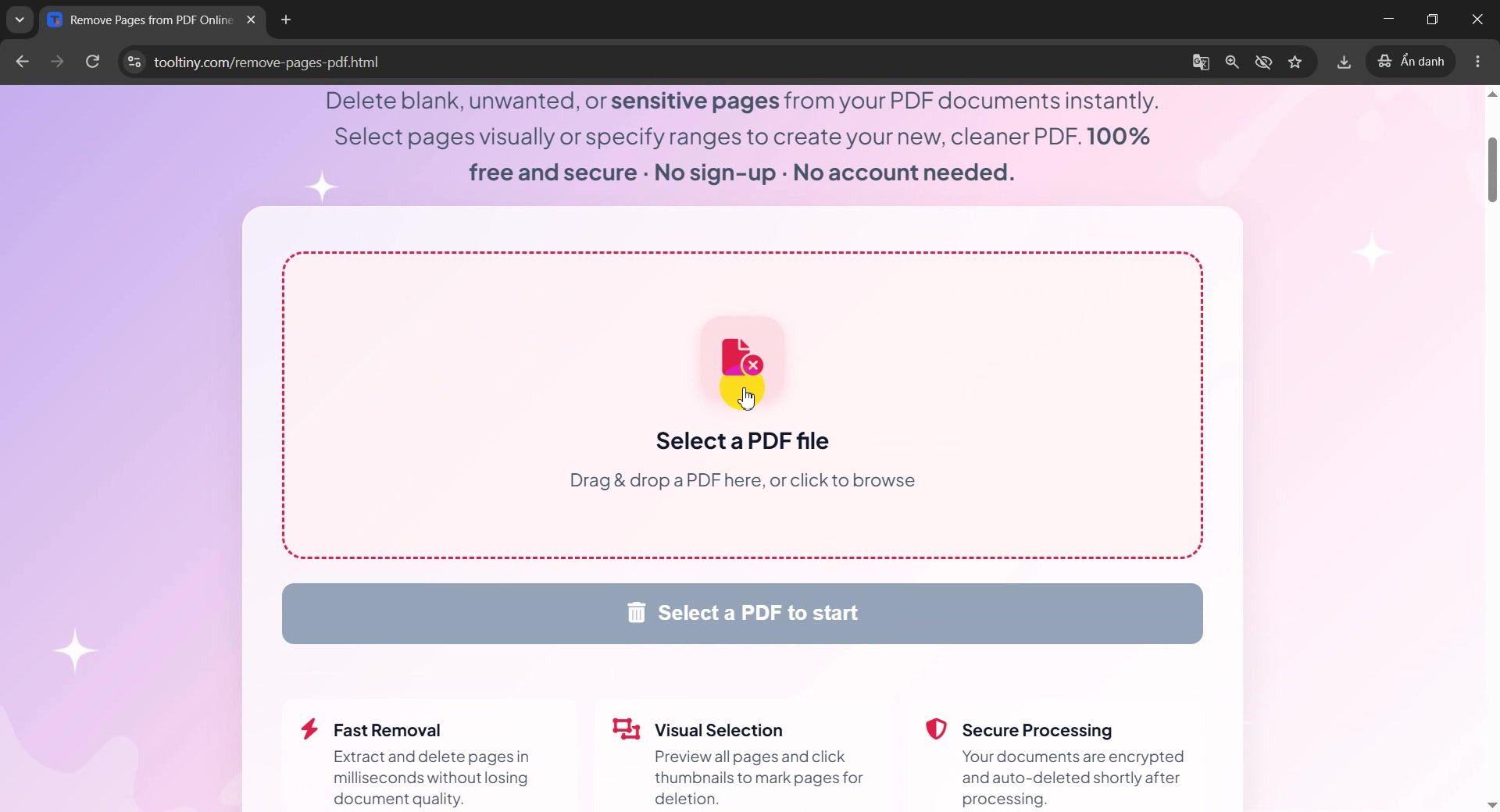
Click Select a PDF file -
Choose your PDF
Click the box (or drag the file into it) and pick your document. Our test file is sample-remove-pages.pdf, a short report with 8 pages: two blank pages and one page of confidential notes.
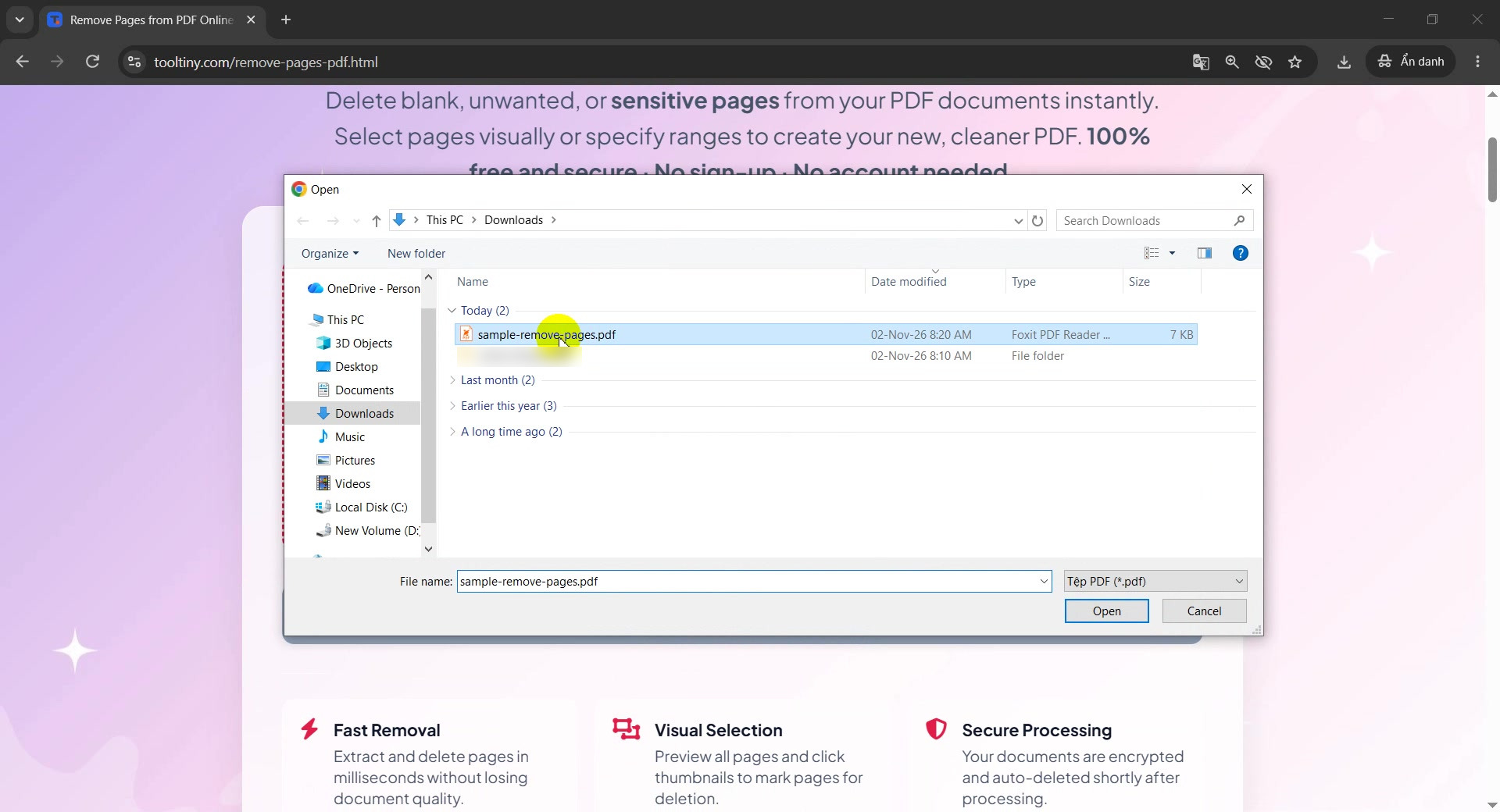
Choose the PDF -
See the file and its pages
The file appears with its name and size (6.3 KB). Under All pages — click a page to mark for deletion you get Select all and Deselect all buttons and a thumbnail of every page.
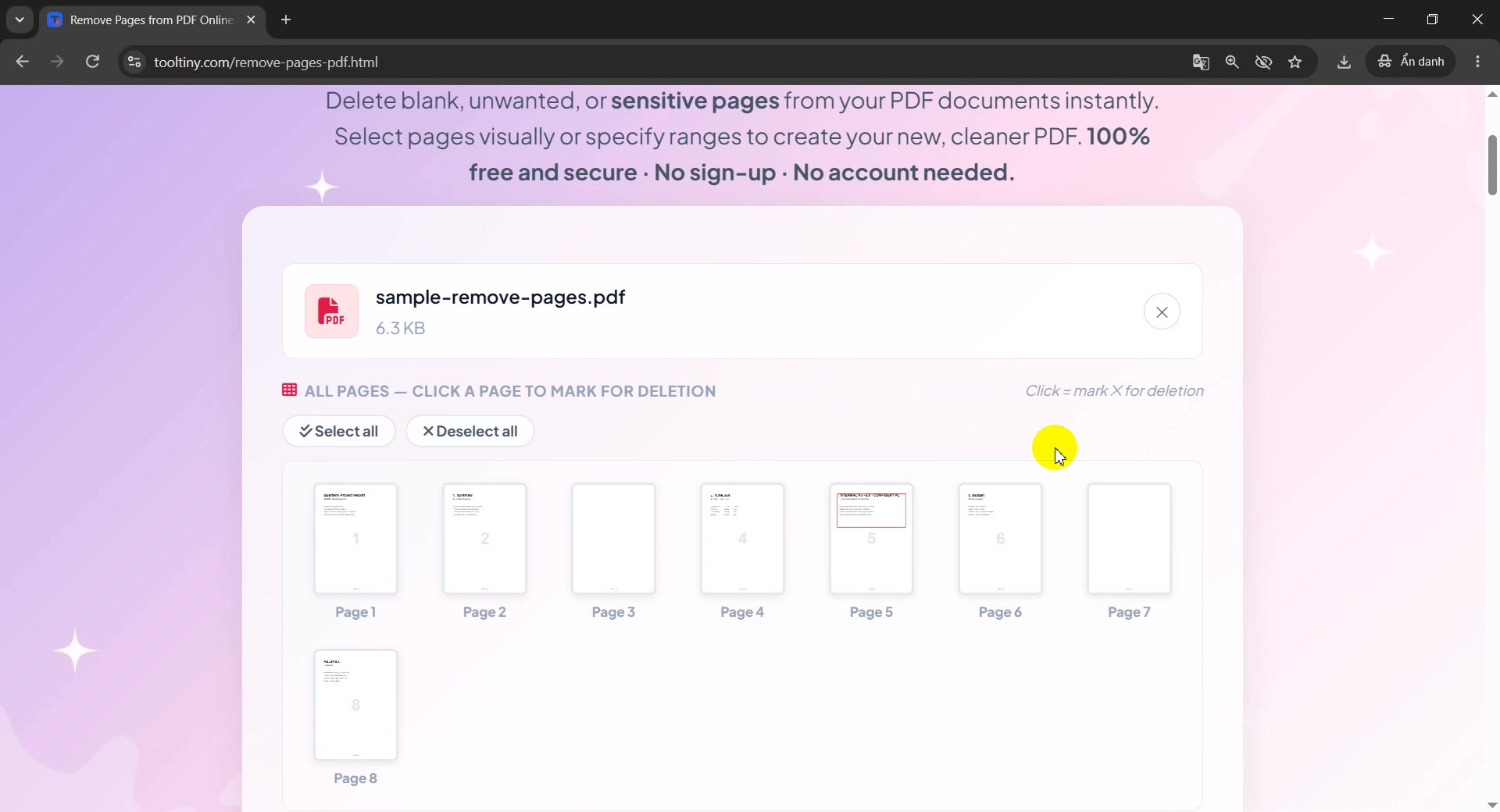
File added, thumbnails loading -
Look at the page thumbnails
All 8 pages are shown as small previews, numbered Page 1 to Page 8. This is how you spot what to delete: pages 3 and 7 are empty, and page 5 has a red box with confidential notes.
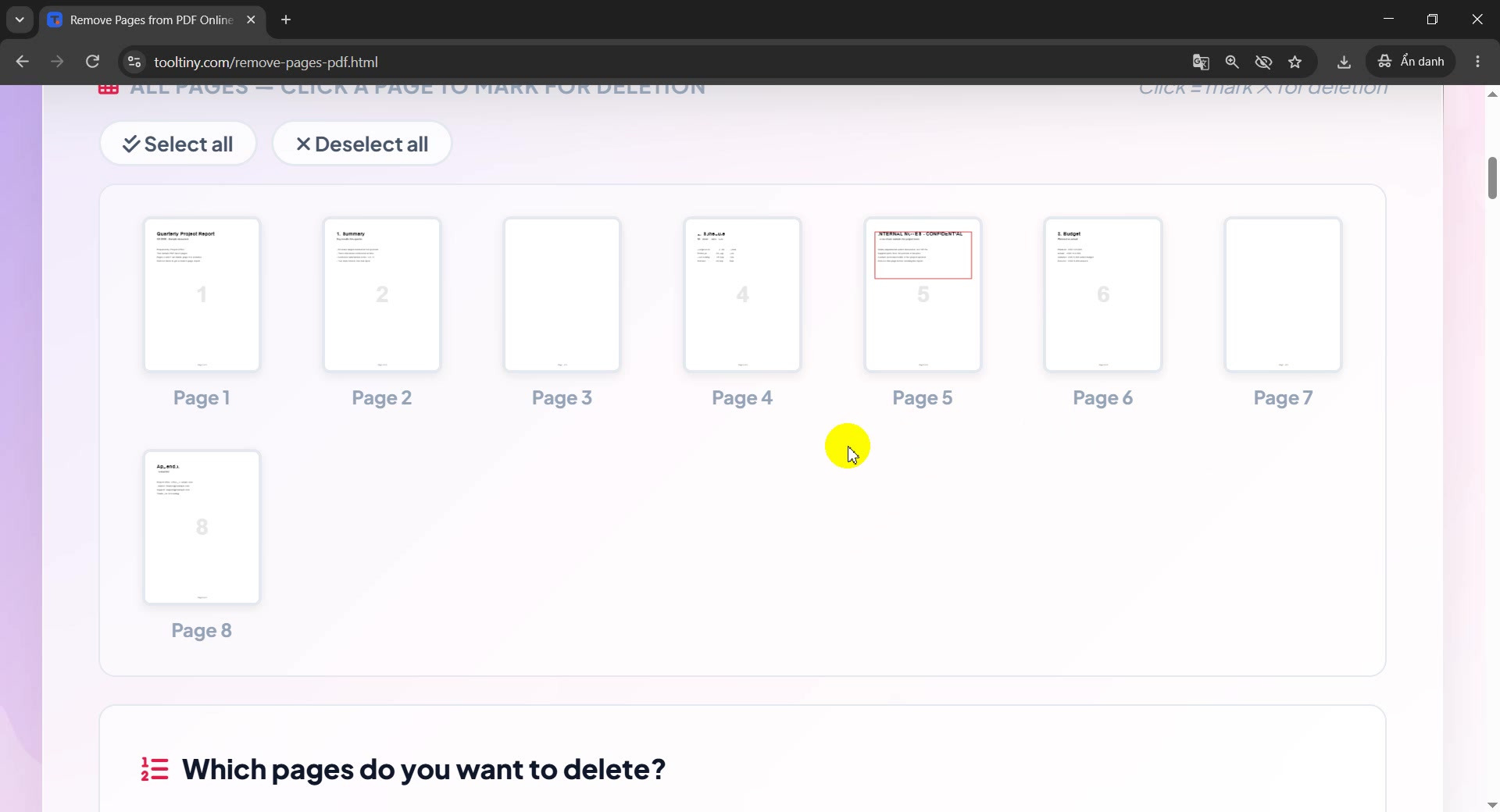
Blank pages 3 and 7, confidential page 5 -
Type the pages to remove
You can click thumbnails to mark pages, or type the numbers. Under Which pages do you want to delete? we typed
3,5,7in Pages to remove. The labels of pages 3, 5 and 7 turn red, so you can check the choice at a glance.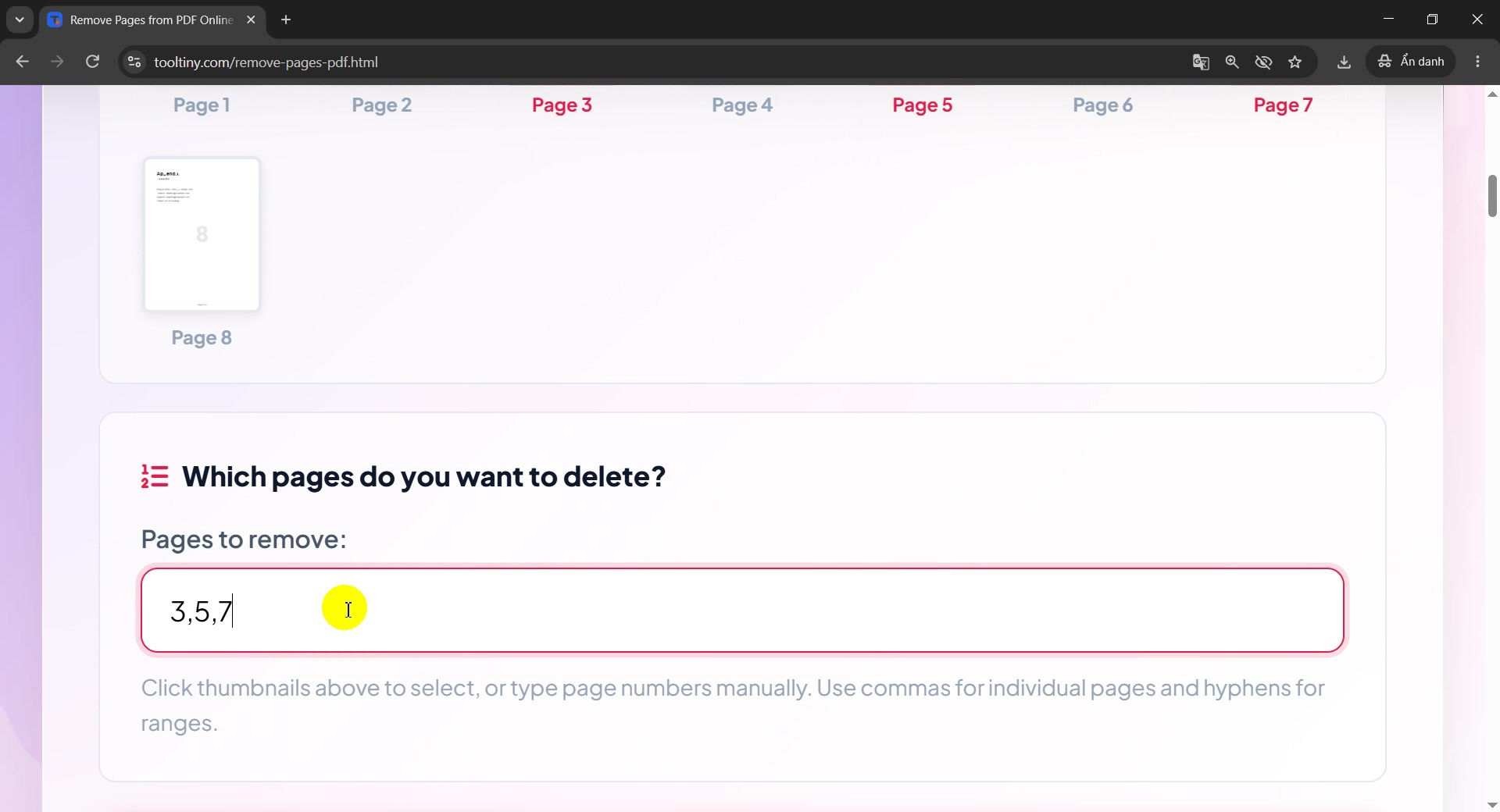
Pages to remove: 3,5,7 -
Click Remove Selected Pages
When the red labels match what you want to delete, click the red Remove Selected Pages button once.
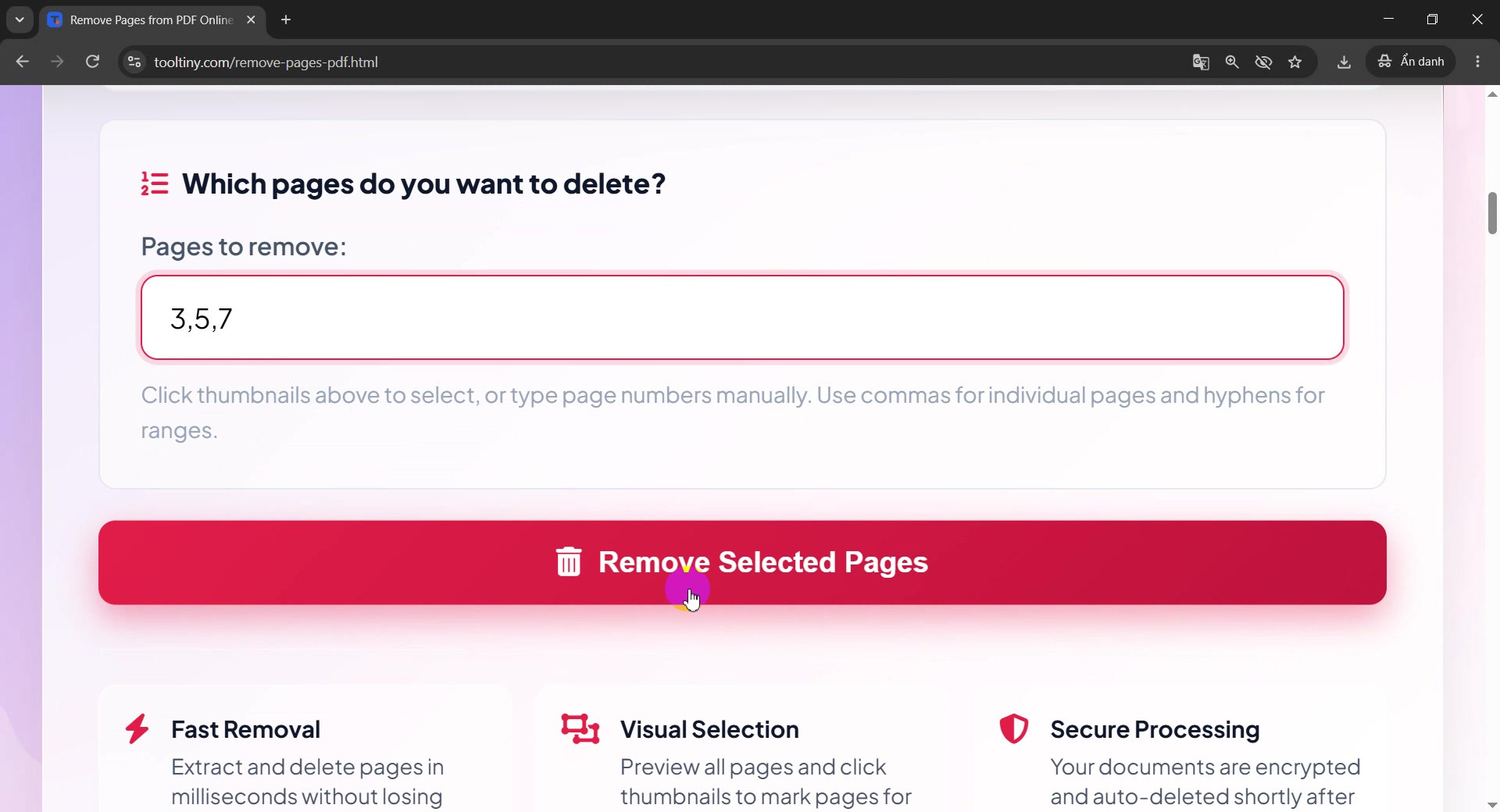
Remove Selected Pages -
Wait a moment
The button changes to Processing… and a bar labelled Removing Pages… fills up. For a small file it takes a few seconds.
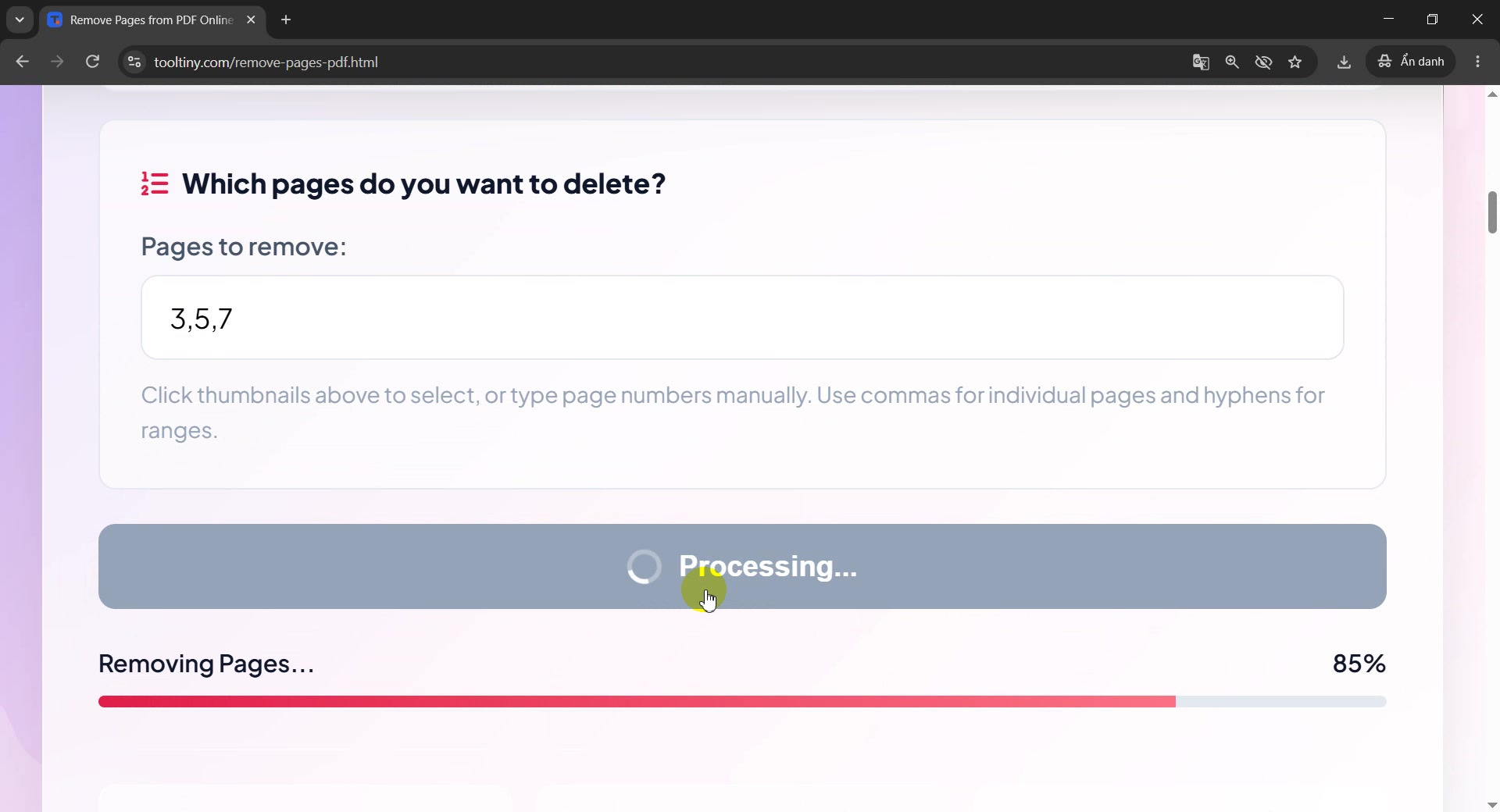
Removing pages, 85% -
Download the updated PDF
The message Pages Removed Successfully! appears with a green Download Updated PDF button. The red Process Another PDF button above it starts a new job.
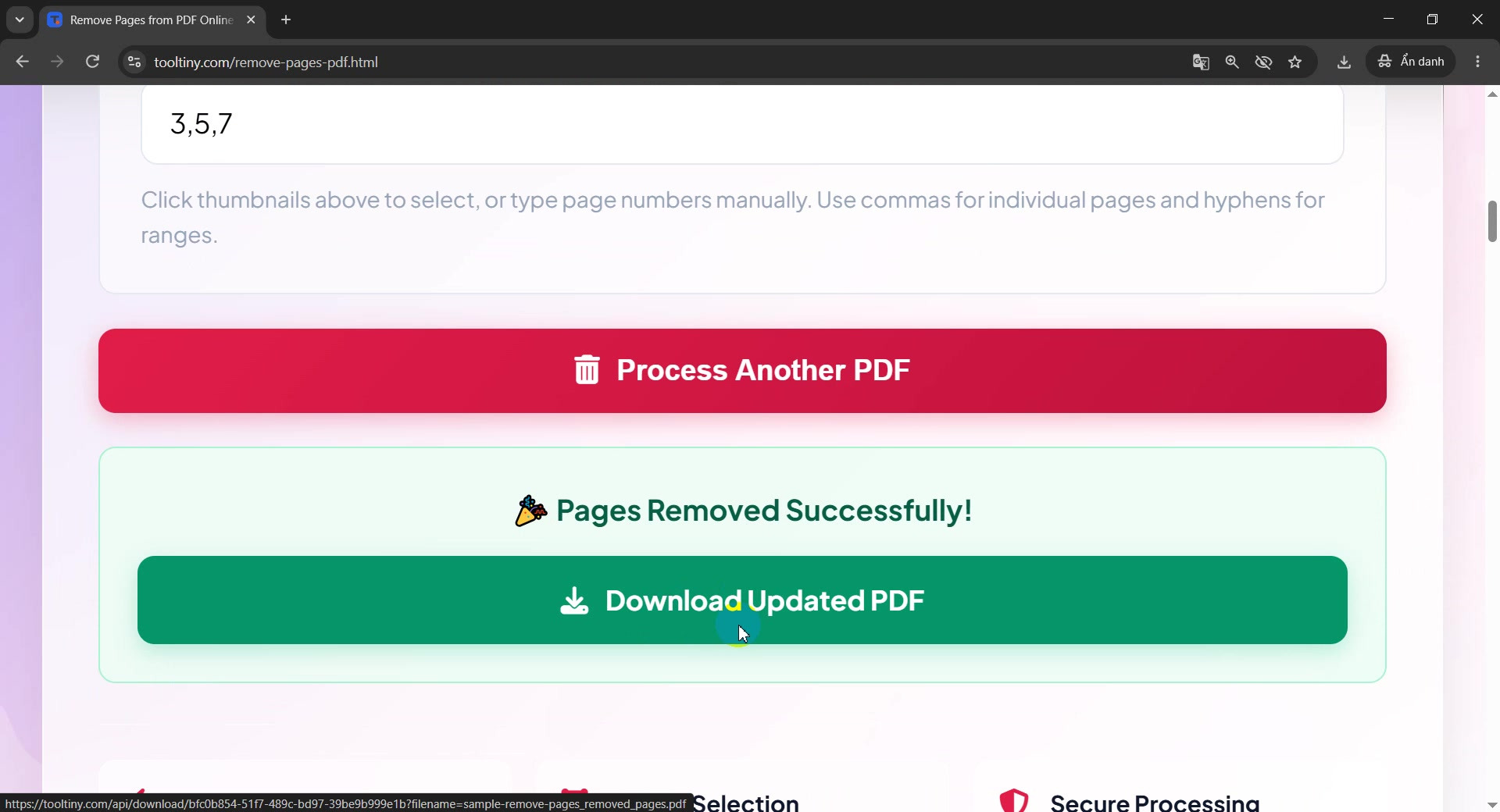
Download Updated PDF -
Save the file
Your browser asks where to save the file (or puts it straight in Downloads). The suggested name is
sample-remove-pages_removed_pages.pdf: your original name with_removed_pagesadded.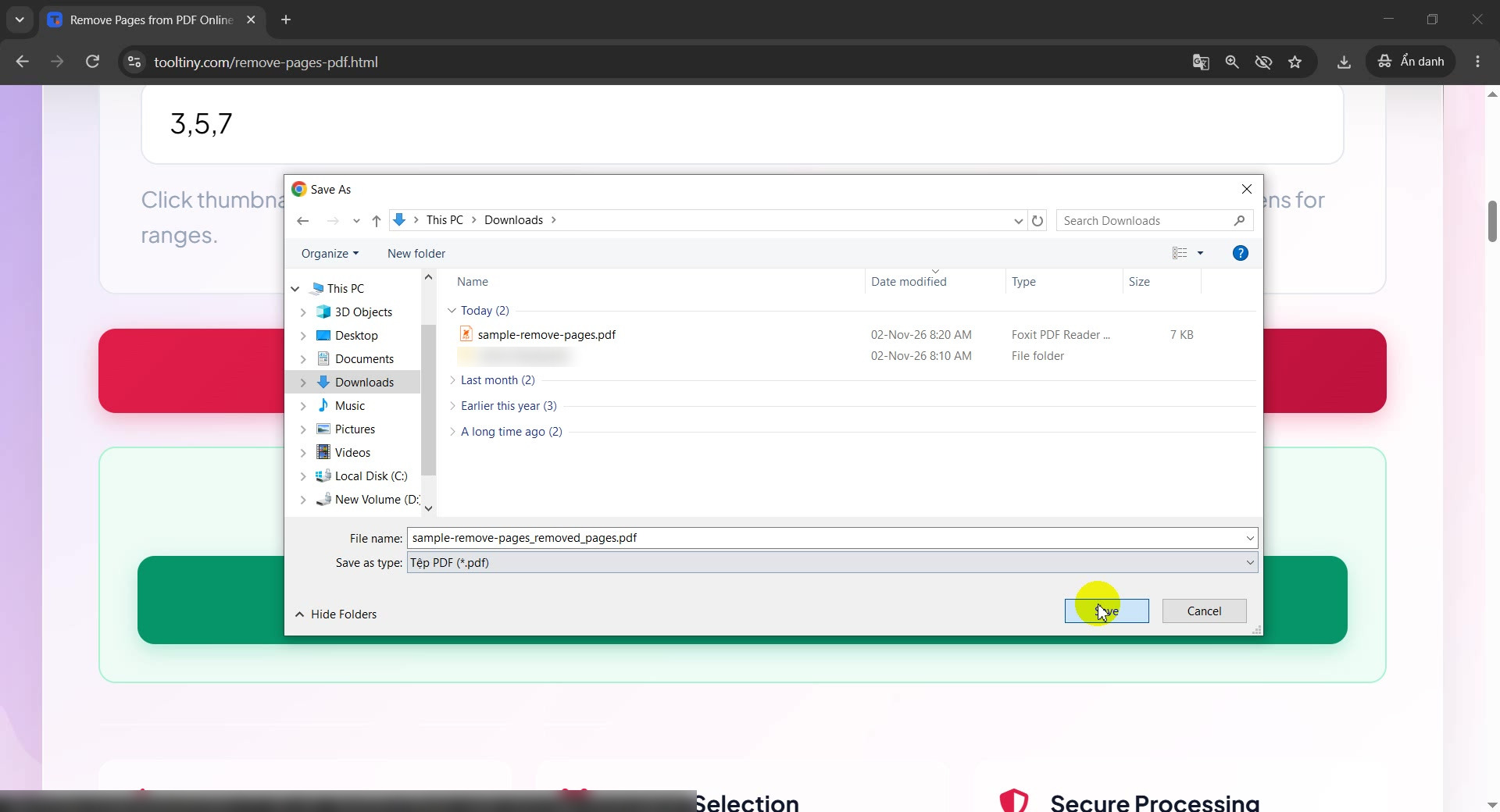
Save the new file -
Find it in your folder
Both files are now in Downloads: the original
sample-remove-pages.pdfand the newsample-remove-pages_removed_pages.pdf(4.06 KB). The original is not changed.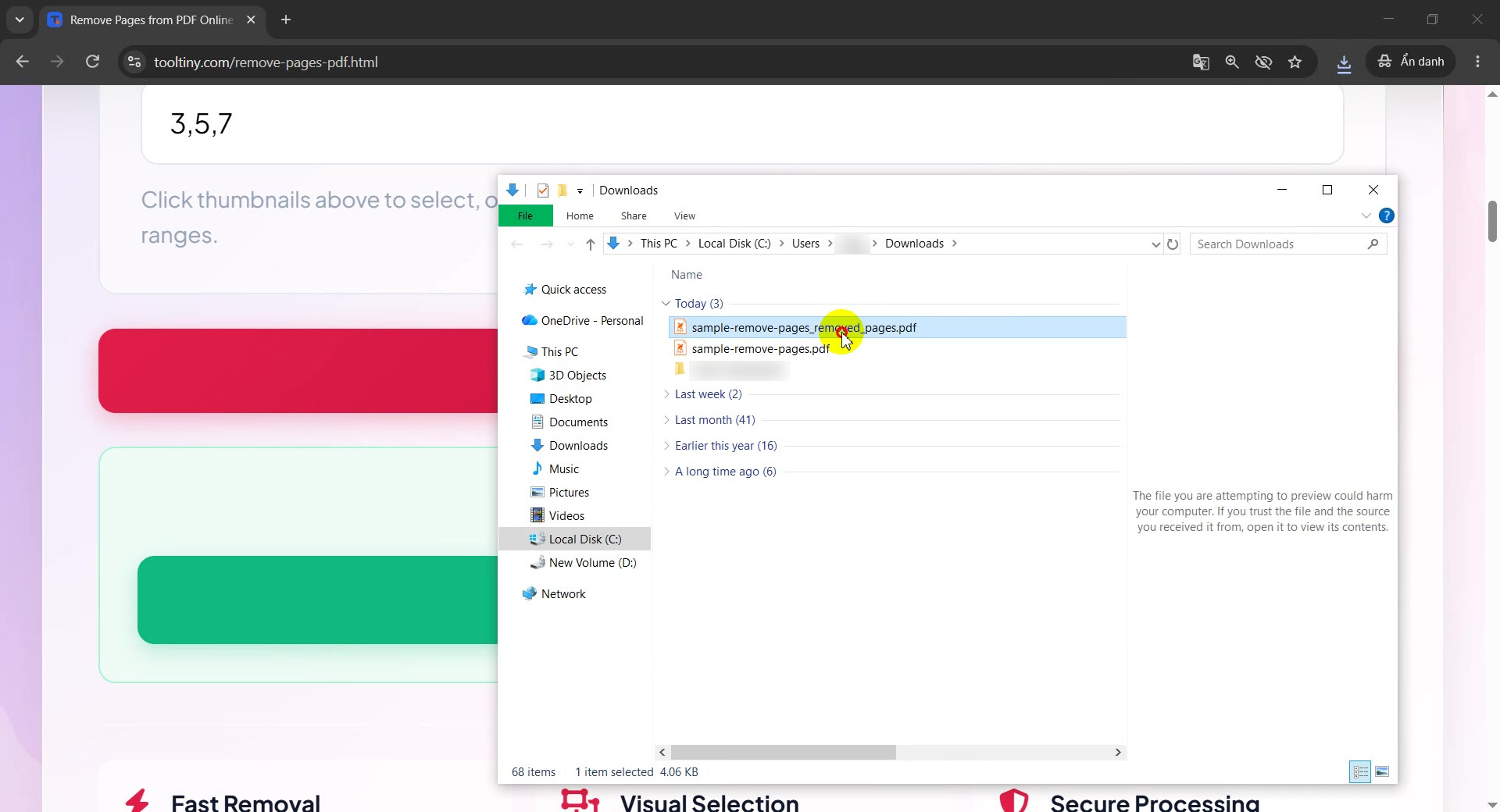
Original and new copy -
Open the new PDF and check page 1
Open the new file in any PDF reader. The counter at the bottom now reads 1 / 5: the document has 5 pages instead of 8, and it starts with the report cover as before.
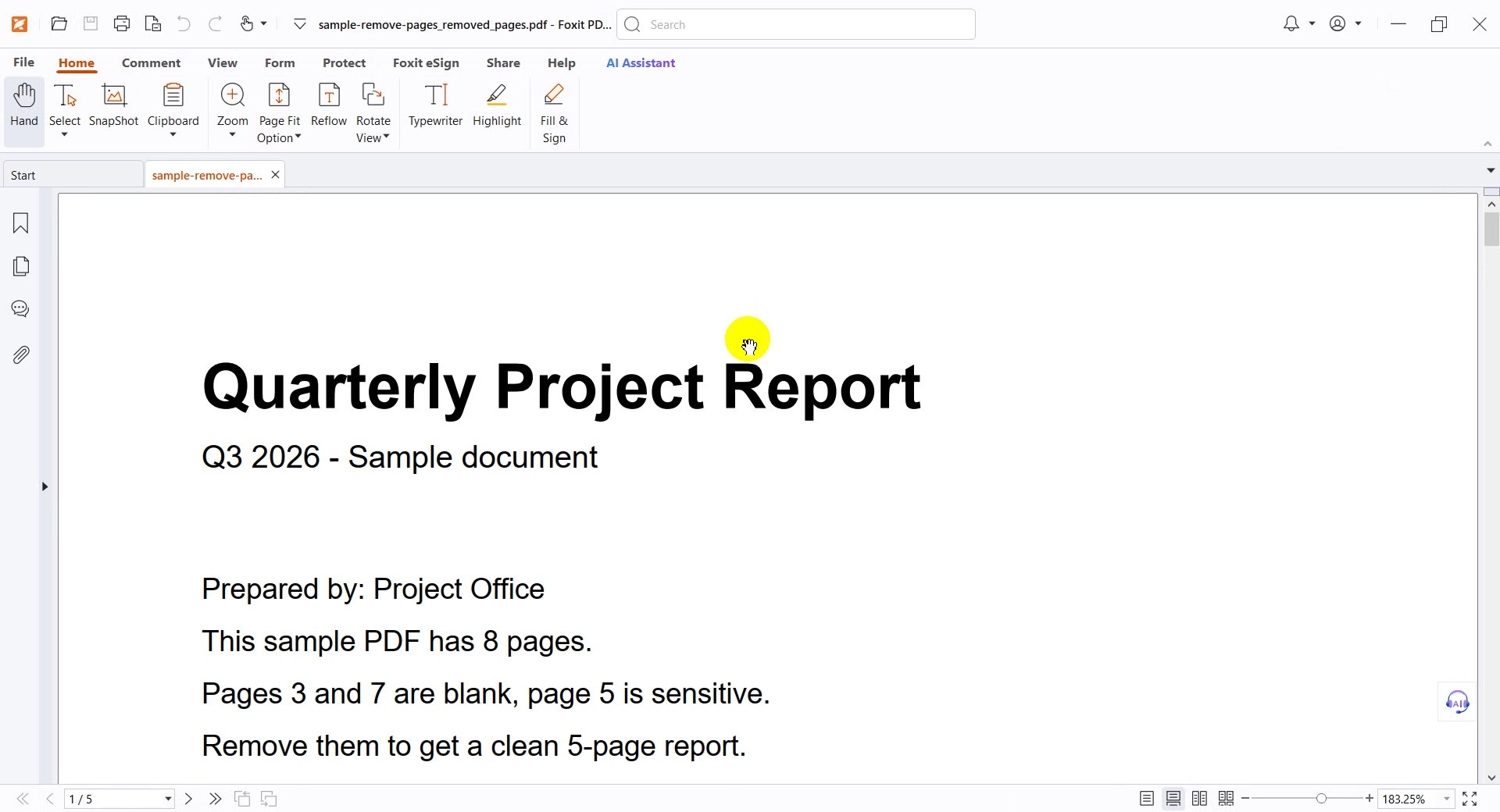
Page 1 of 5 -
Scroll through the middle pages
The pages that were blank or confidential are gone. After the Schedule page comes the Budget page, which was page 6 in the original and is now page 4 of 5.
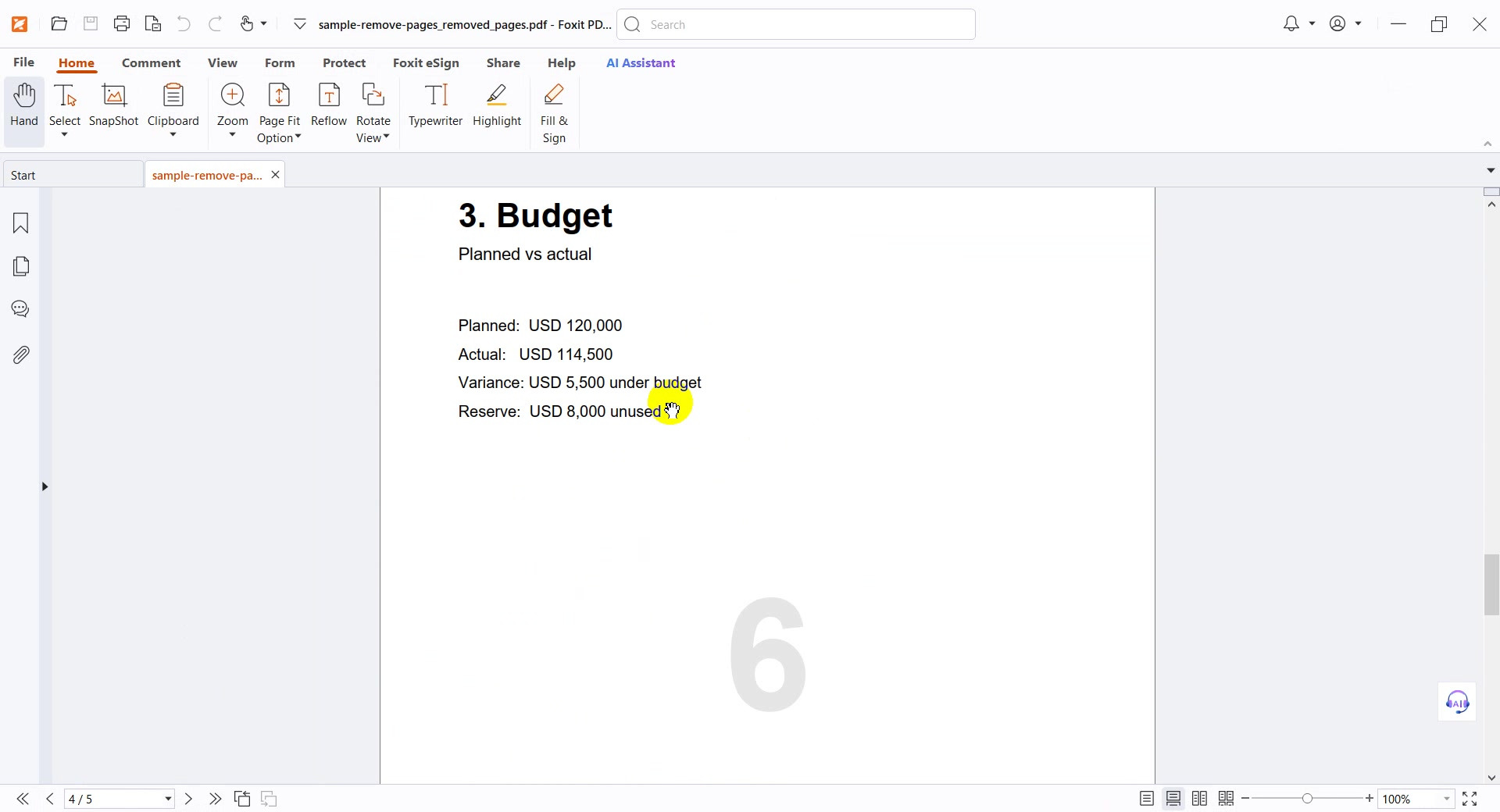
Original page 6 is now page 4 -
Check the last page
The last page is the Appendix, original page 8, now page 5 of 5. Nothing else was touched.
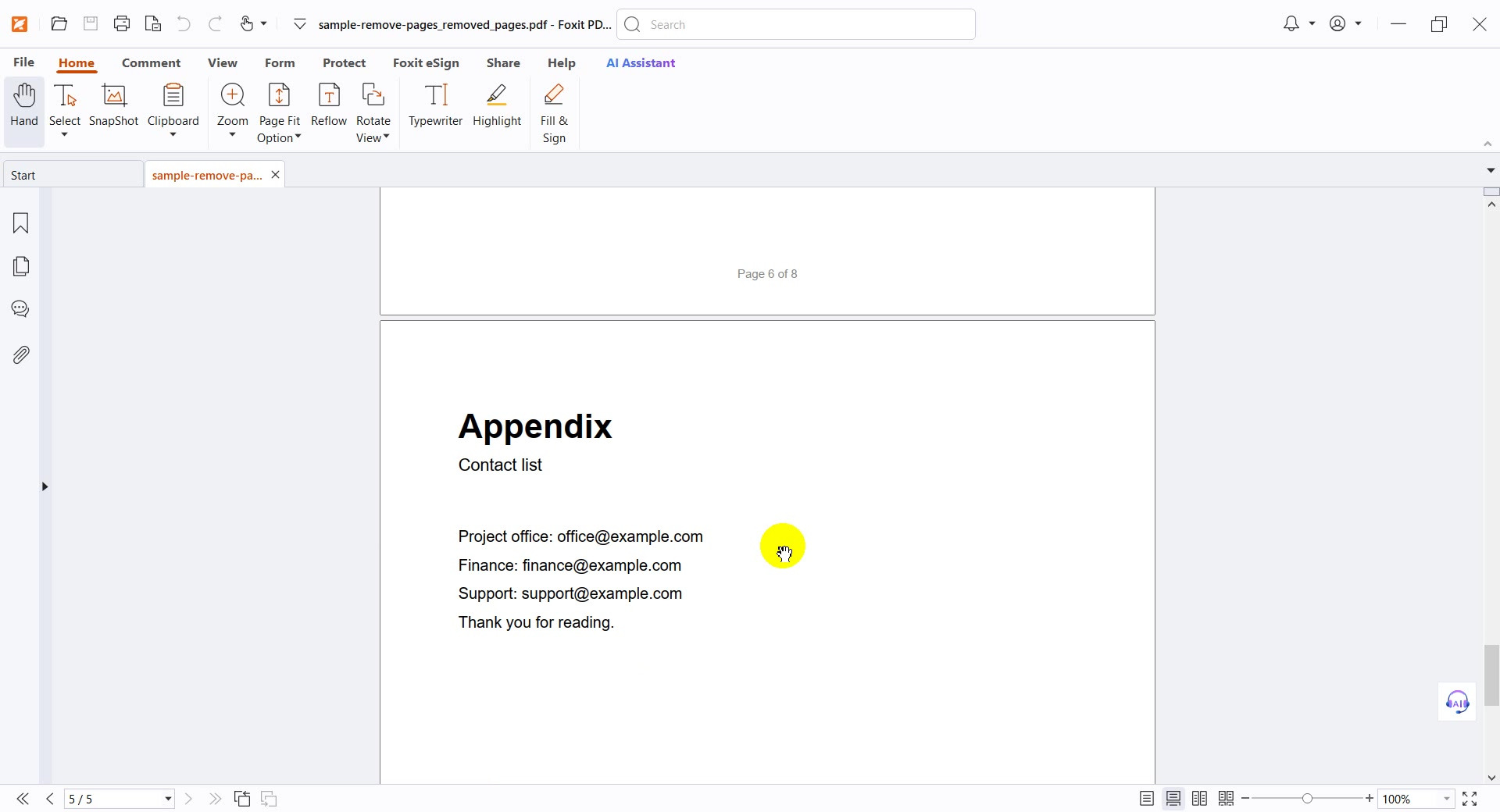
Page 5 of 5
What We Got
The tool created a new PDF without the selected pages and left the original alone:
| Original page | Content | What happened | New page |
|---|---|---|---|
| 1 | Report cover | Kept | 1 |
| 2 | Summary | Kept | 2 |
| 3 | Blank page | Removed | — |
| 4 | Schedule | Kept | 3 |
| 5 | Confidential notes | Removed | — |
| 6 | Budget | Kept | 4 |
| 7 | Blank page | Removed | — |
| 8 | Appendix | Kept | 5 |
The result is sample-remove-pages_removed_pages.pdf (4.06 KB) with 5 pages, down from 8. A quick check: open the new file, look at the page counter, and scroll once from the first page to the last. The pages that stay keep their original order.
How to Write the Pages to Remove
The box under Which pages do you want to delete? accepts commas for single pages and hyphens for ranges:
| You type | Pages removed |
|---|---|
3 | Page 3 only |
3,5,7 (our test) | Pages 3, 5 and 7 |
5-8 | Pages 5, 6, 7 and 8 |
1,3,5-8 | Pages 1, 3, 5, 6, 7 and 8 |
Prefer a visual check? Click the thumbnails instead. Each page you mark is shown in red, and Select all and Deselect all help when you want to start over.
Good to Know
- Whole pages only: the tool deletes entire pages. It does not edit or black out text on pages you keep.
- Original untouched: you get a new file with
_removed_pagesadded to the name. - Printed numbers stay: a footer such as Page 6 of 8 is part of the page, so it does not change when pages are removed.
- Visual selection: thumbnails of every page help you find blank and sensitive pages without opening another program.
- Privacy: files are deleted automatically from the servers about 10 minutes after processing.
- Cost: free, with no sign-up.
Tips for Removing PDF Pages Without Surprises
- Check the thumbnails first. A page that looks blank may hold a faint stamp or a footer. Zoom in if you are not sure.
- Count before you click. Note how many pages you expect to keep, then compare with the counter in your reader.
- Keep the original. Since the tool never changes it, you can start again with different pages.
- Remove the right pages, not the right text. If a sensitive line sits on a page you need, remove it from the source file first. This tool deletes whole pages.
- Clean the file properties too. Hidden author and company details can remain, so run Remove Metadata before sending.
- Need only a few pages? Extract them instead with Split PDF. It is faster when you keep fewer pages than you delete.
- Reduce the size afterwards. Use Compress PDF to make the file easier to email.
- Protect the result. Add a password with Protect PDF when the document is confidential.
- Mind confidentiality. Files are uploaded for processing. Do not upload documents you are not allowed to share.
Select your file, mark the pages and download the cleaner PDF. Free, no sign-up.