How to Rotate PDF Pages Online for Free (90, 180 Degrees, Permanently)
A scanned contract that opens sideways, a phone photo saved upside-down, a landscape page inside a portrait report: a PDF that is turned the wrong way is annoying to read and embarrassing to send. Rotating the view in your reader fixes it only for you. This guide shows how to rotate PDF pages online with ToolTiny and save the new orientation in the file itself, with a real example you can follow step by step.
When You Need to Rotate a PDF
- Sideways scans. Scanners often save a page turned 90 degrees, so it opens on its side.
- Upside-down pages. A page fed into the scanner the wrong way round needs a 180 degree turn.
- Phone photos turned into PDF. The orientation sensor does not always get it right.
- Documents you will send. Rotating in your viewer does not change the file, so the other person still sees it sideways.
- Printing. A page with the wrong orientation prints turned or cut off.
Watch the Whole Process
The recording uploads a PDF, previews the rotation options, flips the page 180 degrees, downloads the file and checks it in a PDF reader.
How to Rotate a PDF, Step by Step
-
Open Rotate PDF
In the top bar open PDF Tools and choose Rotate PDF, or go straight to tooltiny.com/rotate-pdf.html.
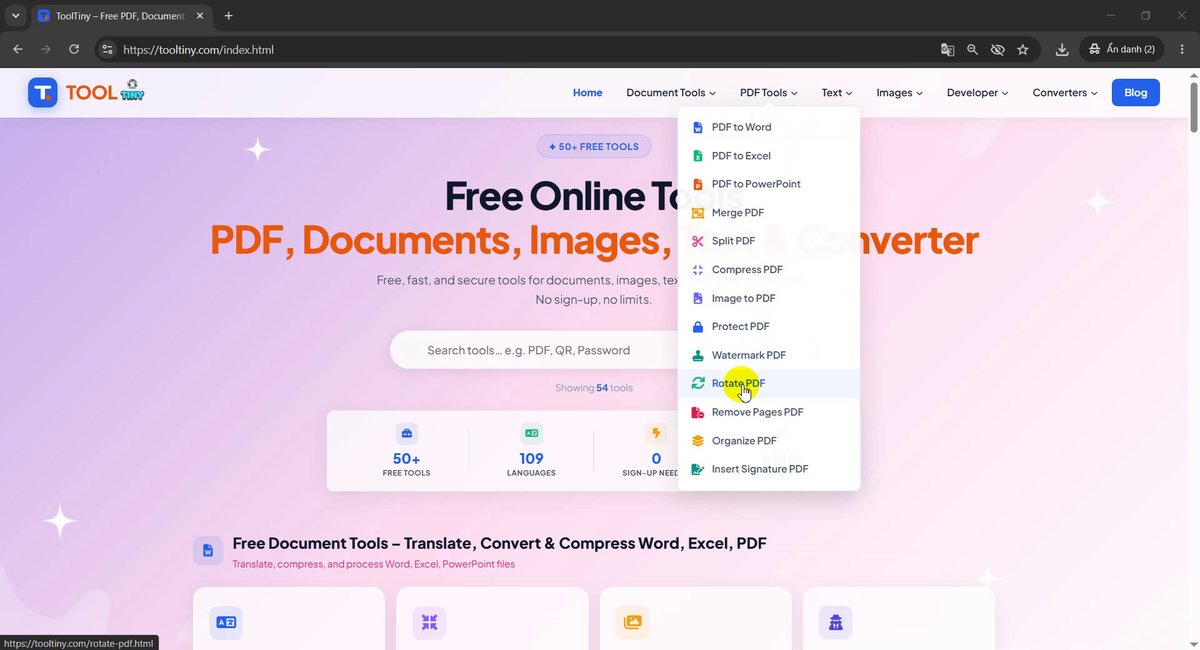
PDF Tools → Rotate PDF -
Find the upload box
The page is titled Rotate PDF Pages Permanently Free Online. The dashed box says Select a PDF file, and the Rotate PDF Document button stays grey until you add a file.
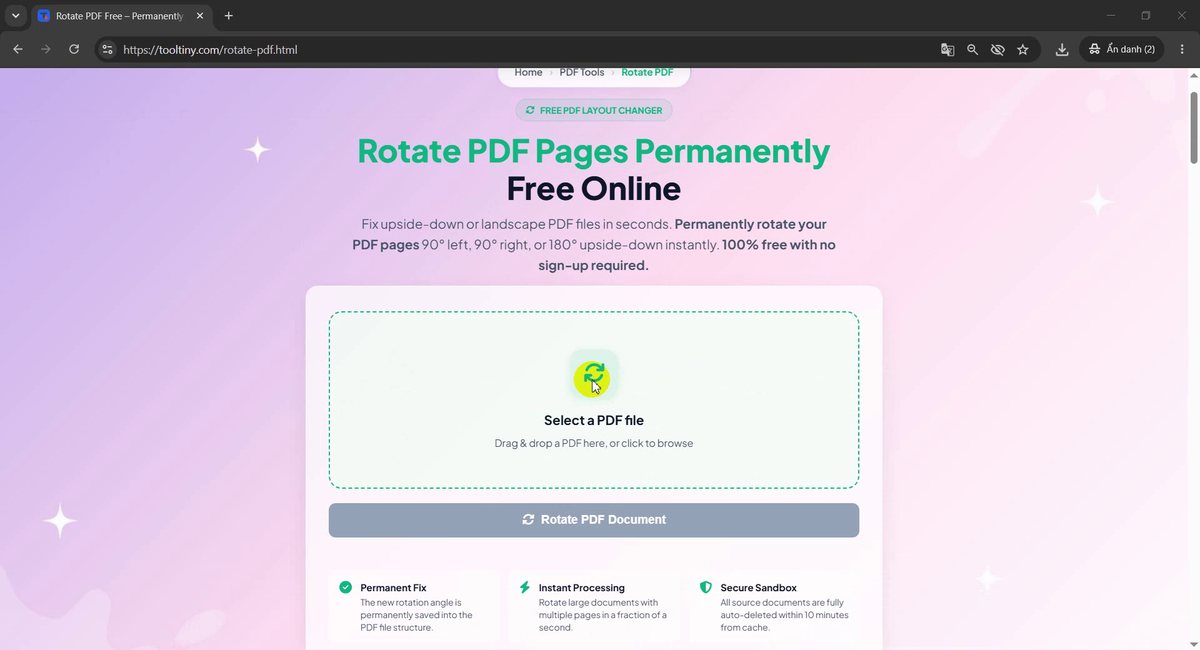
Click Select a PDF file -
Select your PDF
Click the box (or drag a PDF into it) and pick the document. We used sample.pdf, a one-page file of 19 KB.
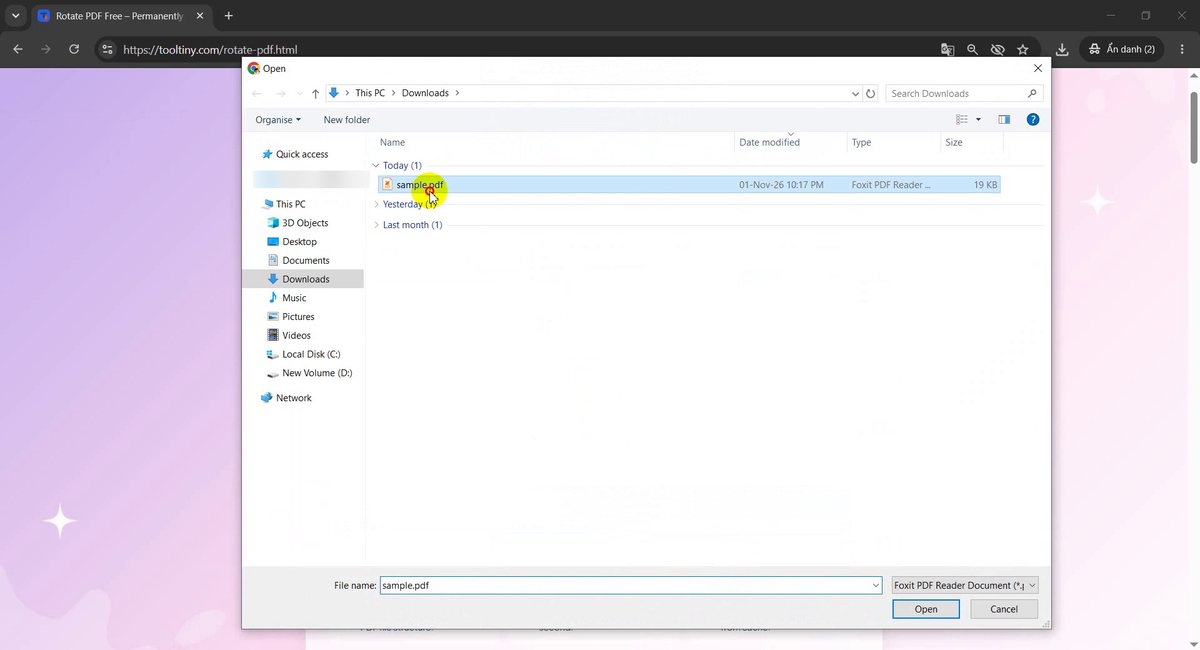
Choose the PDF -
Look at the preview and options
Your file appears with its name and size (18.6 KB). Under Preview - Page 1 you see a thumbnail of the first page. Below it, Select Rotation Direction offers three cards: 90° Right (clockwise), 90° Left (counter-clockwise) and 180° Flip (upside-down).
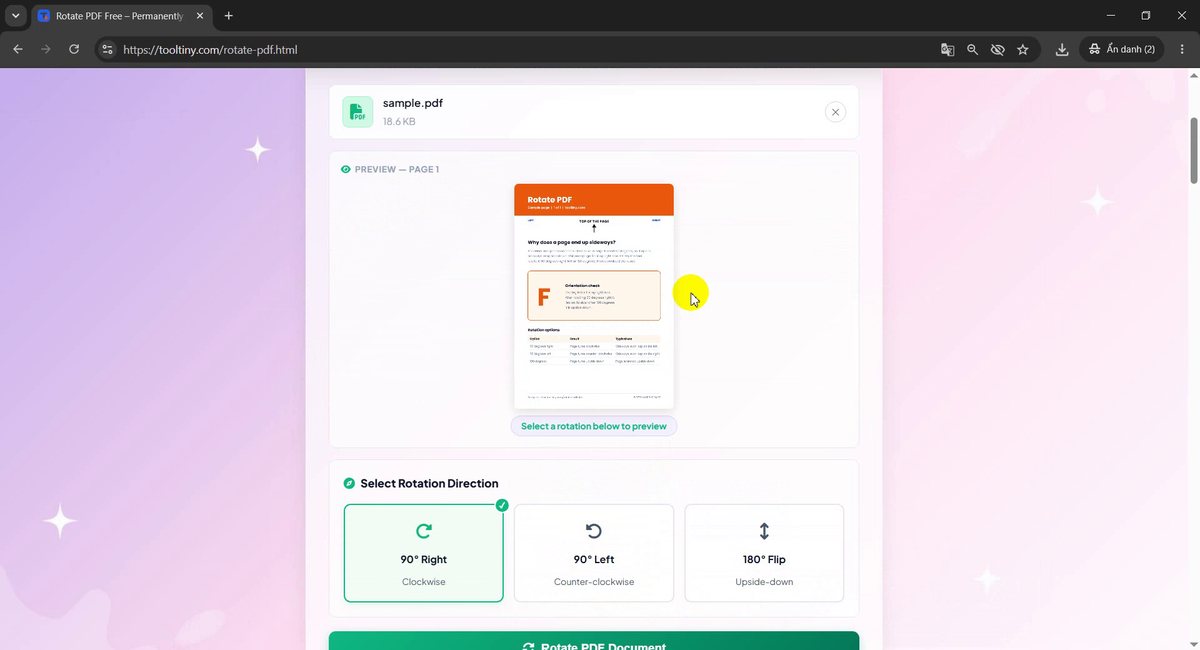
Preview and rotation options -
Try 90 degrees left
Click a card and the preview turns at once, with a label such as Preview: 90° Left (Counter-clockwise). The orange header moves to the left side of the page. Click another card to compare. Only the selected card keeps the green check mark.
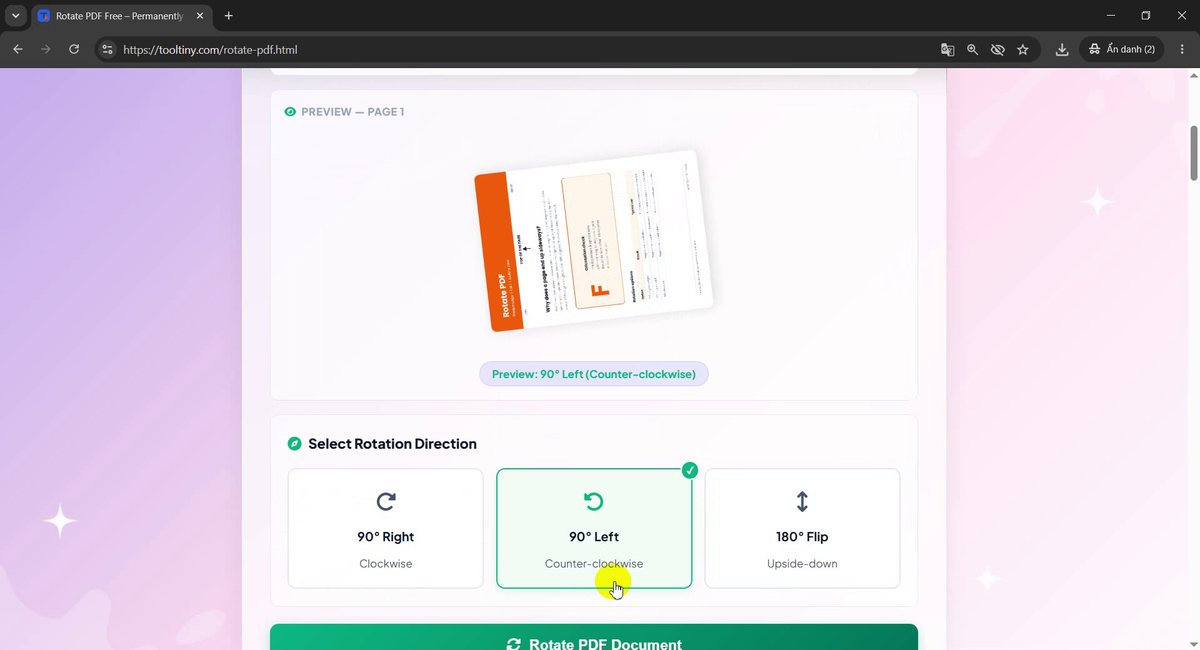
Preview: 90° Left -
Pick 180 degrees
We chose 180° Flip for this example. The preview now shows the page upside-down, with the orange header at the bottom and the text turned over, labelled Preview: 180° Flipped. Use this one for pages that were scanned upside-down.
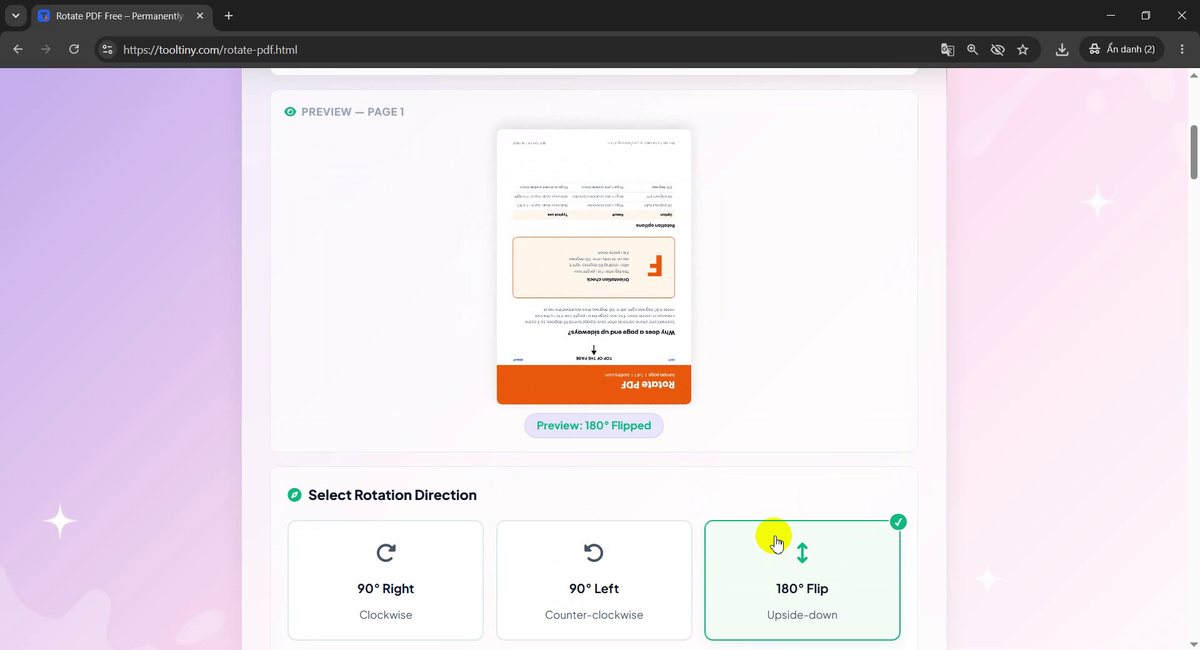
Preview: 180° Flipped -
Click Rotate PDF Document
When the preview shows the angle you want, click the green Rotate PDF Document button once.
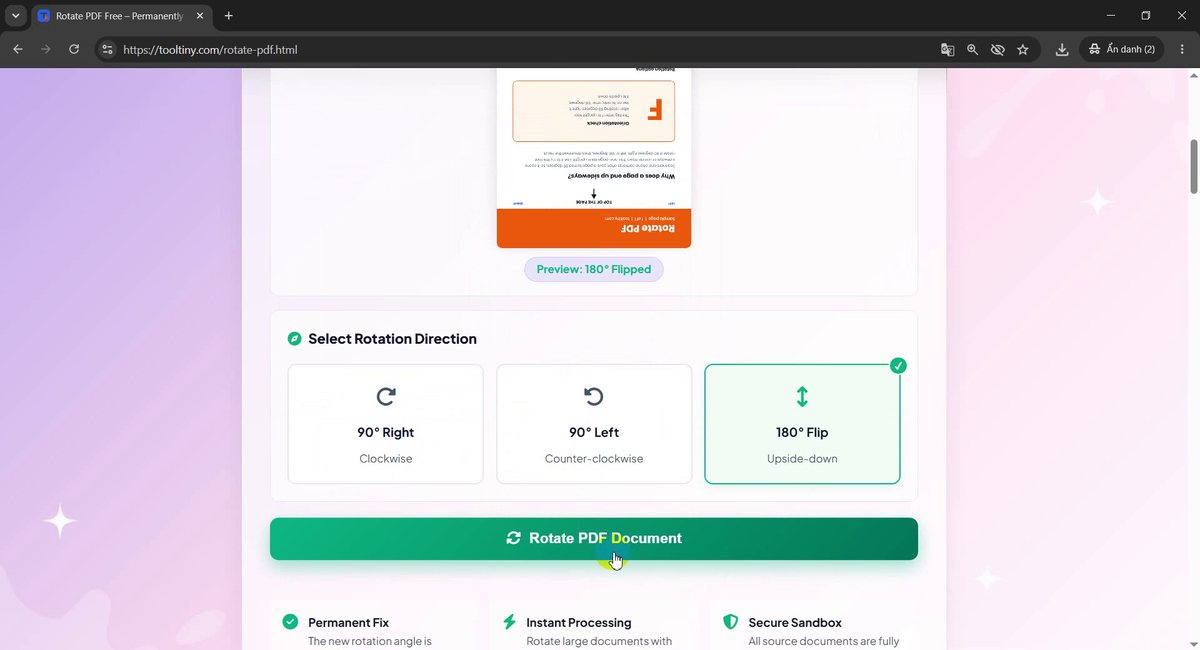
Rotate PDF Document -
Download the rotated PDF
The bar reaches 100% with Rotated Successfully! and the message PDF Rotated Successfully! appears. Click Download Rotated PDF. The button above, Rotate Another PDF, starts a new job.
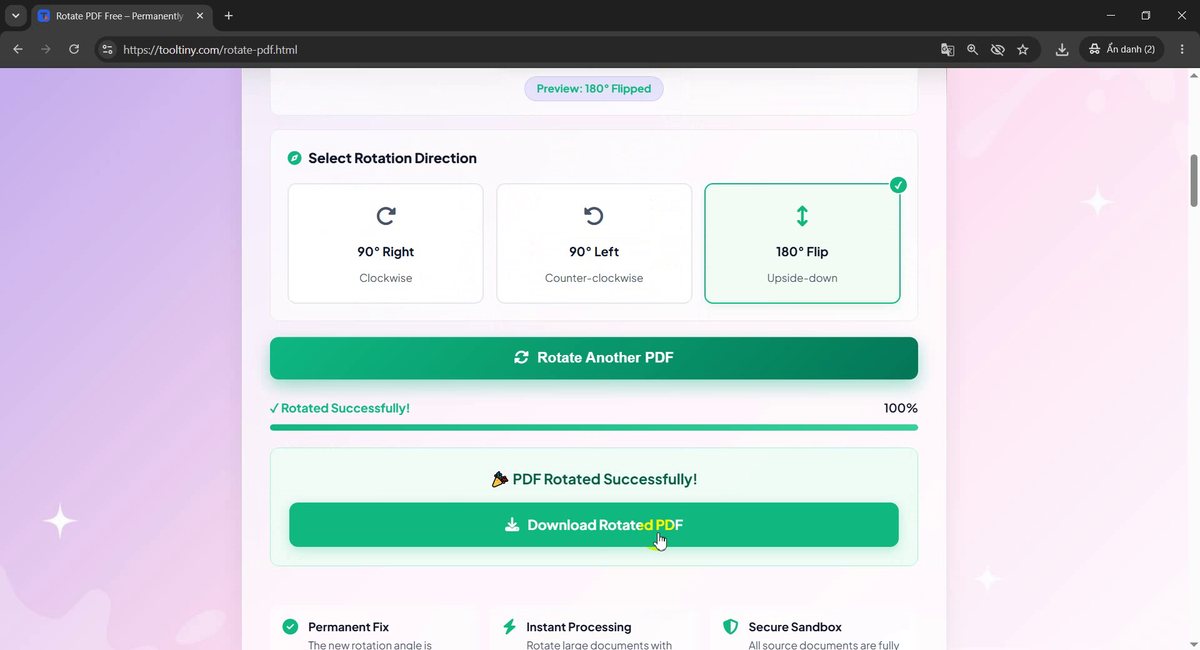
Download Rotated PDF -
Save the file
Your browser asks where to save the file (or saves it straight to Downloads). The suggested name is
sample_rotated.pdf: your original name with_rotatedadded.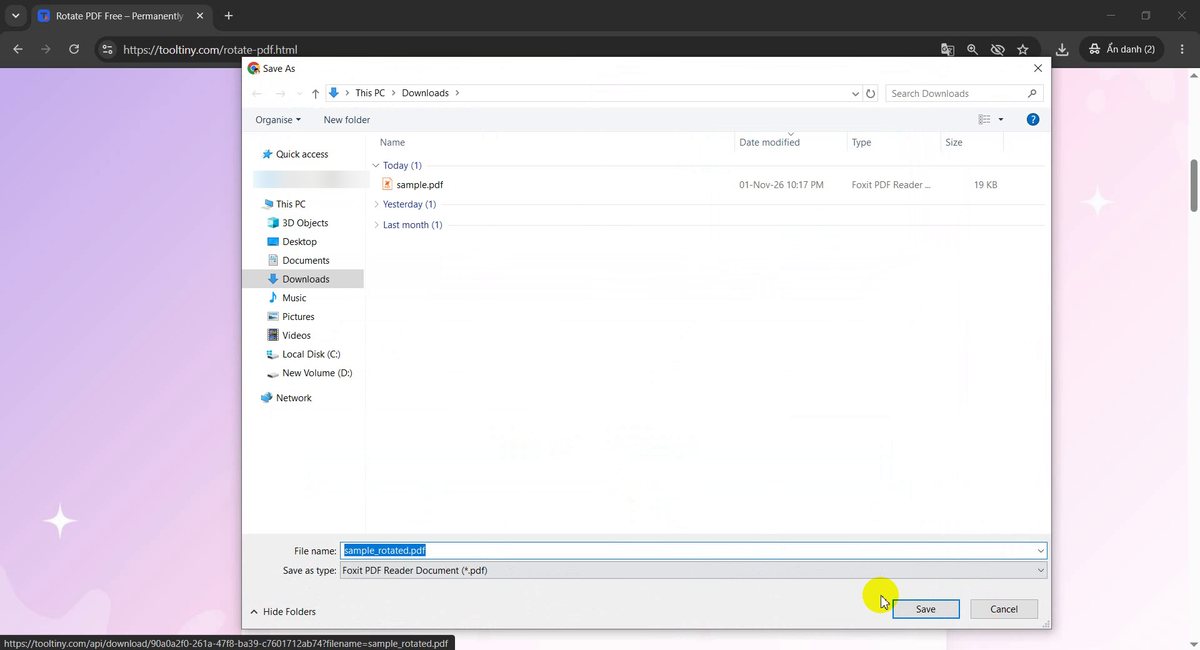
Save the new file -
Find it in your folder
Both files are now in Downloads: the original
sample.pdfand the newsample_rotated.pdf(18.0 KB). The original is not changed, and the preview pane already shows the new file upside-down.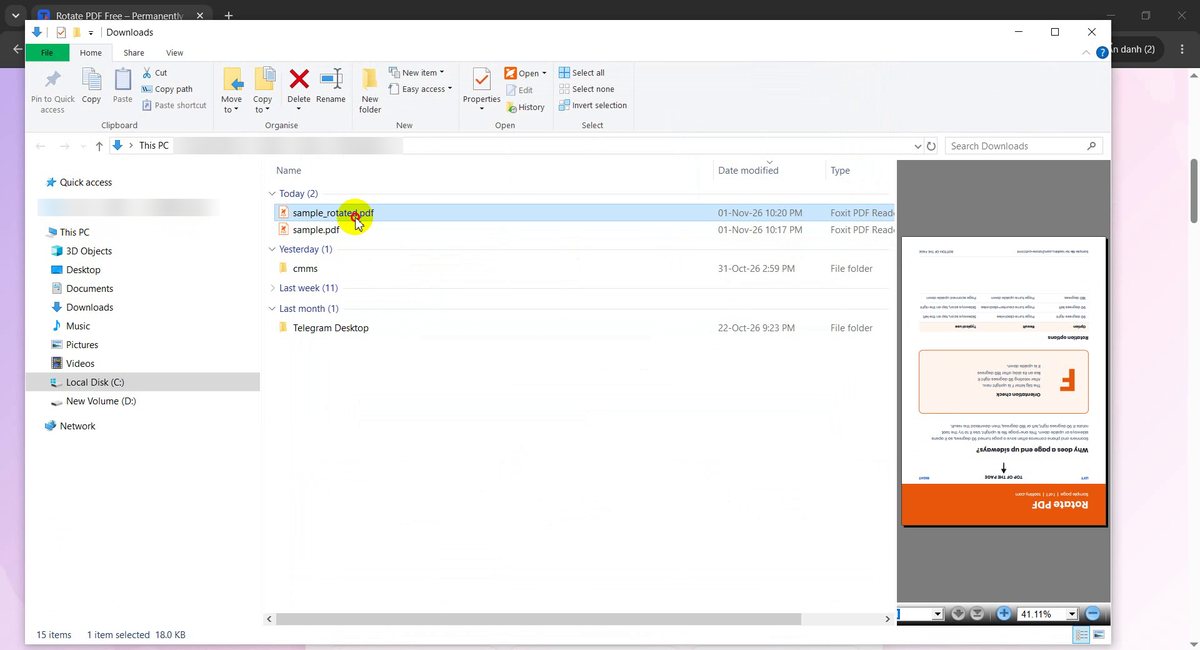
Original and rotated copy -
Open the result
Open the new file in any PDF reader. The title bar shows
sample_rotated.pdf, and the page is turned over: the header Rotate PDF is at the bottom, the arrow points down, and the big F is upside-down. It stays that way in every reader, because the rotation is saved in the file.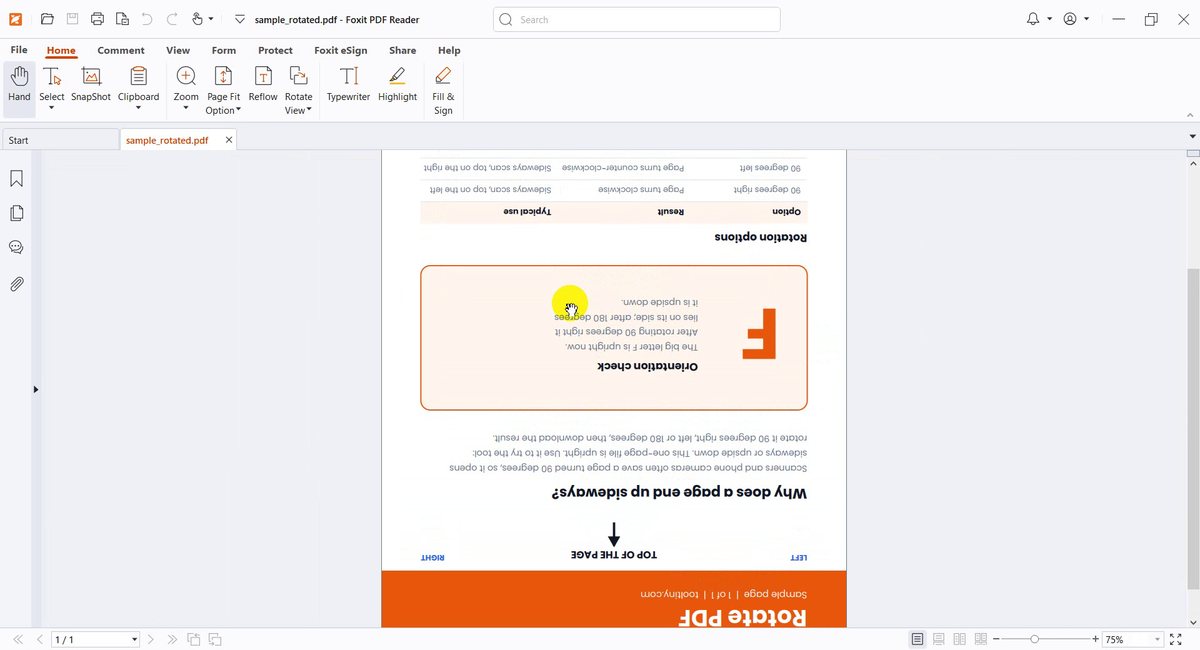
The rotated page
What We Got
The tool created a new, rotated copy and left the original alone:
| Option | What happens to the page | Use it when |
|---|---|---|
| 90° Right | Turns clockwise | The top of the page is on the left |
| 90° Left | Turns counter-clockwise | The top of the page is on the right |
| 180° Flip (our test) | Turns upside-down | The page was scanned upside-down |
| Result | sample_rotated.pdf (18.0 KB), the page flipped, content unchanged | |
The text, the table and the colors are exactly the same, only the orientation changed, and the original sample.pdf is untouched. A quick check: look at the first line of the page. Whichever way the title reads, the top of the page must be at the top of your screen after you rotate.
Good to Know
- Three angles: 90 degrees right, 90 degrees left and 180 degrees.
- Whole document: the rotation applies to every page. To rotate only some pages, split them out with Split PDF, rotate them, and combine the parts again with Merge PDF.
- Permanent: the new orientation is saved in the PDF, so it looks the same in every reader and when printed.
- Preview first: the page 1 preview shows each option before you commit.
- Privacy: files are permanently deleted from the servers after processing.
- Cost: free, with no sign-up.
Tips for Rotating PDFs Without Surprises
- Find the top of the page first. If the title runs from bottom to top, the top is on the left, so rotate 90 degrees right. If it runs from top to bottom, rotate 90 degrees left.
- Use the preview. Click the options one by one and keep the one where the page reads normally.
- Do not rotate twice. If you rotate an already corrected file again, it turns over again. Always start from the original.
- Keep the original. The tool does not change it, so you can try again with another angle.
- Mixed documents. A report with one landscape page needs the split, rotate and merge method, because the tool turns all pages together.
- Check before sending. Open the result and scroll through the pages.
- Then protect or stamp it. Add a password with Protect PDF or a stamp with Watermark PDF.
- Mind confidentiality. Files are uploaded for processing. Do not upload documents you are not allowed to share.
Select your file, preview the rotation and download the corrected copy. Free, no sign-up.