How to Convert PDF to Word Online for Free (Editable DOCX)
A PDF is perfect for sharing, but not for editing. When you need to change a contract clause, reuse a table or update last year's report, retyping everything is slow and error-prone. Converting the PDF to an editable Word file takes a few seconds. This guide shows how to convert PDF to Word online with ToolTiny, what a real conversion looks like, and what to check afterwards.
When You Need to Convert PDF to Word
- Editing a received document. A contract, a quote or a form arrived as PDF and you must change it.
- Reusing content. Copy a table, a list or a report section into a new Word file without retyping.
- Updating old files. The original Word file is lost, but the PDF still exists.
- Translating or proofreading. Editable text works better with review and translation tools.
- Scanned documents. The page says scanned PDFs are converted with OCR, so a scan can become editable text too.
Watch the Whole Process
The recording converts a two-page PDF to DOCX, opens the result in Word and compares it with the original.
How to Convert PDF to Word, Step by Step
-
Open PDF to Word
In the top bar open PDF Tools and choose PDF to Word, or go to tooltiny.com/pdf-to-word.html.
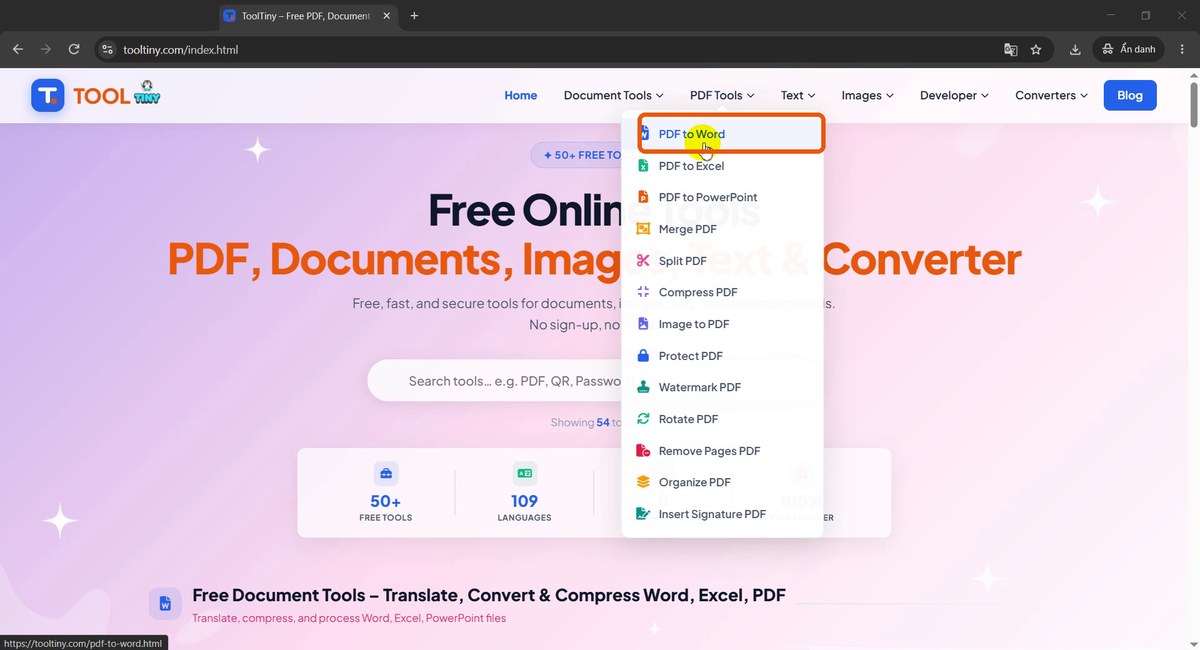
PDF Tools → PDF to Word -
Find the upload box
The page reads Turn your PDF files into fully editable Word documents in seconds. The box says Select a PDF file and Drag & drop your PDF here to convert it to DOCX. The Convert to DOCX button stays grey until you add a file.
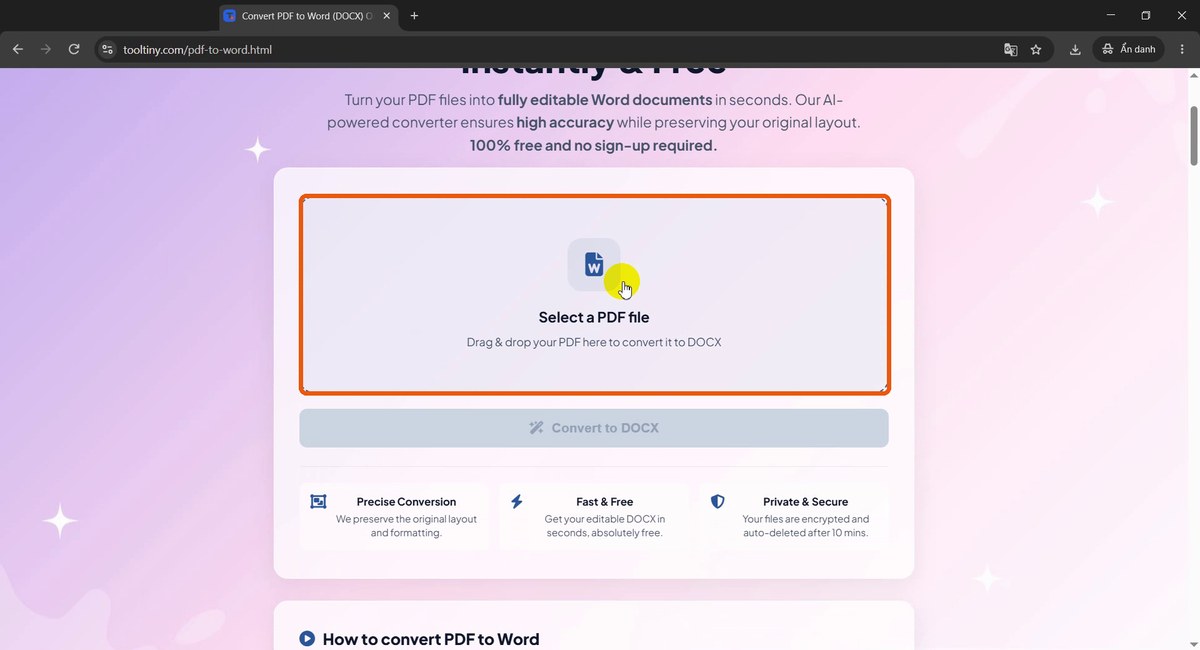
Select a PDF file -
Choose your PDF
Click the box and pick a PDF from your computer, or drag it in. Our example is a two-page project proposal named
project.pdf.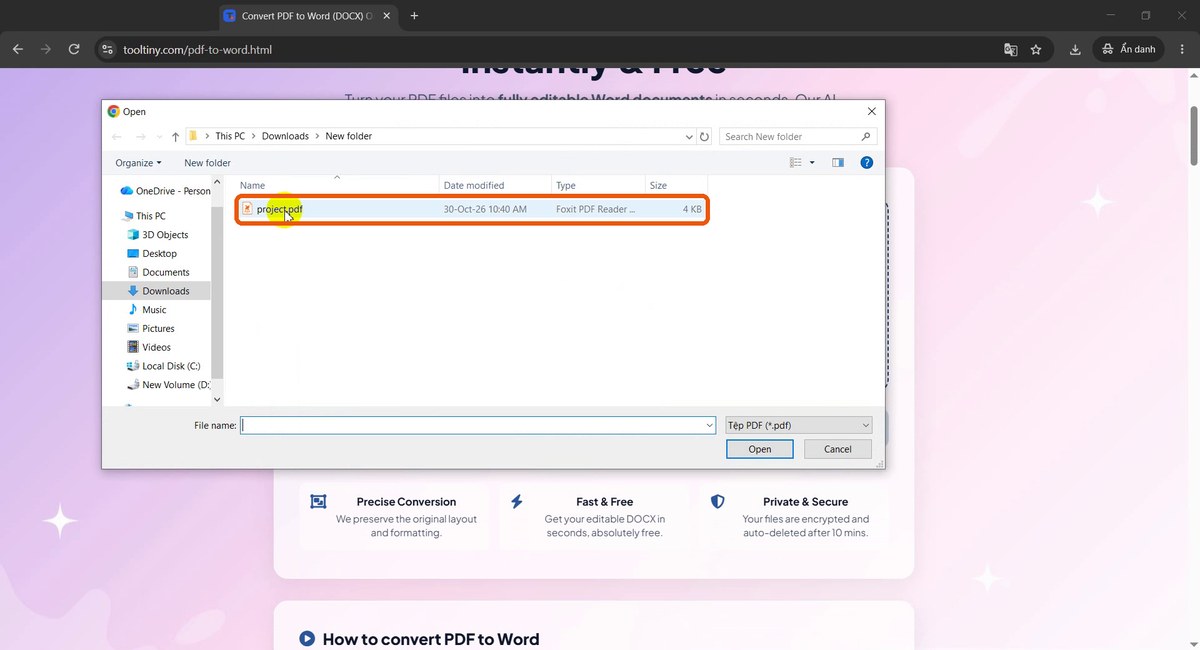
project.pdf -
Click Convert to DOCX
The file appears with its name and size (3.74 KB). The blue Convert to DOCX button is now active. Click it and wait a few seconds while the file is uploaded and converted.
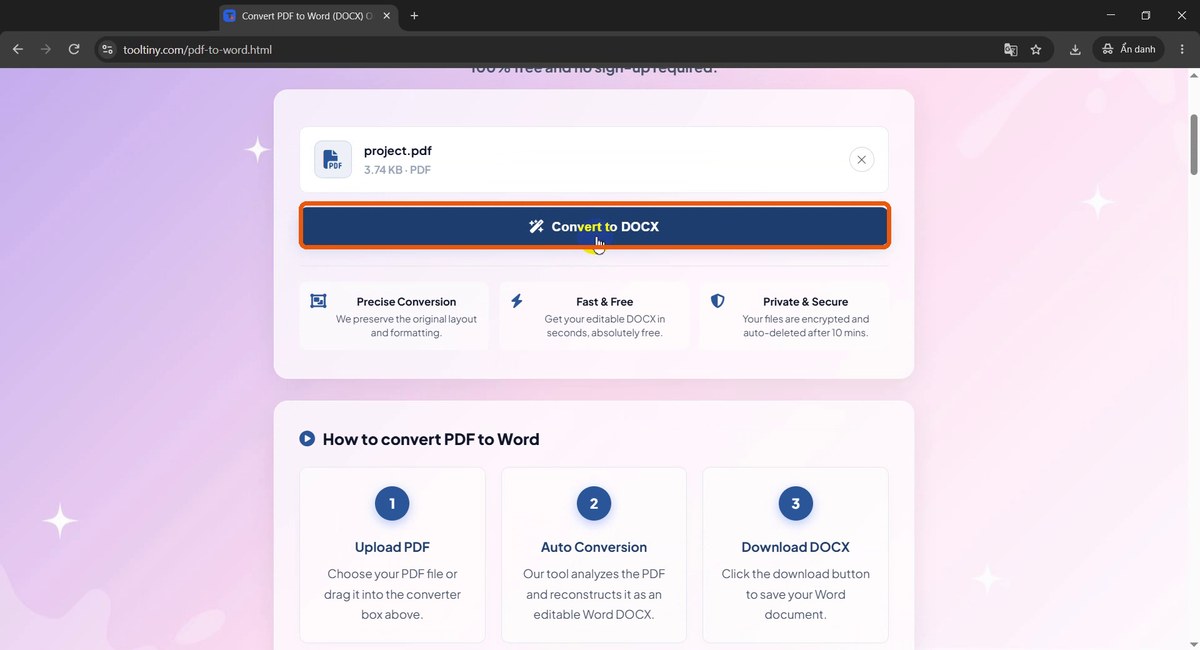
Convert to DOCX -
Download the Word document
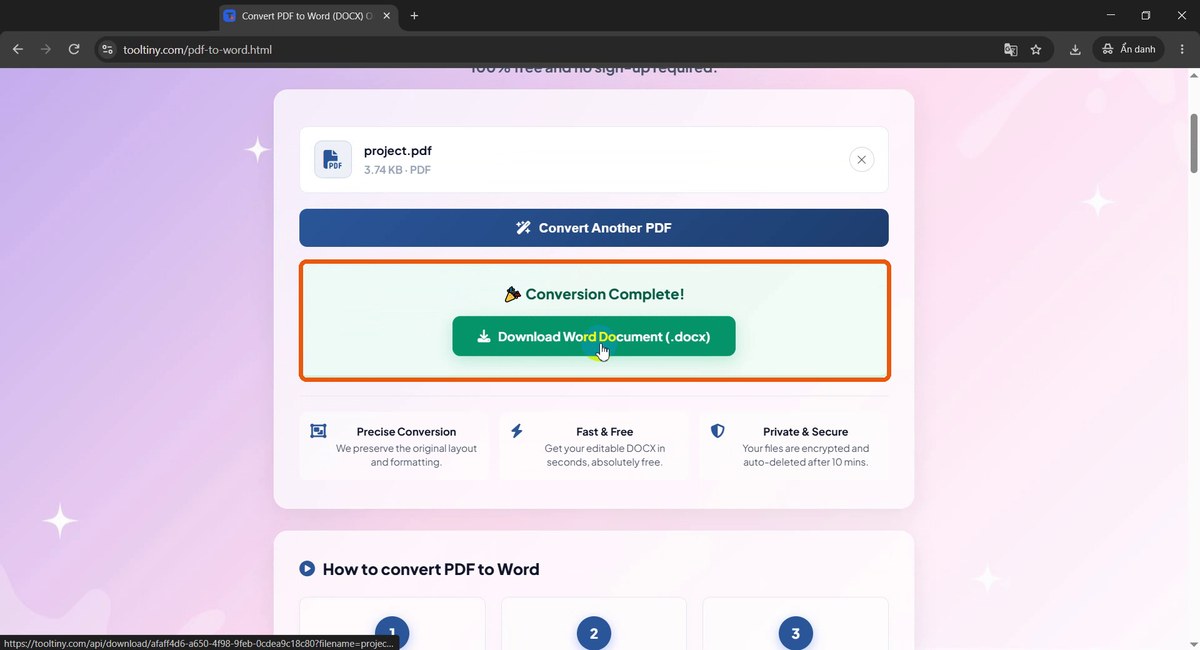
Conversion Complete! shows the green Download Word Document (.docx) button. Click it and save the file. To convert another PDF, use Convert Another PDF.
Conversion Complete -
Open the DOCX in Word
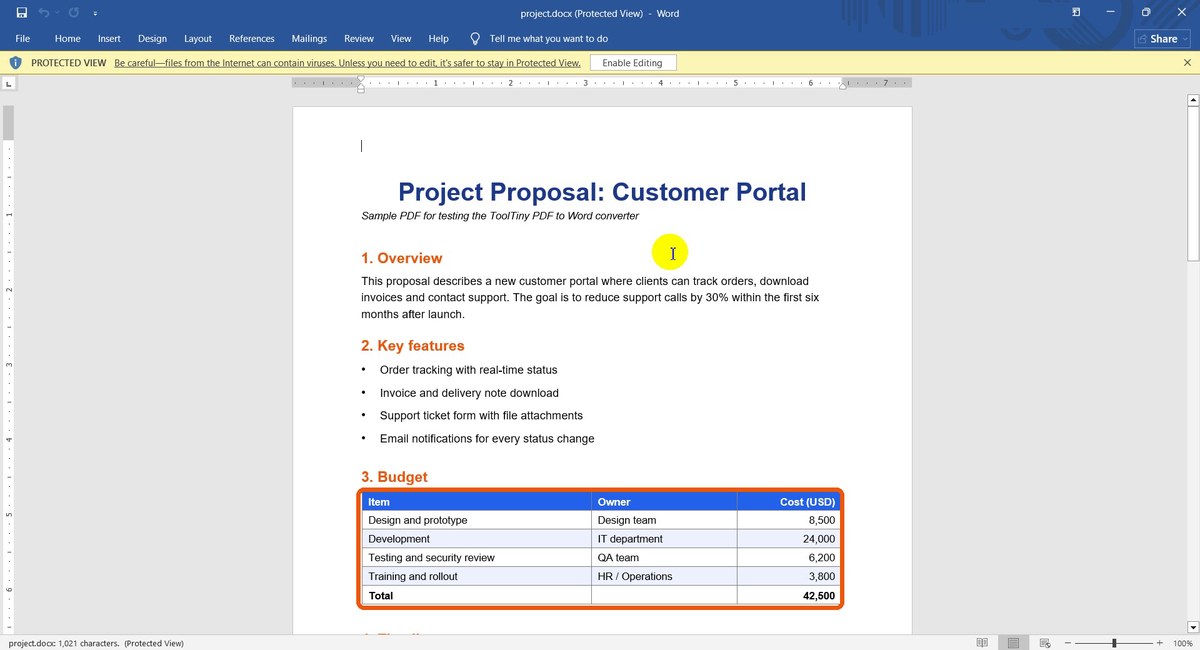
Open the downloaded file. Word shows it in Protected View because it came from the internet; click Enable Editing. The title, headings, bullet list and the colored budget table all came through, and the text can be edited like any Word document.
The editable Word file -
Check the other pages
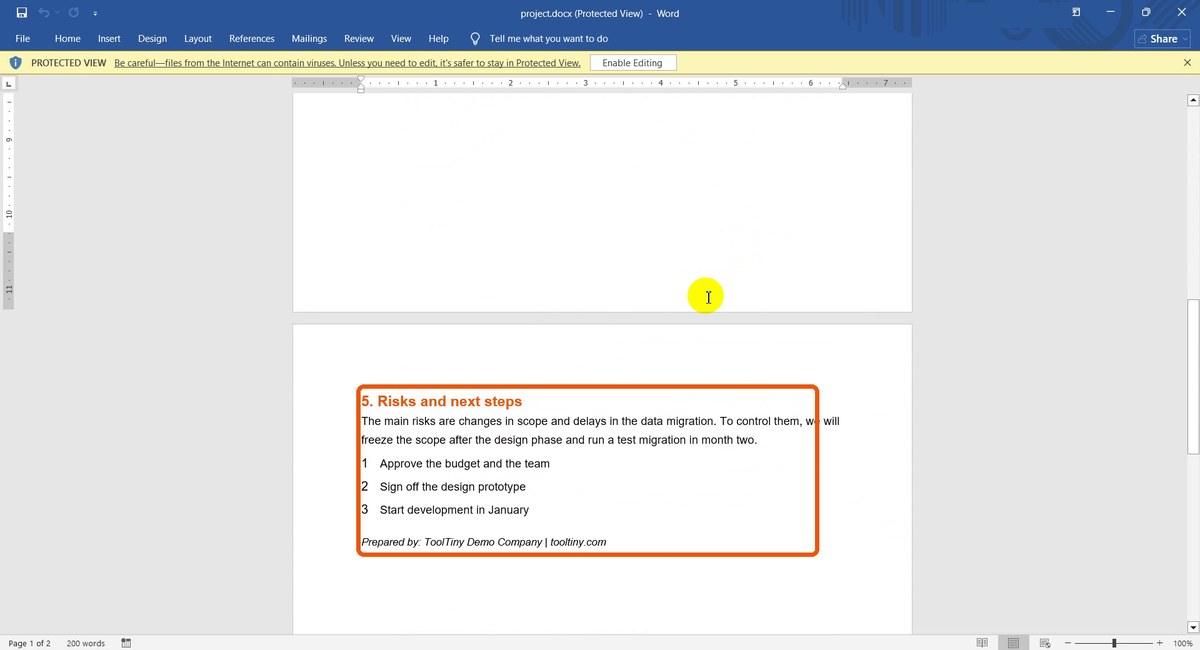
Scroll to page 2. The section heading, paragraph, numbered list and the closing line are there too. The converter kept the original two-page structure.
Page 2 in Word -
Compare with the original PDF
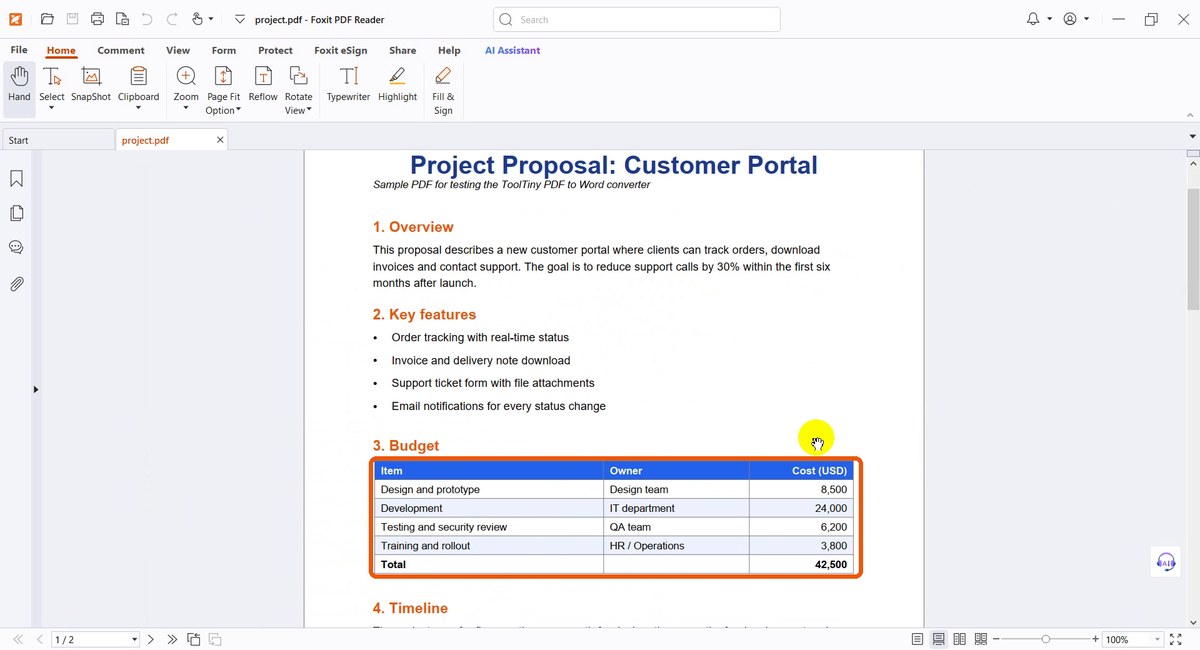
Open the PDF next to the Word file and compare. In our test the wording, order, colors and table match the original.
The original PDF
What You Get in Word
The converter rebuilds the PDF as a normal Word document, not as an image of the page. In our two-page sample:
| In the PDF | In the Word file |
|---|---|
| Title and subtitle in blue, italic subtitle | Kept, with the same colors and style |
| Orange section headings | Kept and editable as text |
| Bullet list | Kept as a real bulleted list |
| Budget table with blue header row | Kept as a Word table with the header color and right-aligned numbers |
| Numbered list on page 2 | Kept, but the dots after the numbers were not (1, 2, 3) |
| Two pages | Two pages, with the page break in the same place |
The one visible difference was the numbering style, which is easy to fix in Word. Plan a short review of every converted file: this is normal for any PDF-to-Word converter, and the tool says very complex layouts may need minor adjustments in Word.
Limits and What to Expect
- Size: up to 20 MB per PDF in the free version. For a larger file, split it first with Split PDF.
- Scanned PDFs: converted with OCR. Accuracy depends on scan quality, resolution, fonts and how complex the page is; clear, high-resolution scans work best.
- Layout: best-effort preservation, and tables are kept when they are detected.
- Privacy: files are encrypted and deleted automatically after 10 minutes.
- Cost: free, with no sign-up.
Tips for a Cleaner Conversion
- Start from a clean PDF. A PDF exported from Word converts better than a photo or a scan of a printout.
- Click Enable Editing. If you cannot type, Word is probably in Protected View, not blocking editing.
- Check tables and numbers. Compare totals, decimals and dates with the original before you send the file on.
- Fix lists and spacing. Numbered lists, line spacing and page breaks are the usual small touch-ups.
- Need the other direction? Turn the finished document back into PDF with Office to PDF.
- Compare versions. After you edit the converted file, use Compare Word Documents to see exactly what changed.
- Mind confidentiality. Files are uploaded for conversion. Do not upload documents you are not allowed to share.
Upload a PDF and download a DOCX in seconds. Free, no sign-up.