How to Password Protect a PDF Online for Free (AES Encryption)
Invoices, contracts, payslips, scanned IDs: some PDFs should not be readable by whoever happens to receive or find them. A password fixes that, and you do not need Acrobat or any software to add one. This guide shows how to password protect a PDF online with ToolTiny, what happens when you open the protected file, and how to choose a password you will not regret.
When You Should Password Protect a PDF
- Sending sensitive files by email. Even if the message goes to the wrong address, the file stays closed.
- Invoices and contracts. Prices and terms are for the client, not for everyone on a shared link.
- HR documents. Payslips, offers and ID copies should open only for the right person.
- Shared drives and chat apps. A password adds a second lock when a link is forwarded.
- Lost or stolen devices. A protected file is useless without the password.
Watch the Whole Process
The recording protects a PDF invoice, downloads it and opens it in a PDF reader to show the password prompt.
How to Password Protect a PDF, Step by Step
-
Open Protect PDF
In the top bar open PDF Tools and choose Protect PDF, or go straight to tooltiny.com/protect-pdf.html.
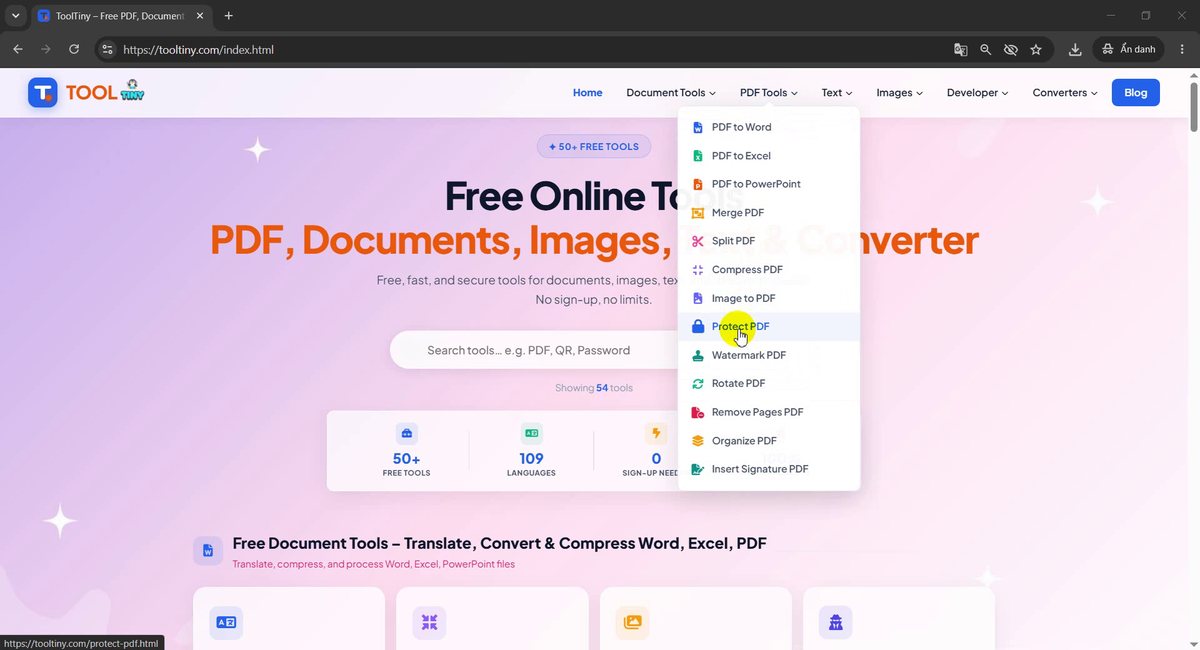
PDF Tools → Protect PDF -
Select your PDF
The page is titled Protect & Encrypt PDF Files Free Online. Click Select a PDF file (or drag a PDF into the box) and choose the document. The box shows the limit: Max 20 MB file size.
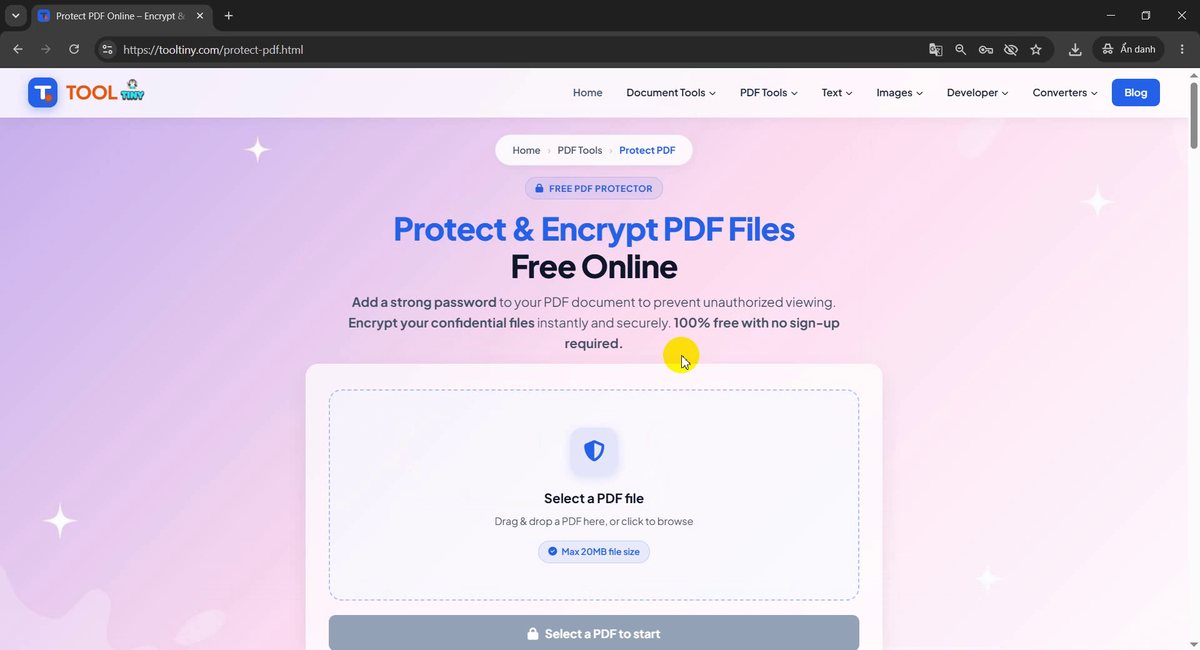
Click Select a PDF file -
Check the file and find the password boxes
Your file appears at the top with its name and size, here invoice.pdf, 108.0 KB. Below it, under Set a strong password, are two boxes: Type Password and Confirm Password. The button stays grey and says Enter password to continue until both are filled.
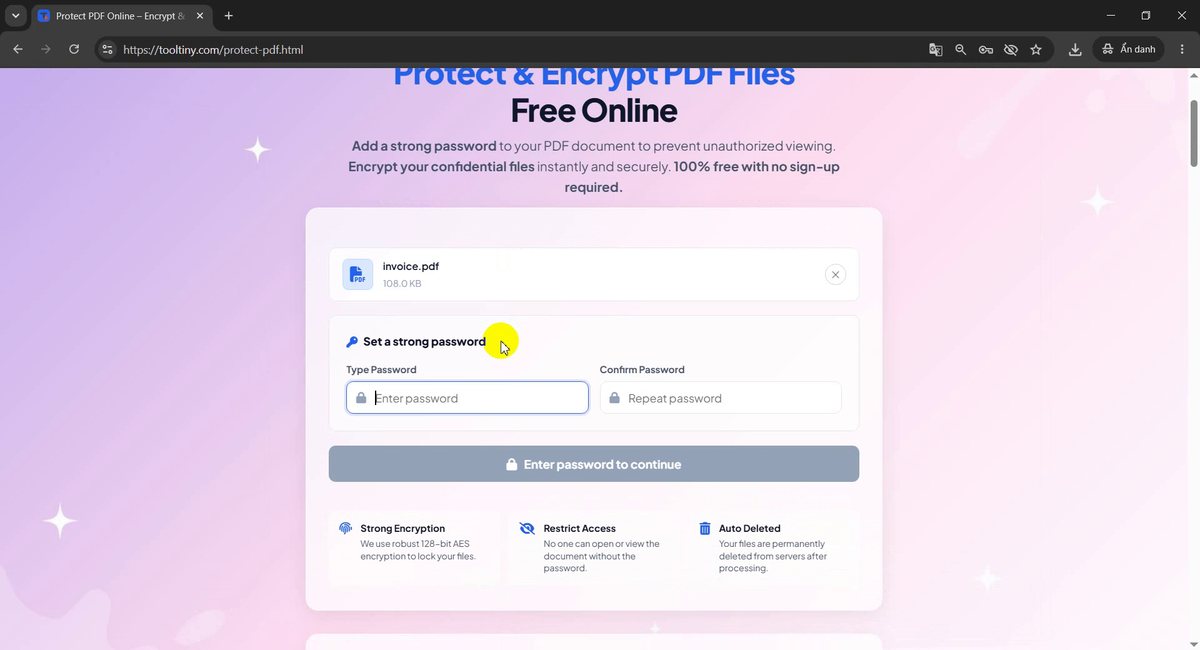
Two password boxes -
Type the password twice
Enter your password in the first box and repeat it in the second. The characters are hidden. Until the second box is filled, the button says Please confirm your password. When both match it turns blue and reads Protect PDF Document. Click it. We used a short test password for the recording; use a longer one for real files.
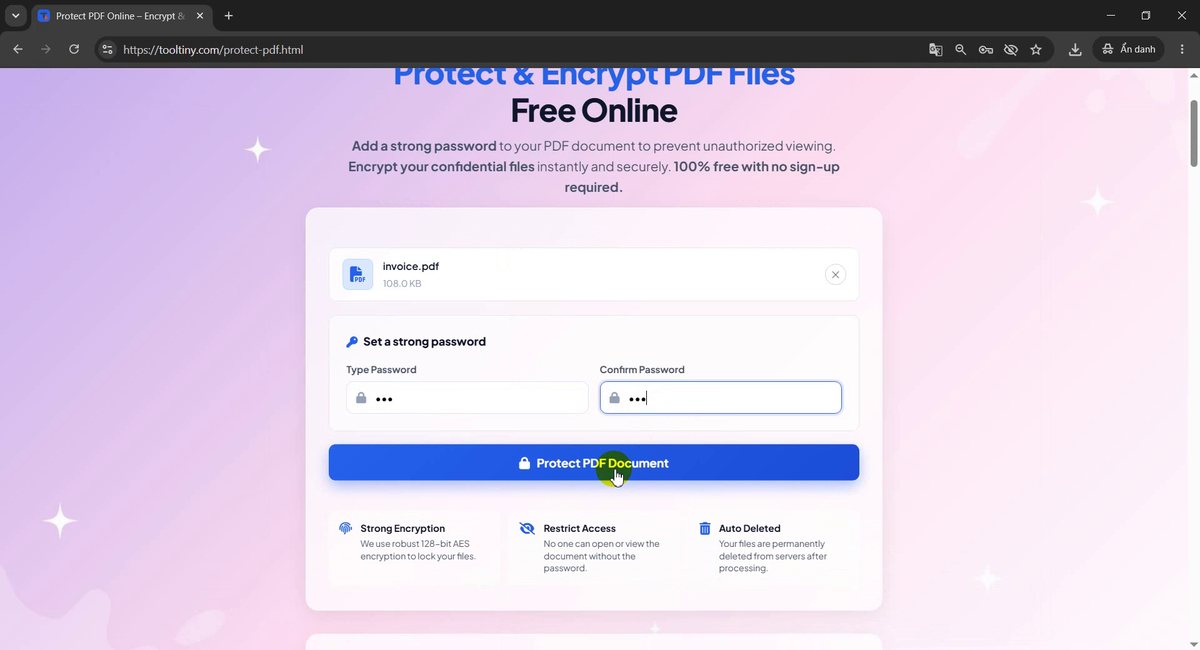
Click Protect PDF Document -
Wait for the encryption
The button changes to Uploading & Encrypting... and a progress bar shows Encrypting Document with a percentage. For a small file it takes a few seconds. Keep the tab open until it finishes.
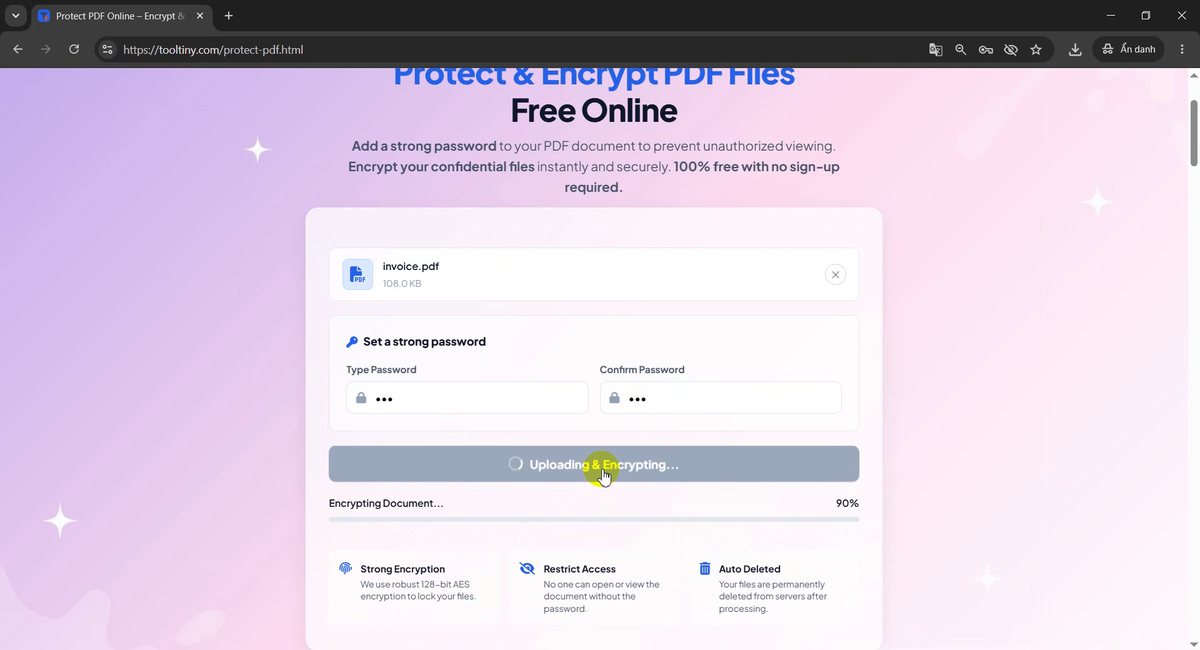
Encrypting the document -
Download the protected PDF
At 100% you see Encrypted Successfully! and Your PDF is now protected!. Click Download Protected PDF. The button Protect Another PDF above it starts a new job.
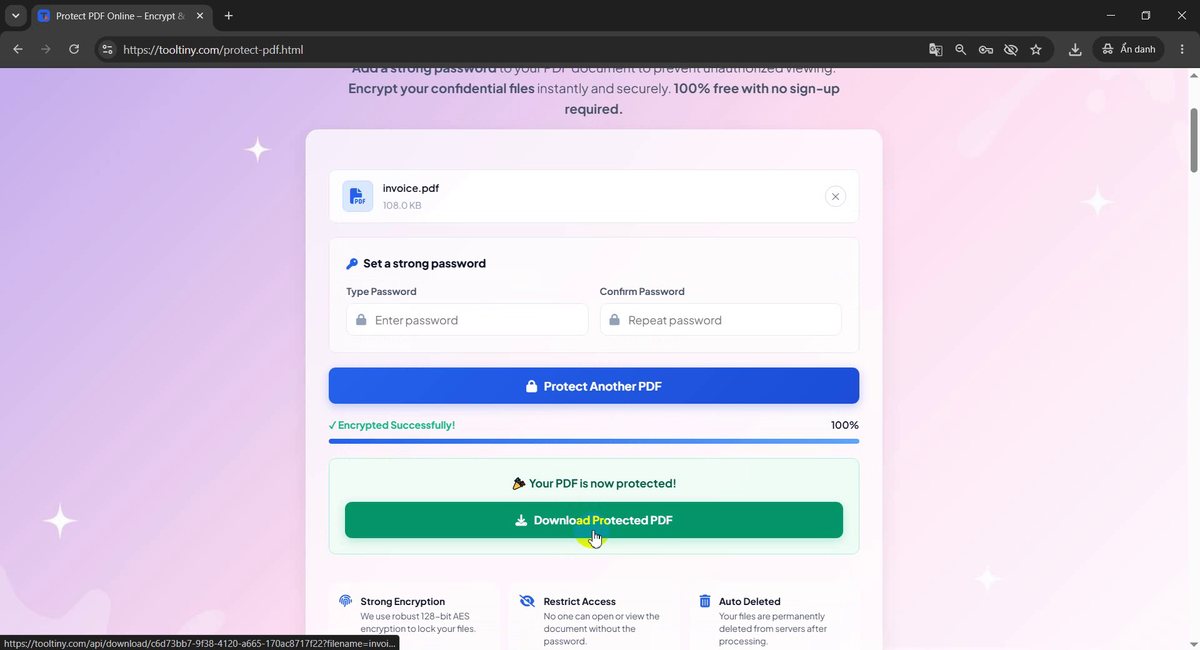
Download Protected PDF -
Save the file
The browser saves
invoice_protected.pdf, 108 KB, next to your originalinvoice.pdf. The name is your original name with_protectedadded.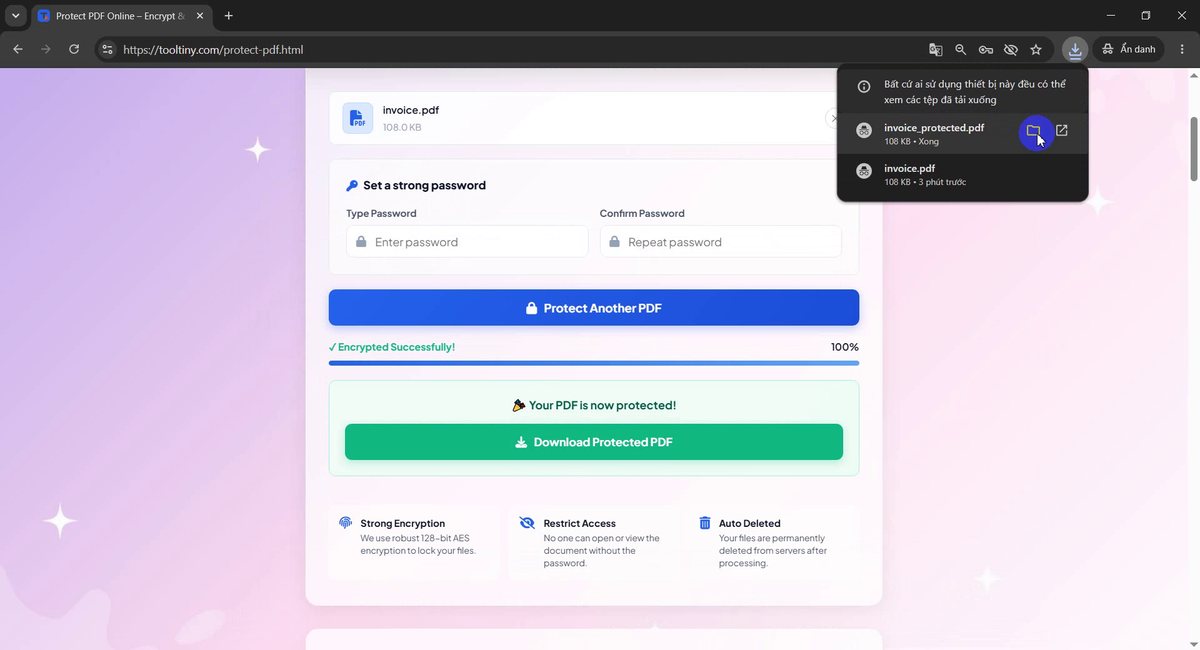
invoice_protected.pdf is saved -
Find it in your folder
In the Downloads folder both files are there: the original and the protected copy. The original is not changed, so keep it in a safe place in case you need an unprotected version.
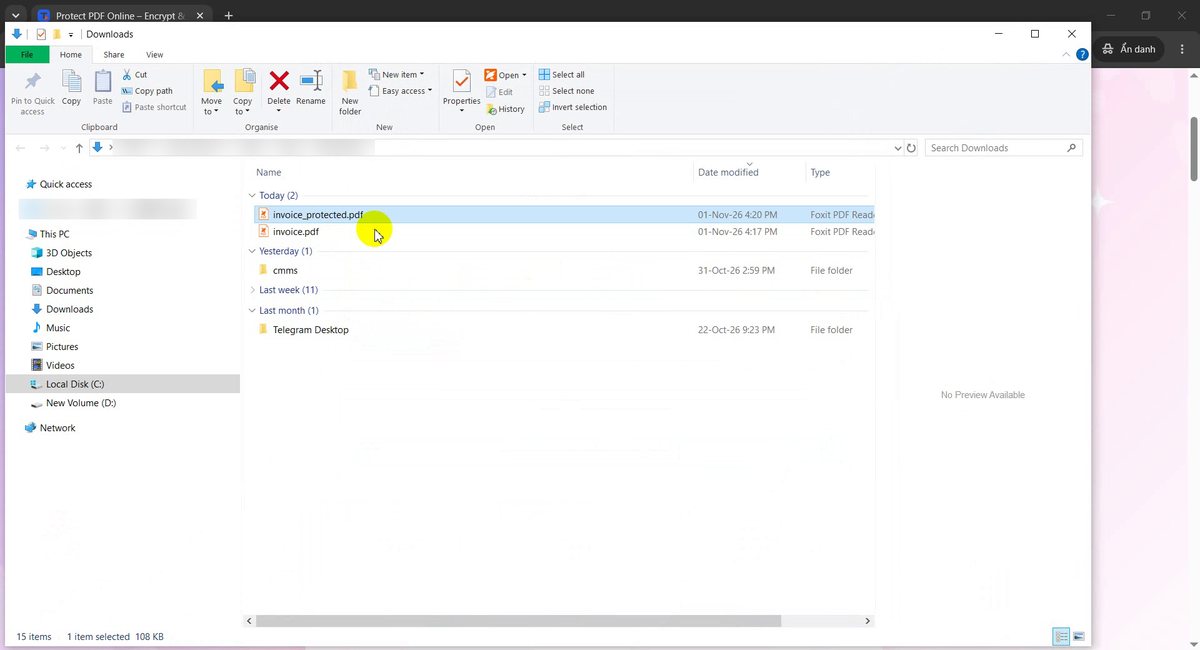
The original and the protected copy -
Open it: the password is required
Double-click the protected file. Your PDF reader shows a message that the file is password protected and asks you to Enter Password before showing any page.
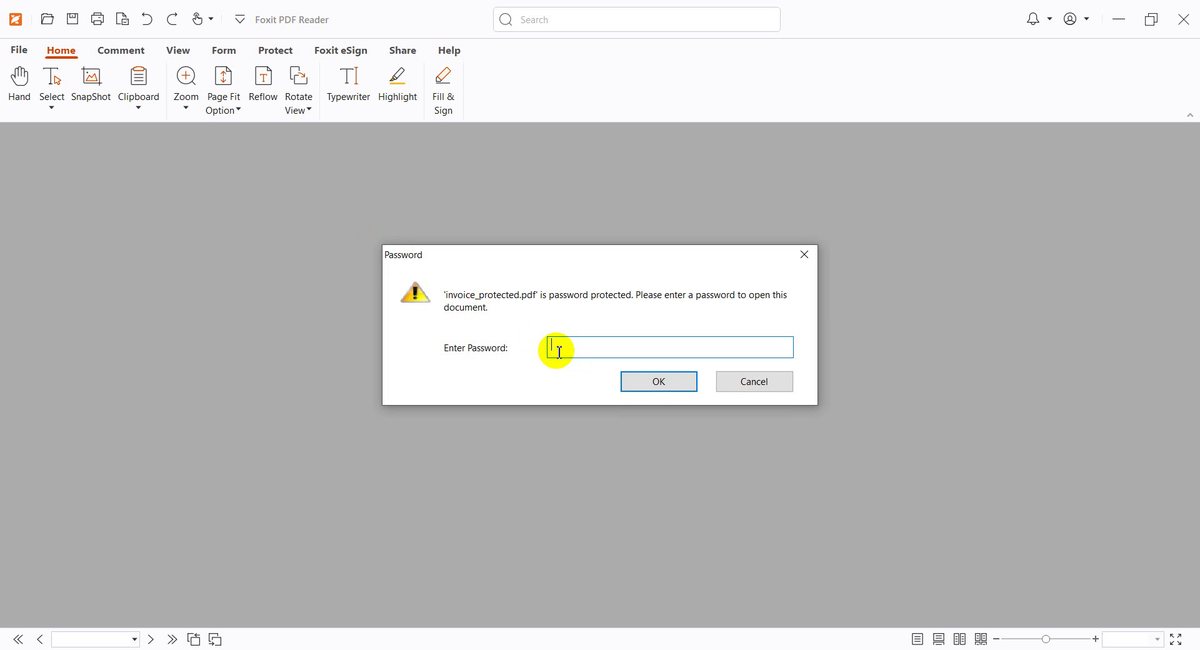
The reader asks for the password -
Enter the password and read the file
Type the password and click OK. The document opens, and the title bar shows (SECURED). Without the password, nobody can see the content.
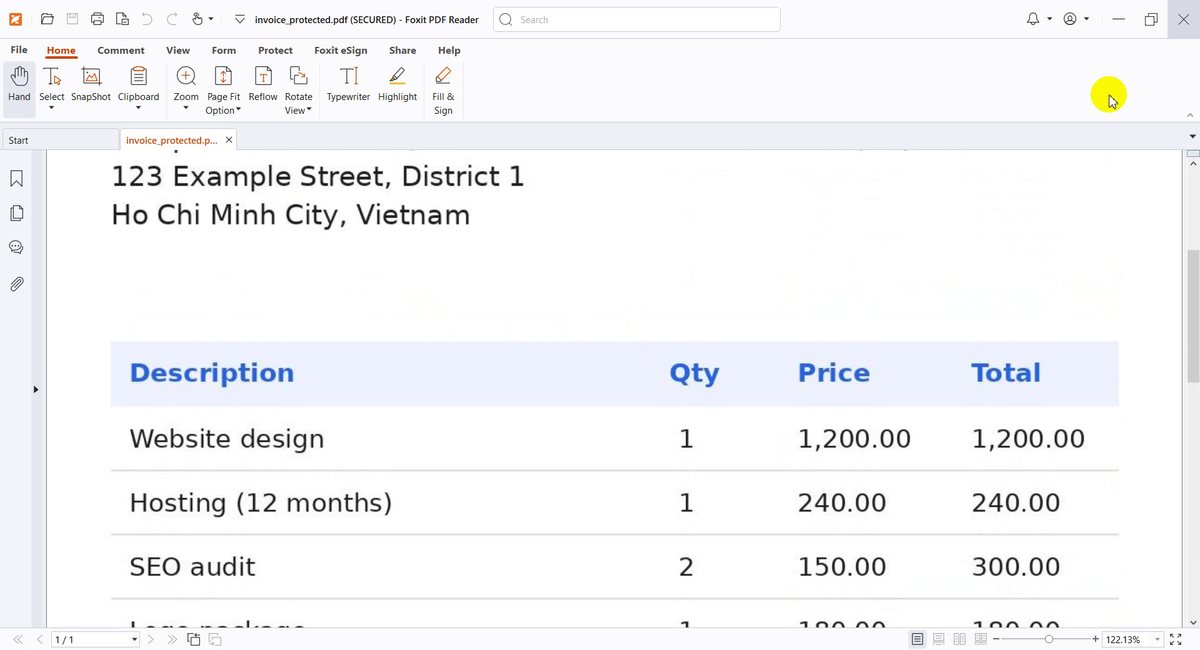
Opened with the password
What We Got
The tool gave us a new, locked copy and left the original alone:
| File | Size | Opens without password? |
|---|---|---|
| invoice.pdf (original) | 108 KB | Yes |
| invoice_protected.pdf | 108 KB | No: the reader asks for a password |
The size did not change, and after we entered the password the invoice opened with all its content, including the totals at the bottom.
Good to Know
- Encryption: 128-bit AES, shown on the tool page as Strong Encryption.
- One password: it is needed to open the file. Share it through a different channel than the file itself.
- Size: up to 20 MB per PDF.
- Format: PDF files only.
- Privacy: files are permanently deleted from the servers after processing.
- Cost: free, with no sign-up.
Tips for a Strong, Practical Password
- Make it long. A phrase of several words is stronger and easier to remember than a short word with symbols. Our 3-character password was only for the demo.
- Do not reuse passwords. Use one that you do not use for email or banking.
- Store it safely. We cannot reset it for you, so save it in a password manager.
- Send the password separately. Email the file, then give the password by phone or chat.
- Keep the original. Your unprotected file is unchanged, so store it somewhere safe in case you need to edit it later.
- Test the result. Open the protected file once and enter the password before you send it.
- Add a watermark too. Mark the file as confidential with Watermark PDF before you protect it.
- Mind confidentiality. Files are uploaded for processing. Do not upload documents you are not allowed to share.
Select your file, set a password and download the protected copy. Free, no sign-up.