How to Measure on Screen in Pixels, CM and Inches (Free Online Ruler)
How wide is that button? Is this logo really 5 cm when printed? The ToolTiny Screen Ruler answers both kinds of question: a ruler in pixels, centimetres, millimetres or inches that you can calibrate to real-world size, and a measuring tool for screenshots that gives lengths, angles and CSS pixels. This guide follows a short screen recording; every number below is the one we saw on screen.
Screen Ruler or Measure an Image?
| Screen ruler | Measure an image | |
|---|---|---|
| What you measure | Anything visible on your screen, against an on-screen ruler | Distances, boxes and angles inside a screenshot or image |
| Units | PX, CM, MM, IN | Image pixels or CSS pixels (1× to 3×) |
| Real-world size | Yes, after calibrating with a card or your screen size | Not needed; it works in pixels |
| Use it for | Checking a printed or physical size, quick on-screen checks | UI and web design: element sizes, spacing, alignment |
Watch the Whole Process
The 35-second recording opens the tool from the menu, switches between PX, CM, MM and IN, turns the ruler vertical, opens the card calibration and moves its slider, then switches to Measure an image, draws a line on a photo and changes the screenshot scale.
How to Measure on Screen, Step by Step
-
Open the Screen Ruler
Open the Developer menu in the top bar and choose Screen Ruler, or go straight to tooltiny.com/screen-ruler.html.
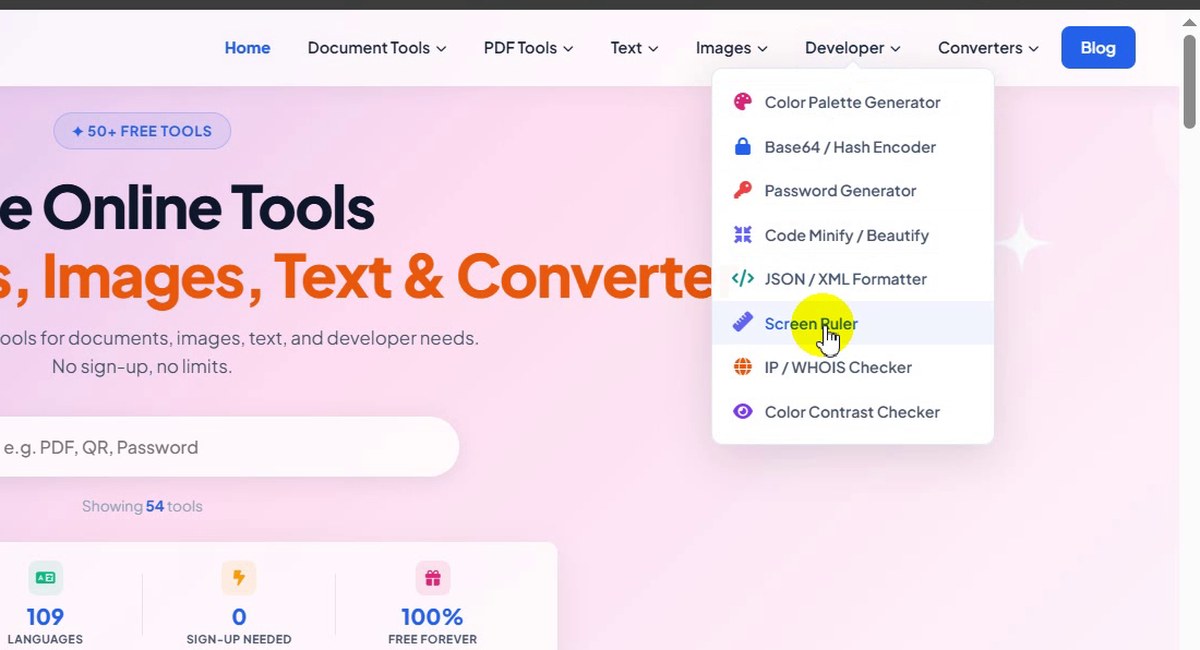
Developer → Screen Ruler -
Start with the pixel ruler
The page opens on the Screen ruler tab. With PX selected the ruler is marked every 100 pixels (100, 200 … 1000). Pixels need no calibration: they are always exact, which makes this the unit to use for web and UI work.
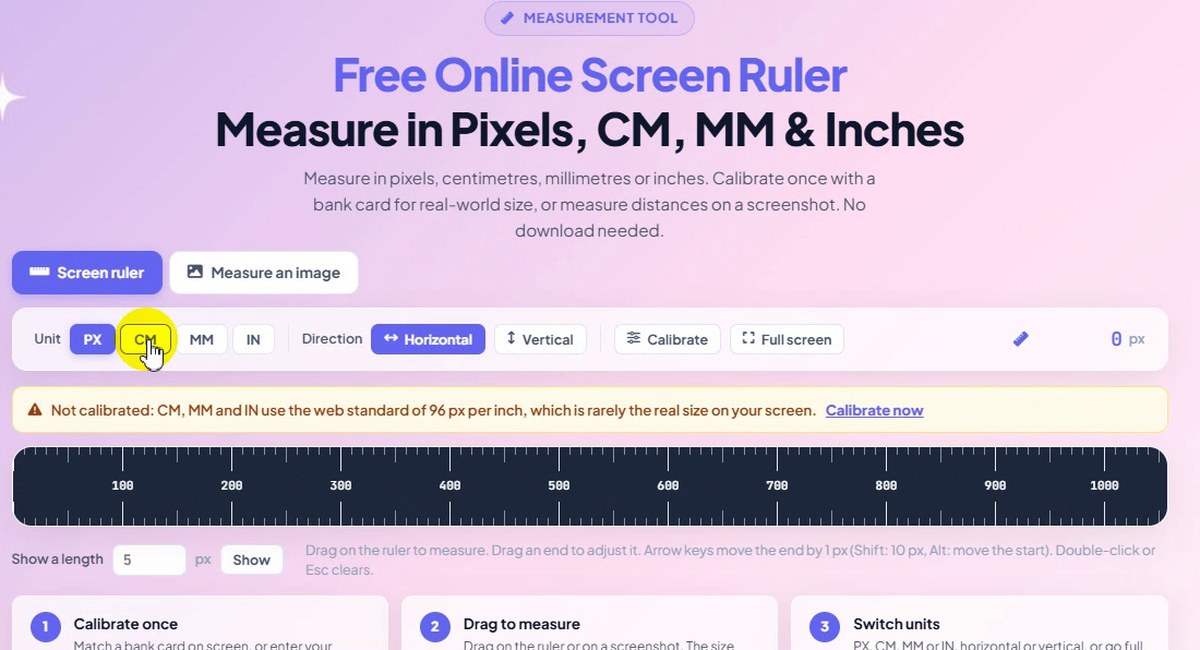
PX: exact, no calibration needed -
Switch to CM, MM or IN
Click CM, MM or IN and the ruler redraws in that unit. Note the yellow bar: “Not calibrated: CM, MM and IN use the web standard of 96 px per inch, which is rarely the real size on your screen.” Until you calibrate, a centimetre on the ruler is probably not a real centimetre.
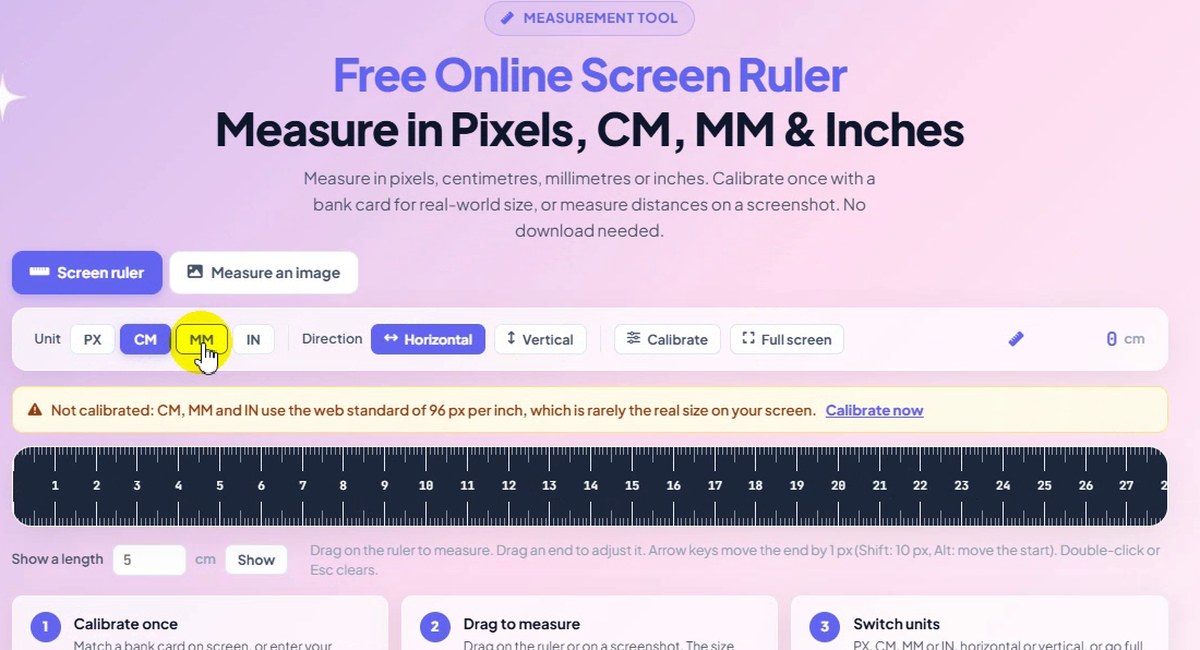
CM, MM or IN: calibrate for real size -
Turn the ruler vertical
Under Direction, click Vertical to measure heights. We did this with inches selected, so the vertical ruler is marked 1, 2, 3, 4 inches.
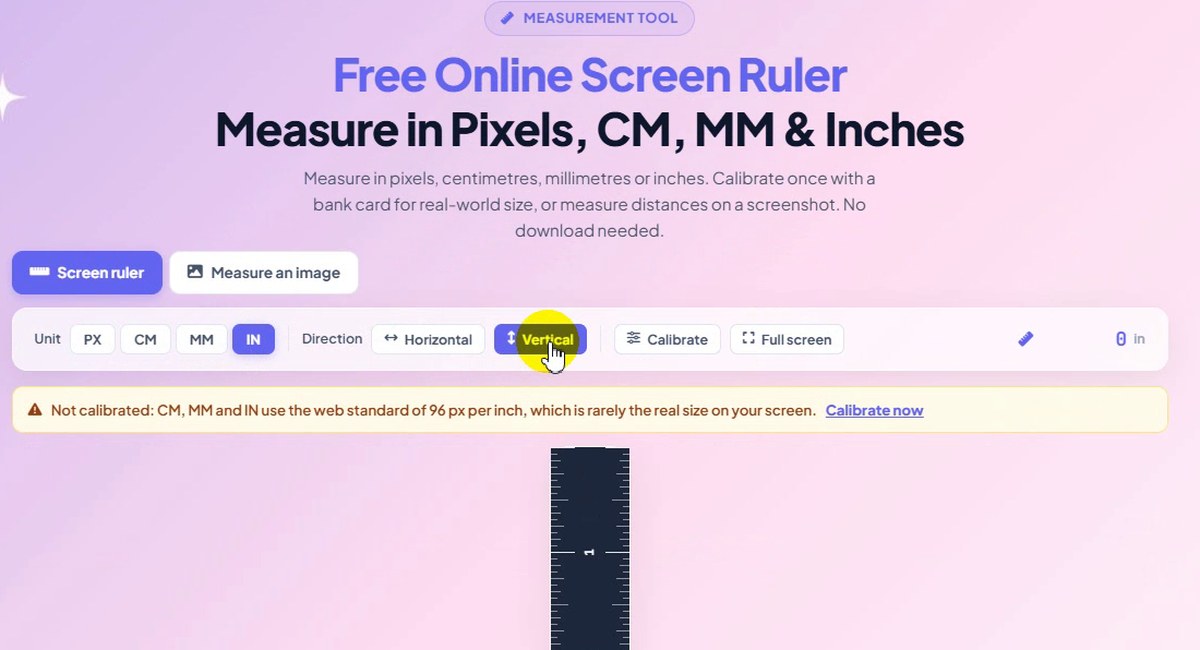
Direction: Vertical -
Open the calibration panel
Click Calibrate (or Calibrate now in the yellow bar). The panel offers three methods: Bank or ID card, Screen size and Enter a value. Before calibrating, the page uses the default: 1 inch = 96.00 px, 1 cm = 37.80 px.
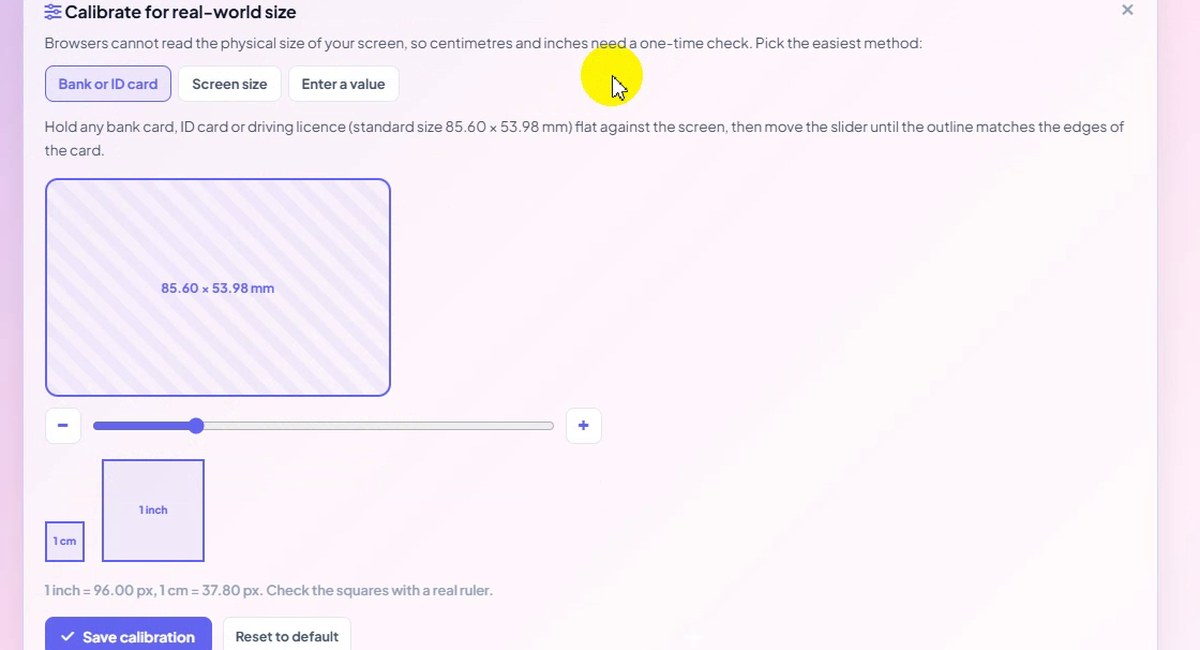
Three ways to calibrate -
Match the card outline
Hold any bank card, ID card or driving licence (all 85.60 × 53.98 mm) flat against the screen and move the slider, or use − and +, until the outline matches the card’s edges. The 1 cm and 1 inch squares grow with it. In the recording we dragged the slider to 1 inch = 150.90 px just to show how it moves; on a real screen you stop where the outline fits your card, then click Save calibration.
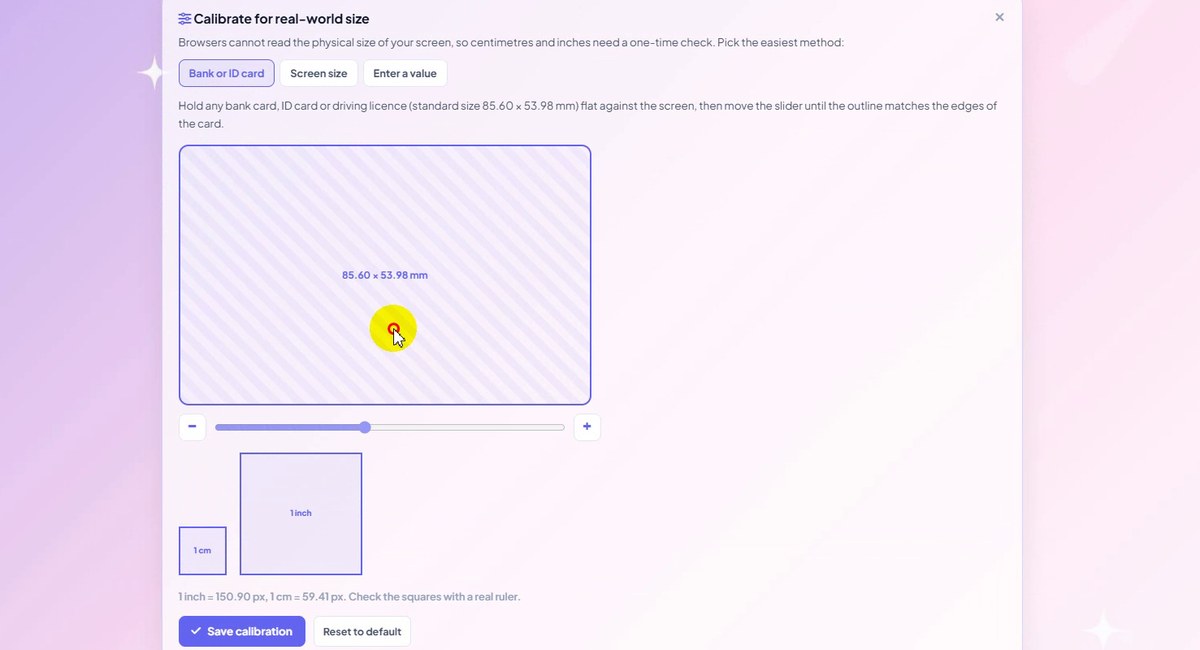
Move the slider until the outline fits the card -
Measure an image instead
Click the Measure an image tab. You can paste a screenshot with Ctrl+V, drop an image on the box, or click Open image. The image stays in your browser.
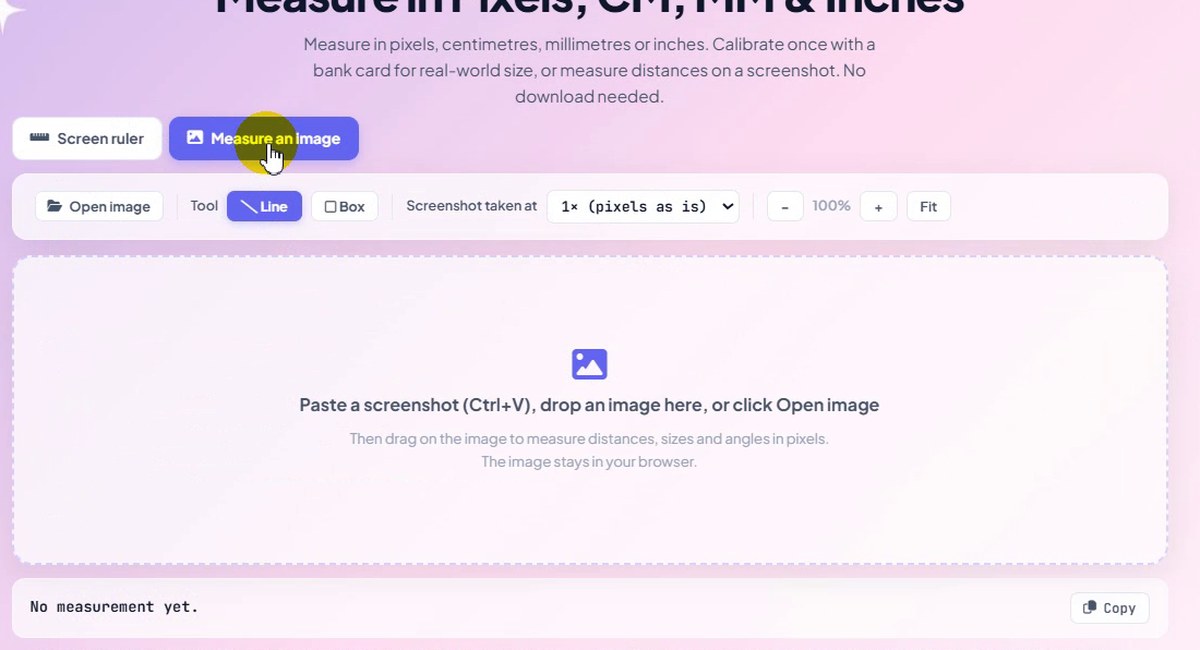
Paste, drop or open an image -
Load your screenshot
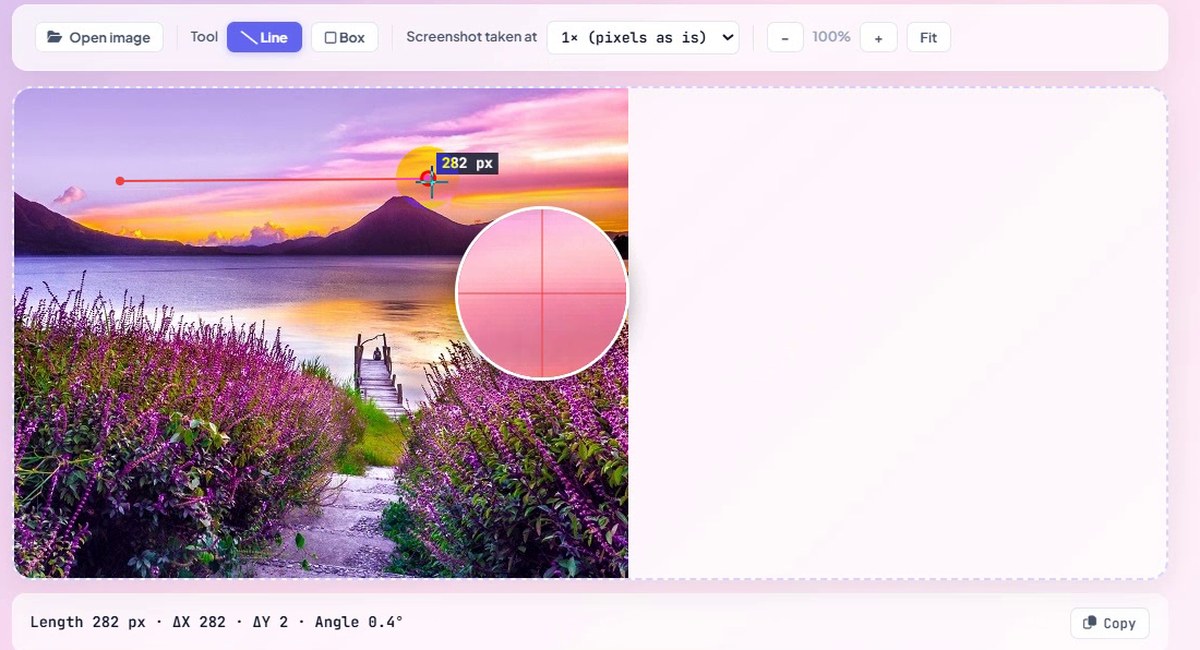
We opened a landscape photo with Open image. The bar under it confirms the size: Image 563 × 449 px. Drag on it to measure. A magnifier follows the pointer so you can start exactly on the pixel you want.
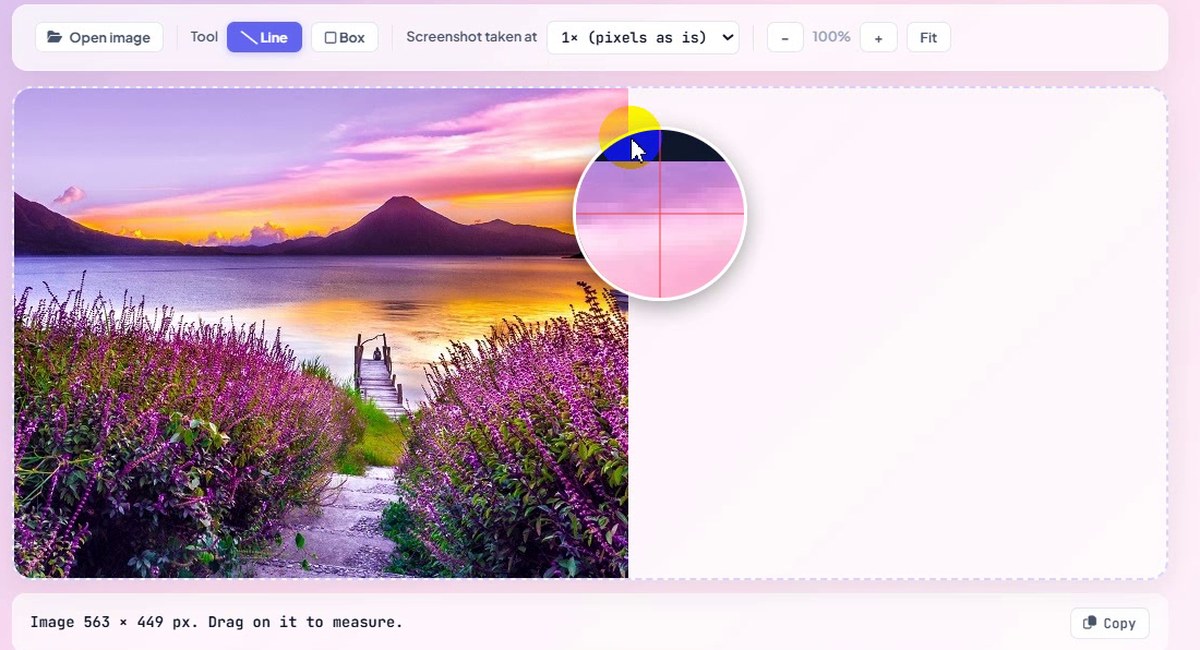
Image 563 × 449 px -
Drag a line to measure
With Line selected, drag from one point to another. The label on the line and the bar below update live: Length 282 px · ΔX 282 · ΔY 2 · Angle 0.4°. Choose Box instead to measure width and height. Hold Shift to keep a line horizontal, vertical or at 45°.
Length 282 px, Angle 0.4° -
Set the screenshot scale
Screenshots from high-DPI screens contain more pixels than the page had CSS pixels. Open Screenshot taken at and choose 1× (pixels as is), 1.25×, 1.5×, 2× (Retina) or 3× (phone). After we adjusted an end, our line was 284 px at 1×.
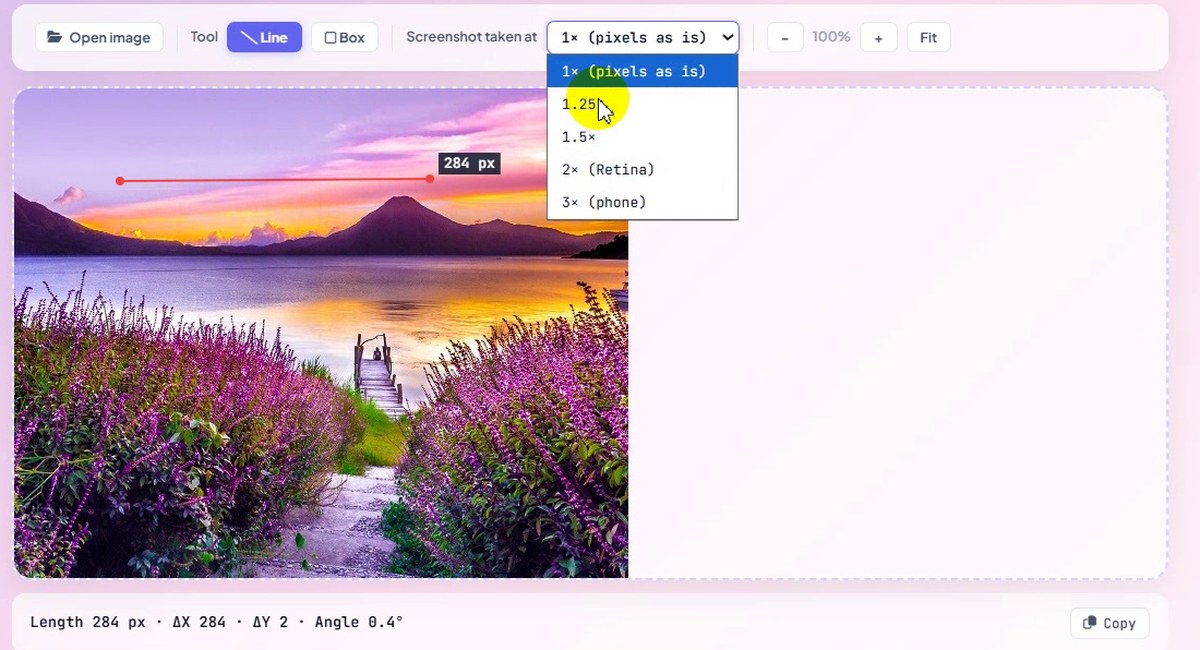
Screenshot taken at: 1× to 3× -
Read sizes in CSS pixels
At 1.25× the same line reads 227.2 CSS px (284 ÷ 1.25), and at 1.5× it reads 189.3 CSS px, with (image pixels ÷ 1.5) shown at the end. These are the sizes a web designer would put in CSS.
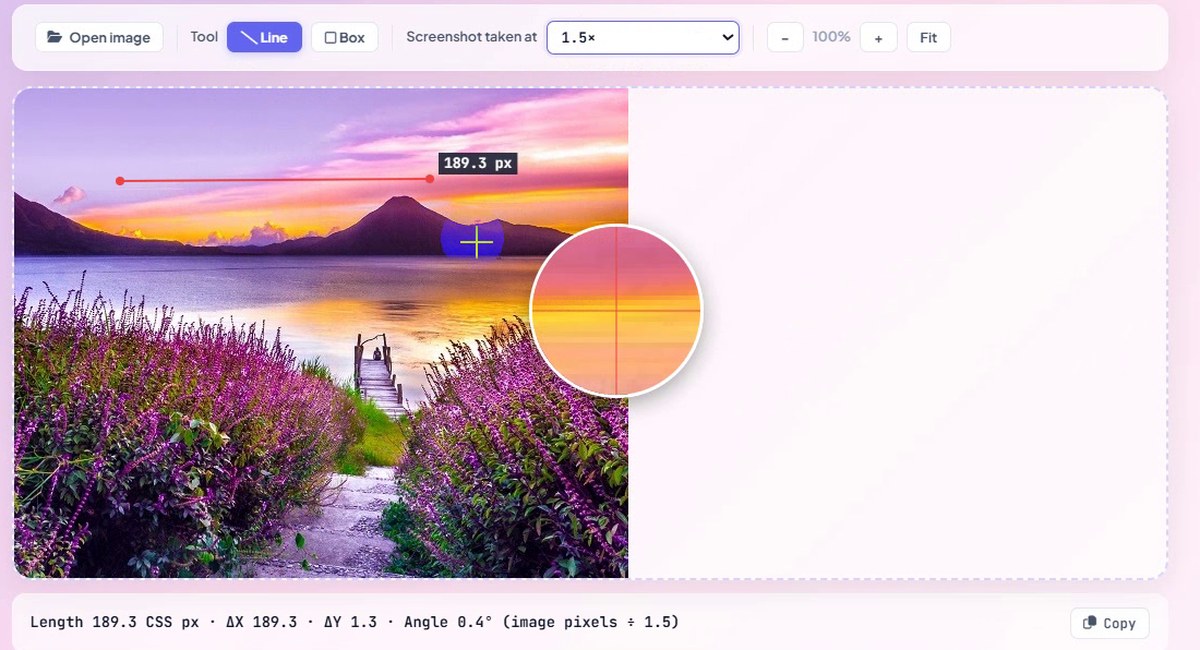
1.5×: 189.3 CSS px -
Copy the measurement
Click Copy next to the result to paste it into a ticket, chat or design note: Length 189.3 CSS px · ΔX 189.3 · ΔY 1.3 · Angle 0.4° (image pixels ÷ 1.5).
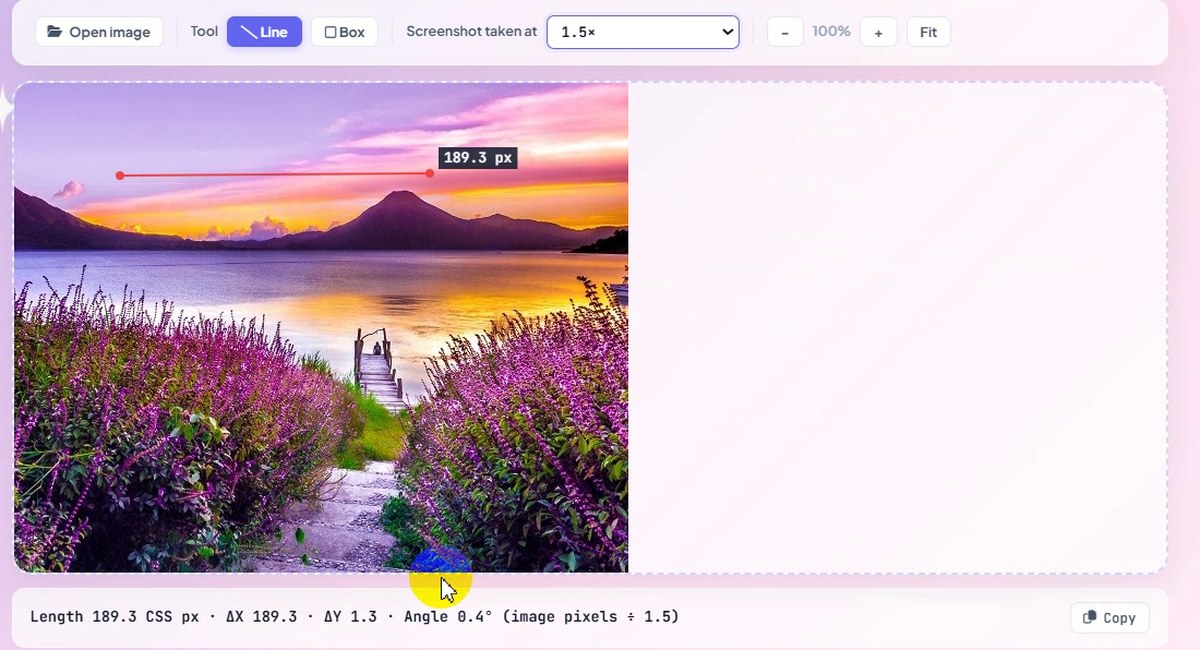
Copy the result
What the Screenshot Scale Did to Our 284 px Line
| Screenshot taken at | Result shown | Typical screen |
|---|---|---|
| 1× (pixels as is) | 284 px | Standard monitor at 100% |
| 1.25× | 227.2 CSS px | Windows laptop at 125% |
| 1.5× | 189.3 CSS px | Windows laptop at 150% |
| 2× (Retina) | 284 ÷ 2 = 142 CSS px | MacBook and other Retina screens |
| 3× (phone) | 284 ÷ 3 ≈ 94.7 CSS px | Many modern phones |
The first three rows are what the tool showed in the recording; the last two are the same division for the other options. If you are not sure which scale your screenshot has, check your display scaling setting, or measure something whose CSS size you know.
Good to Know
- Pixels are always exact; centimetres, millimetres and inches are only real-world size after you calibrate. Until then the page shows a yellow Not calibrated warning.
- Any standard card works for calibration: bank cards, ID cards and driving licences all measure 85.60 × 53.98 mm.
- We did not save a calibration in the recording; we only moved the slider to show it. Save calibration keeps your setting in the browser.
- Private: images you measure stay in your browser.
Tips
- Calibrate once per screen. A laptop and an external monitor have different pixel densities, so calibrate on each.
- Use Show a length under the ruler to draw an exact size, such as 5 cm, and hold an object against it.
- Need a longer ruler? Click Full screen.
- For UI work, paste a screenshot with Ctrl+V and set the matching scale, so your numbers match CSS.
- Checking colours too? The Color Contrast Checker tests text and background colours against WCAG. More guides are on our blog.
Pixels, centimetres, millimetres and inches. Free, private, no sign-up.