How to Generate a Strong Password, Passphrase, PIN or API Token Online (Free)
A password is only as good as the randomness behind it, and human-made passwords are rarely random. The ToolTiny Password Generator makes four kinds of secrets in one page, a password, a passphrase, a PIN and an API token, shows how strong each one is in bits, and can also test a password you already use. This guide follows a real screen recording, so every number below is one we saw on screen. The passwords in the screenshots are random samples made for the video: generate your own.
Password, Passphrase, PIN or Token?
| Tab | Setting in our test | Strength shown | Best for |
|---|---|---|---|
| Password | 21 characters, all four types | 135 bits, STRONG | Website and app accounts, kept in a password manager |
| Passphrase | 5 words, hyphen, capitals, a number | 70 bits, GOOD | Passwords you type by hand: password manager, device login |
| PIN | 6 digits | 20 bits, WEAK | Phone lock or bank card only, where tries are limited |
| Token / API key | 256-bit hex | 256 bits, STRONG | API keys, secrets, webhook signing |
“Bits of entropy” is the number the tool uses to measure strength. Each extra bit doubles the number of guesses an attacker needs, which is why 135 bits is not just a little better than 70, it is astronomically better.
Watch the Whole Process
The recording opens the tool from the menu, builds a password by switching the character types on one by one, makes passphrases with different separators, tries a PIN and a token, and finishes by checking a short test word on the Check my password tab.
How to Generate and Check a Password, Step by Step
-
Open the Password Generator
Open the Developer menu in the top bar and choose Password Generator, or go straight to tooltiny.com/password-generator.html.
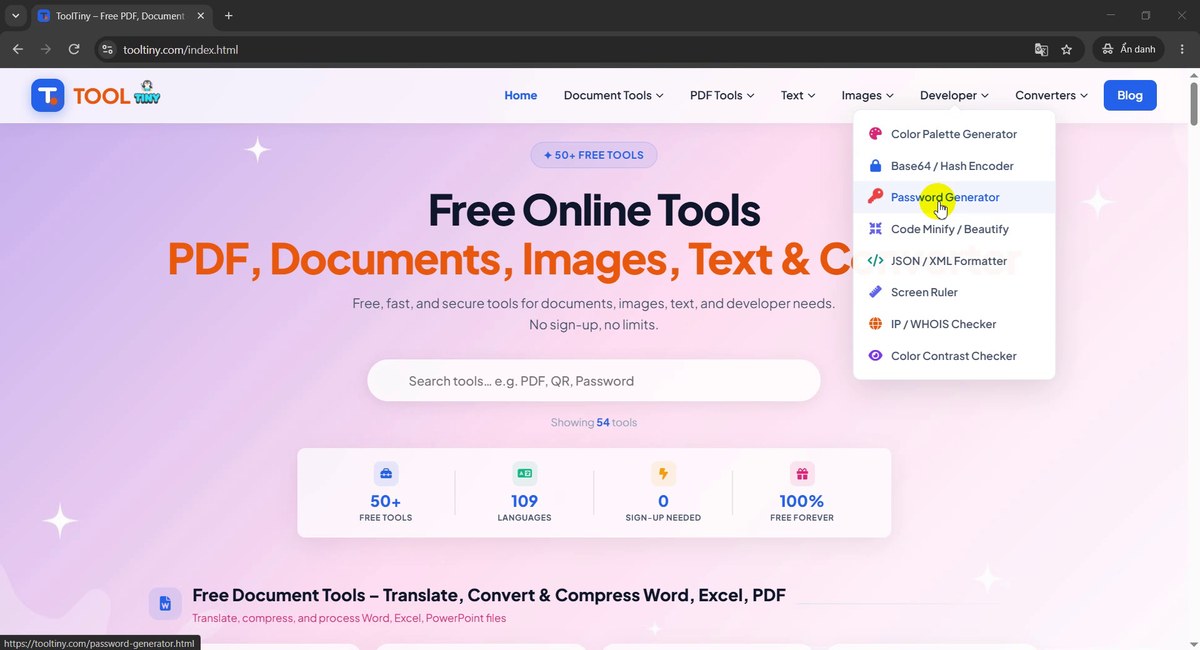
Developer → Password Generator -
Five tools on one page
The generator has five tabs: Password, Passphrase, PIN, Token / API key and Check my password. The page says it is free, runs in your browser and needs no sign-up. Pick a tab and a new result is ready at once. (In our recording the page happened to open on the Token tab.)
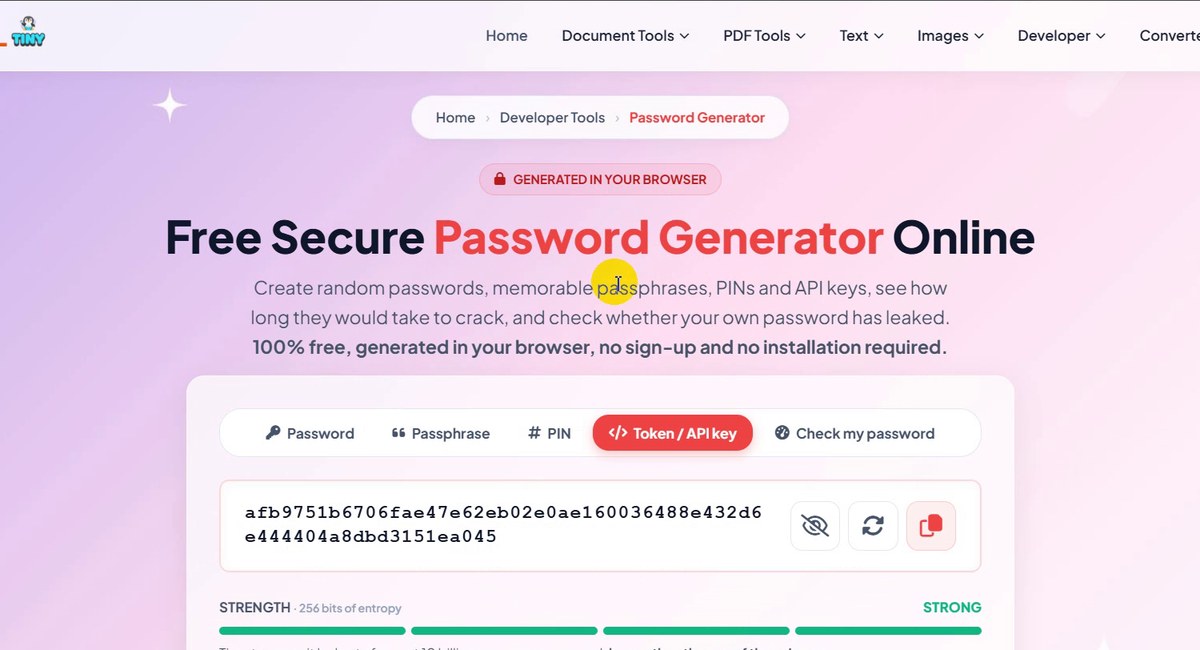
Five tabs, one page -
Set the length and the character types
On the Password tab, drag the Length slider or type a number. We used 21. Below it, four boxes choose the characters: Uppercase, Lowercase, Numbers and Symbols. With uppercase only, the strength line read 99 bits of entropy.
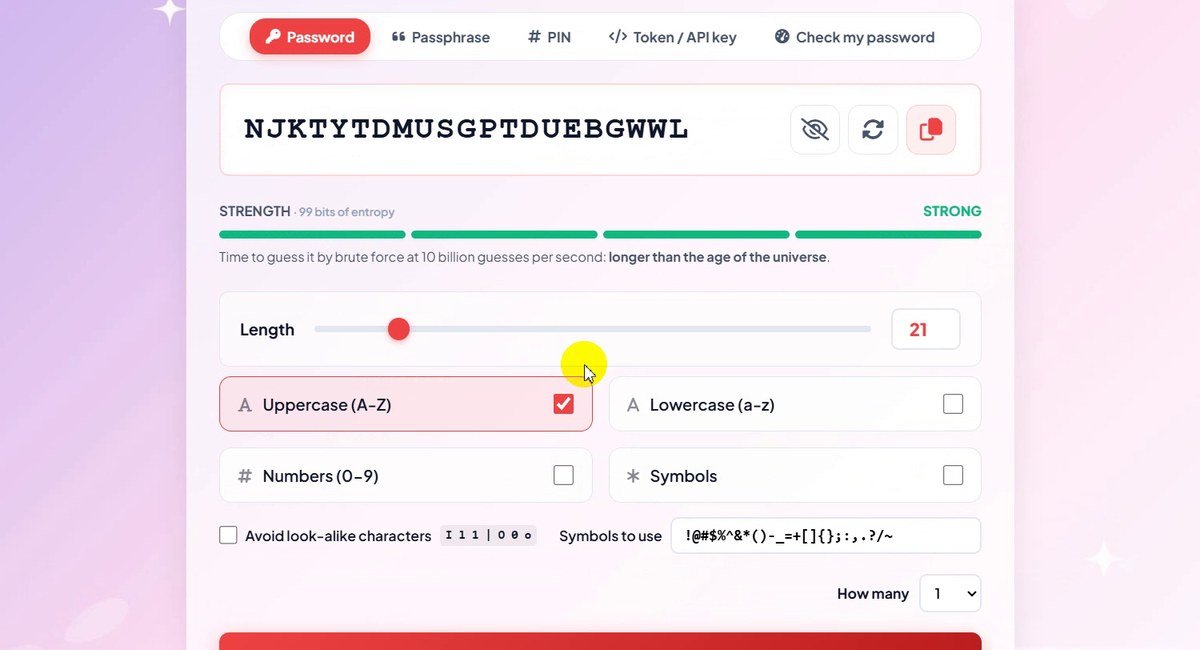
Length 21, uppercase only: 99 bits -
Watch the strength grow
Every extra character type adds entropy. At the same length of 21 we saw 99 bits (uppercase), 120 bits (plus lowercase), 125 bits (plus numbers) and 135 bits (plus symbols). The meter turns STRONG and the line under it says the brute-force time is longer than the age of the universe.
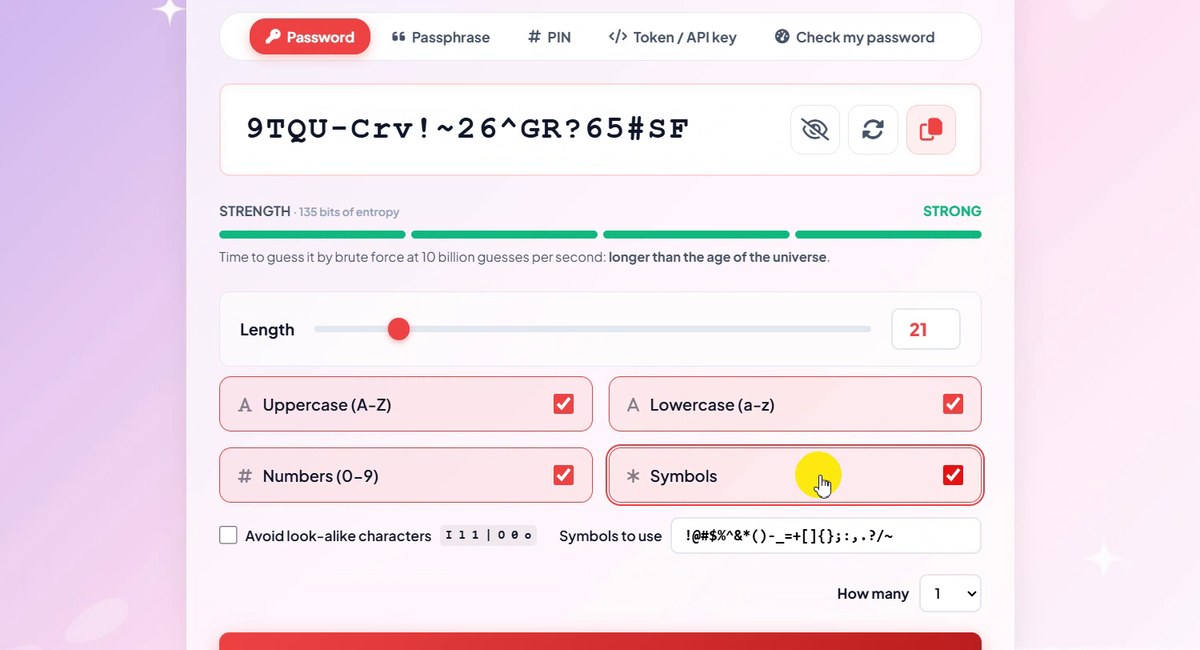
All four types: 135 bits, STRONG -
Avoid look-alike characters
Tick Avoid look-alike characters when you will read or type the password by hand. It leaves out
I l 1 | O 0 o, and the entropy dropped a little, to 133 bits, because there are fewer characters to choose from. The Symbols to use box lets you decide which symbols are allowed, useful for sites that reject some of them.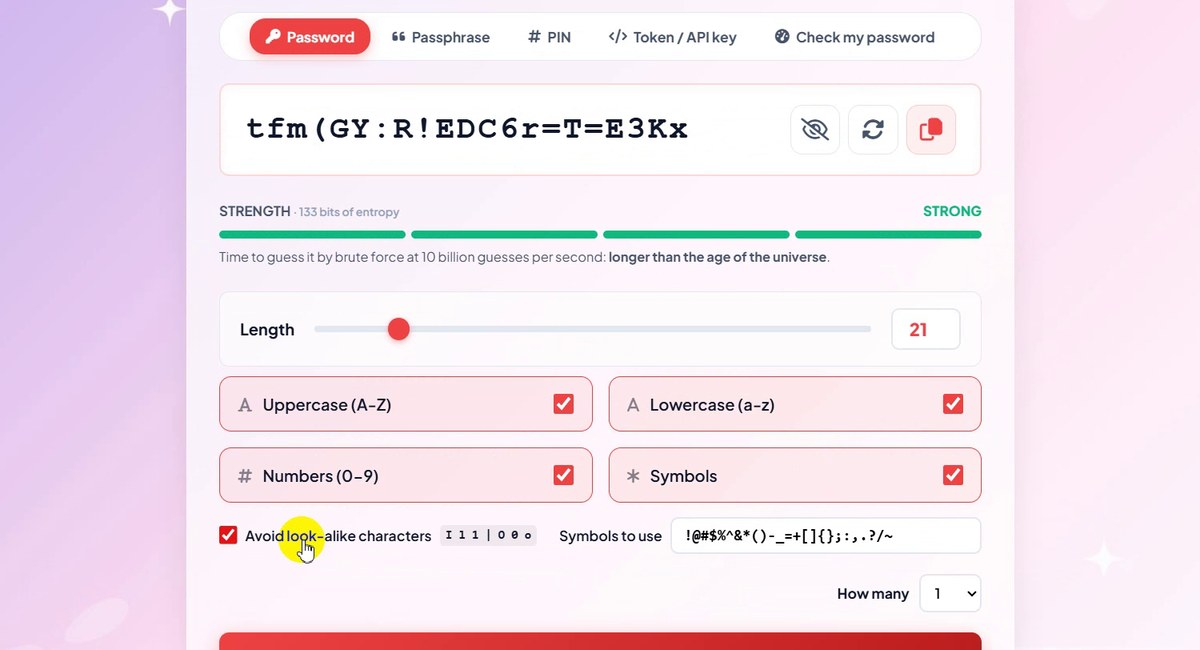
Look-alike characters removed: 133 bits -
Make a passphrase
Open Passphrase for something you can remember. By default it picks 5 words with a hyphen between them, capitalised, plus a number. Our result had 70 bits, rated GOOD, and the tool estimated about 23 centuries at 10 billion guesses per second. The note says the words come from the EFF list of 7,776 words, about 12.9 bits per word.
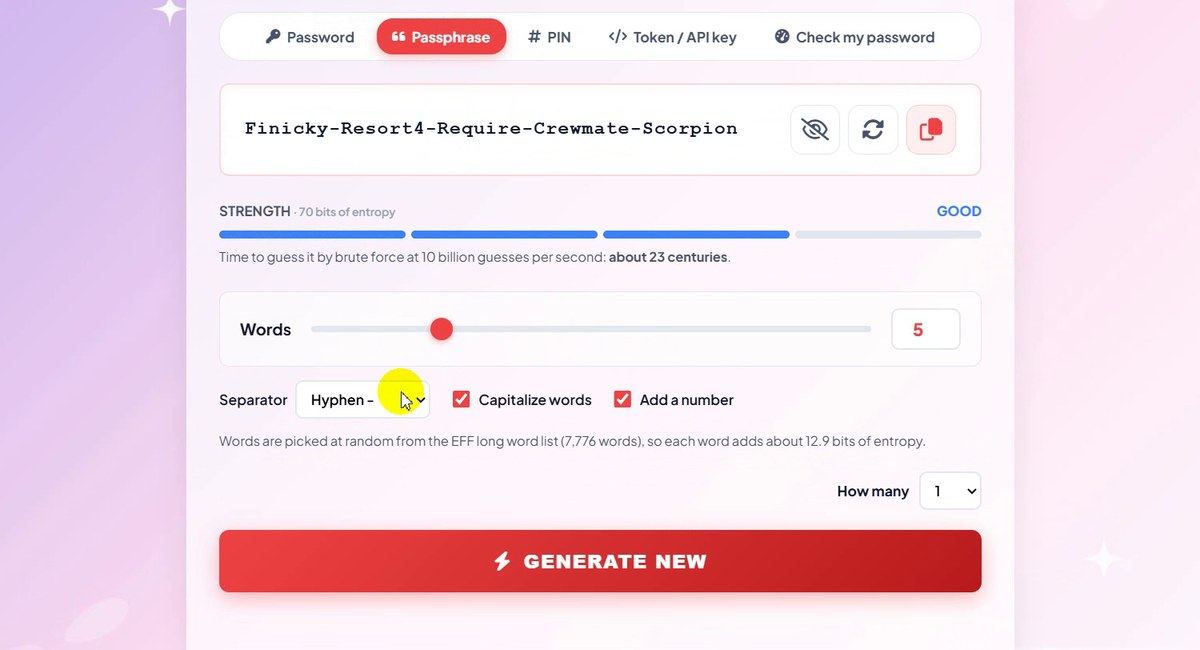
Five words: 70 bits, GOOD -
Choose the separator
The Separator list offers Hyphen, Space, Dot, Underscore and None. Pick one and the passphrase changes at once. Capitalize words and Add a number are two tick boxes beside it. Use a space for a phrase you type often, or None when a site does not allow punctuation.
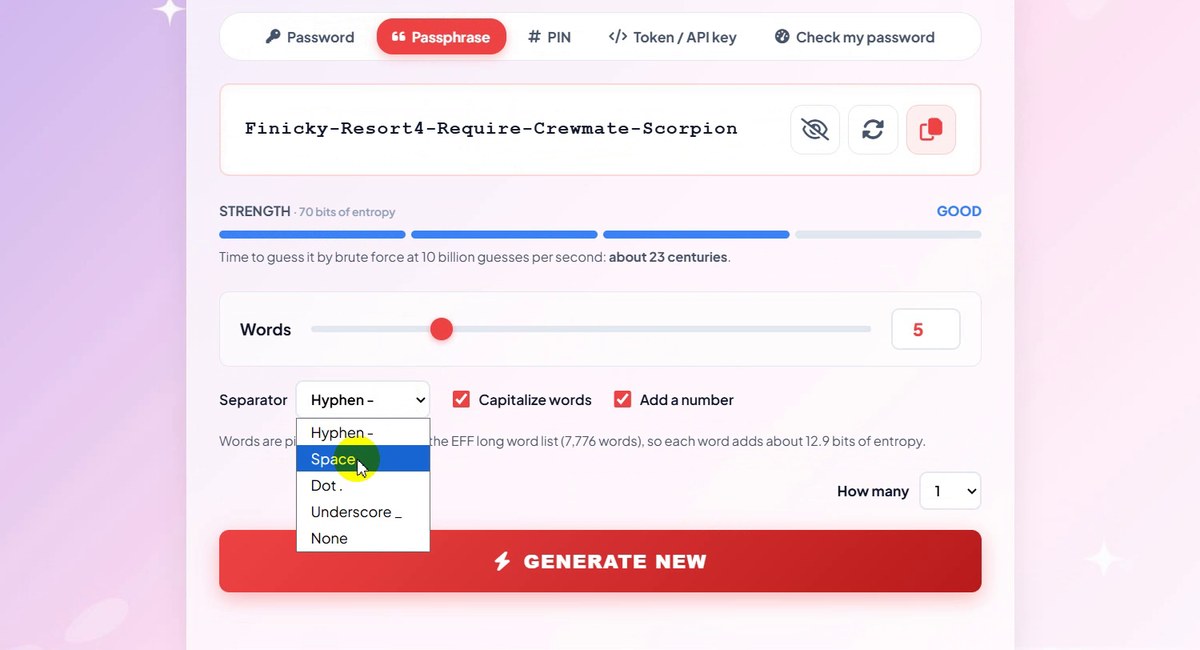
Hyphen, Space, Dot, Underscore or None -
Generate a PIN
The PIN tab makes a number of 4 to 12 digits. A 6-digit PIN had only 20 bits and is marked WEAK, and the tool says why: a guesser with unlimited tries needs instantly, but with a limit of 10 attempts has only a 0.0010% chance. We then moved the slider to 7 and 8 digits: 23 bits and 27 bits. A note on the page says a PIN is only safe where the number of attempts is limited and should never be a website password.
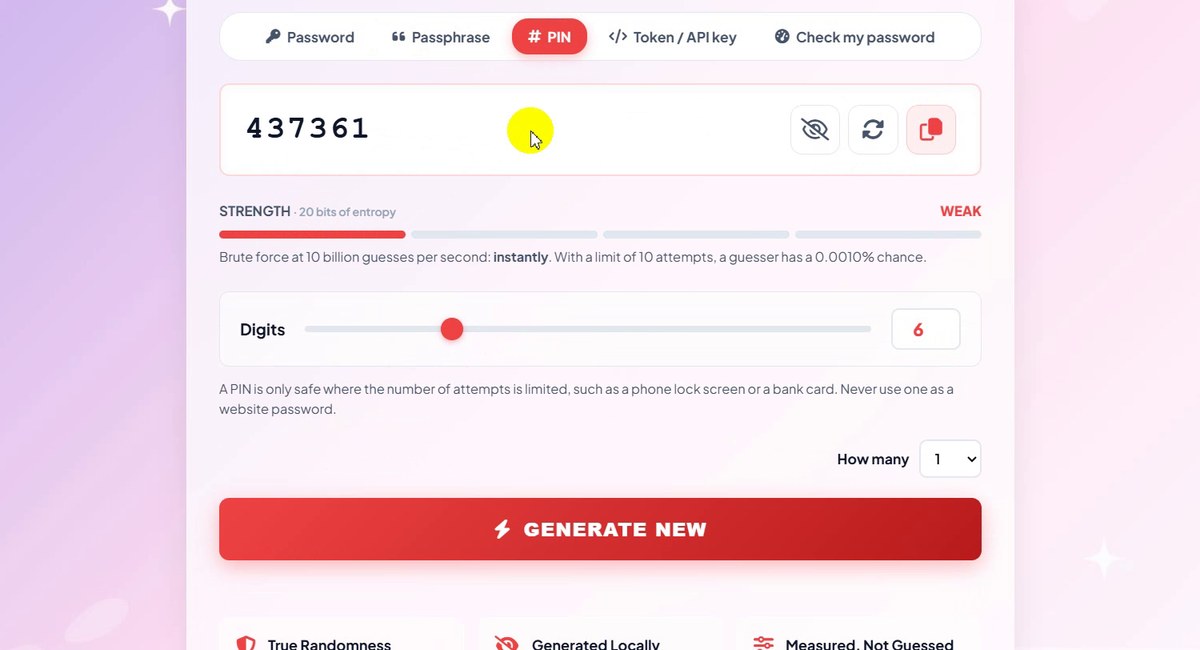
6-digit PIN: 20 bits, only safe with limited tries -
Create a token or API key
On Token / API key the default is a hex token of 256 bits (32 bytes), rated STRONG. The note says tokens use only characters that are safe in URLs, JSON,
.envfiles and HTTP headers.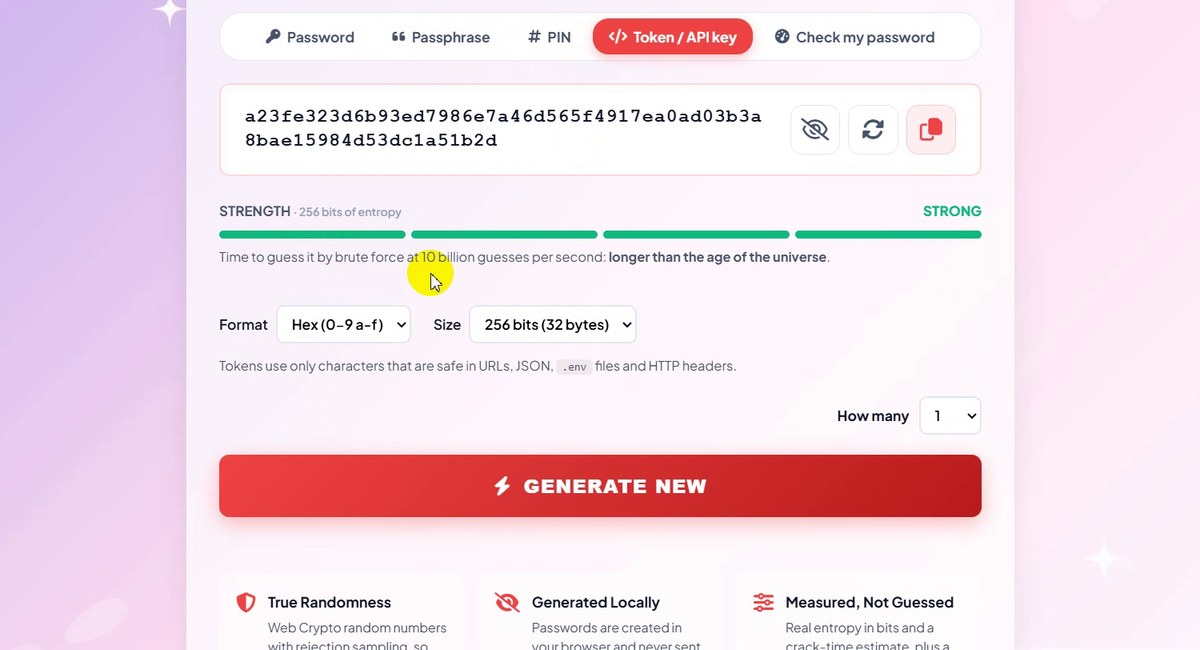
256-bit hex token -
Pick the format and size
Format offers Hex (0-9 a-f), Base64URL and UUID v4. Size offers 128, 192, 256 or 512 bits (16, 24, 32 or 64 bytes). Choose Base64URL for a shorter string, or UUID v4 when a system asks for a UUID.
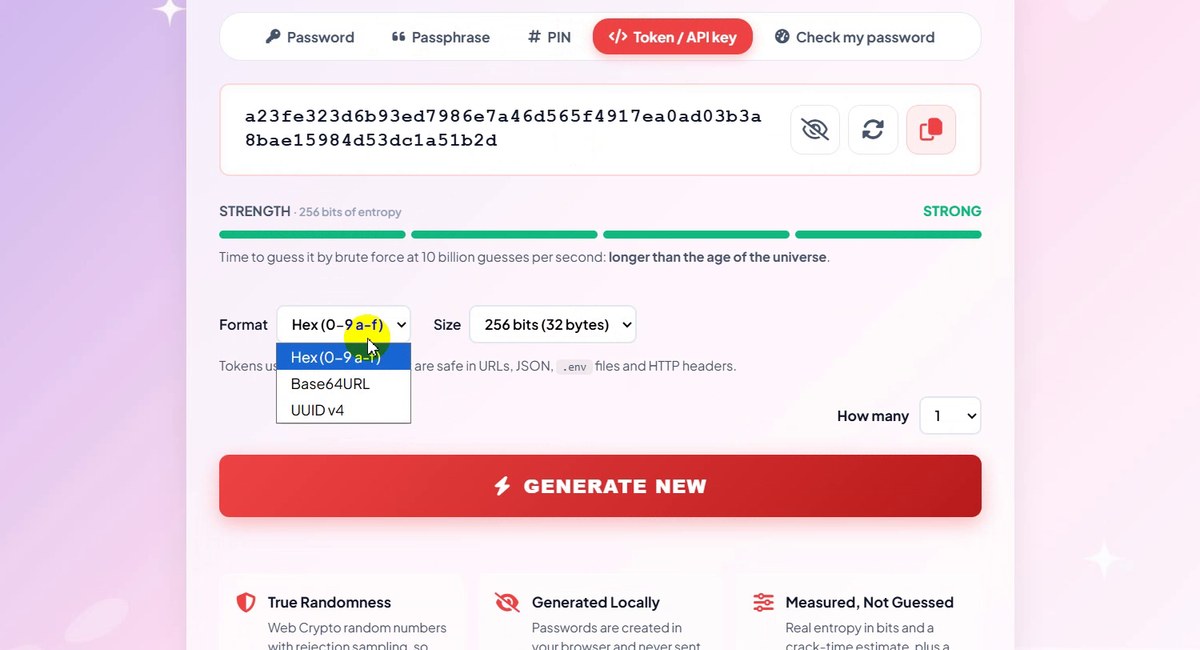
Hex, Base64URL or UUID v4 -
Open Check my password
The last tab tests a password you already use. Its box says Your password stays on this device. The strength meter stays empty until you type, and the page explains that the analysis runs entirely in your browser.
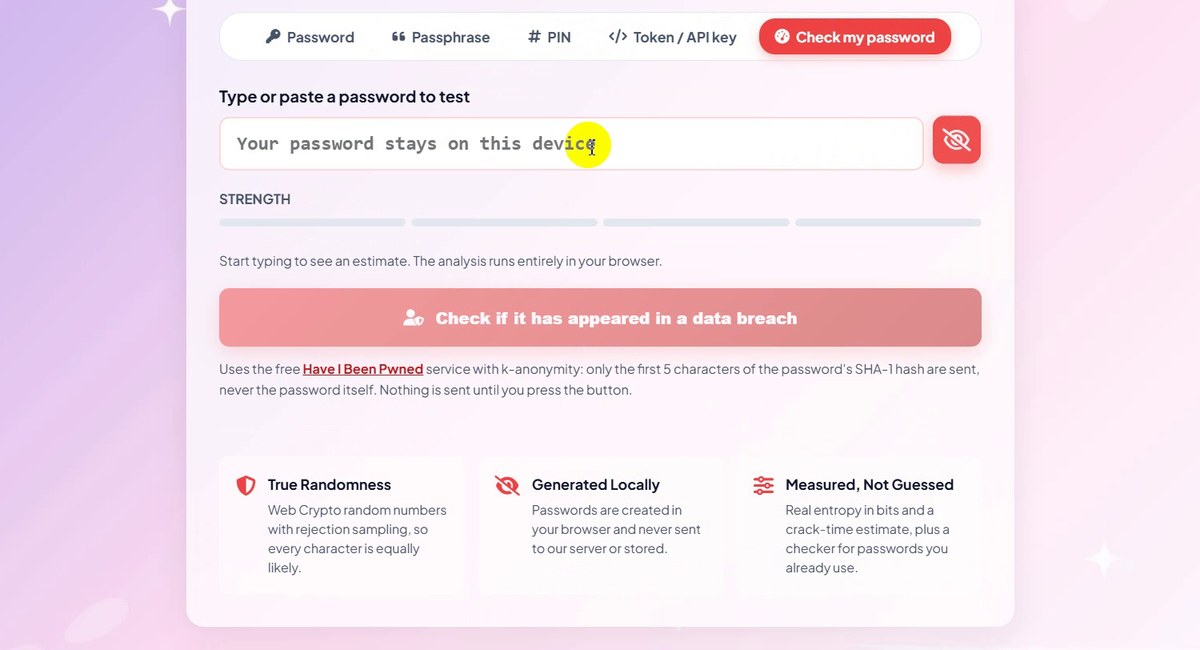
Check my password -
Read the analysis
We typed a test word one letter at a time.
TESTwas VERY WEAK (6 bits), andTEST123%was WEAK, about 10^5 guesses or 15 bits. The table shows the length and character types, the time for a rate-limited online attack (15 days), an unlimited online attack (1 hour) and an offline attack with a fast hash (less than a second), plus the weak spots found (“a common word or name”) and tips such as adding another word.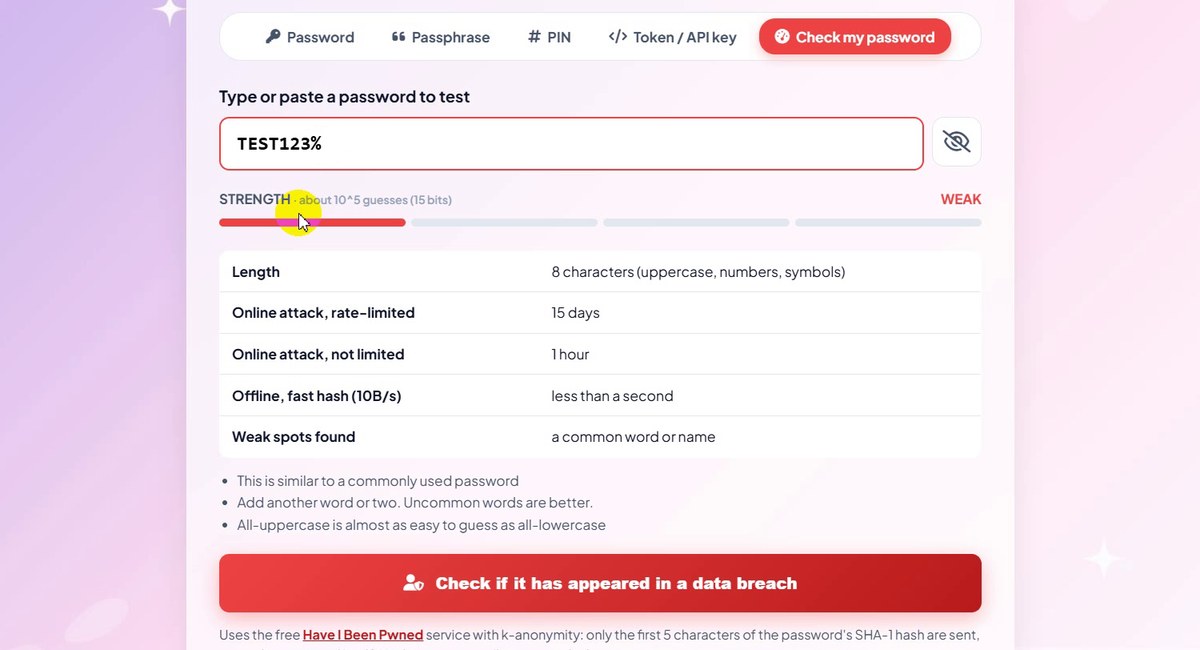
TEST123%: WEAK, 15 bits -
Check for a data breach (optional)
The button Check if it has appeared in a data breach uses the free Have I Been Pwned service. The page says that only the first 5 characters of the password's SHA-1 hash are sent, never the password, and that nothing is sent until you press the button. Press it only if you want that extra check.
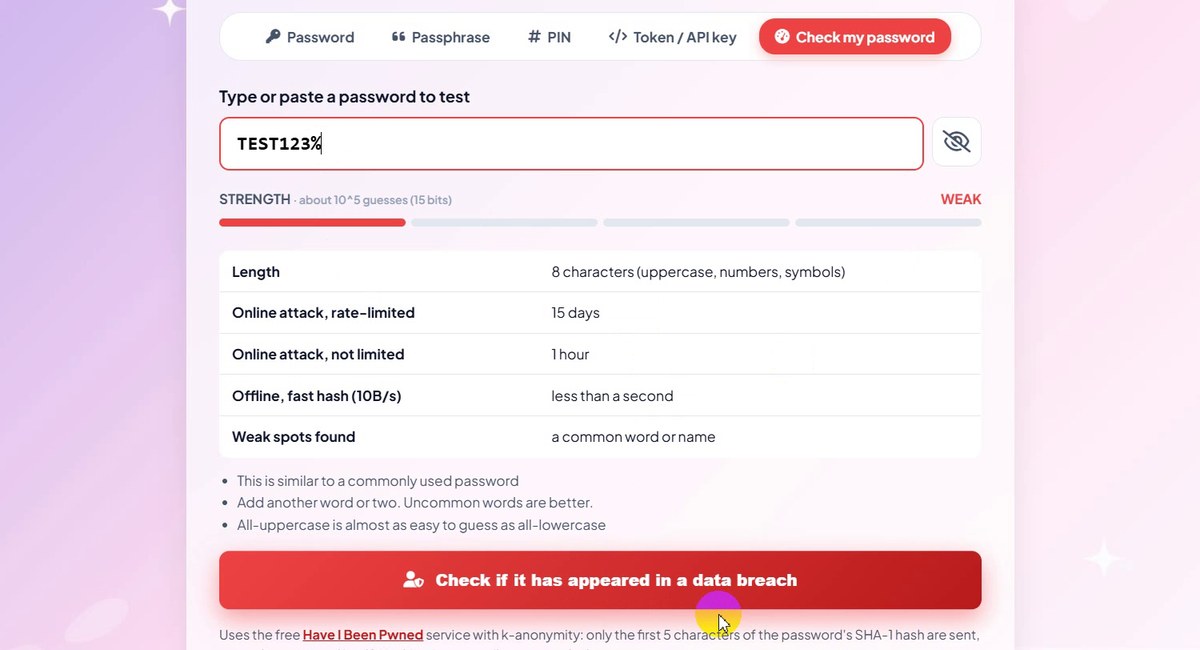
Data breach check: only on click
Good to Know
- Next to every result are three buttons: hide or show it, generate another, and copy. Generate New makes a fresh one with the same settings.
- The weaker the type, the shorter the time. In our test the 6-digit PIN was WEAK while the 21-character password and the 256-bit token were STRONG. Length and variety both count.
- Several at once. The How many list under the settings (1 to 50) makes a batch; this was not in the video, but it is on the page.
- The estimates are estimates. The page counts guesses at 10 billion per second. A real attacker may be faster or slower, so use the numbers to compare, not to promise.
- Check my password shows a rating and crack times as you type. The breach check is a separate button and only runs when you press it.
- Private: the page says passwords are generated in your browser and are never sent to a server or stored.
Tips
- Use one password per account and keep them in a password manager, so you only need to remember one strong passphrase.
- Make the master password a passphrase. Five random words are far easier to type than 21 random characters.
- Remove look-alike characters when a password will be printed, read aloud or typed on a TV or console.
- Test the style, not your real password. On Check my password, try a similar password of the same length and character mix instead of one you actually use.
- Need to hash or encode something? See our guide to Base64 and MD5 / SHA hashes. More guides are on our blog.
Password, passphrase, PIN and API token in one page. Free, private, no sign-up.