How to Encode & Decode Base64 and Generate MD5 / SHA-256 Hashes Online (Free)
Base64 shows up everywhere: in API payloads, email attachments, data URIs, JWT tokens and certificates. Hashes such as MD5 and SHA-256 are just as common for checking that a file arrived intact. The ToolTiny Base64 tool puts both in one page with five tabs. This guide follows a real screen recording with a single, simple example, the text test123, so you can repeat every step and compare your results with ours.
Encode, Hash or Encrypt? Three Different Things
| Base64 (encoding) | MD5 / SHA (hashing) | Encryption | |
|---|---|---|---|
| Can it be reversed? | Yes, by anyone | No, it is one-way | Yes, only with the key |
| Needs a key? | No | No (HMAC adds one) | Yes |
| Output length | About 4/3 of the input | Always the same (MD5: 32 hex characters) | About the input size |
test123 becomes | dGVzdDEyMw== | cc03e747…acfebee5 (MD5) | Depends on the key |
| Use it for | Moving data through text-only systems | Checksums, fingerprints, signatures | Keeping data secret |
The most common mistake is treating Base64 as a way to hide something. It is not: our dGVzdDEyMw== turned back into test123 with one paste.
Watch the Whole Process
The recording opens the tool from the menu, encodes test123 with and without padding, tries to decode plain text, decodes the real Base64, visits the JWT and File tabs and finishes with the hashes and the checksum box.
How to Encode, Decode and Hash, Step by Step
-
Open the Base64 tool
Open the Developer menu in the top bar and choose Base64 / Hash Encoder, or go straight to tooltiny.com/base64.html.
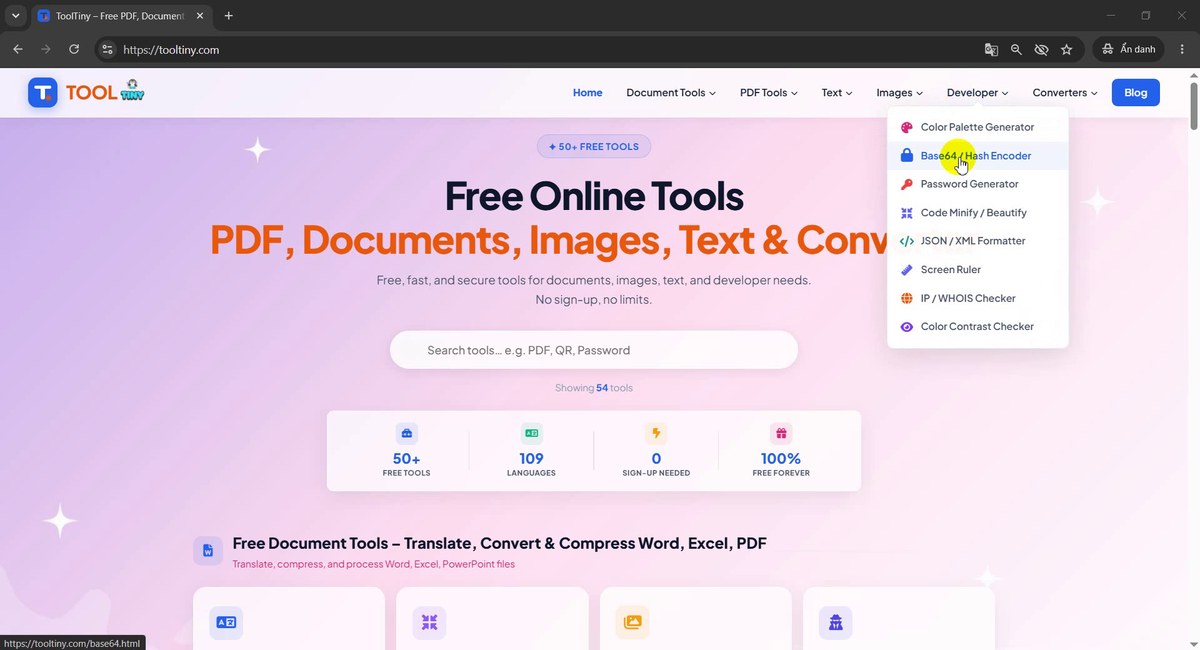
Developer → Base64 / Hash Encoder -
Five tools in one page
The editor has five tabs: Base64 Encode, Base64 Decode, JWT Decoder, File → Base64 and MD5 / SHA Hash. It opens on Base64 Encode, with three options above the box: URL-safe (Base64URL), Remove = padding and Wrap lines at 76 (MIME).
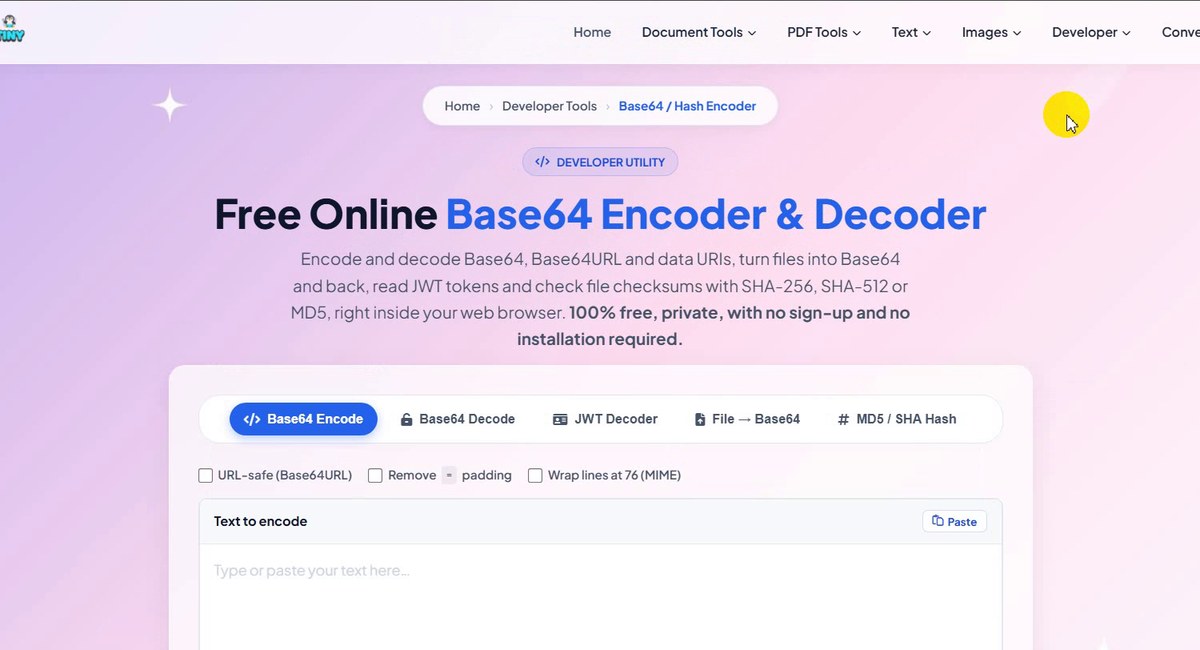
Five tabs, one page -
Encode text to Base64
Type or paste your text in Text to encode. The result appears as you type, with no button to press. We typed
test123and gotdGVzdDEyMw==. The blue line explains the size: UTF-8 text, 7 bytes → 12 Base64 characters (about 71% larger).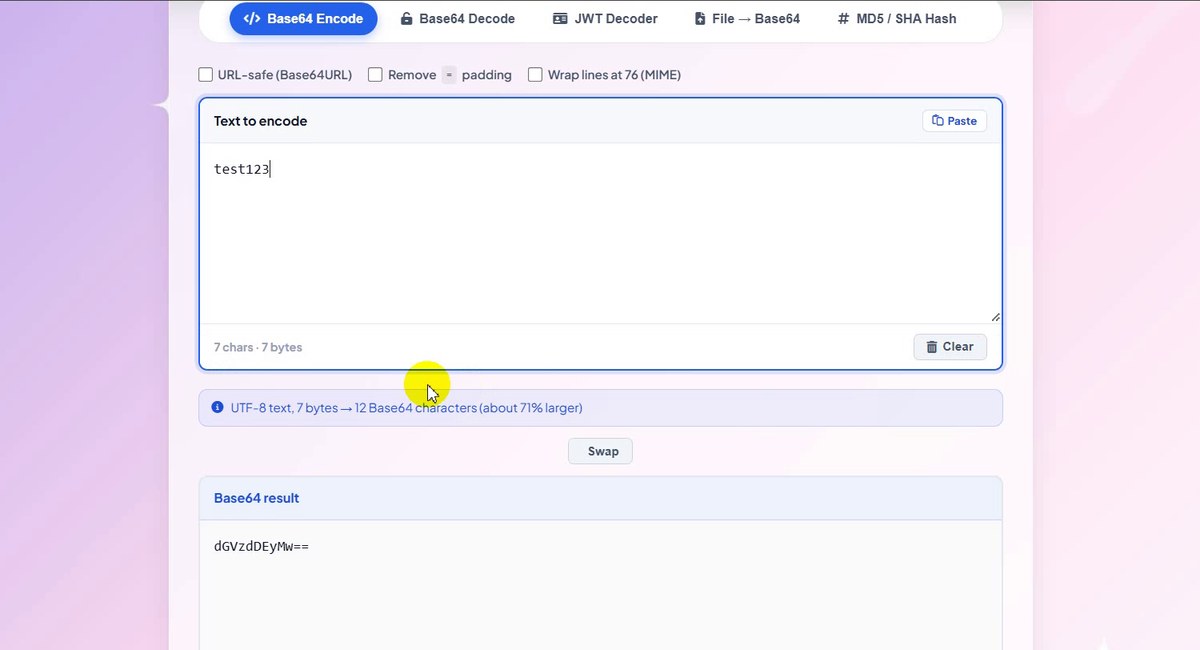
test123 → dGVzdDEyMw== -
Remove the padding if you need to
Some systems (JWTs, URLs, file names) do not want the
=signs at the end. Tick Remove = padding: the result becamedGVzdDEyMw, 10 characters instead of 12. URL-safe swaps+and/for-and_, and Wrap lines at 76 splits long results into lines for email (MIME); our short text did not need it.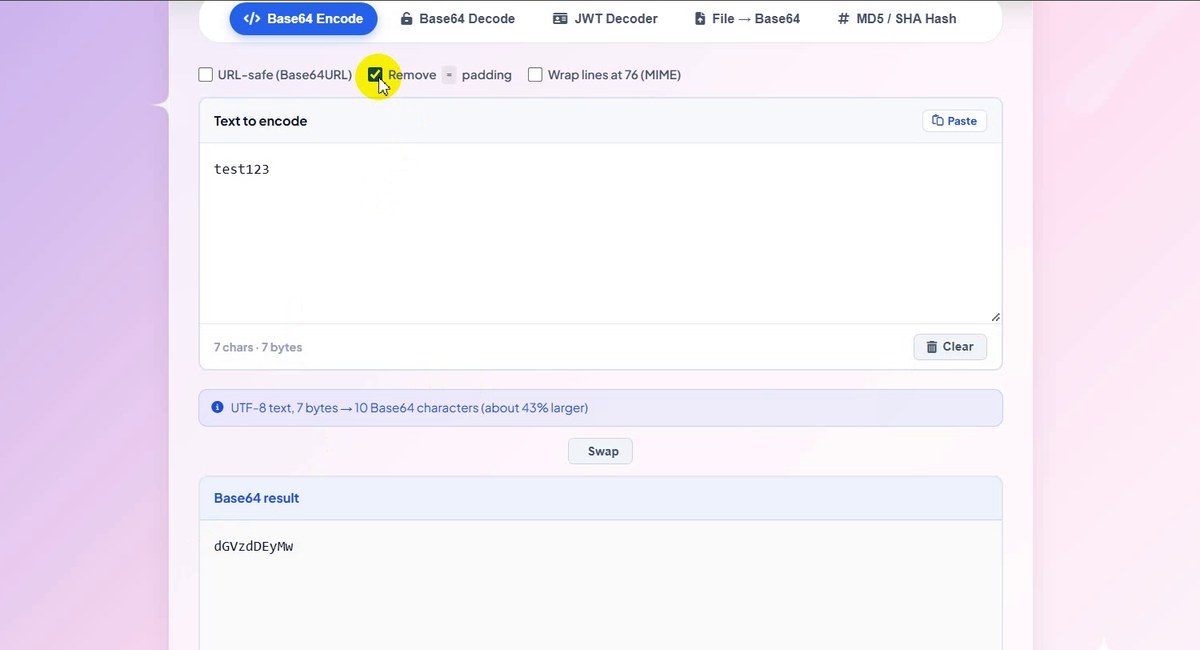
Without padding: dGVzdDEyMw -
Plain text is not Base64
On the Base64 Decode tab we first pasted the plain word
test123. The tool did not invent a result: an orange warning says it decodes to 5 bytes of binary data that is not text, so the input is probably not Base64. Many short words happen to use only Base64 letters, which is why this check matters.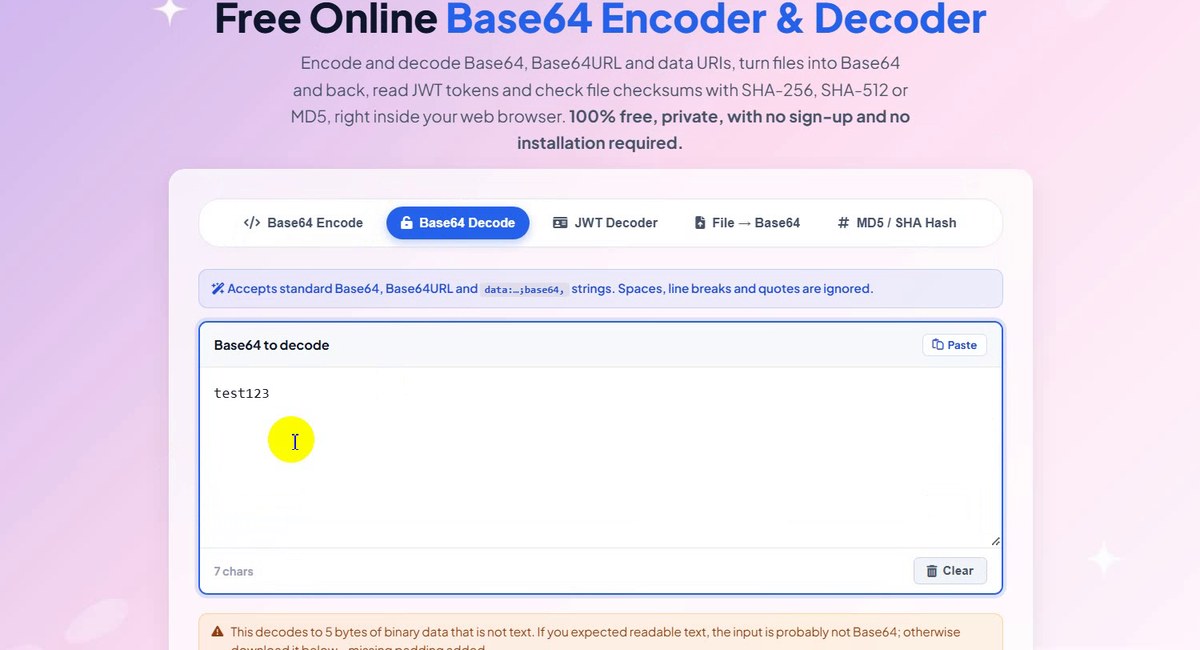
A clear warning instead of garbage -
Decode Base64 back to text
Then we pasted the real Base64,
dGVzdDEyMw==. The green line says Decoded 7 bytes of UTF-8 text and the Decoded result showstest123again. The note above the box says what else it accepts: Base64URL,data:…;base64,strings, spaces, line breaks and quotes.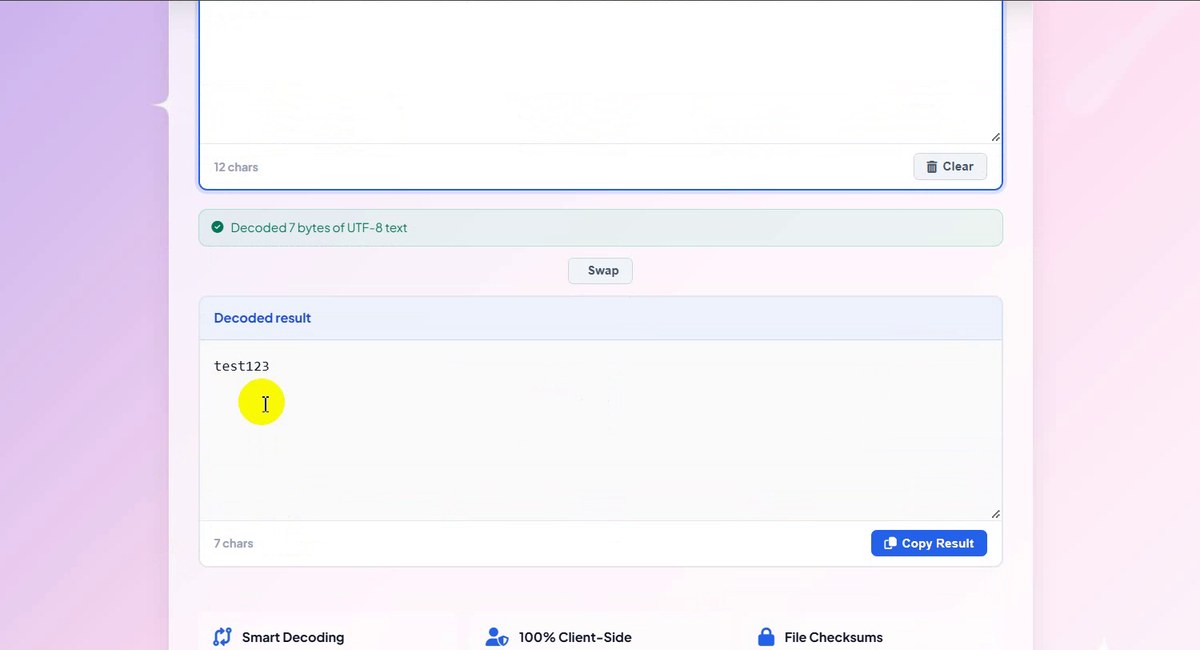
dGVzdDEyMw== → test123 -
Read a JWT token
The JWT Decoder tab takes a whole token (the word Bearer is removed automatically) and shows its header and payload. Try a sample fills in an example. The page warns that it only reads the token and does not verify the signature.
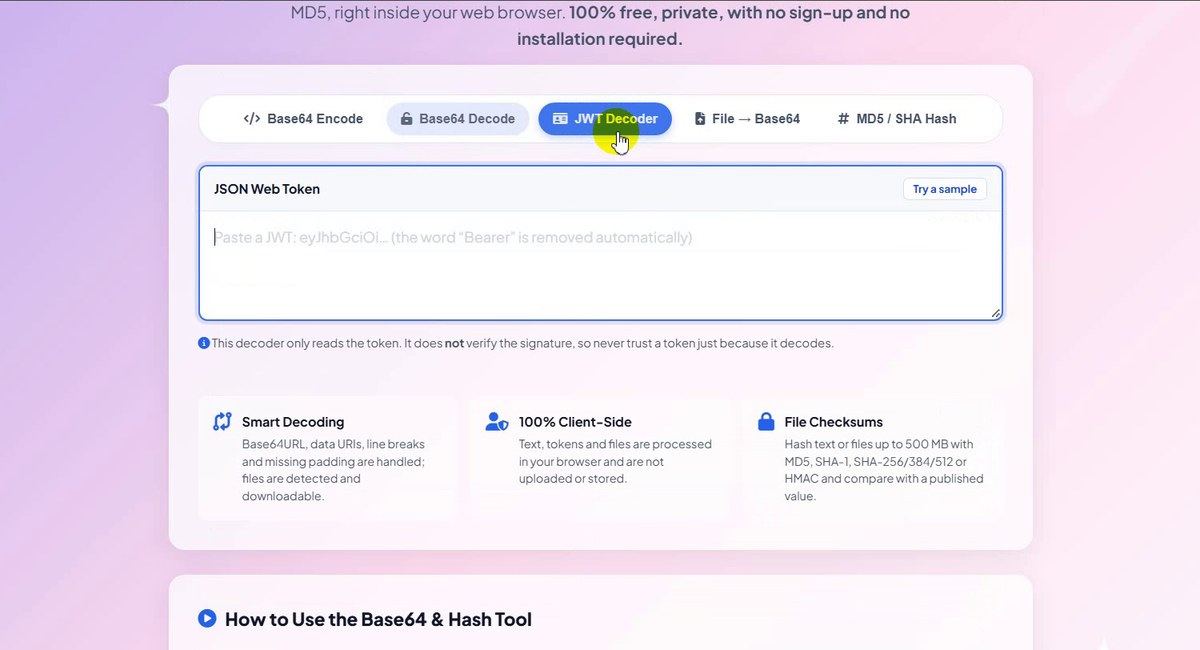
JWT Decoder: read, don't trust -
Turn a file into Base64
File → Base64 converts images, PDF, fonts or certificates up to 25 MB into Base64. Choose the output: Plain Base64, a Data URI, a CSS
url()or an HTML<img>tag, then Copy or save it as .txt. The file stays on your device.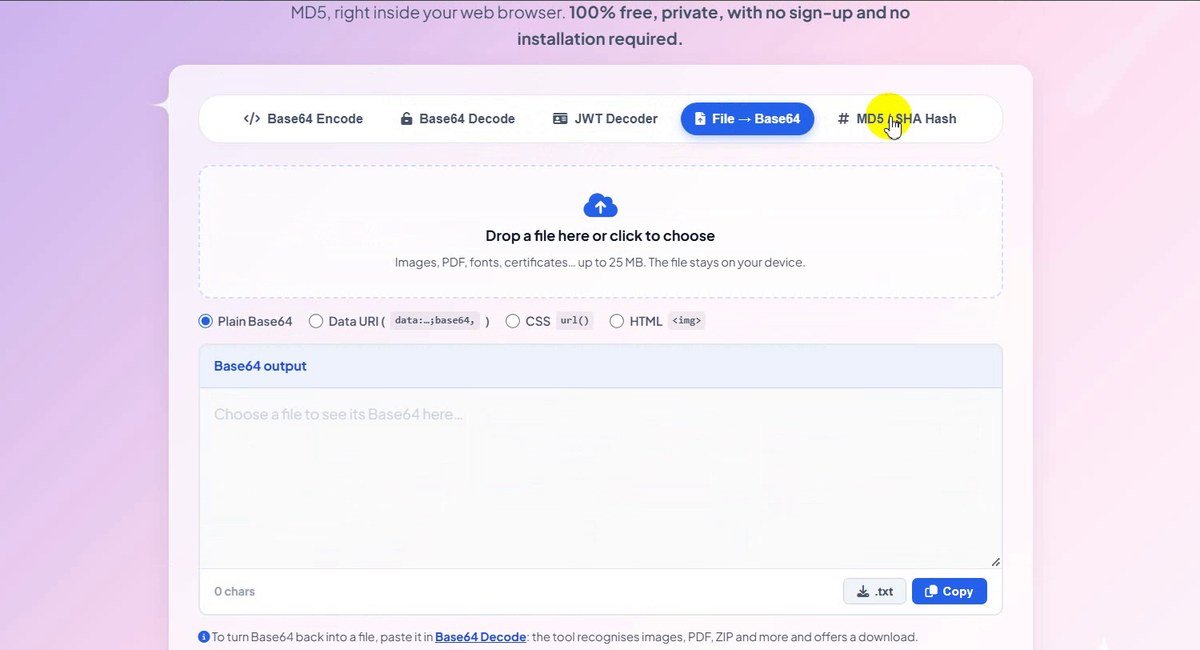
File → Base64, four output formats -
Generate MD5 and SHA hashes
On MD5 / SHA Hash, type text (or switch to File). Five hashes appear at once. For
test123: MD5cc03e747a6afbbcbf8be7668acfebee5, SHA-17288edd0…1687bc, SHA-256ecd71870…34f75ae, plus SHA-384 and SHA-512. MD5 and SHA-1 carry a WEAK label.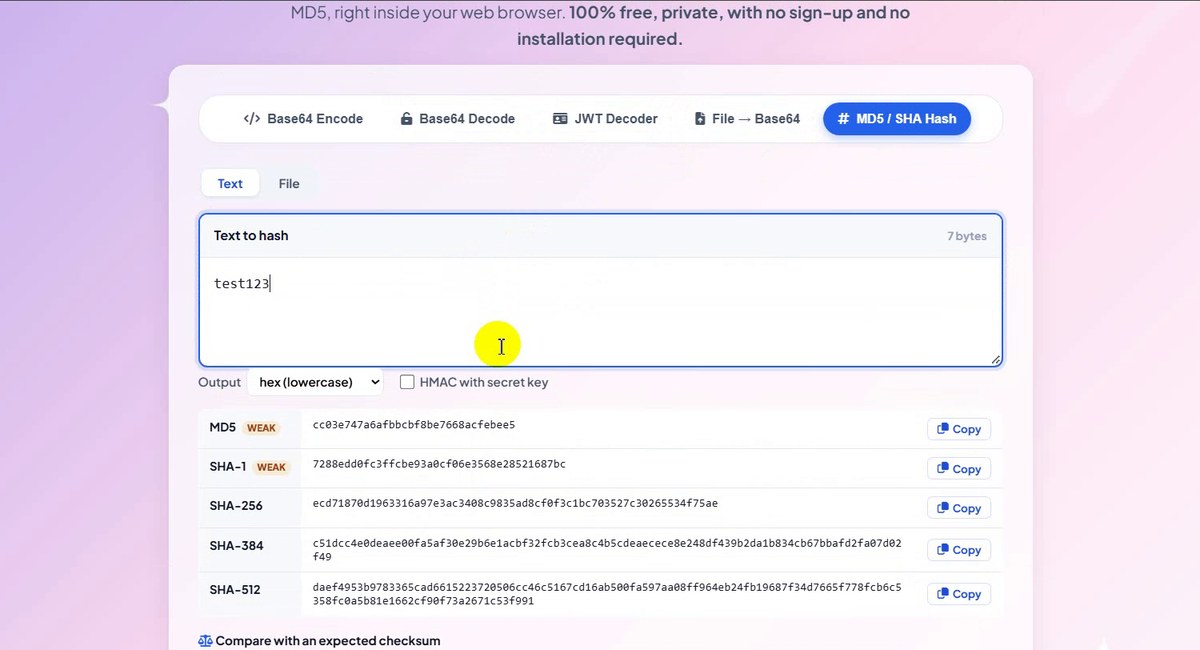
Five hashes of test123 -
Copy a hash
Each line has its own Copy button. We copied the SHA-512 hash, and a message confirmed SHA-512 hash copied to clipboard. The Output list switches between lowercase hex, uppercase HEX and Base64, and HMAC with secret key adds a key.
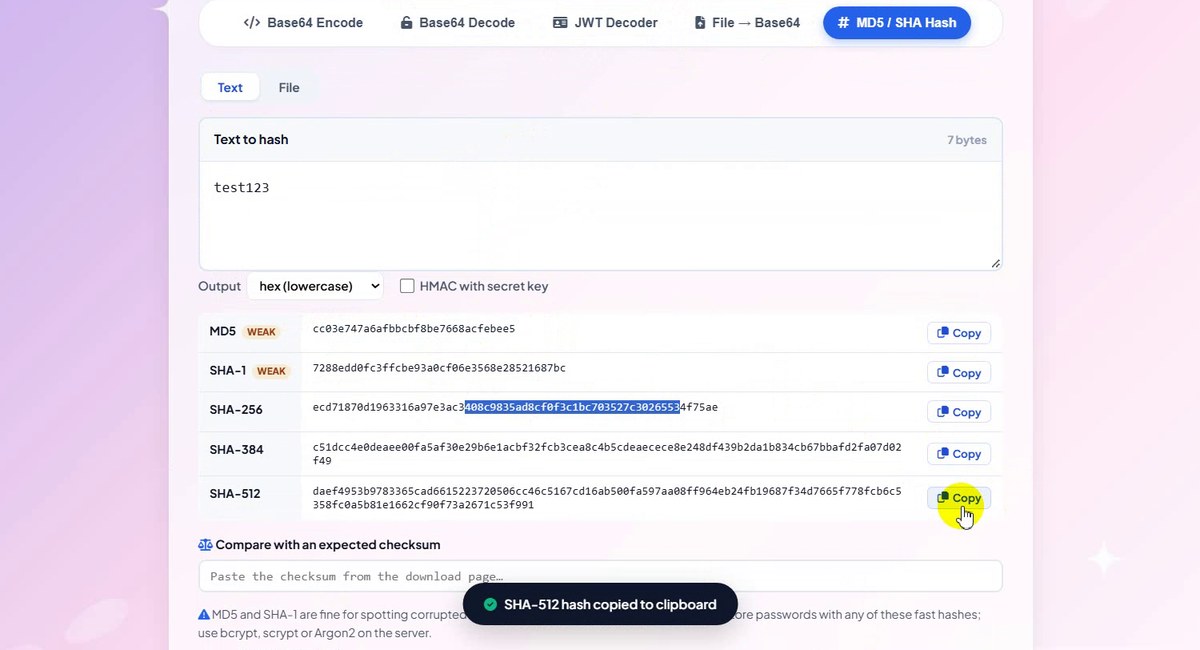
Copy with one click -
Compare with an expected checksum
Under the table, Compare with an expected checksum takes the value printed on a download page and tells you whether it matches. The note below it is worth reading: MD5 and SHA-1 are fine for spotting corrupted downloads but are broken for security, and passwords belong in bcrypt, scrypt or Argon2.
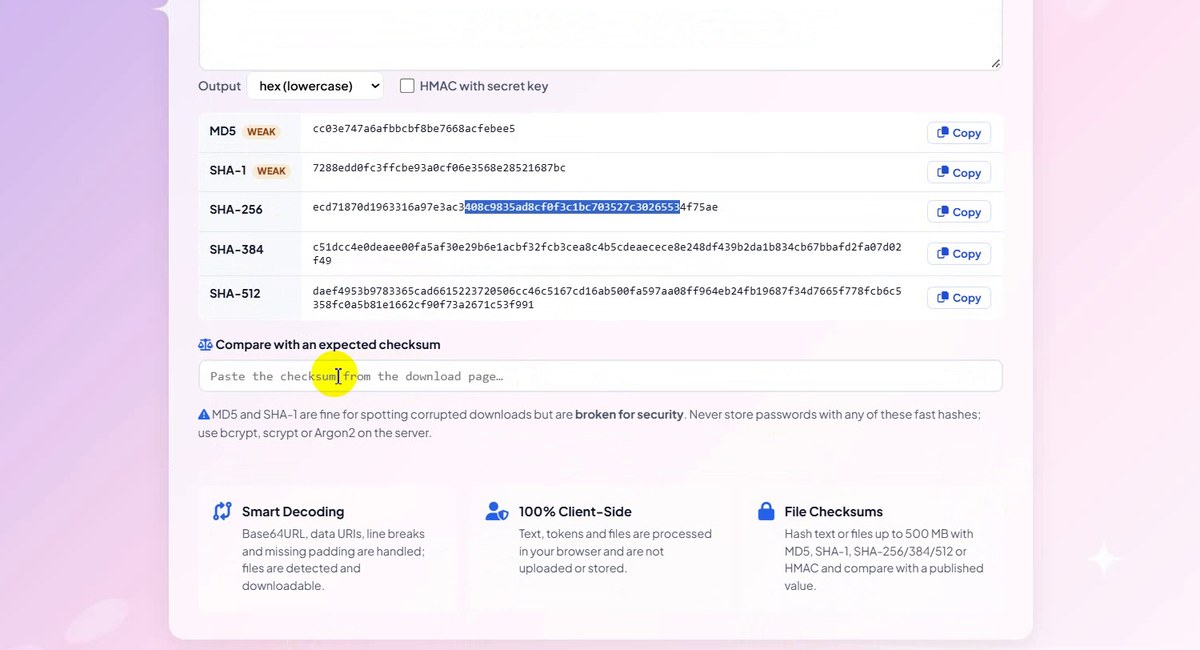
Check a download against its checksum
Which Hash Should You Use?
| Algorithm | Length (hex) | Label in the tool | Good for |
|---|---|---|---|
| MD5 | 32 | WEAK | Spotting accidental corruption, old systems |
| SHA-1 | 40 | WEAK | Legacy checks only |
| SHA-256 | 64 | – | Download checksums, API signatures (HMAC-SHA256) |
| SHA-384 | 96 | – | Certificates, Subresource Integrity |
| SHA-512 | 128 | – | Long, high-security checksums |
None of them is right for storing passwords: they are built to be fast, which makes guessing fast too. Password storage needs a slow, salted algorithm such as bcrypt, scrypt or Argon2.
Good to Know
- Results update as you type. There is no Convert button on the Encode, Decode and Hash tabs.
- Hashes are one-way. You cannot decode MD5 or SHA-256; you can only hash the same input again and compare.
- Even an empty box has a hash. Before we typed anything, the MD5 line already showed
d41d8cd98f00b204e9800998ecf8427e, the MD5 of empty text. Do not mistake it for a result. - The JWT decoder does not check signatures. Only the server that holds the key can do that.
- Files: up to 25 MB for File → Base64; the page says hashing works on files up to 500 MB.
- Private: the page says everything runs in your browser and nothing is uploaded or stored.
Tips
- Check your result with a known value. If
test123givesdGVzdDEyMw==and MD5cc03e747a6afbbcbf8be7668acfebee5in your own code, your encoding and hashing are set up correctly. - Watch for invisible characters. A trailing space or line break changes every hash. If two hashes differ, compare the inputs first.
- Use Swap to move a result into the input and switch between encode and decode in one click.
- Pick the output your system expects: lowercase hex is the usual checksum format, Base64 is common in HTTP headers and APIs.
- Working with images? Make them smaller with the Image Compressor before turning them into a data URI. More guides are on our blog.
Base64, Base64URL, JWT, files and MD5/SHA in one page. Free, private, no sign-up.