How to Create a QR Code Online for Free (Wi-Fi, Link, WhatsApp & More)
A QR code can open a web page, join a Wi-Fi network, start an email or a WhatsApp chat, or save a contact, all with one scan of a phone camera. The ToolTiny QR Code Generator makes eight kinds of codes, redraws the code while you type, checks by itself that the code can be read, and lets you download a PNG, an SVG, copy the picture or print it. This guide follows a real screen recording: we visit every tab, make a Wi-Fi code and look at the download options.
When Do You Need a QR Code?
- Guest Wi-Fi: a printed code on the wall or the table saves guests from typing a long password.
- Links: a menu, a form, a video or a portfolio on a flyer, a poster or a business card.
- Contact: a business card that saves the name, phone, email and company in one scan.
- Messaging: a WhatsApp code that opens a chat with a first message already typed.
- Places: a map location for an event, a shop or a meeting point.
Which Type of QR Code Should You Pick?
| Tab | What you fill in | What a scan does |
|---|---|---|
| Link / Text | A web address or any text | Opens the link or shows the text |
| Wi-Fi | Network name, password, encryption | Offers to join the network |
| Address, subject, message | Opens a new email | |
| Phone | Number with country code | Offers to call the number |
| SMS | Number and message | Opens a text message |
| Contact | Name, phone, email, company, job title, website, address | Offers to save a contact |
| Number with country code, first message | Opens a WhatsApp chat | |
| Location | Latitude and longitude | Opens the spot in Google Maps |
Watch the Whole Process
The recording opens the tool from the menu, clicks through the eight tabs, makes a Wi-Fi code, opens the size list and ends with the download, copy and print buttons.
How to Create a QR Code, Step by Step
-
Open QR Code Generator
Open the Images menu in the top bar and choose QR Code Generator, or go straight to tooltiny.com/qr-generator.html.
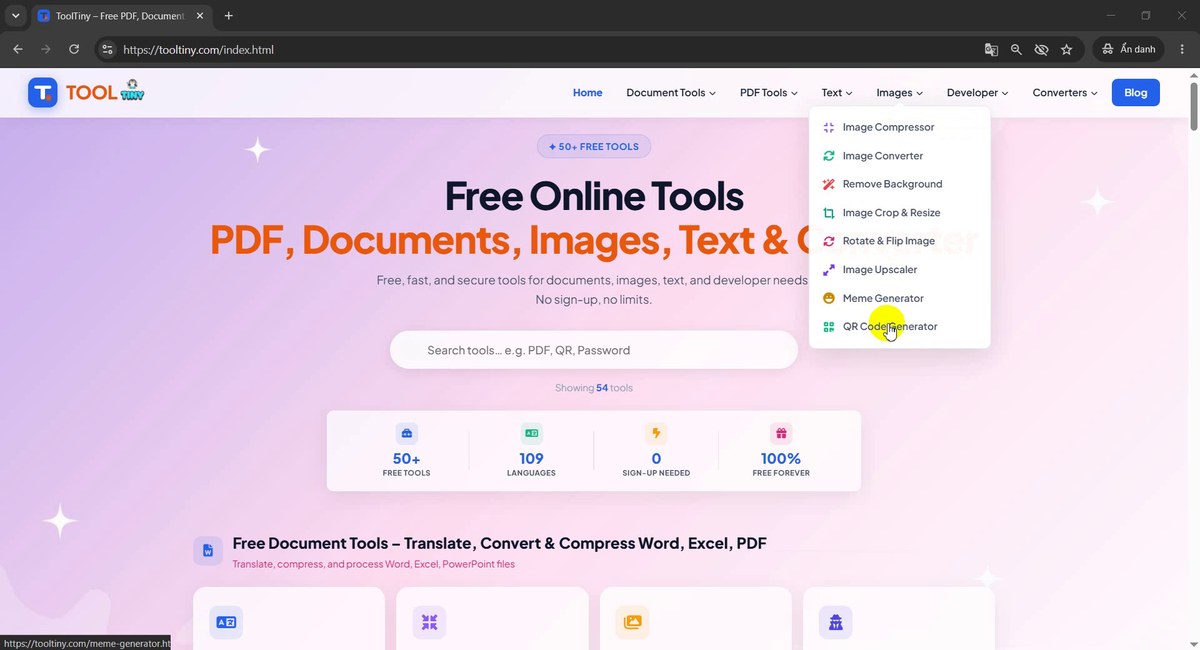
Images → QR Code Generator -
Look at the page
The page opens on the Link / Text tab with the example https://tooltiny.com already turned into a code. A small counter under the box shows how much room is used (20 / 2.331 bytes), and a green line says Scan test passed – the code reads back correctly.
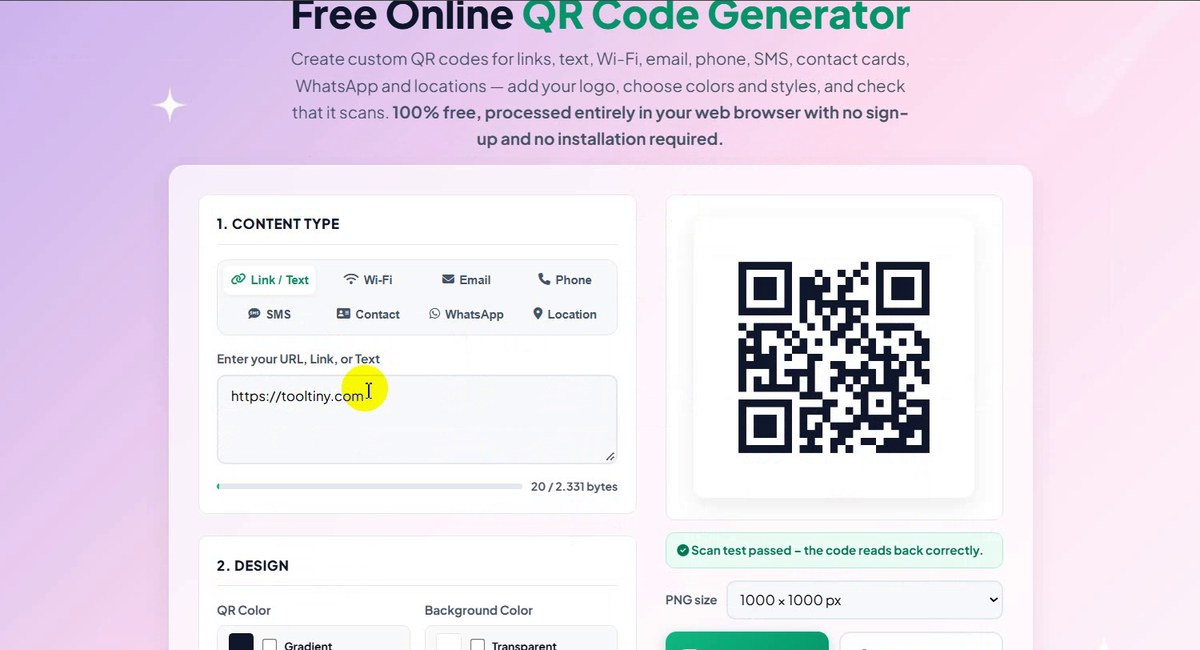
Link / Text with a scan test result -
Type your own link or text
Click the box, select the example and type your own web address or any text. The code on the right changes as you type, with no button to press.
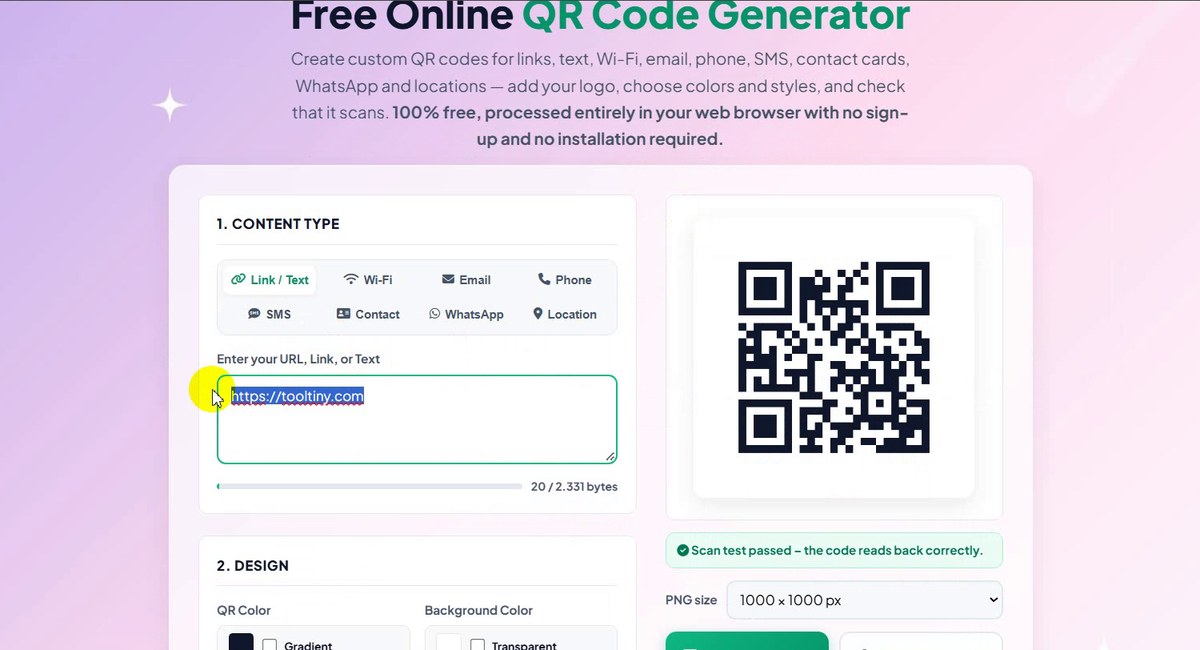
Replace the example with your link -
Open the Wi-Fi tab
Click Wi-Fi. The box changes to Network Name (SSID), Password, Encryption and a Hidden Network check box. Until you fill it in, the preview says “Enter the network name (SSID)” and the download buttons stay grey.
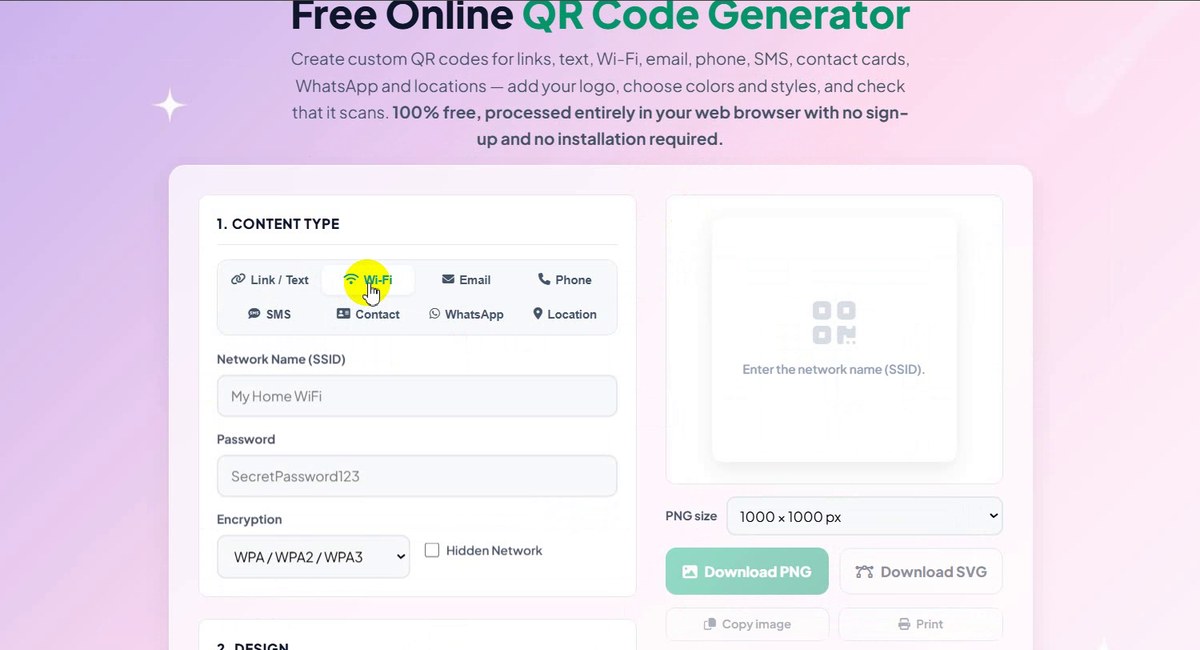
Wi-Fi: SSID, password, encryption -
Choose the encryption
Open the Encryption list. It has three choices: WPA / WPA2 / WPA3, WEP and None (open network). Most home routers use the first one.
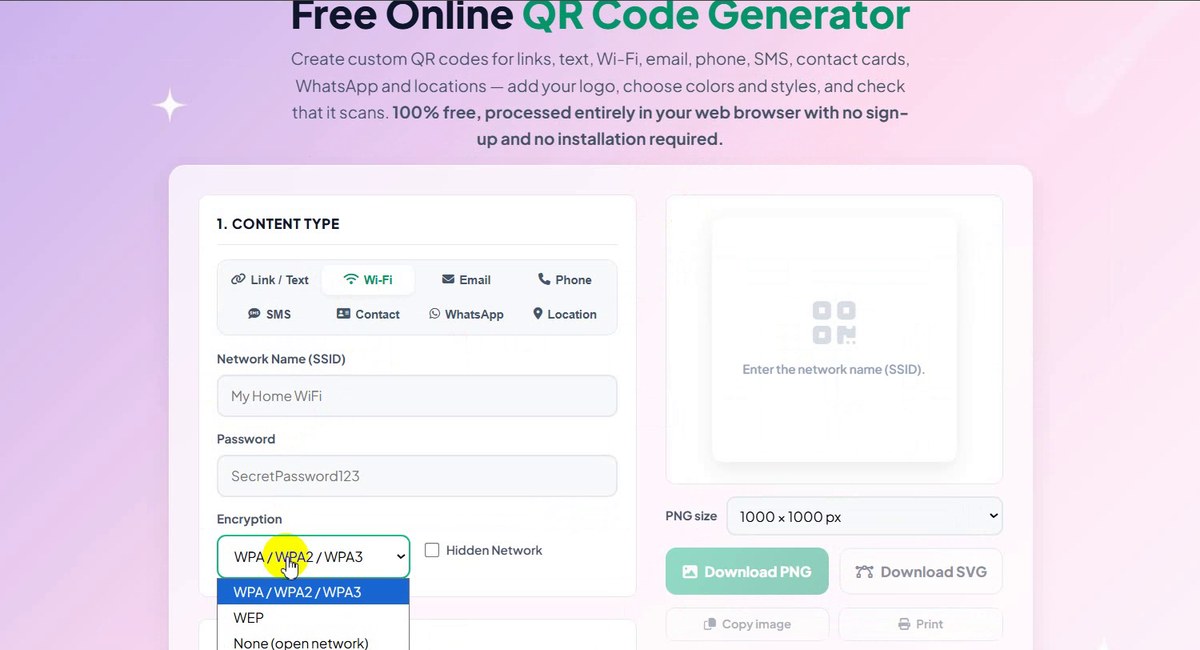
WPA / WPA2 / WPA3, WEP or None -
Email tab
Click Email to fill in Email address, Subject (optional) and Message (optional). Scanning the code opens a new email with those parts filled in.
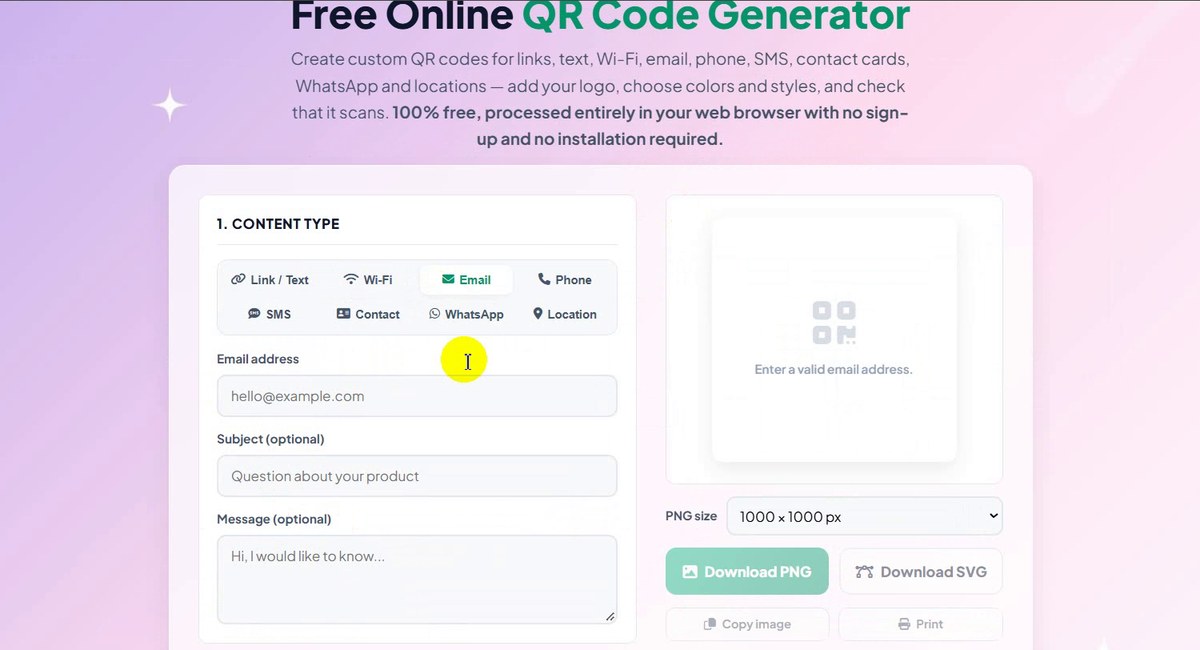
Email: address, subject, message -
Phone tab
Click Phone and enter the number with the country code, for example +84 912 345 678. Scanning the code offers to call that number.
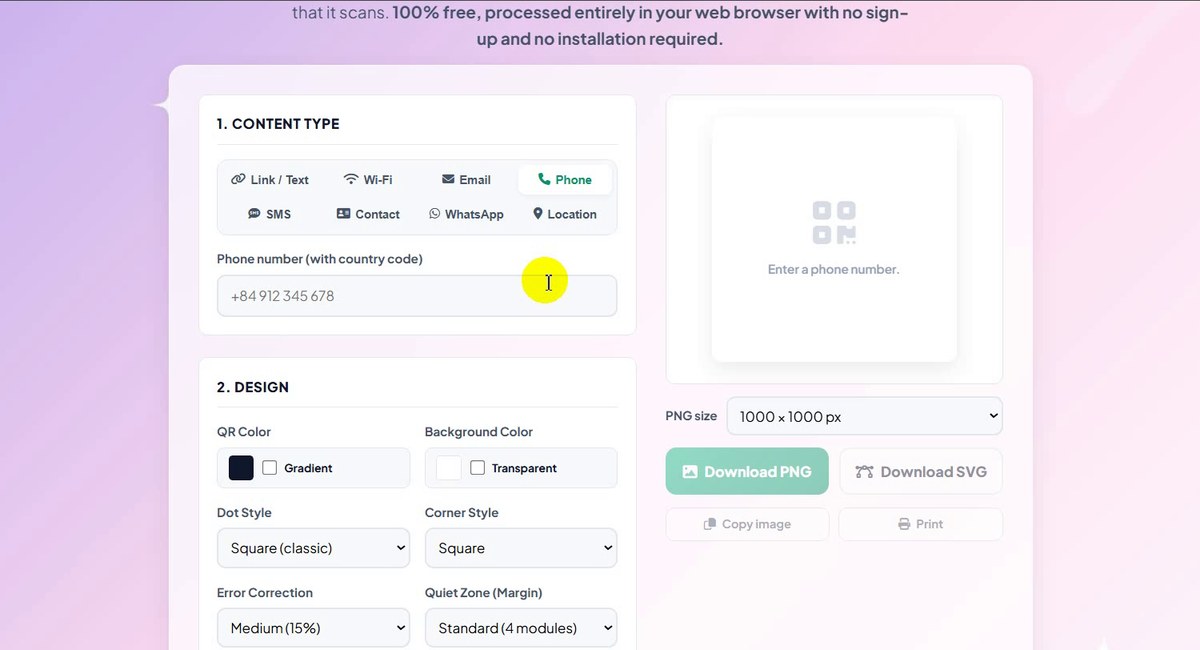
Phone: number with country code -
SMS tab
Click SMS for a phone number plus an optional Message. The preview text explains what is missing: “Enter the phone number that should receive the SMS.”
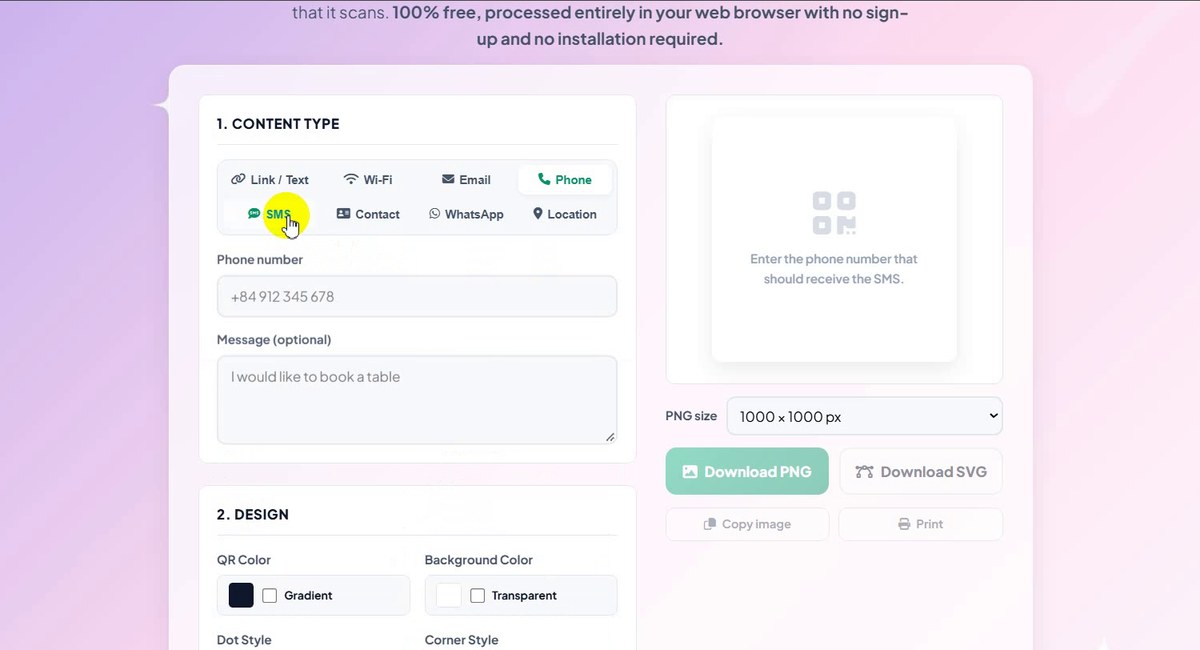
SMS: number and ready-made message -
Contact tab
Click Contact to make a digital business card with First name, Last name, Phone, Email, Company, Job title, Website and Address. The page asks for at least a name or a company.
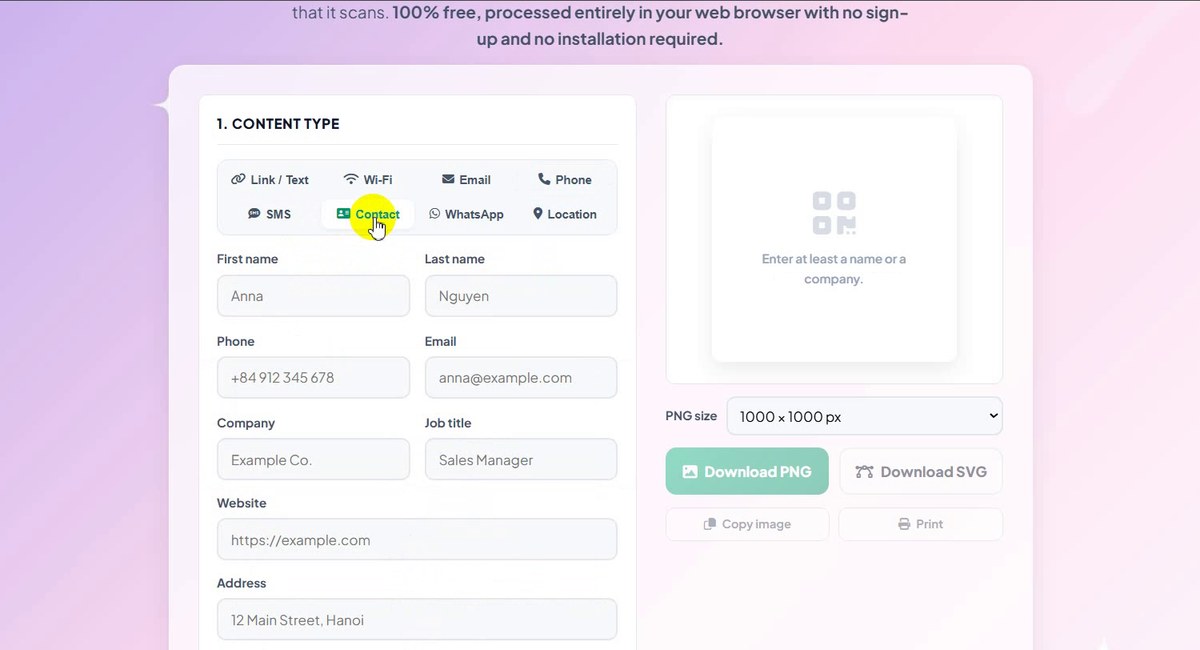
Contact card fields -
WhatsApp tab
Click WhatsApp, type the number with the country code and, if you like, a Pre-filled message. The page shows an example in the preview area: 84912345678.
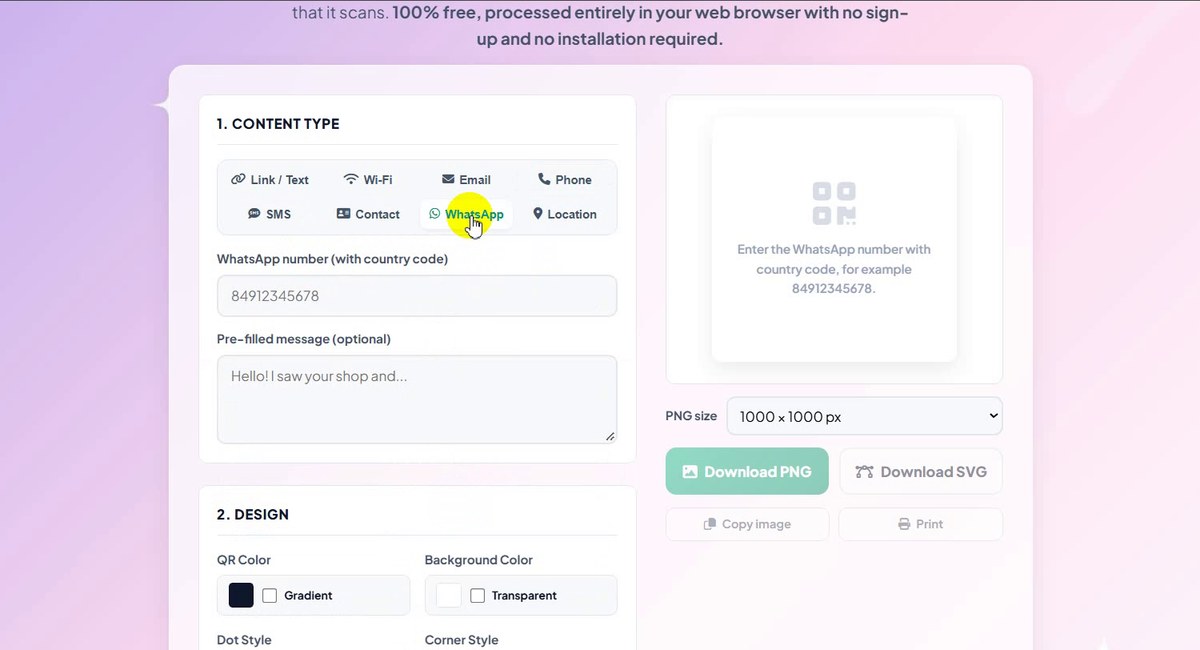
WhatsApp: number and first message -
Location tab
Click Location and fill in Latitude and Longitude. The page gives a tip: in Google Maps, right-click a place, click the numbers at the top to copy them and paste them into the boxes. The code opens that spot in Google Maps.
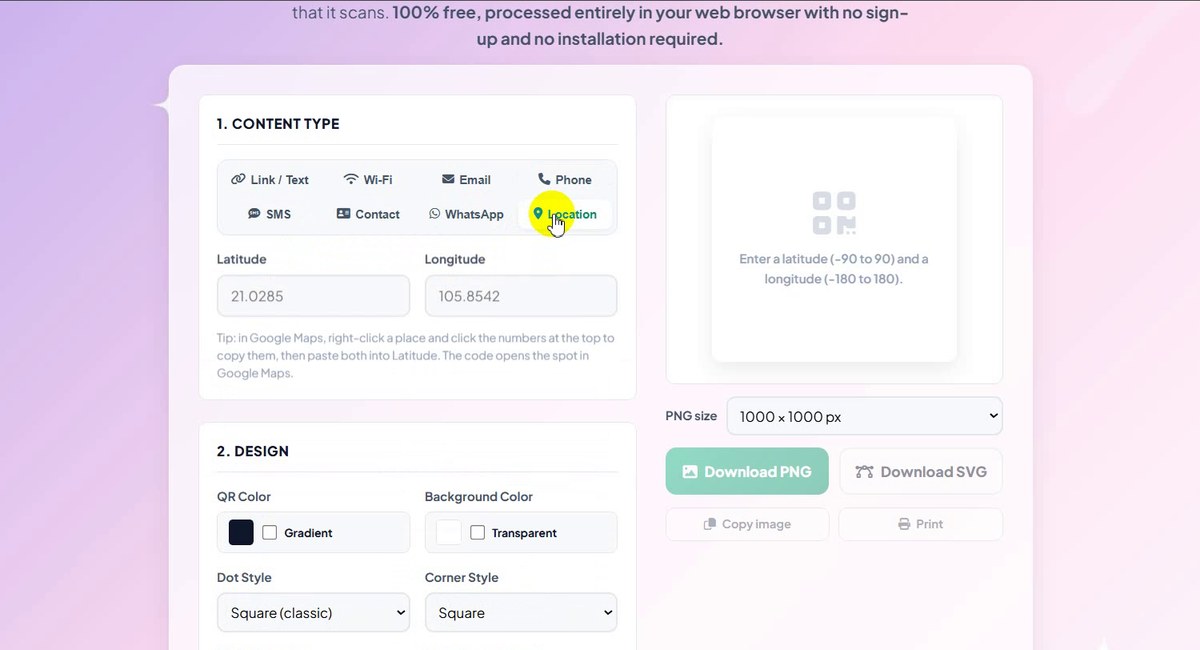
Location: latitude and longitude -
Fill in a Wi-Fi code
Back on the Wi-Fi tab we typed the network name TEST and the password TEST123 (sample values). As soon as the data is valid the code appears, and a line says Checking that the code scans…. The counter shows 29 / 2.331 bytes.
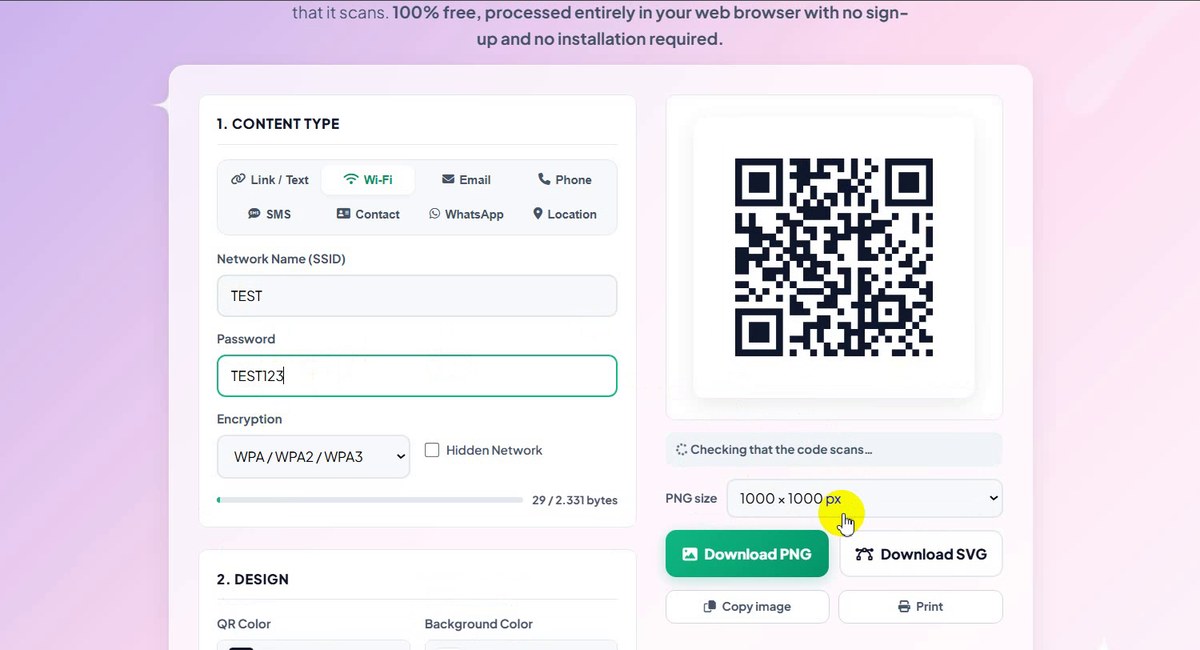
A Wi-Fi code appears as you type -
Read the scan test and choose a size
A moment later the line turns green: Scan test passed – the code reads back correctly. Open the PNG size list: 300 × 300, 600 × 600, 1000 × 1000, 2000 × 2000 px (print) and 4000 × 4000 px (large print).
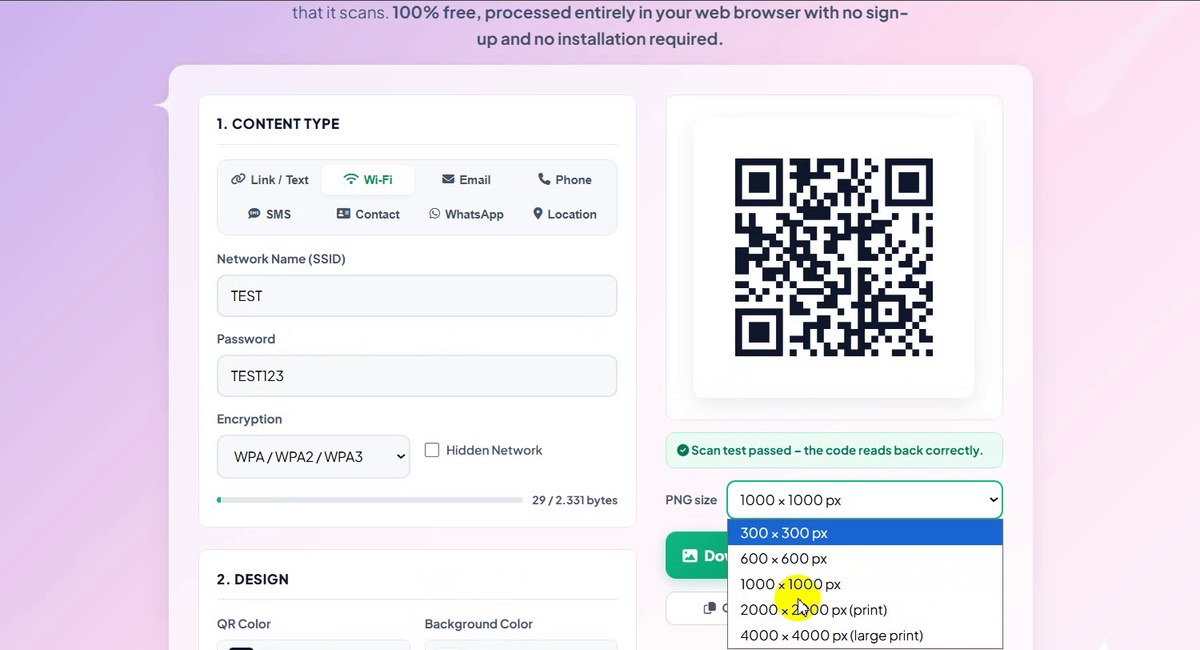
Scan test passed, PNG size list -
Download the PNG
We chose 4000 × 4000 px (large print) and clicked Download PNG. A 1000 px image is enough for a screen or a small print; a larger size is better for a poster.
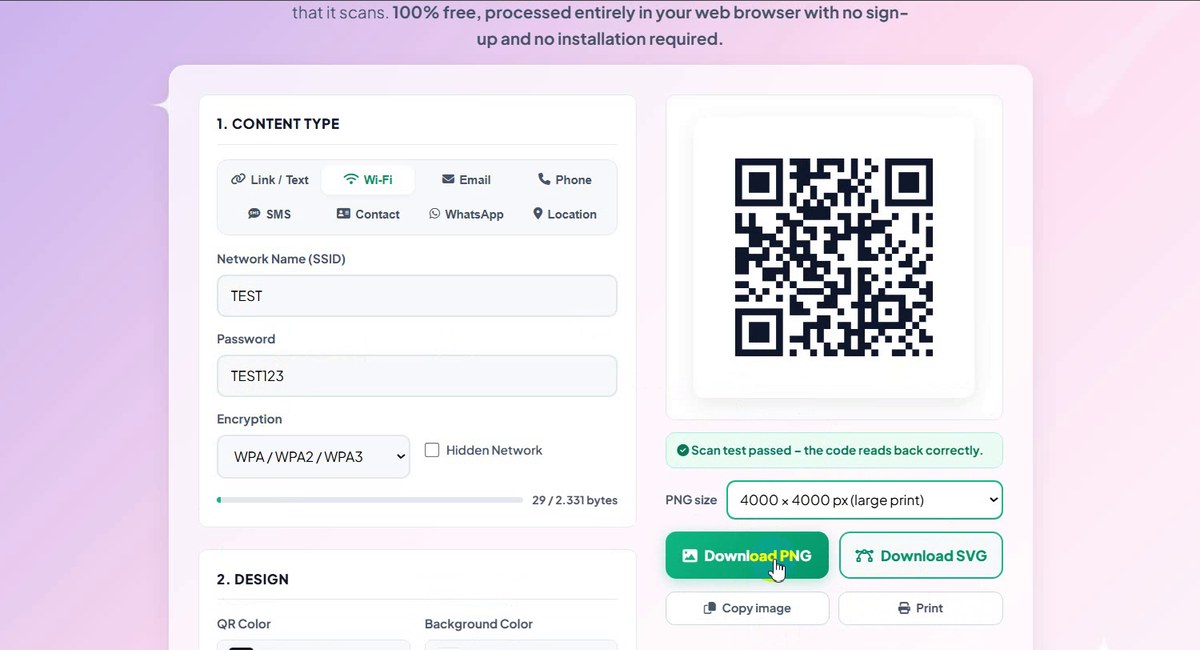
Download PNG at 4000 px -
Download the SVG
Download SVG saves a vector file that can be enlarged to any size without getting blurry, which printers and designers like.
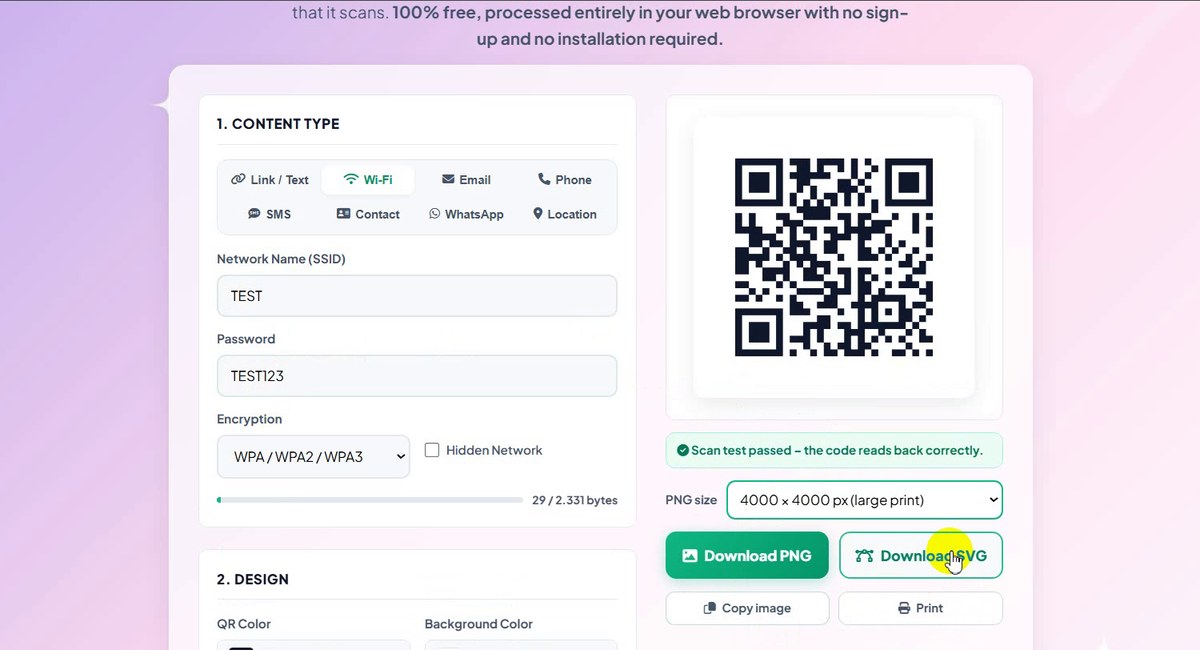
Download SVG for any print size -
Copy the image
Copy image puts the picture on your clipboard so you can paste it straight into a document, chat or slide.
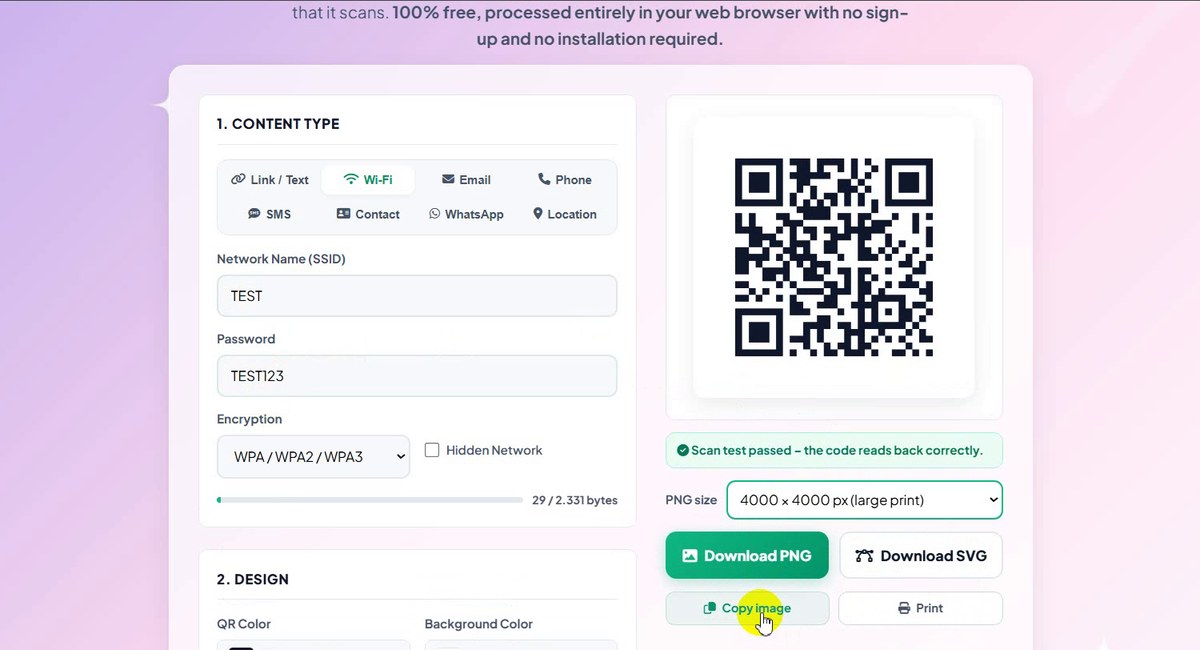
Copy image, then paste -
Print
Print sends the code to your printer. Our recording ends on this button.
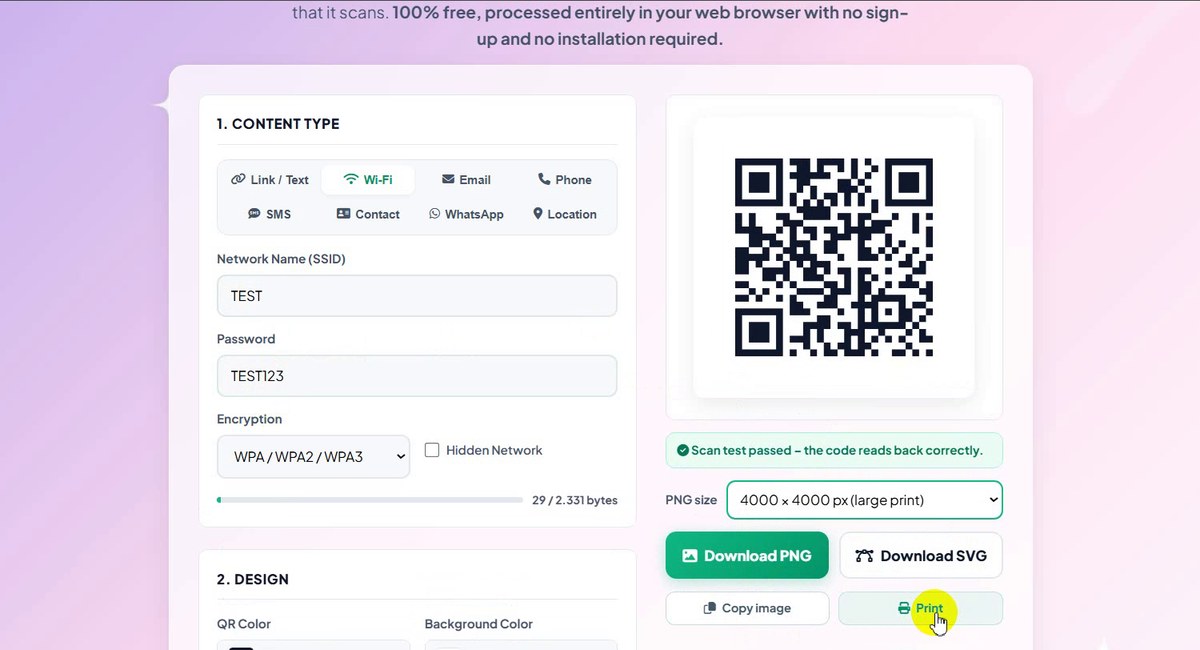
Print the code
PNG, SVG, Copy or Print?
| Button | Good for |
|---|---|
| Download PNG | Documents, slides, websites, chat apps. Choose 300 to 4000 px. |
| Download SVG | Print and design work: it stays sharp at any size. |
| Copy image | Pasting the code straight into a document or a message. |
| A quick paper copy from the browser. |
Good to Know
- The code updates as you type. There is no Generate button. The download buttons stay grey until the data is valid.
- There is a size limit. The counter under the box shows how many bytes you use, out of 2.331 in our recording. A very long text will not fit.
- The scan test is a check, not a promise. It reads the code back on the screen. Try a printed copy with your own phone before you print a large batch.
- The password is visible. The Wi-Fi password box shows what you type, and anyone who scans the code can read the password. Use a guest network for a code you put on a wall.
- Design options: color with an optional gradient, a transparent background, dot style, corner style, error correction, quiet zone and an optional logo. Keep a dark code on a light background for the best result.
- Nothing is uploaded. The page says the code is made in your browser.
- Free: no sign-up, no watermark.
Tips for Better Results
- Test before you print. Scan the code from the screen and from paper with at least one phone.
- Print it big enough. A bigger code is easier to scan from a distance. For posters download the SVG or the 4000 px PNG.
- Keep the white border. The empty margin around the code (the quiet zone) helps phones find it, so do not crop it.
- Keep contrast high. Light dots on a dark background or two similar colors are hard to read.
- Need a smaller image file? Send the PNG through the Image Compressor. More guides are on our blog.
Pick a tab, fill in the boxes and download. Free, no sign-up, nothing uploaded.