How to Create a Professional PDF Invoice Online (Free, No Watermark)
Freelancers and small businesses need invoices that look professional, add up correctly and arrive as a PDF. Paid invoicing apps want an account; free templates leave you fighting a spreadsheet. The ToolTiny Invoice Generator sits in between: fill in a form, watch the invoice build itself on the right, and download a clean A4 PDF. This guide follows a screen recording from the empty form to a finished invoice; every number below comes from it.
What You Can Make
| Part of the form | Options |
|---|---|
| Document type | Invoice, Tax Invoice, Receipt, Quote / Estimate, Proforma Invoice, Credit Note |
| Payment terms | Custom date, Due on receipt, Net 7, 15, 30, 45 or 60, with the due date filled in |
| Look | Your logo, a theme colour, four date formats and a Paid / Unpaid / Draft / Overdue stamp |
| Money | Any listed currency, line items with units, discount, tax, shipping and deposit |
| Output | A4 PDF or print, no watermark; drafts saved in your browser |
Watch the Whole Process
The recording builds a yen invoice from A Company to B Company with three items and a 3% discount, then downloads and opens the PDF.
How to Create an Invoice, Step by Step
-
Open the Converters menu
On the ToolTiny home page, move the mouse over Converters and click Invoice Generator, or go straight to tooltiny.com/invoice-generator.html.
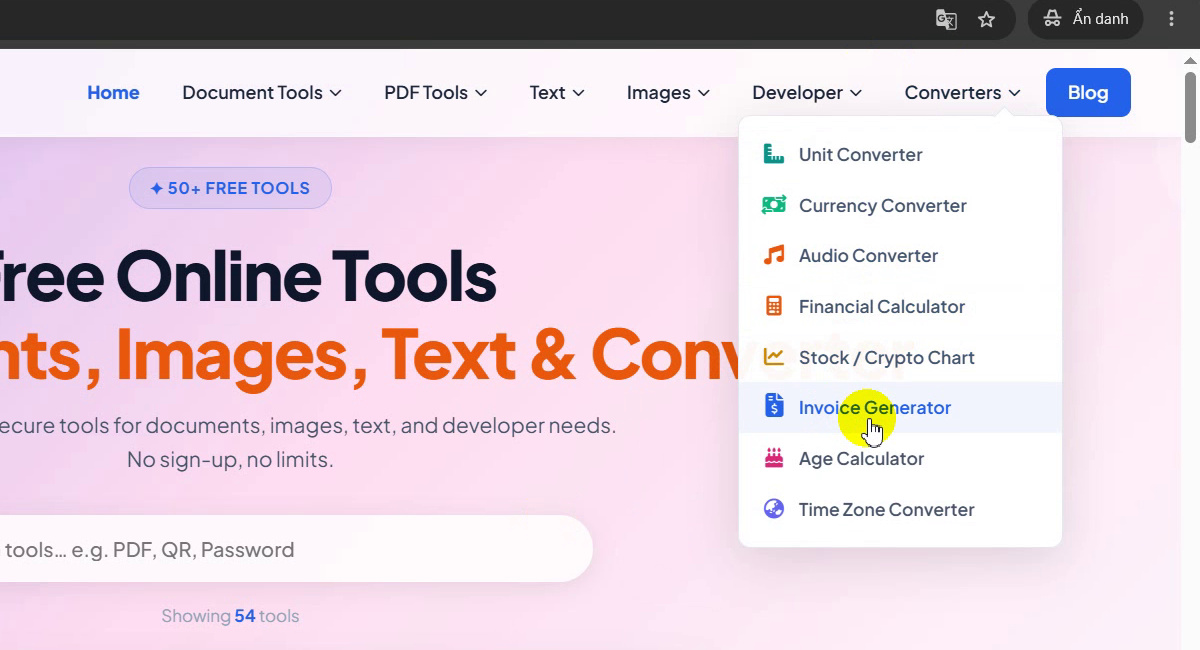
Converters → Invoice Generator -
Look at the editor
The page creates PDF invoices, quotes and receipts with your logo, tax ID, VAT, deposits and signature, and downloads a clean A4 PDF: free, no watermarks, no sign-up. The form is on the left and a live preview on the right. The toolbar has New, Save and Duplicate, and the draft is saved in your browser.
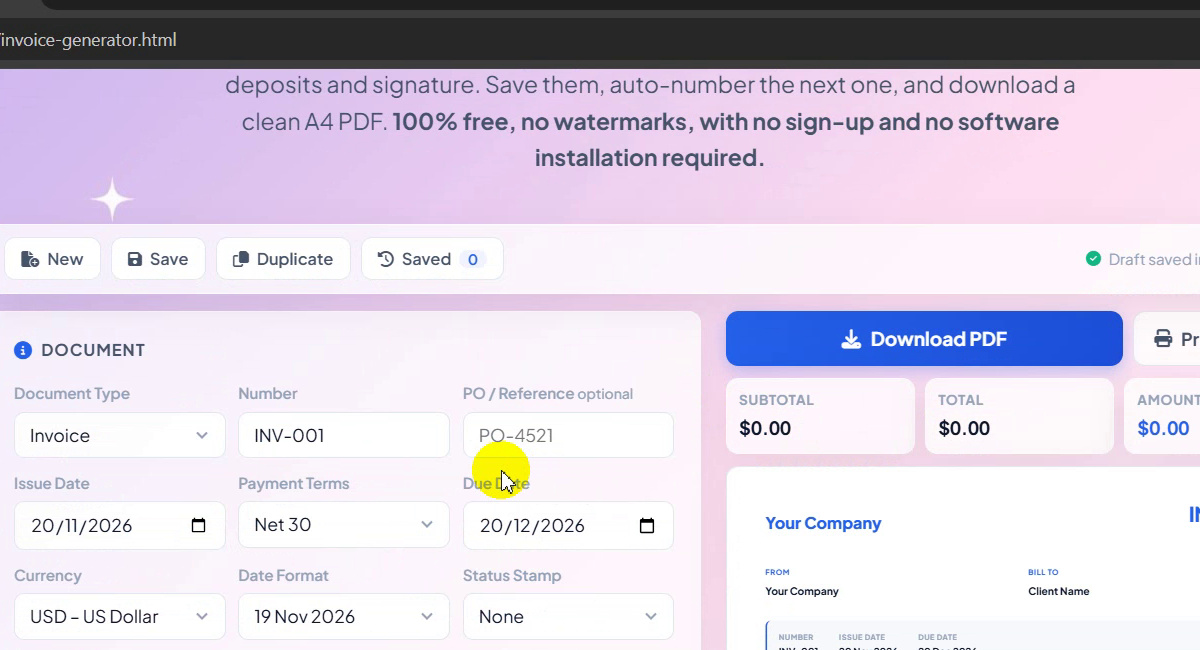
Form on the left, live preview on the right -
Choose the document type
Open Document Type: Invoice, Tax Invoice, Receipt, Quote / Estimate, Proforma Invoice or Credit Note. The title on the preview changes with it. We kept Invoice.
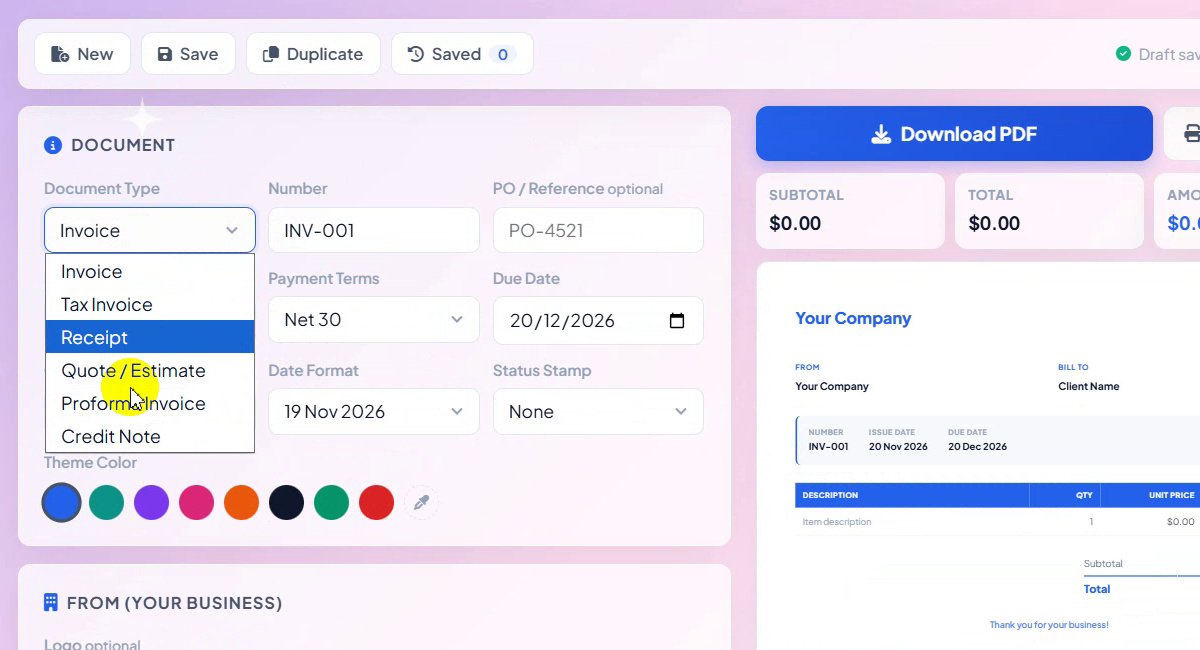
Six document types -
Set the number and reference
The Number starts as INV-001 and is auto-numbered for the next invoice; we typed INV-00123. Add a PO / Reference if your client needs one, here PO122.
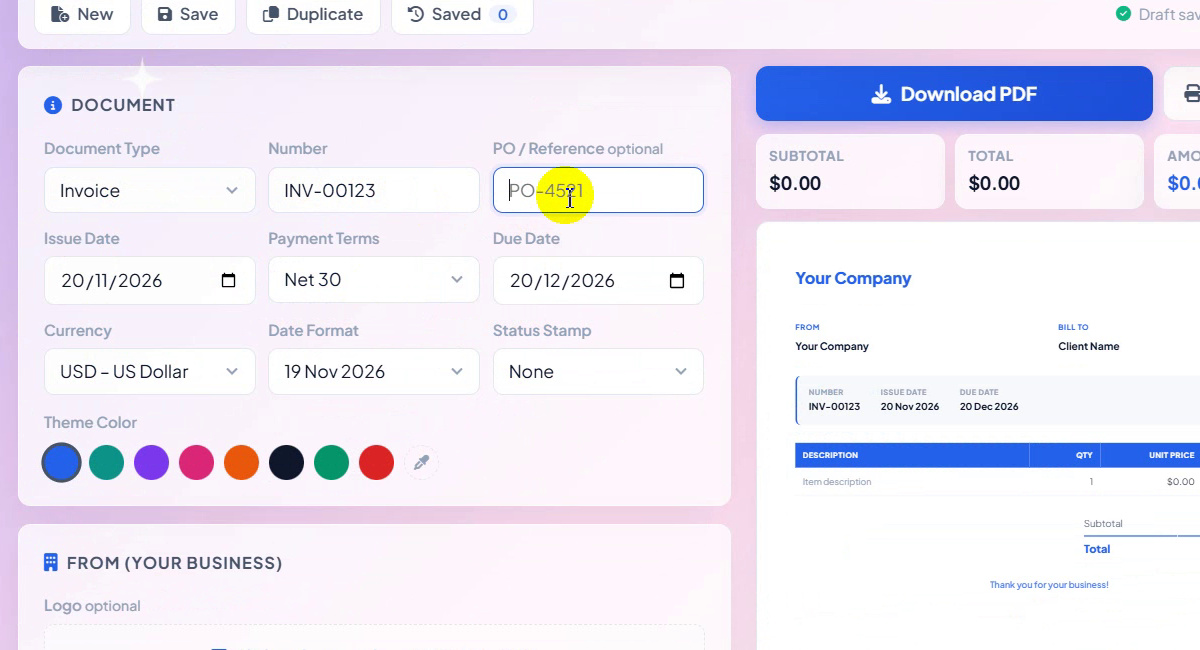
INV-00123 · PO122 -
Pick payment terms
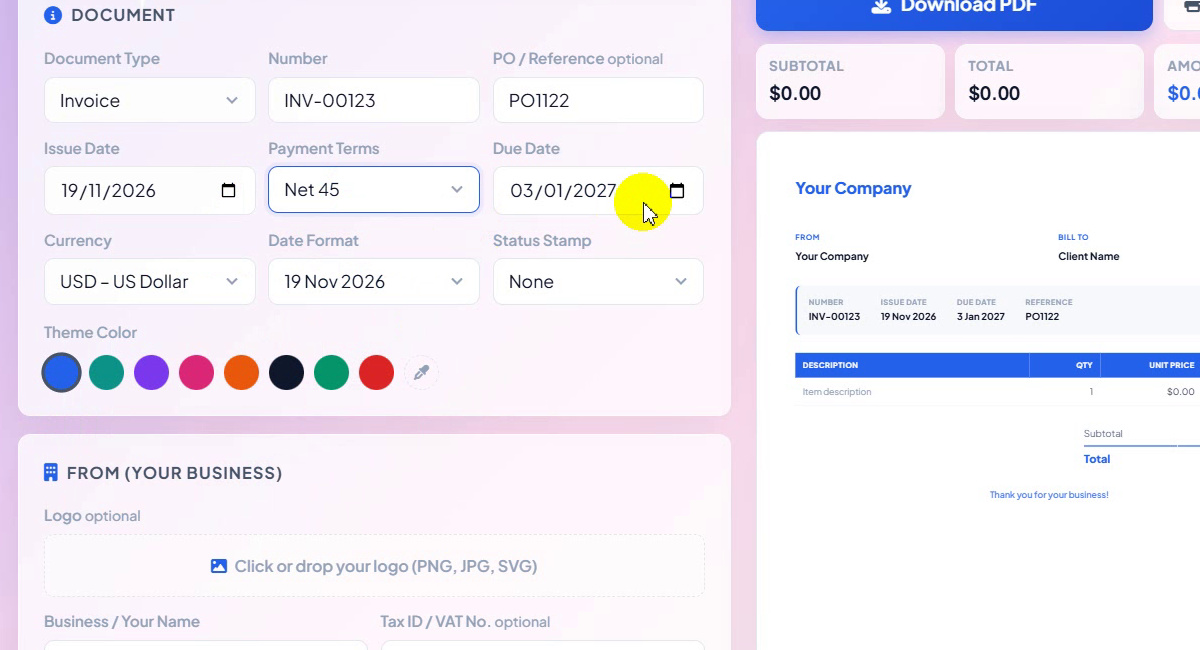
Set the Issue Date and choose Payment Terms: Custom date, Due on receipt, Net 7, Net 15, Net 30, Net 45 or Net 60. The due date follows automatically: issued 19/11/2026 with Net 45 gives a due date of 03/01/2027.
Net 45 → due 03/01/2027 -
Select the currency
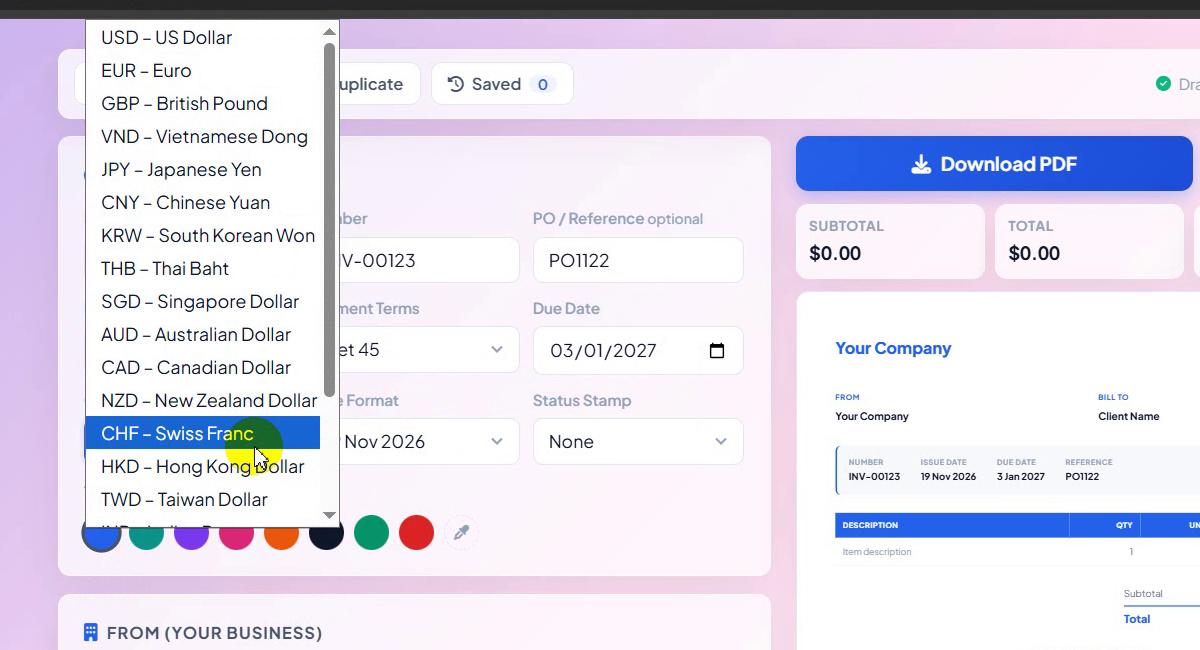
Open Currency and pick the one you bill in, from USD, EUR, GBP, VND and JPY to SGD, AUD, CAD, CHF, HKD and more. We chose JPY – Japanese Yen, so every amount shows with ¥.
Bill in any currency -
Date format, status stamp and colour
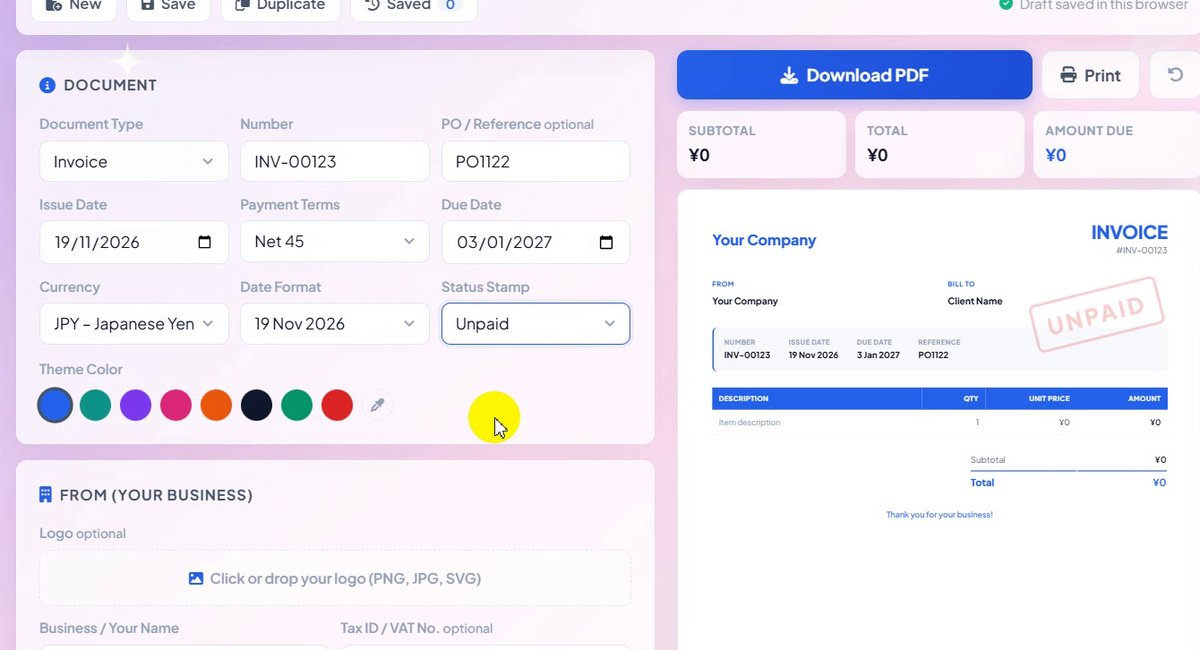
Date Format offers 19 Nov 2026, 19/11/2026, 11/19/2026 or 2026-11-19. Status Stamp can be None, Paid, Unpaid, Draft or Overdue; we chose Unpaid and a red UNPAID stamp appears on the preview. Pick a Theme Color for the headings and table.
UNPAID stamp on the preview -
Add your logo
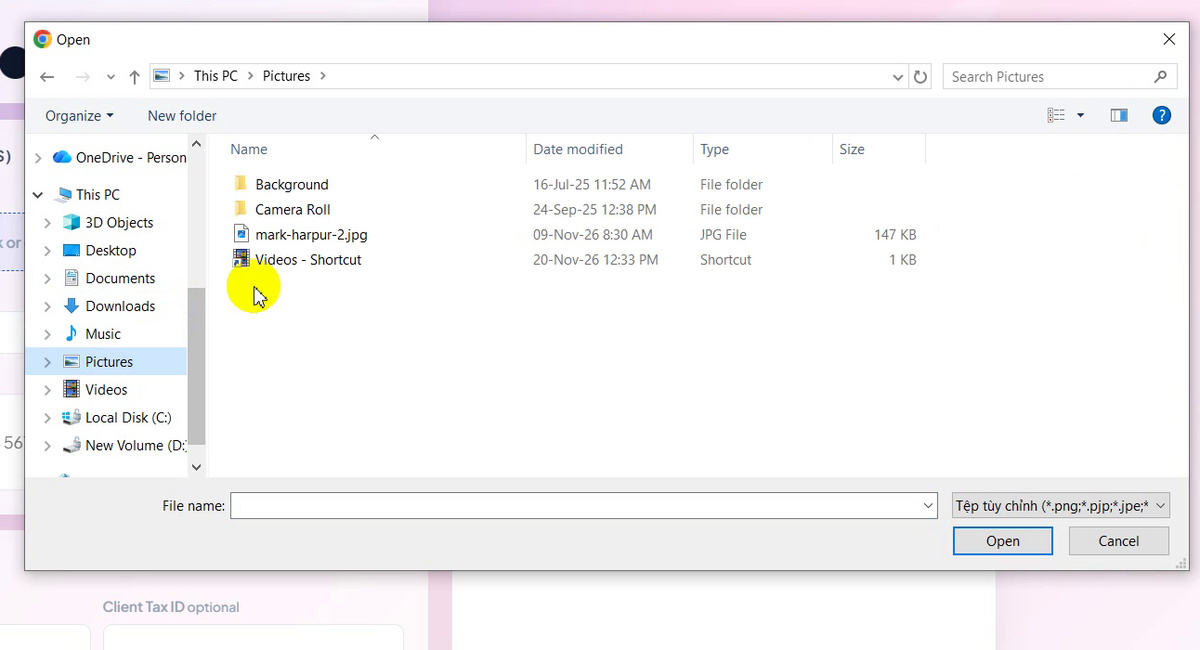
Under From (your business), click or drop your logo (PNG, JPG or SVG). It is optional; once added it sits at the top left of the invoice, and Remove logo takes it off.
Choosing a logo -
Fill in your business
Enter your Business / Your Name, Tax ID / VAT No. and Address & Contact. In the recording: A Company, tax ID 4234354654, 123 Main street.
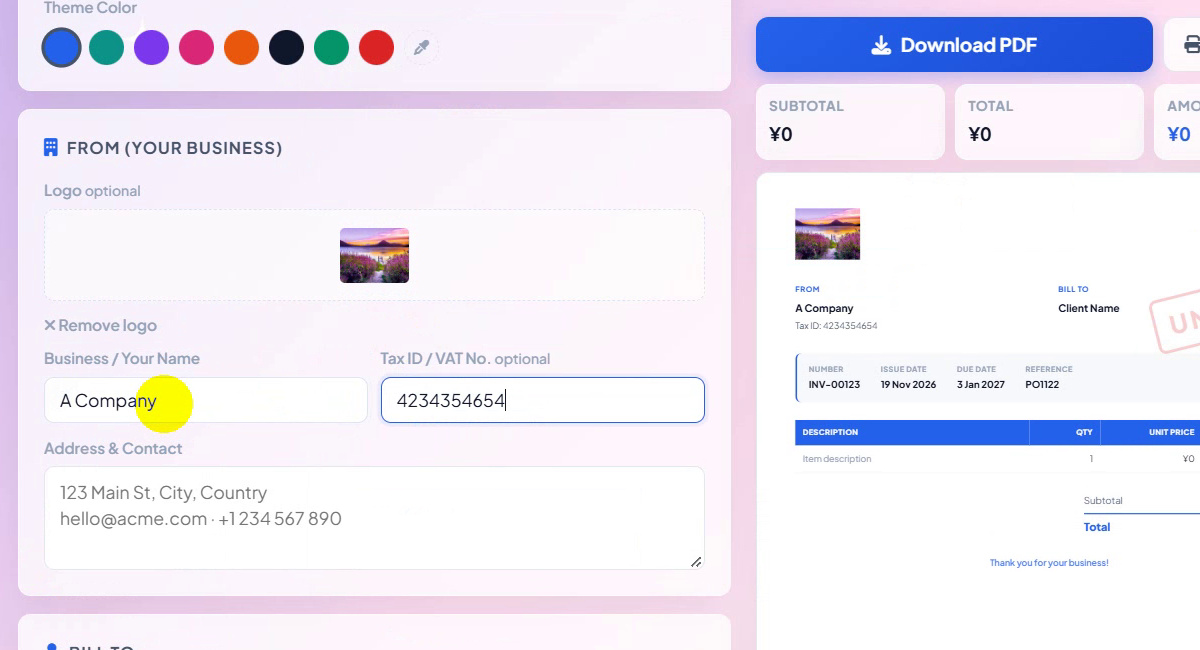
Your business details -
Add the client
Under Bill To, type the client's name, tax ID and address: B Company, 654654423423, 456 AHZ Building. The preview fills in as you type.
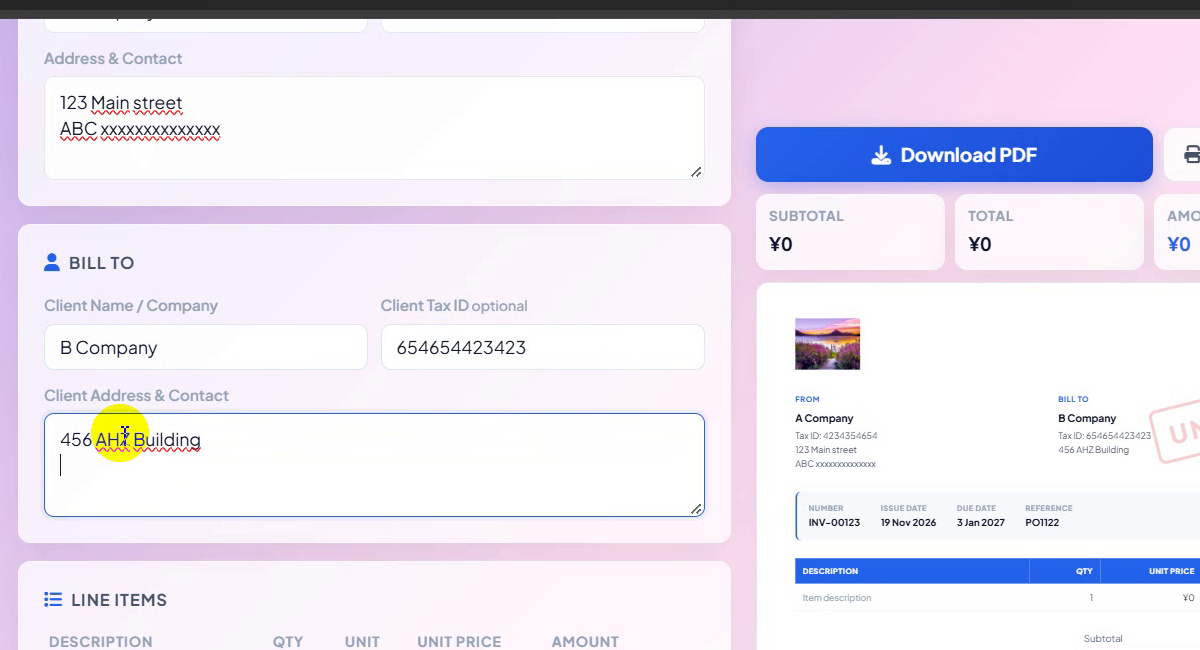
Bill To: B Company -
Enter the line items
For each line type a description, quantity, unit and unit price; the amount is worked out for you. Use Add Line Item for more rows. Item A: 2 pc × 10 = ¥20; Item B: 10 st × 3 = ¥30. Tip from the page: a negative price makes a discount or refund line.
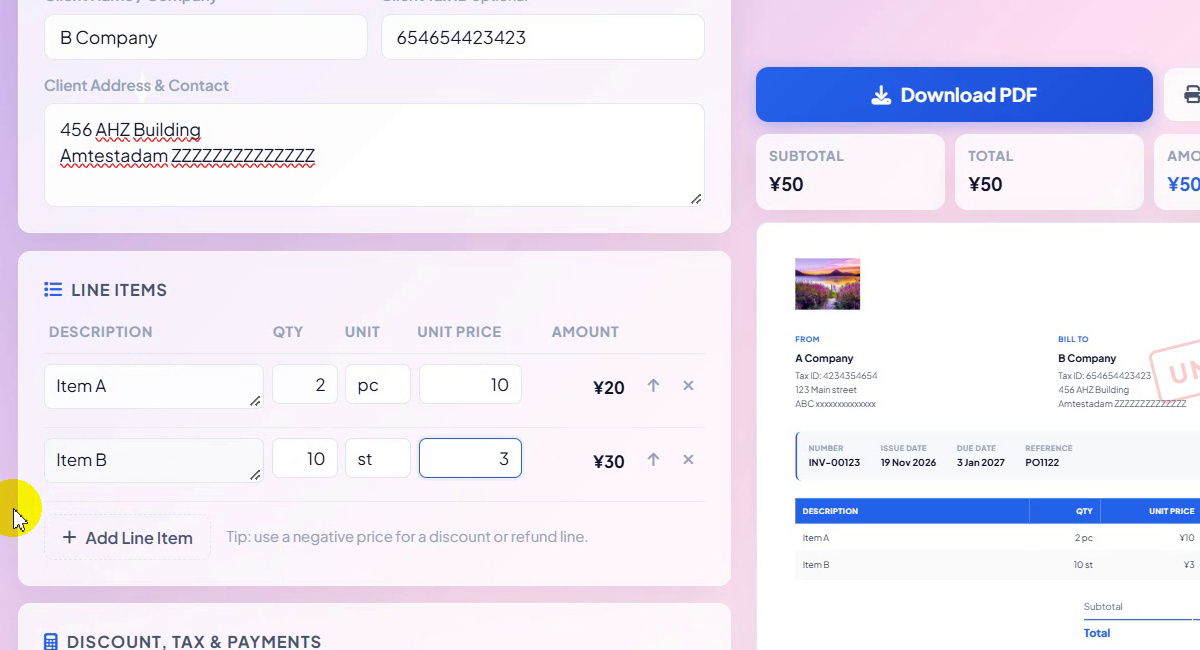
Line items with live amounts -
Discount, tax and payments
With Item C (5 bx × 5 = ¥25) the subtotal is ¥75. In Discount, Tax & Payments we entered a 3% discount, and the total drops to ¥73. The same section holds the tax rate and its label (VAT), shipping or fee, amount paid or deposit, and an option to show the total in words.
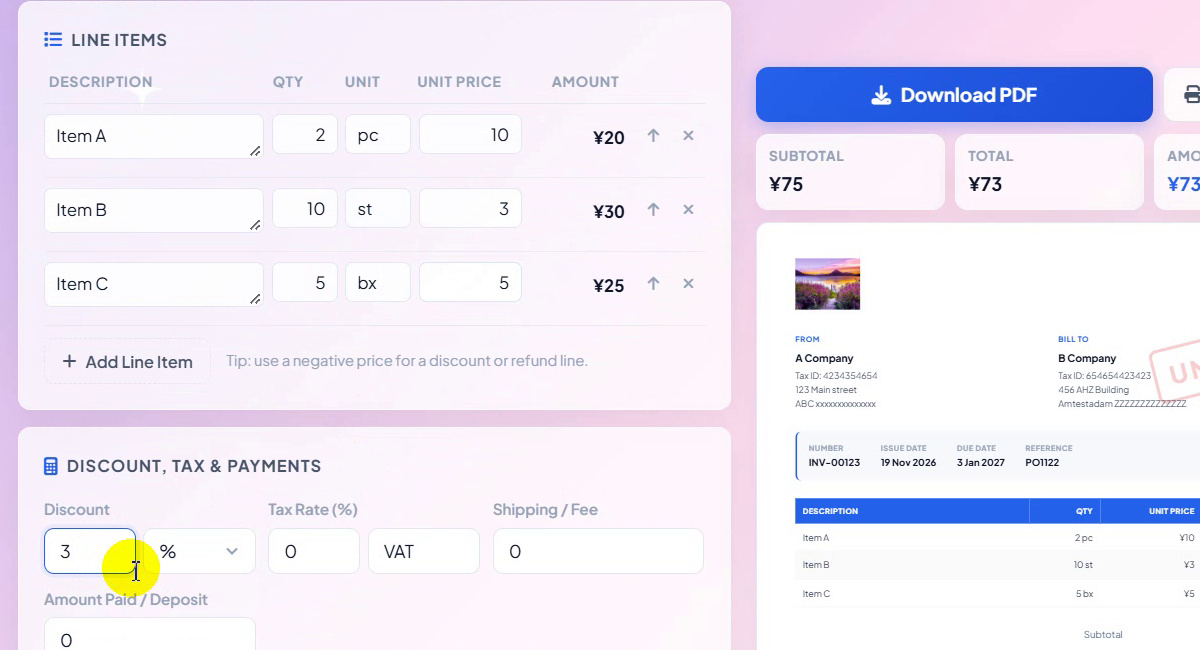
3% discount: ¥75 → ¥73 -
Download the PDF
Click Download PDF. The browser offers the file name invoice-INV-00123-B_Company.pdf; click Save. A PDF downloaded message confirms it, and the file is 146 KB. You can also use Print.
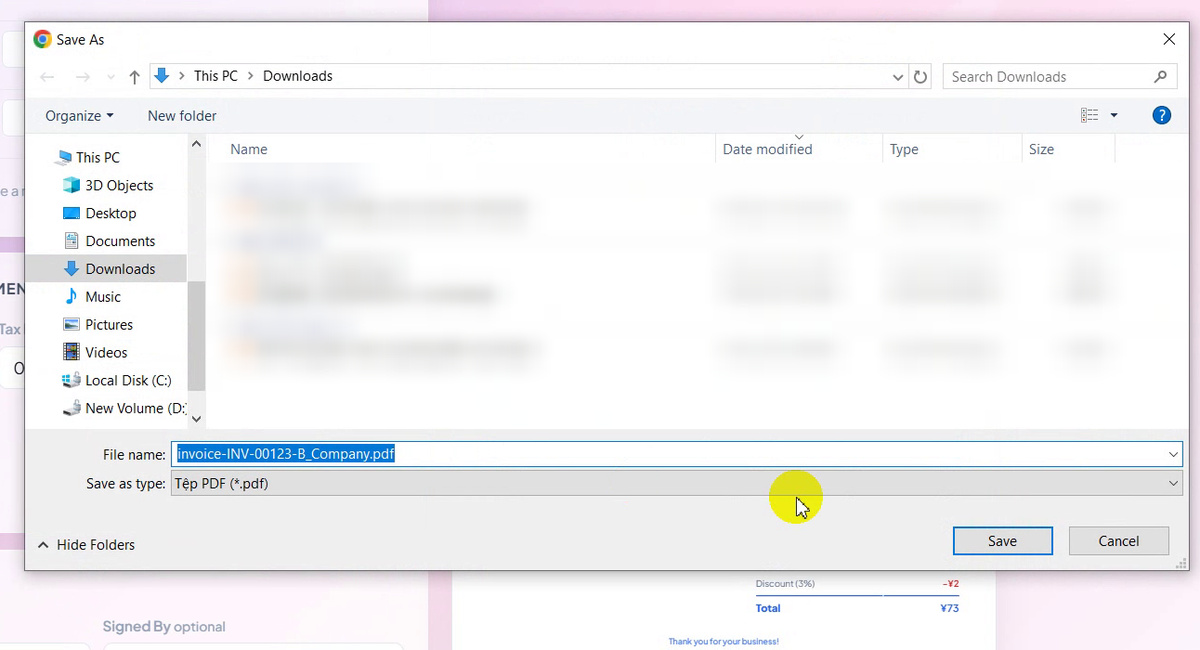
invoice-INV-00123-B_Company.pdf -
Check the finished invoice
Open the PDF: logo, INVOICE #INV-00123, From and Bill To with tax IDs, the UNPAID stamp, issue date 19 Nov 2026, due date 3 Jan 2027, reference PO122, the three items, the 3% discount (−¥2) and the total of ¥73, on one A4 page with no watermark.
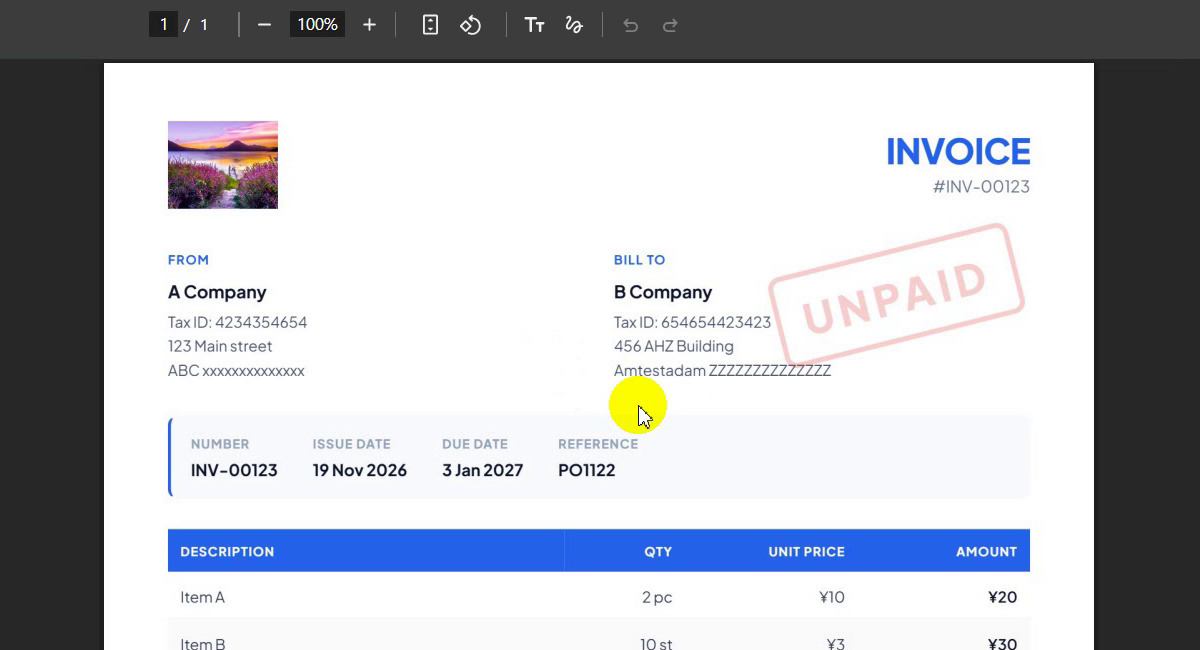
The finished A4 invoice
Our Invoice at a Glance
| Line | Qty | Unit price | Amount |
|---|---|---|---|
| Item A | 2 pc | ¥10 | ¥20 |
| Item B | 10 st | ¥3 | ¥30 |
| Item C | 5 bx | ¥5 | ¥25 |
| Subtotal | ¥75 | ||
| Discount (3%) | −¥2 | ||
| Total | ¥73 | ||
Invoice INV-00123, reference PO122, issued 19 Nov 2026, due 3 Jan 2027 (Net 45), stamped UNPAID. Saved as invoice-INV-00123-B_Company.pdf (146 KB).
Tips for Better Invoices
- Save before you start the next one. Use Save, then Duplicate for a repeat client so only the items change.
- Quote first, invoice later. Switch the document type to Quote / Estimate, and back to Invoice when the client agrees.
- Mark it paid. When the money arrives, change the stamp to Paid and download again for your records.
- Refunds and credits. A line with a negative price subtracts from the total.
- Need the numbers first? Work out VAT or a payment plan with the Financial Calculator, convert a price with the Currency Converter, and find more guides on our blog.
Logo, terms, currency, discount and tax, then a clean A4 PDF. Free, no sign-up, no watermark.