How to Convert Audio and Video to MP3 Online (Free, No Upload)
Need the sound from a video, or an MP3 that plays on any device? The ToolTiny Audio Converter turns audio and video files into MP3, M4A, WAV, FLAC, OGG or OPUS right in your browser, so your files never leave your computer. This guide follows a 33-second screen recording in which a WMV video becomes a small MP3; every number below is the one shown on screen.
What the Converter Does
| Feature | What it means |
|---|---|
| Audio and video input | MP3, WAV, M4A, FLAC, OGG, OPUS, WMA, AAC, AIFF, AMR, MP4, MOV, WEBM, MKV — up to 100 MB each |
| 7 output formats | MP3, M4A / AAC, WAV, FLAC, OGG Vorbis, OPUS and raw AAC |
| Bitrate choice | From 64 kbps for voice to 320 kbps for the best sound |
| Batch conversion | Pick several files at once; each gets its own Download button |
| Private | Runs in your browser with WebAssembly; no server uploads |
Watch the Whole Process
The recording opens the tool from the Converters menu, adds a WMV video, looks at the format and bitrate lists, converts to MP3 at 128 kbps and saves the result.
How to Convert to MP3, Step by Step
-
Open the Converters menu
On the ToolTiny home page, move the mouse over Converters in the top bar and click Audio Converter. You can also go straight to tooltiny.com/audio-convert.html.
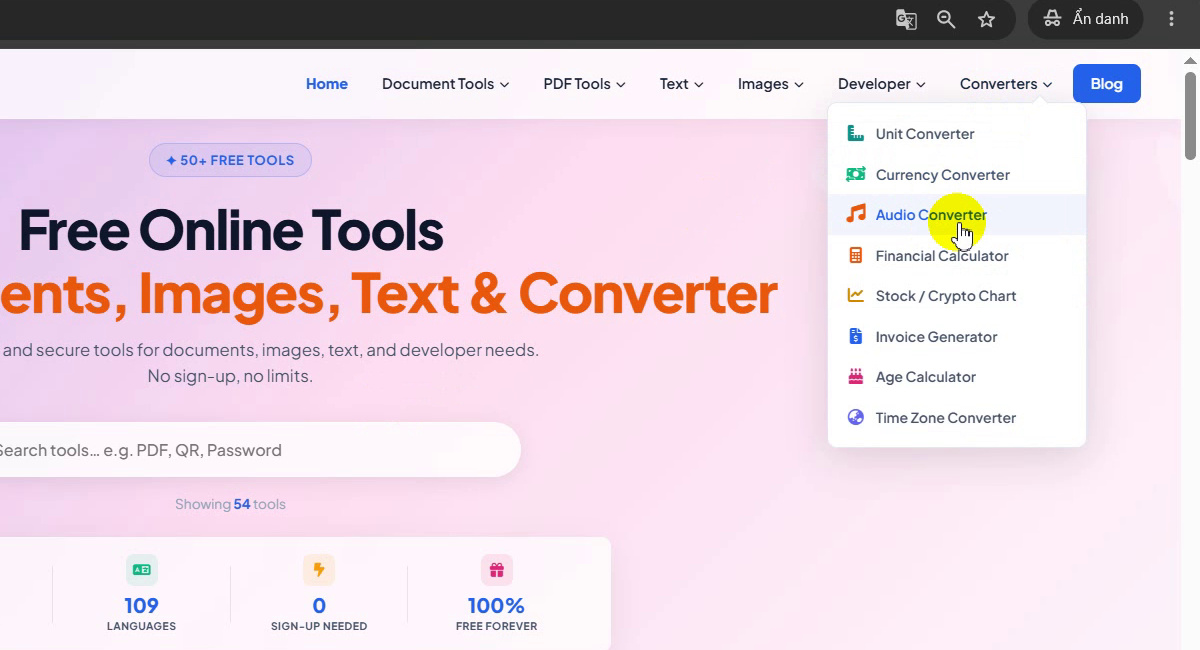
Converters → Audio Converter -
Look at the tool page
The page is titled Free Online Audio Converter. It converts audio and video files to MP3, M4A, WAV, FLAC, OGG or OPUS inside your browser, with no sign-up and no server uploads. The drop zone accepts MP3, WAV, M4A, FLAC, OGG, OPUS, WMA, AAC, AIFF, AMR and video files (MP4, MOV, WEBM, MKV), up to 100 MB each.
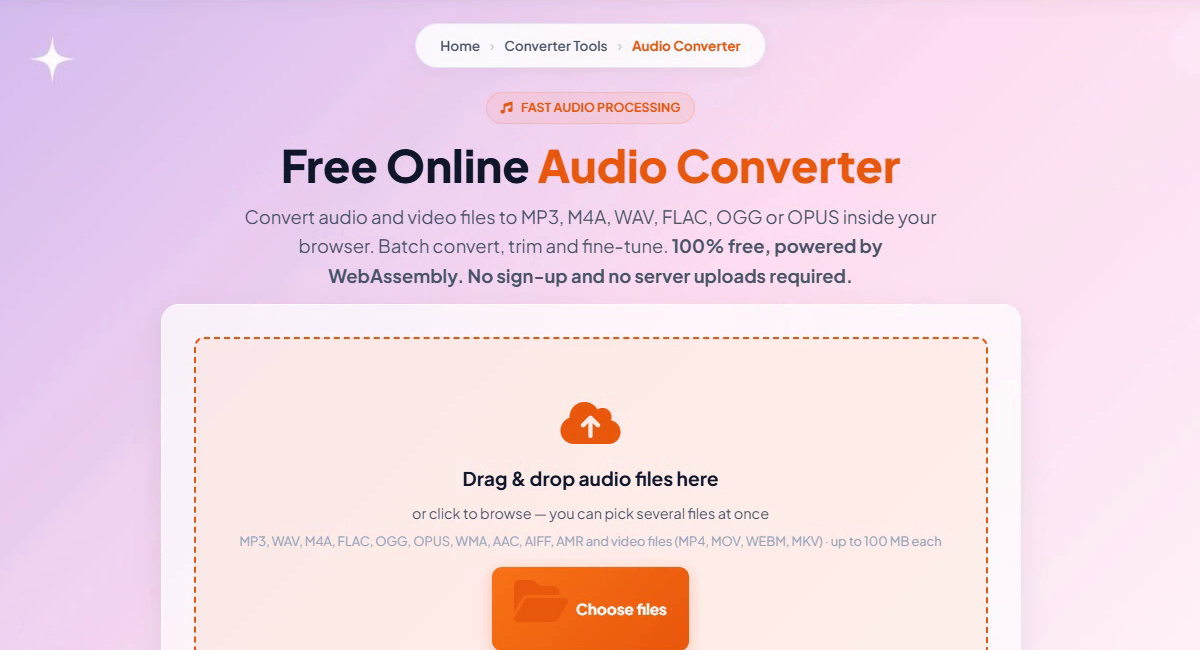
The Audio Converter page -
Choose your file
Drag files onto the box or click Choose files. You can pick several files at once. In the recording we picked a video file, 1.wmv (1,907 KB), from the Downloads folder and clicked Open.
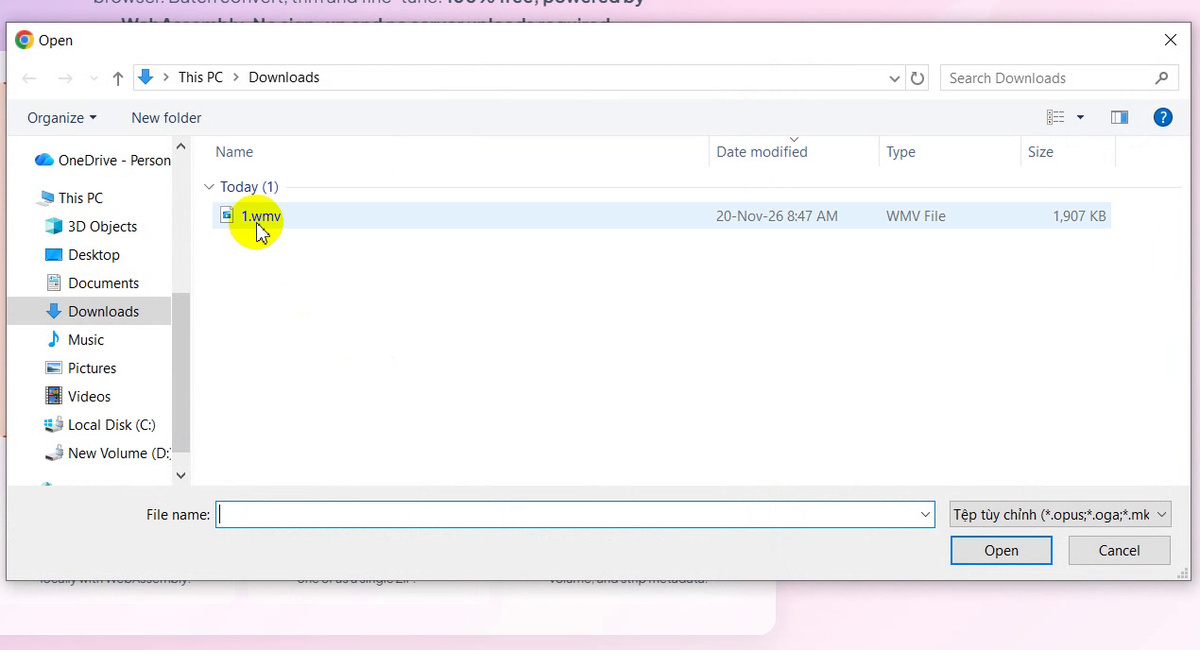
Picking a WMV video -
Check the file list
The file appears in the list as 1.wmv · 1.86 MB · Ready, with buttons to play or remove it. Add files and Clear all sit above the list. On the first run the page also downloads the converter engine once; the bar shows its progress.
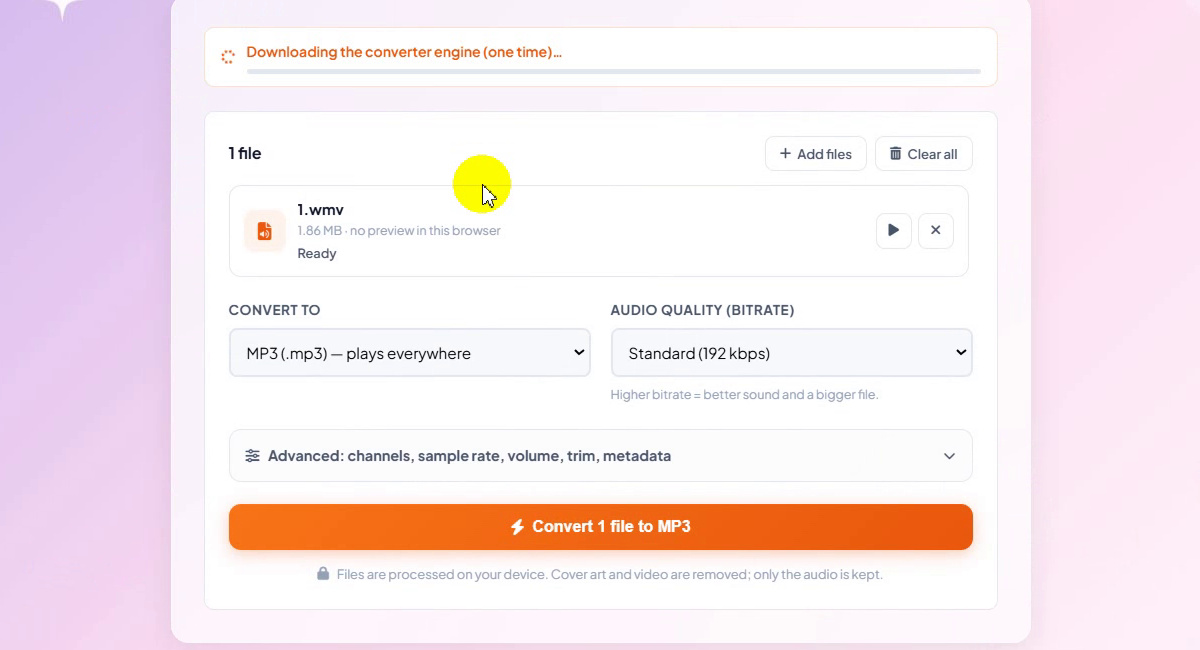
The file is ready -
Pick the output format
Open Convert to. The choices are MP3 (plays everywhere), M4A / AAC (iPhone, iTunes), WAV (lossless, uncompressed), FLAC (lossless, smaller), OGG Vorbis, OPUS (best quality per MB) and raw AAC. We kept MP3.
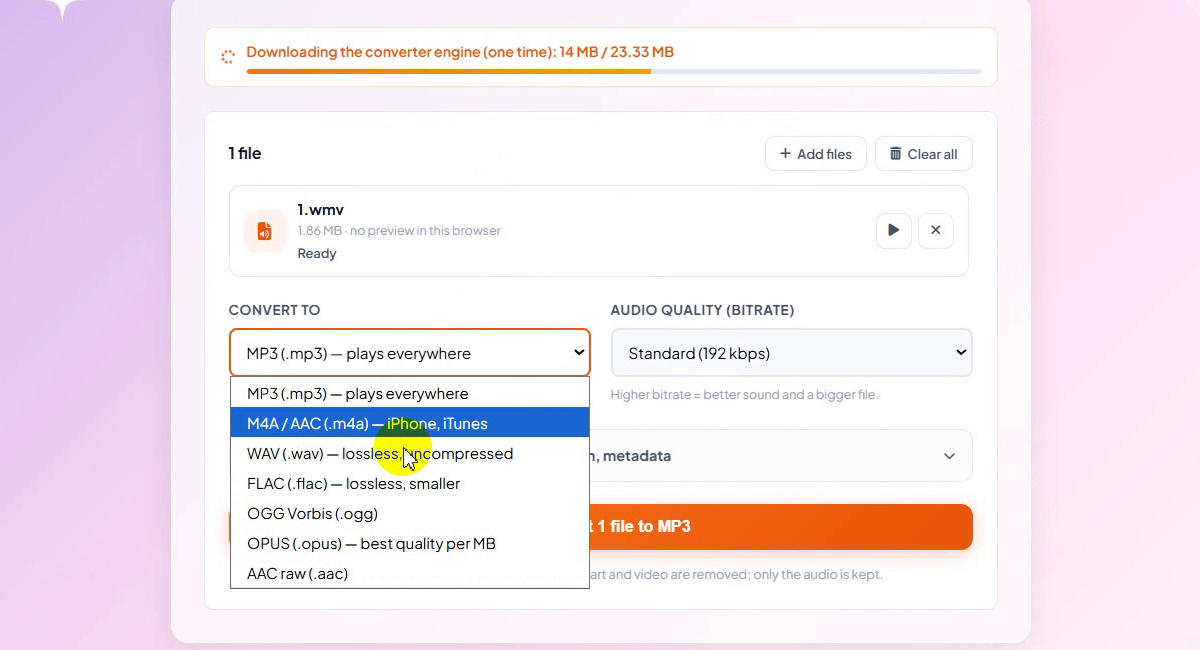
Seven output formats -
Choose the audio quality
Open Audio quality (bitrate): High (320 kbps), Very good (256 kbps), Standard (192 kbps), Good (160 kbps), Small file (128 kbps), Voice (96 kbps) and Smallest, voice only (64 kbps). A higher bitrate means better sound and a bigger file. By now the message reads Converter engine ready. Your files stay on this device.
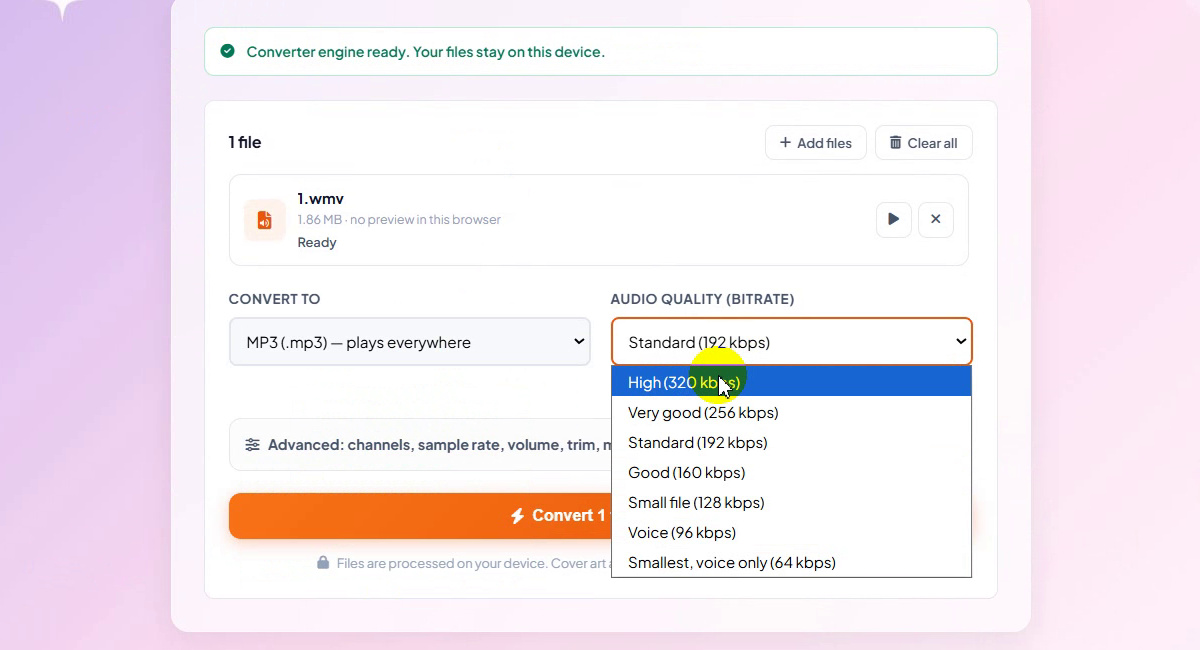
Bitrate options -
Start the conversion
We chose Small file (128 kbps) and clicked Convert 1 file to MP3. The Advanced panel above the button holds channels, sample rate, volume, trim and metadata if you need them.
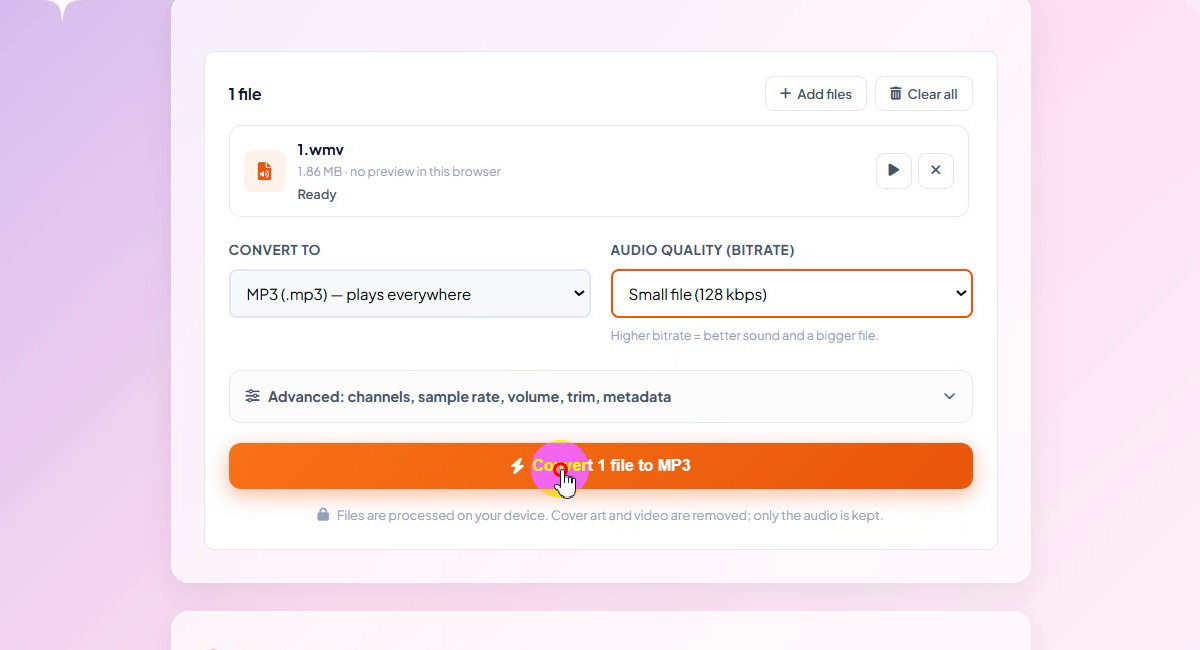
Convert 1 file to MP3 -
Watch the progress
The file row and the bar under the settings show Converting… with a percentage. A Cancel button stops the job.
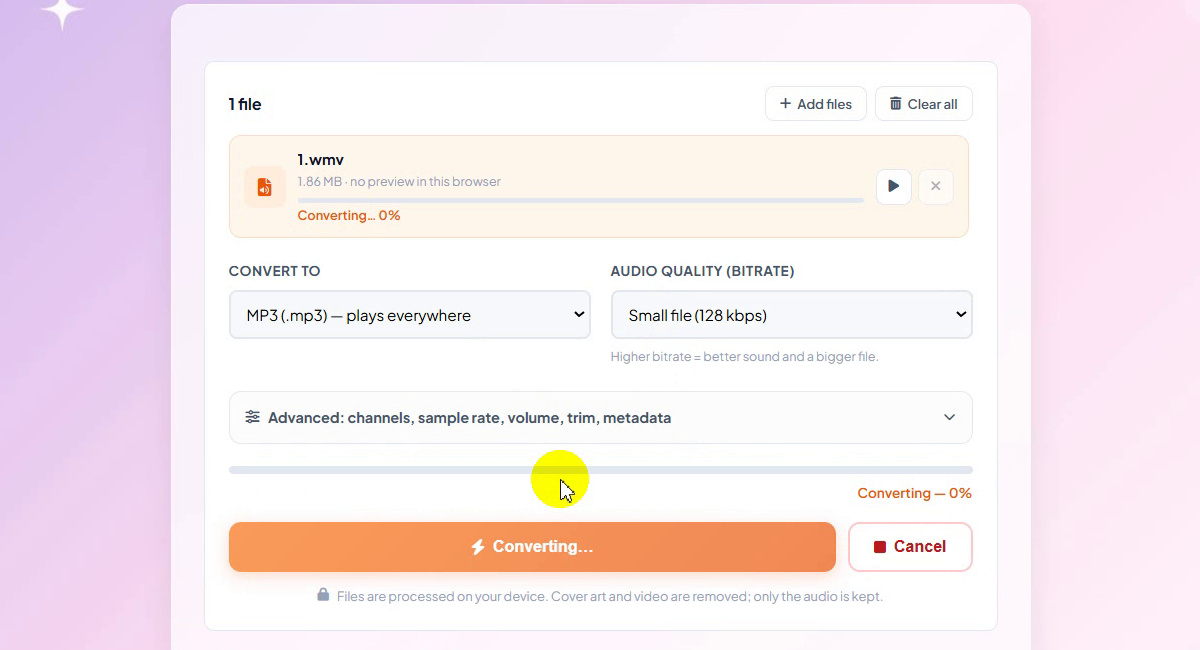
Converting in the browser -
Read the result
When it finishes, the row turns green: Done: 1_ToolTiny.mp3 · 224 KB (88% smaller), and the clip length shows as 0:14. You can play the result before saving it, and the main button now reads All files converted.
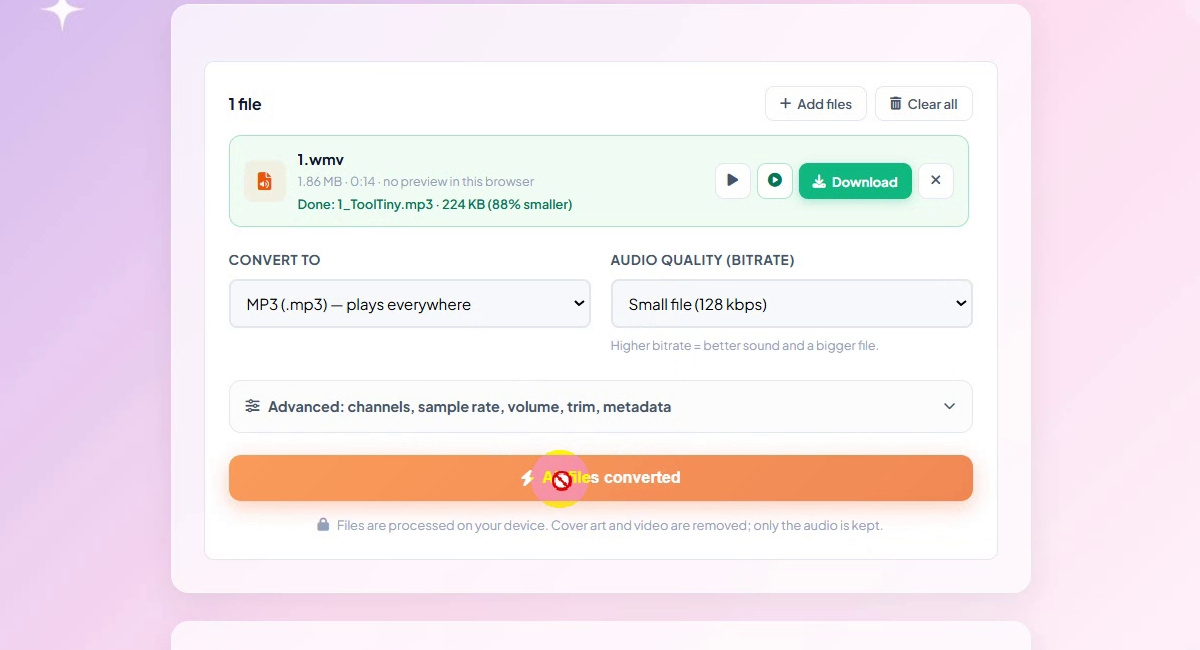
1.86 MB WMV to 224 KB MP3 -
Download the MP3
Click Download. The browser asks where to save 1_ToolTiny.mp3 (type: MP3 Format Sound). Pick a folder and click Save.
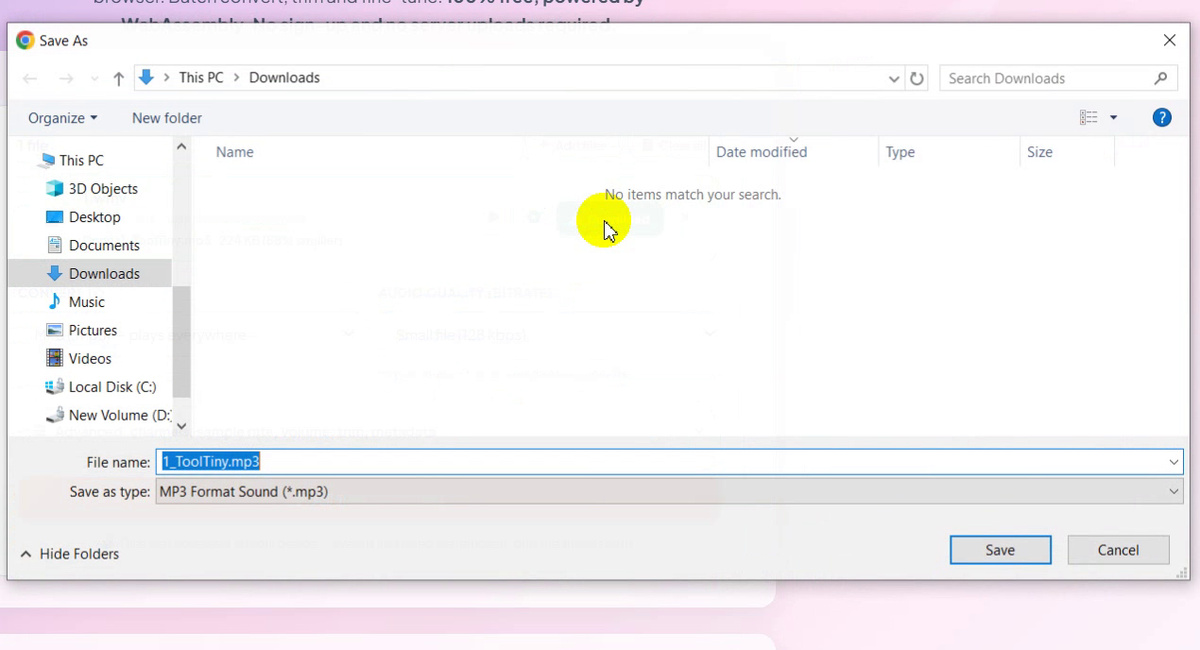
Saving 1_ToolTiny.mp3 -
Done
The browser's download list shows 1_ToolTiny.mp3 · 224 KB. The whole job, from opening the page to the saved MP3, takes about half a minute in the recording.
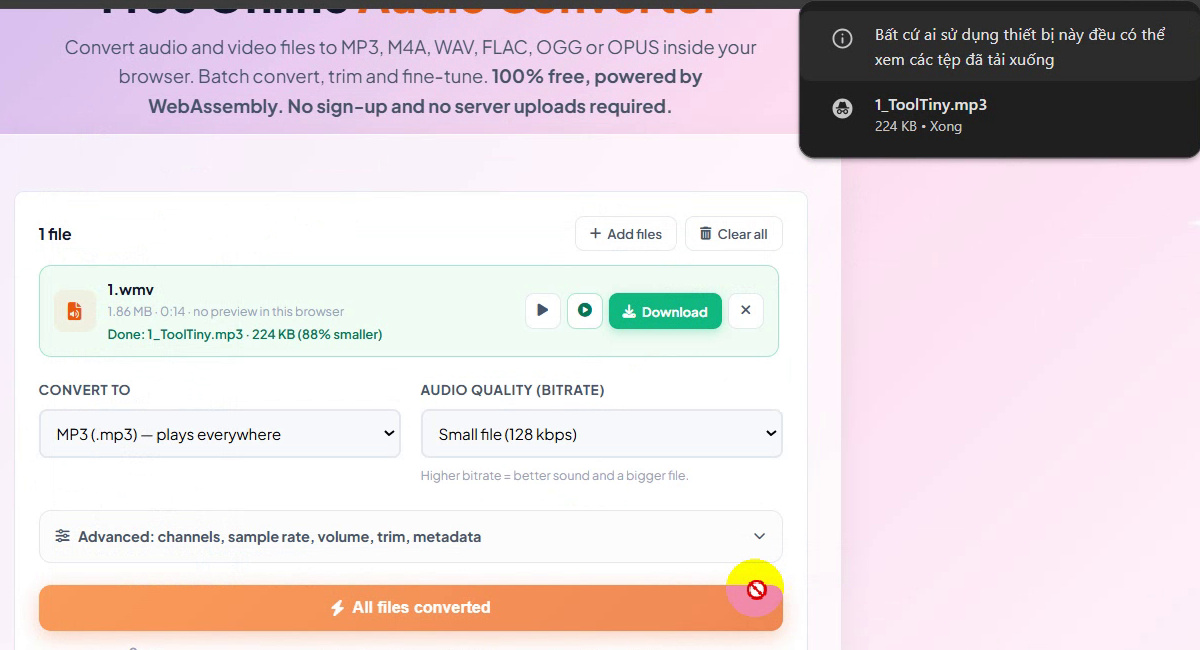
The MP3 is saved
Our Result
| Before | After | |
|---|---|---|
| File | 1.wmv (video) | 1_ToolTiny.mp3 (audio) |
| Size | 1.86 MB | 224 KB |
| Length | 0:14 | |
| Settings | MP3, Small file (128 kbps) | |
| Saving | 88% smaller | |
Your own saving depends on the source file and the bitrate you choose.
Which Format and Bitrate to Choose
- MP3 plays everywhere: phones, cars, browsers and old players.
- M4A / AAC is the natural choice for iPhone and iTunes.
- WAV is lossless and uncompressed; FLAC is lossless and smaller.
- OPUS gives the best quality per MB; OGG Vorbis suits games and open-source players.
- Bitrate: 320 kbps for the best sound, 192 kbps for everyday music, 128 kbps to save space, 96 or 64 kbps for speech.
Tips
- Let the engine load once. The first conversion downloads the converter engine; later files start straight away.
- Recording speech? Voice (96 kbps) or Smallest (64 kbps) keeps lectures and podcasts tiny.
- Need only part of a track? Open Advanced to trim, switch to mono, change the sample rate, adjust the volume or set metadata.
- Converting many files? Select them all in the Choose files dialog; every file uses the same settings.
- Working with other media? Try the Unit Converter or the Currency Converter, and find more guides on our blog.
Add a file, pick MP3 or another format and download the result. Free, no sign-up, no upload.