How to Convert Text to Speech Online and Download an MP3 for Free
Hearing a text read aloud is a different way to check it, learn from it or share it. A text to speech tool reads your words with a synthetic voice, and some also let you keep the result as an audio file. This guide shows how to use ToolTiny’s Text to Speech: listen with your browser’s voice, pick a language, and download the speech as an MP3 file in 19 languages, including Vietnamese. We use a real 713-character example from start to finish. It is free, needs no sign-up and works in your browser.
What You Can Do With Text to Speech
- Proofread by ear. Mistakes and awkward sentences are easier to hear than to see.
- Learn a language. Listen to how a sentence sounds, slow it down and repeat it.
- Rest your eyes. Let an article or a long email play while you do something else.
- Make audio files. Save the speech as an MP3 for a presentation, a video or an offline listen.
- Support reading. Hearing text can help people who find long passages tiring to read.
Watch the Whole Process
The recording opens Text to Speech, pastes a short paragraph, chooses a voice and an MP3 language, listens with Speak, downloads the MP3 and plays it.
How to Use Text to Speech, Step by Step
-
Open Text to Speech
In the top bar open Text and choose Text to Speech, or go straight to tooltiny.com/text-to-speech.html.
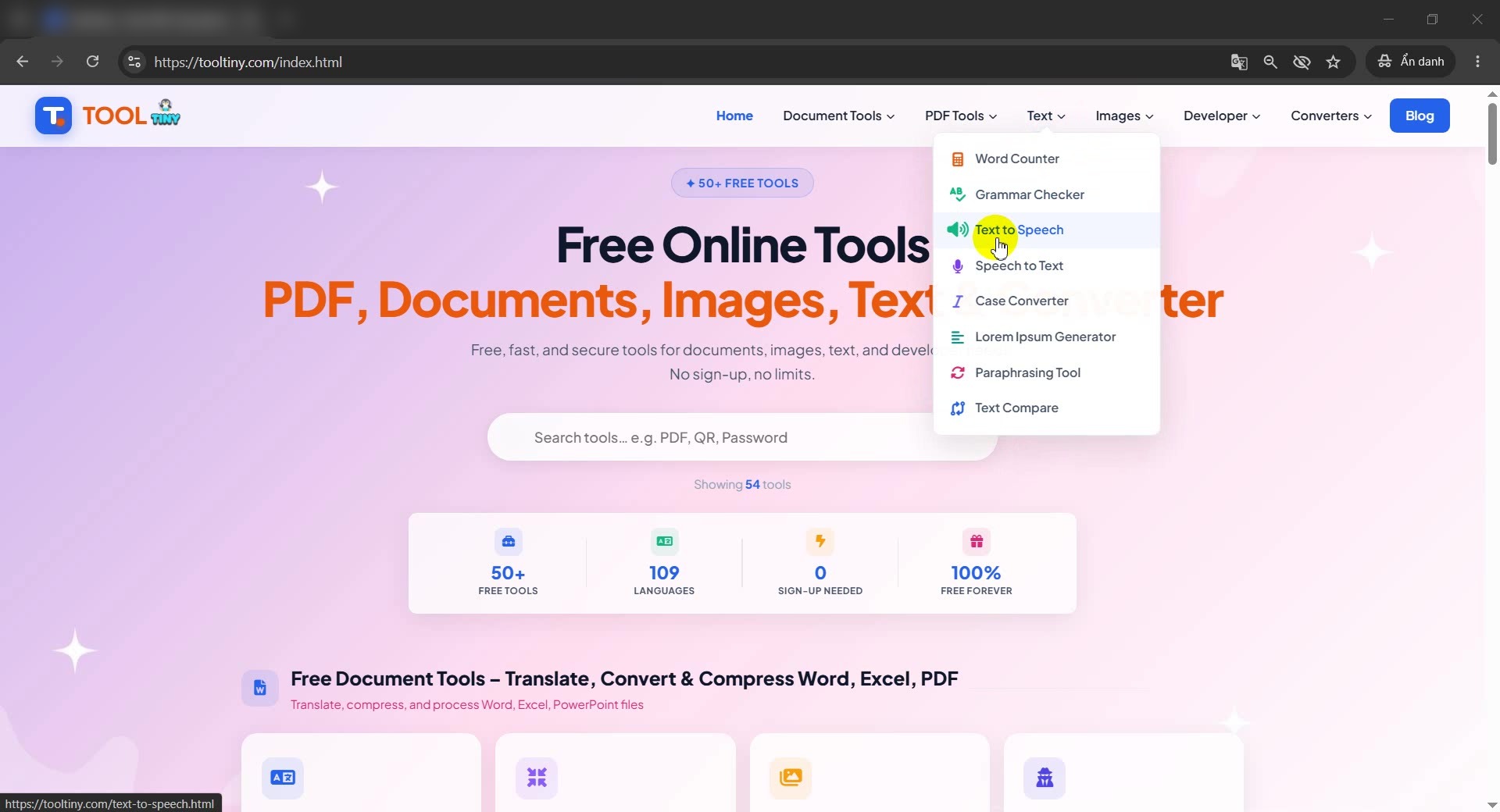
Text → Text to Speech -
Look at the tool page
The page has a text box, a row of language presets, a Voice and a Language list, Speed and Pitch sliders and a player with the Speak and Download MP3 buttons.
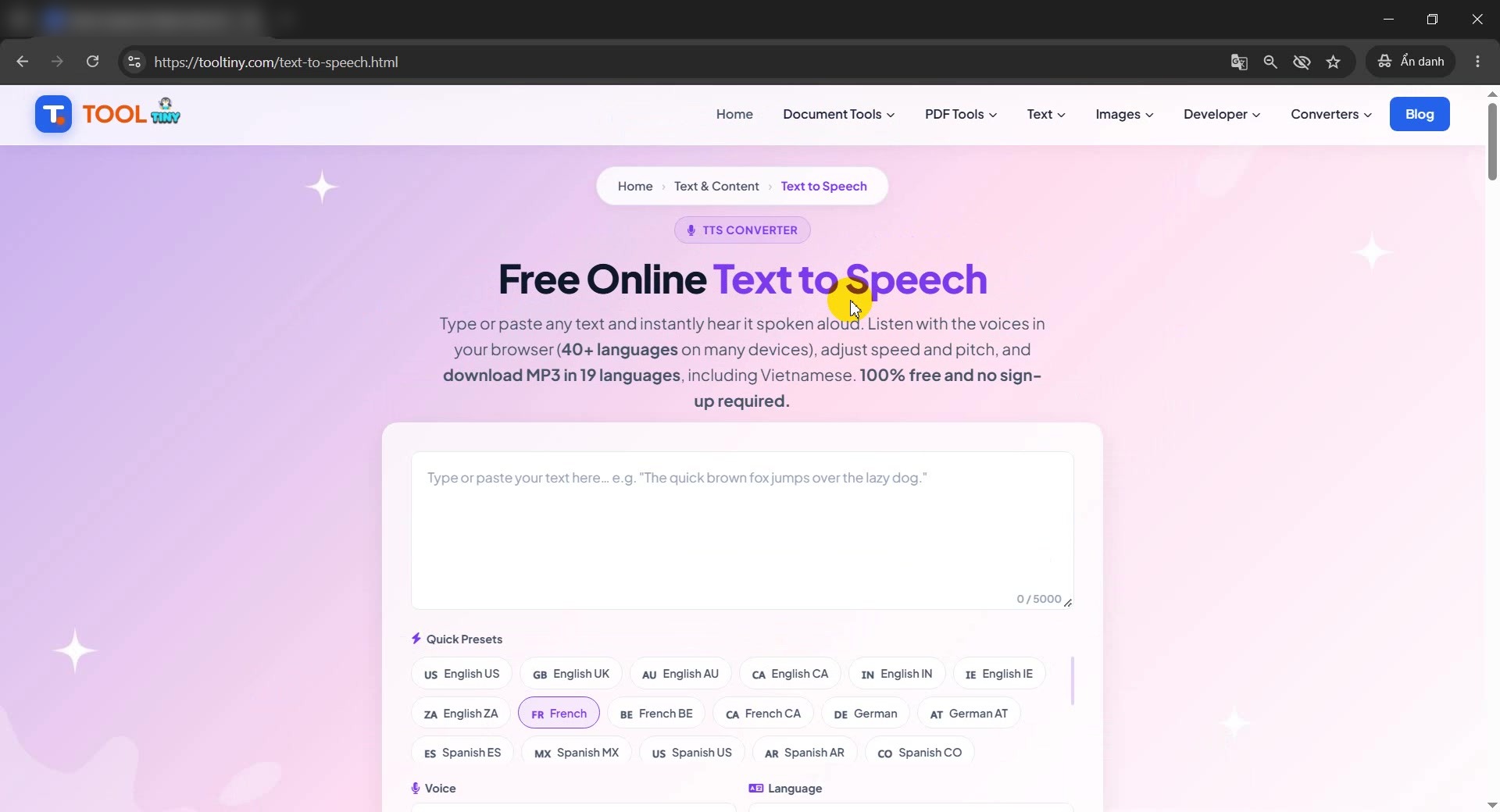
The Text to Speech page -
Click the text box
Click inside the box. It accepts up to 5,000 characters, and the counter in the corner shows how much you have used.
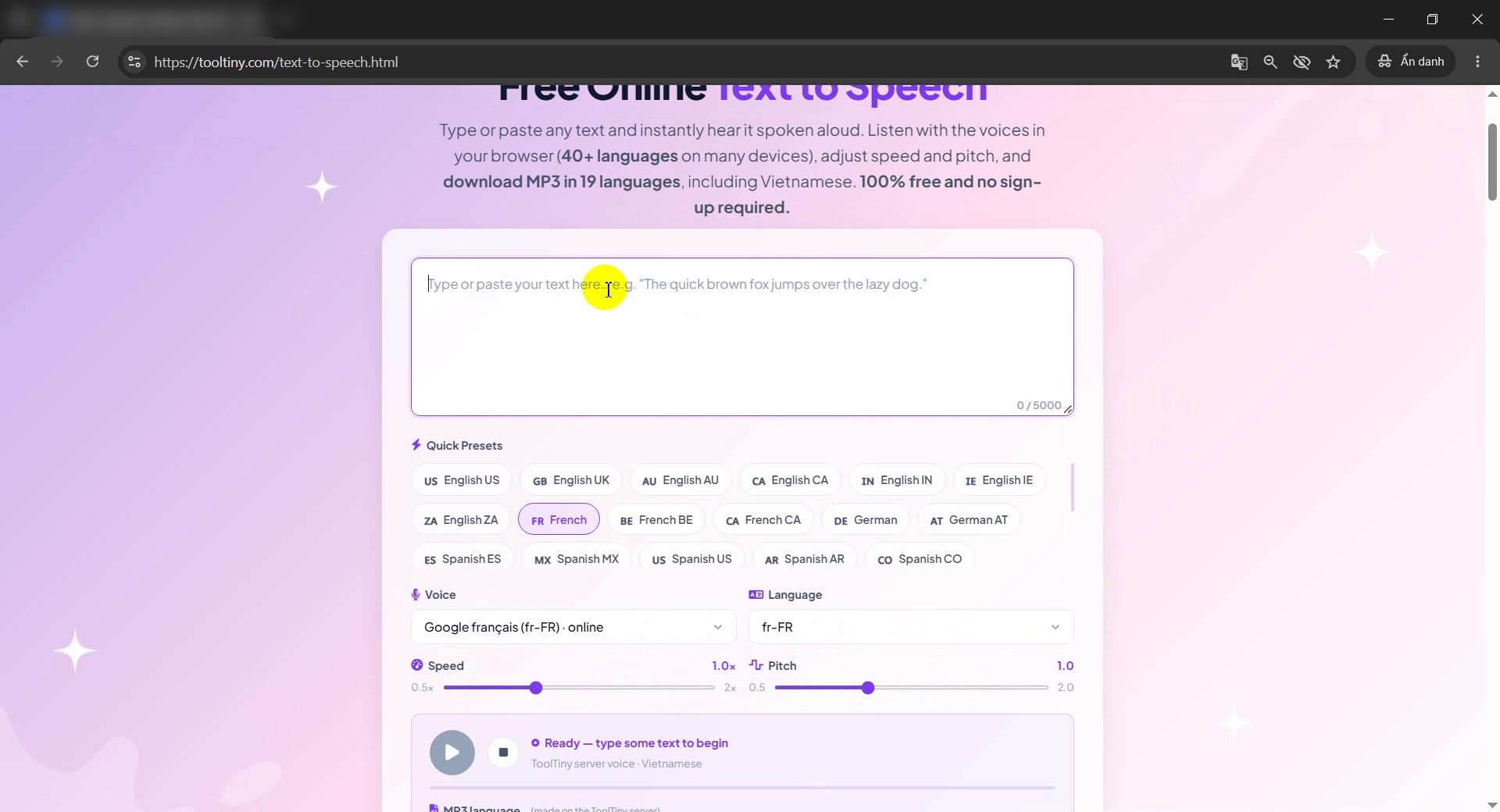
Click the text box -
Paste or type your text
Paste your text with Ctrl+V or type it. In our test we pasted a short English paragraph of 713 characters. Red underlines are only your browser’s spell check, they do not change the audio.
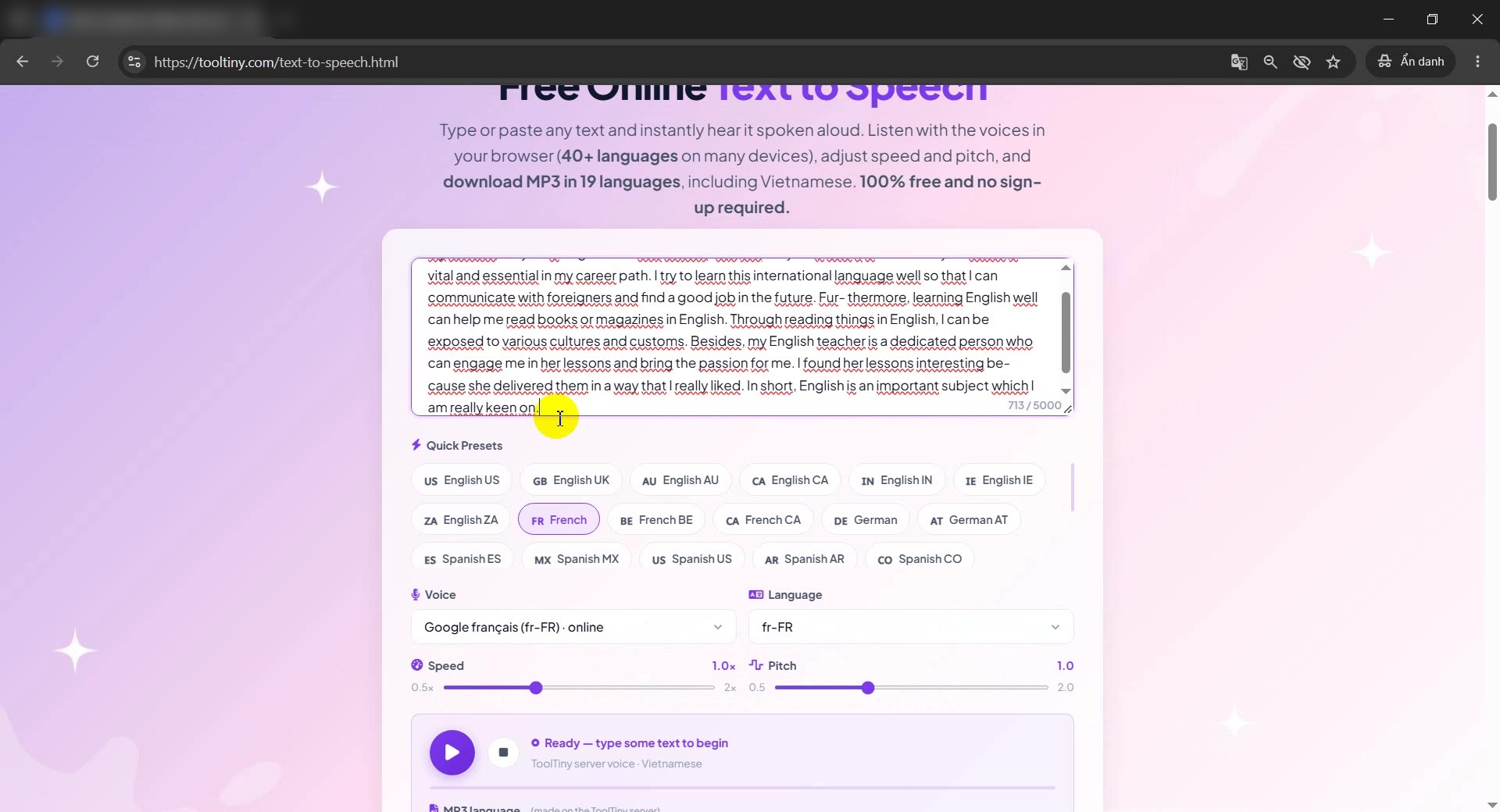
Paste the text -
Pick a language preset
Click a preset such as English US to switch the language in one click. The Voice and Language lists below update to match. Presets only show languages for which your browser has a voice.
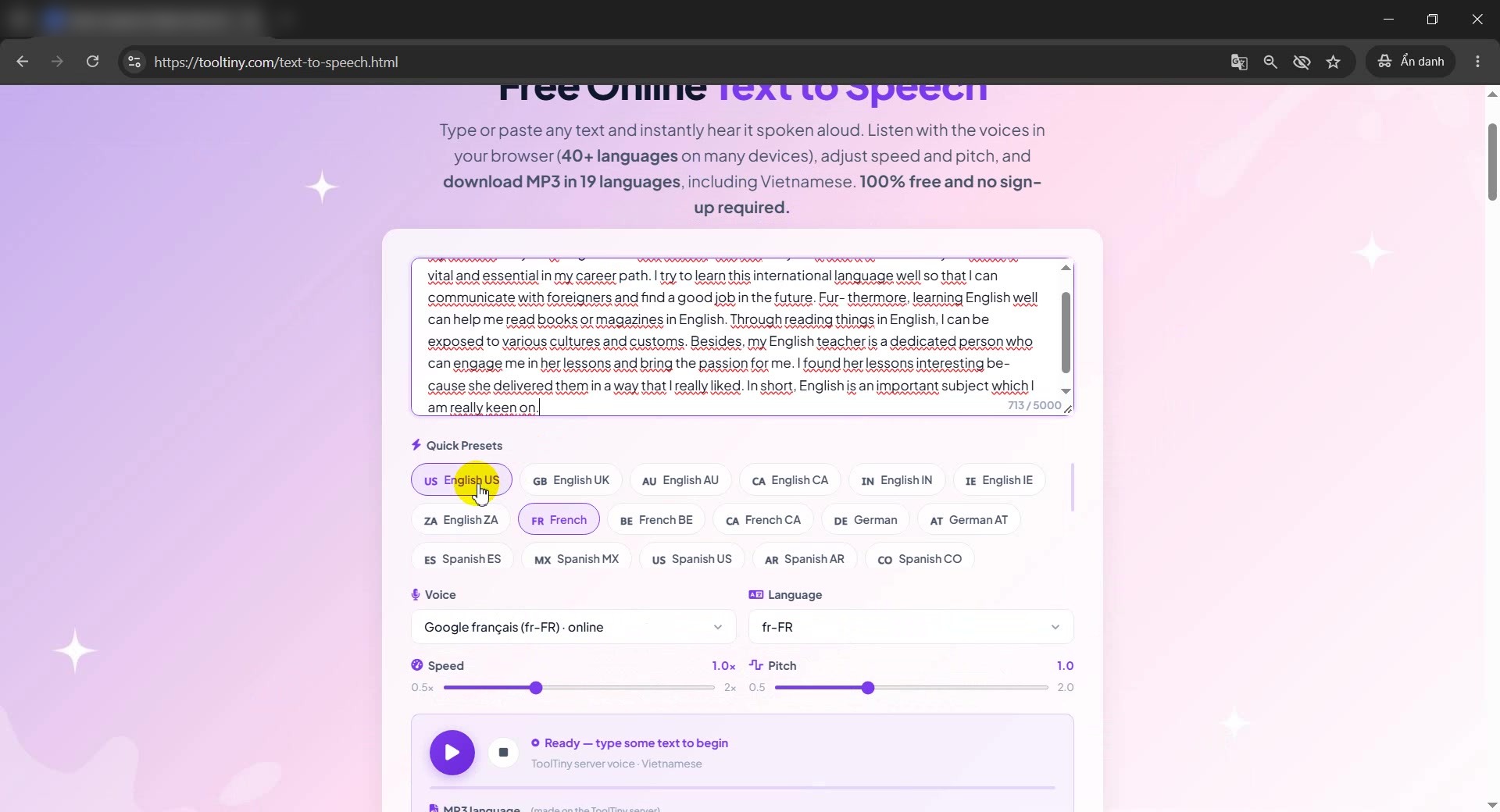
Choose a preset -
Choose a voice
Open the Voice list and pick one. Voices installed on your device come first, and voices marked online come from the browser maker. We chose Microsoft Zira.
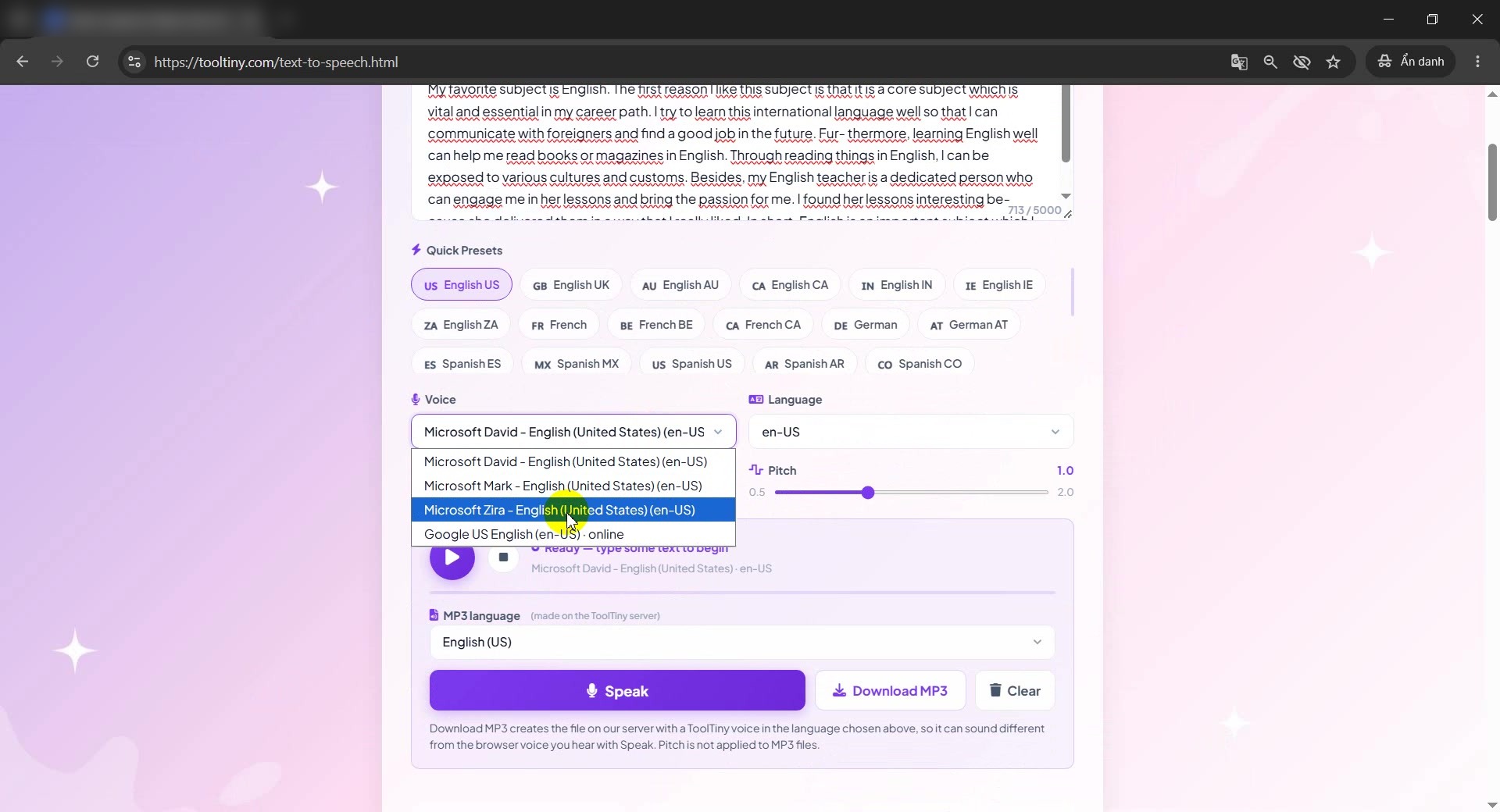
Pick a voice -
Choose the MP3 language
The MP3 language list is separate from the voice list. It shows the 19 languages the ToolTiny server can turn into an MP3: Vietnamese, English (US and UK), Spanish, French, German, Italian, Portuguese, Russian, Chinese, Korean, Hindi, Indonesian, Arabic, Turkish, Polish, Dutch, Swedish and Ukrainian. We picked English (UK).
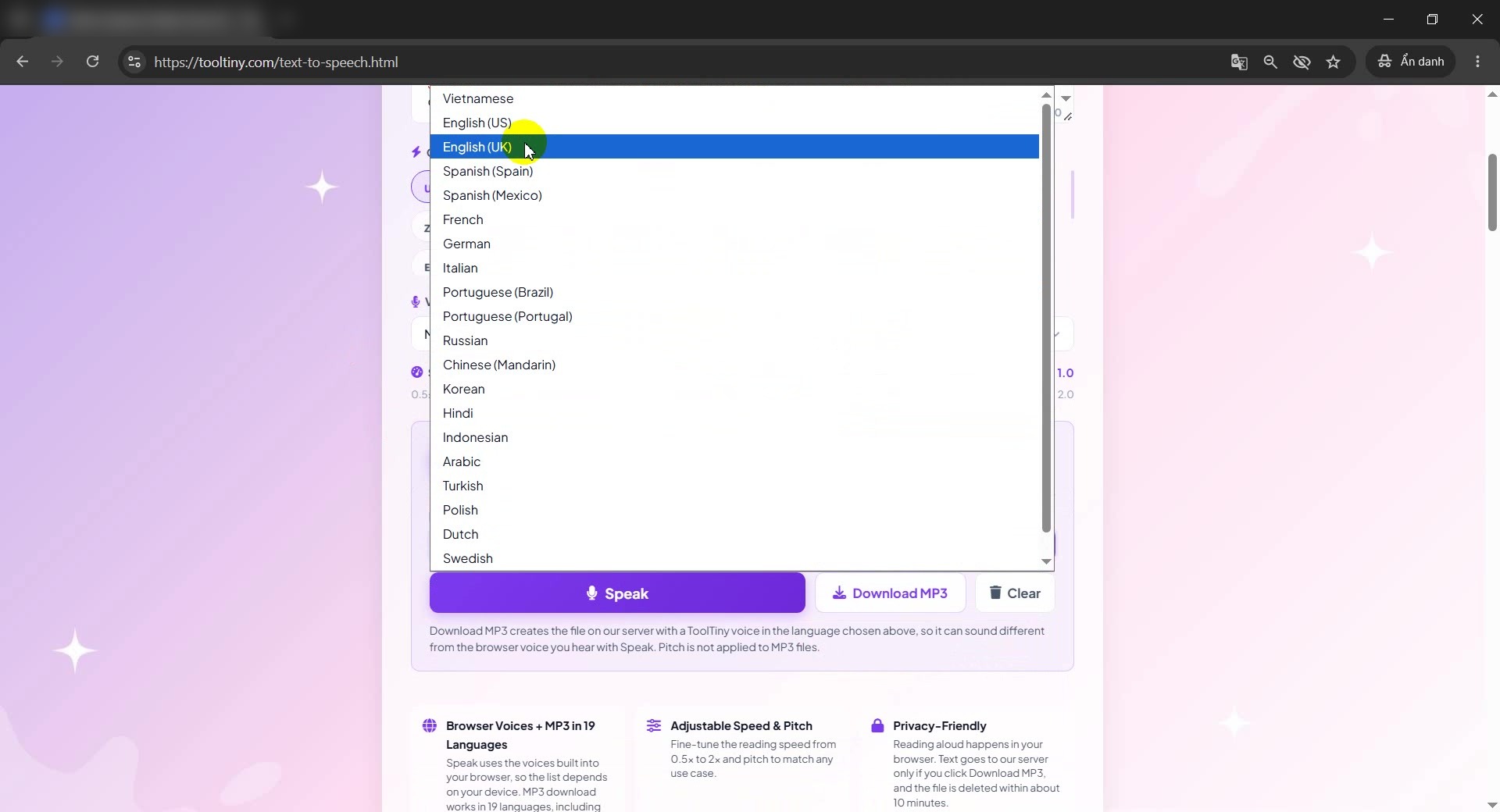
MP3 language list -
Click Speak to listen first
Press Speak to hear the text with the voice you chose. The status shows Speaking…, a progress bar fills and the button turns into Pause. Use the round stop button to end playback.
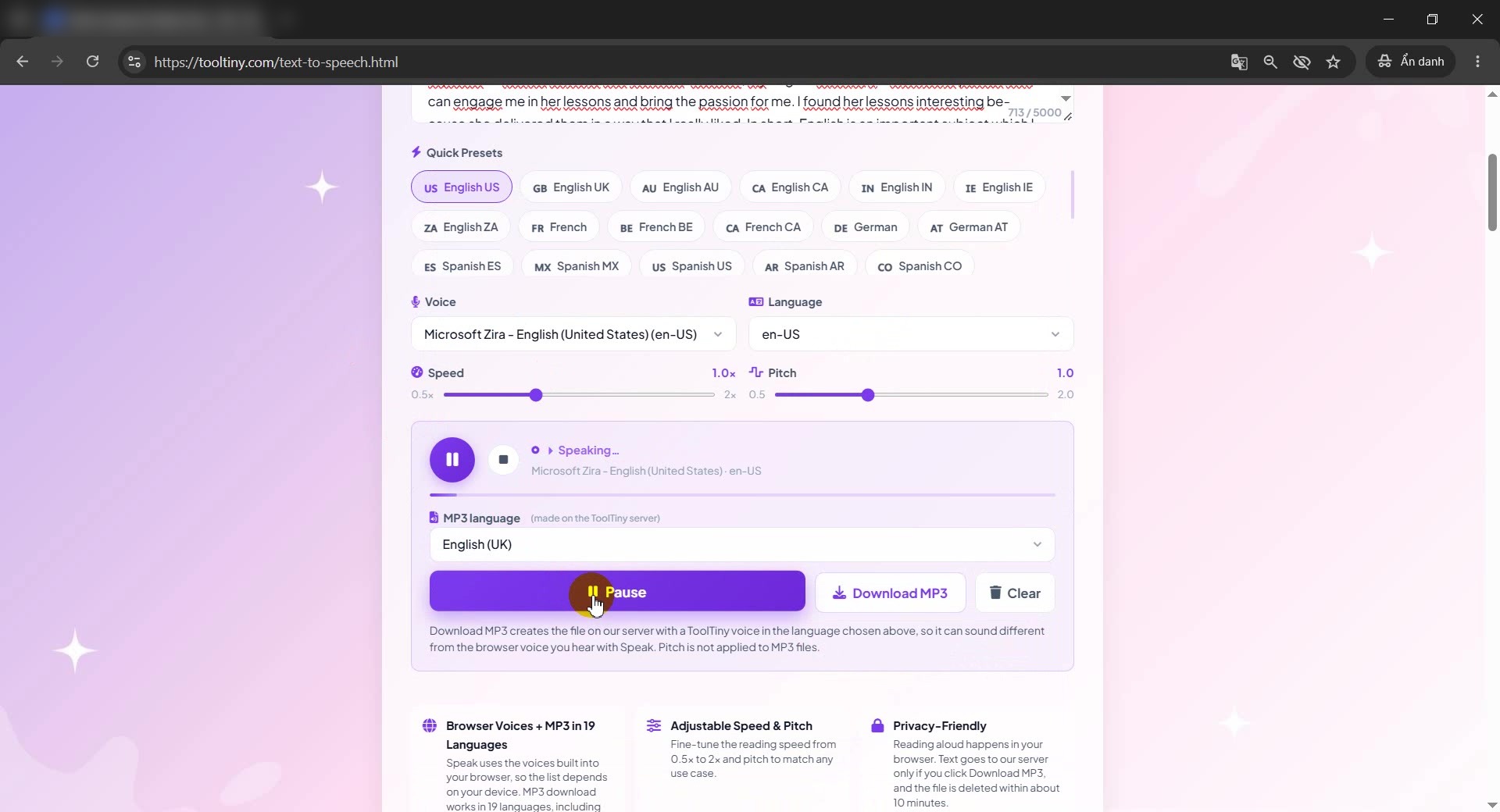
Speaking, with Pause -
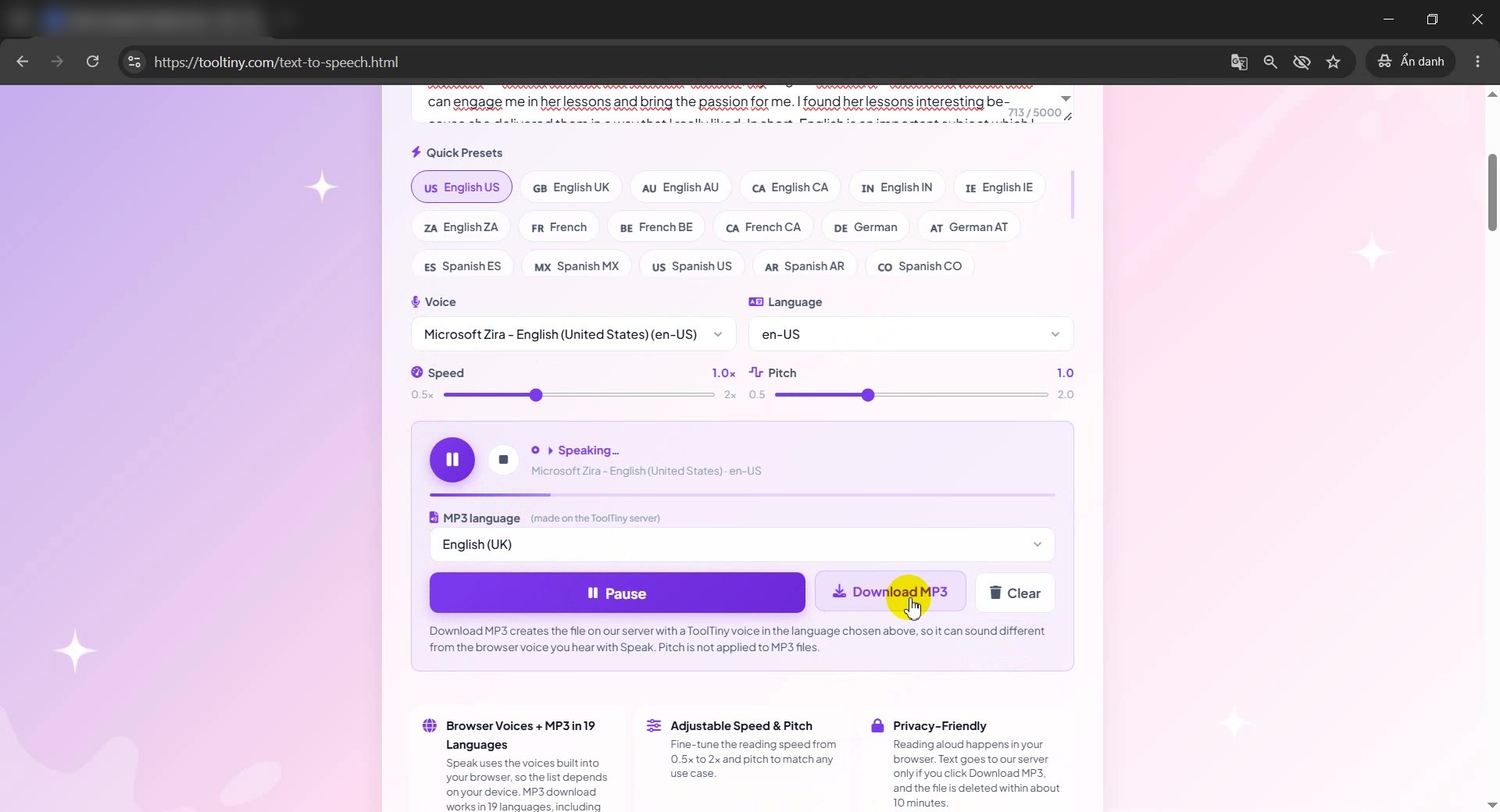
Click Download MP3
Happy with the text? Click Download MP3. You can do this while the text is being read.
Click Download MP3 -
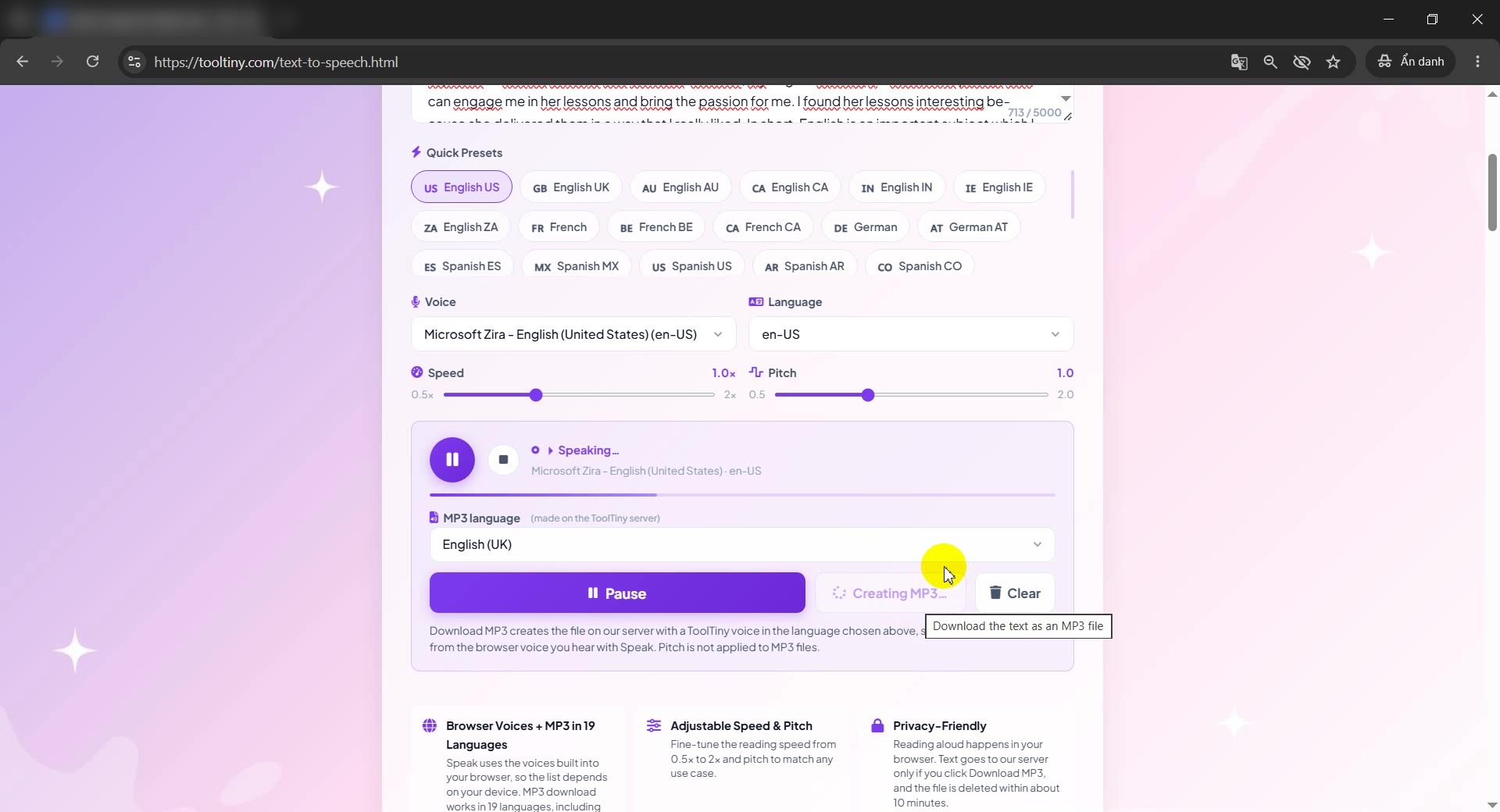
Wait for the MP3
The button shows Creating MP3… while the server turns your text into audio. A short text takes a few seconds, and a long one can take longer.
Creating MP3… -
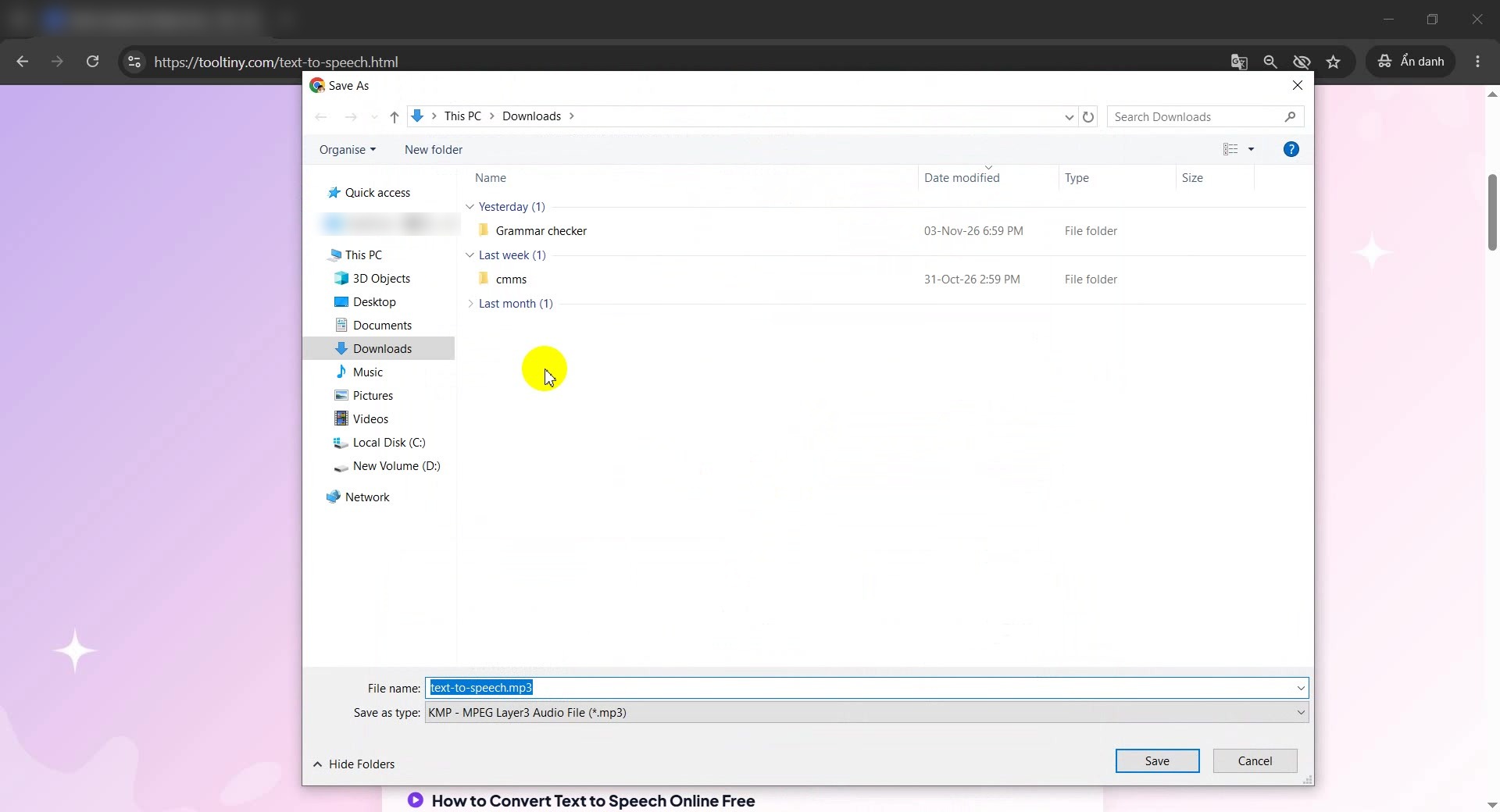
Save the file
Your browser downloads text-to-speech.mp3. If it is set to ask where to save, a Save As window opens: choose a folder and click Save.
Save text-to-speech.mp3 -
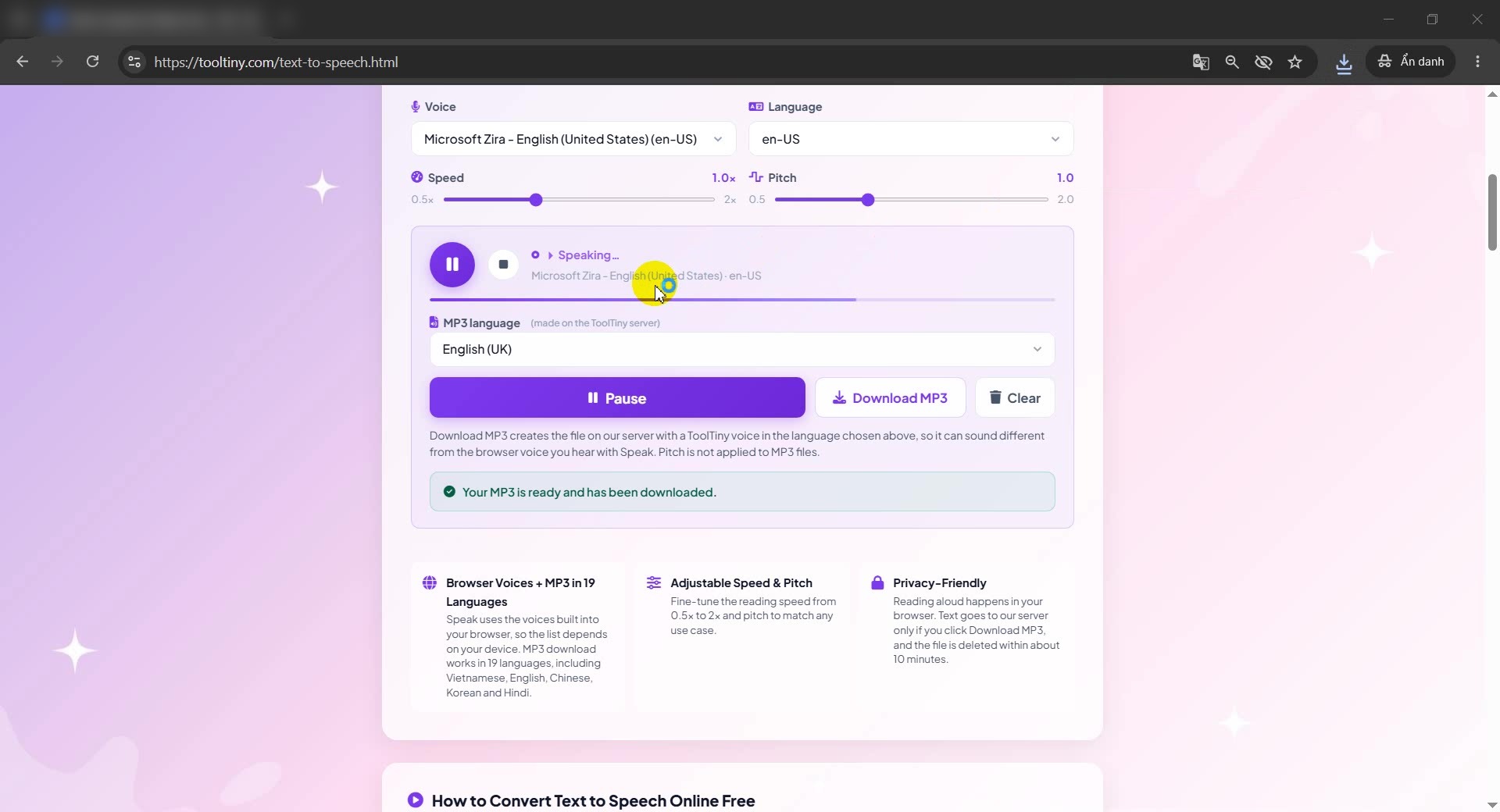
Check the confirmation
A green message says Your MP3 is ready and has been downloaded. The browser’s download icon also shows the file.
Download complete -
Find and play the MP3
Open your Downloads folder and double-click the file. Our 713-character text became a 285 KB file of about 38 seconds, and it plays in any music or video player.
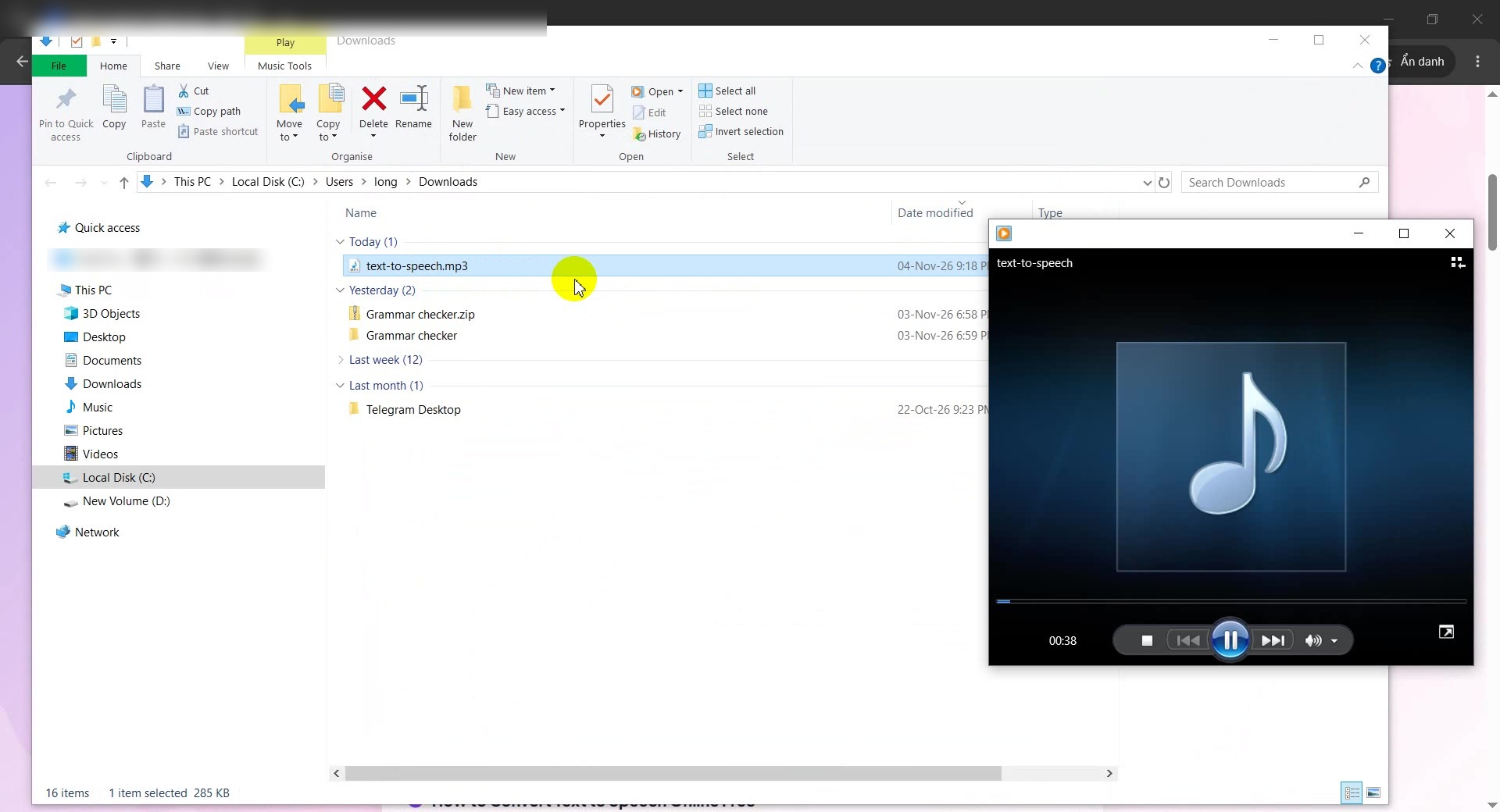
Play the MP3
Speak vs Download MP3: What Is the Difference?
The tool has two ways to turn text into sound, and they work differently. Knowing which one you are using explains why the voice may change.
| Speak | Download MP3 | |
|---|---|---|
| Where the audio is made | In your browser, with a voice from your device or browser maker | On the ToolTiny server |
| Languages | Whatever your browser has voices for, often 40 or more | 19 languages, the same on every device |
| Speed and Pitch | Both sliders work | Speed works, Pitch is ignored |
| Result | Plays now, nothing is saved | An MP3 file you keep |
| Text leaves your device | No, unless your browser uses an online voice or has no voice for your language, then the server voice plays | Yes, over HTTPS, only to make the file |
Good to Know
- Length: up to 5,000 characters per conversion. Split longer texts into parts.
- MP3 limits: up to 4 files per minute and 30 per day from one connection, which keeps the service free for everyone.
- Privacy: your text reaches the ToolTiny server only for Download MP3 (or when Speak uses the server voice). ToolTiny does not store or log it, and the finished MP3 is deleted after about 10 minutes.
- Your language is not in the list? The Language list shows only what your browser can speak. The MP3 language list is always complete.
- Voice quality: MP3 voices are made by an open-source engine. They are clear but they can sound flatter than the best browser voices, and the quality differs from one language to another.
- Cost: free, with no sign-up.
Tips for Better Results
- Use punctuation for pauses. Commas and full stops make the voice pause. A long sentence with no commas sounds rushed.
- Write numbers and abbreviations the way you want them said. Spell out “Dr.” or a long number if the voice reads it badly.
- Keep one language per text. A voice reads best in its own language, and mixed text can sound odd.
- Slow down for learning. Lower the Speed slider to about 0.8× to follow each word.
- Listen first, then download. Use Speak to catch problems before you create the MP3.
- Check the length. Use the Word Counter to see how much text you have.
- Fix the text before you voice it. Run it through the Grammar Checker so the audio does not repeat typos.
Paste your text, listen and download an MP3. Free, no sign-up.