How to Convert Speech to Text Online for Free (Audio and Video to Text)
Typing out a recording by hand is slow. A speech to text tool listens to the audio and writes down what it hears, so you get a transcript in seconds. This guide shows how to use ToolTiny’s Speech to Text: upload an audio or video file up to 25 MB, choose a language or leave it on Auto detect, and copy or download the text. We use a real 11-second recording from start to finish. It is free, needs no sign-up and works in your browser.
What You Can Do With Speech to Text
- Write up meetings and interviews. Turn a recording into notes you can search and quote.
- Capture lectures and podcasts. Get the text of a talk to study, summarise or reuse.
- Draft captions and subtitles. Start from a transcript instead of typing every line. The timestamp option helps here.
- Turn voice memos into text. Say an idea out loud now and edit the words later.
- Make audio accessible. A written version helps people who cannot or prefer not to listen.
Watch the Whole Process
The recording opens Speech to Text from the Text menu, uploads a short audio file, clicks Transcribe Audio and copies the result.
How to Use Speech to Text, Step by Step
-
Open the Text menu
On the ToolTiny home page, move the mouse over Text in the top bar to open its menu.
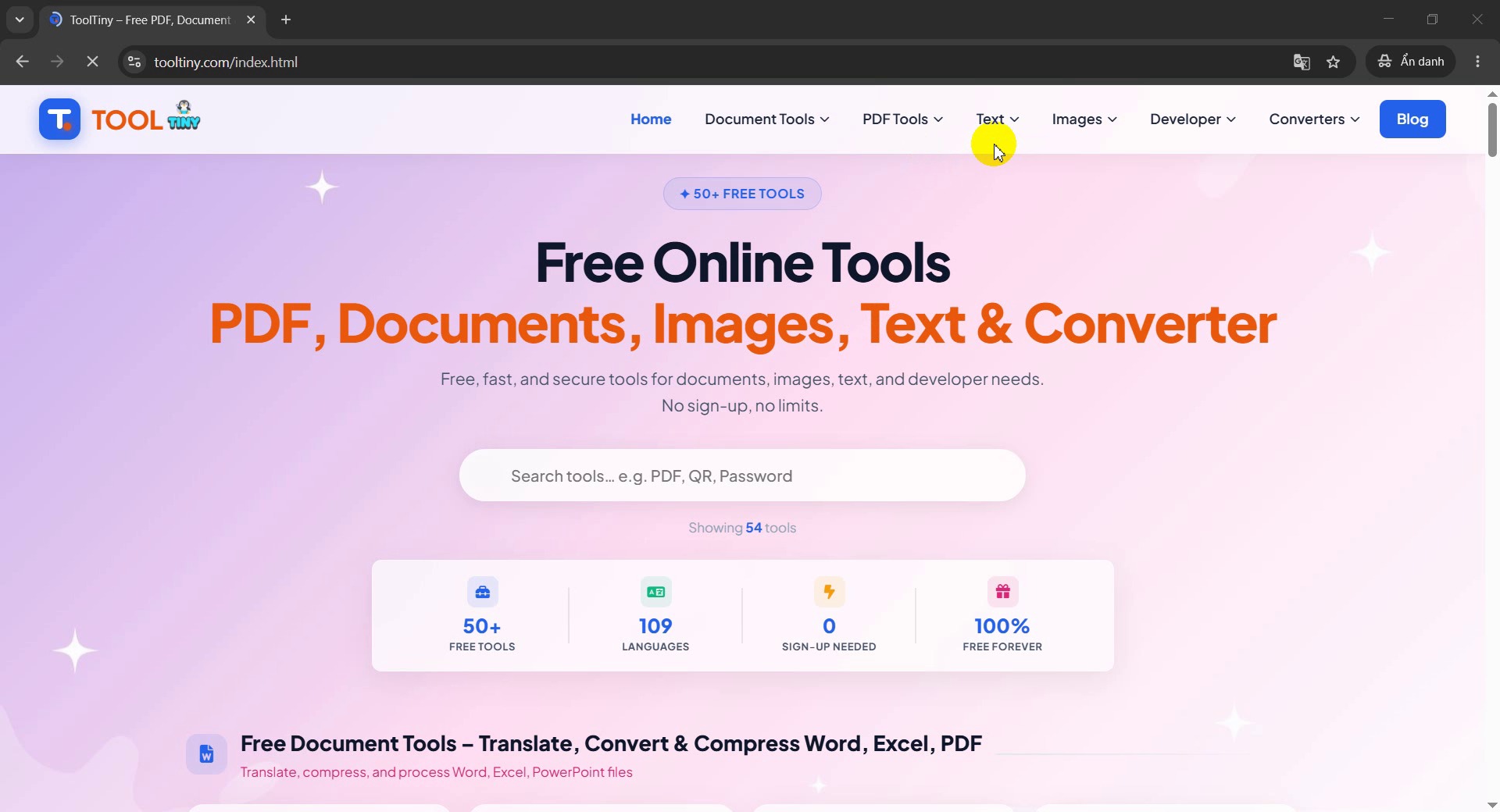
Open the Text menu -
Choose Speech to Text
Click Speech to Text in the list. You can also go straight to tooltiny.com/speech-to-text.html.
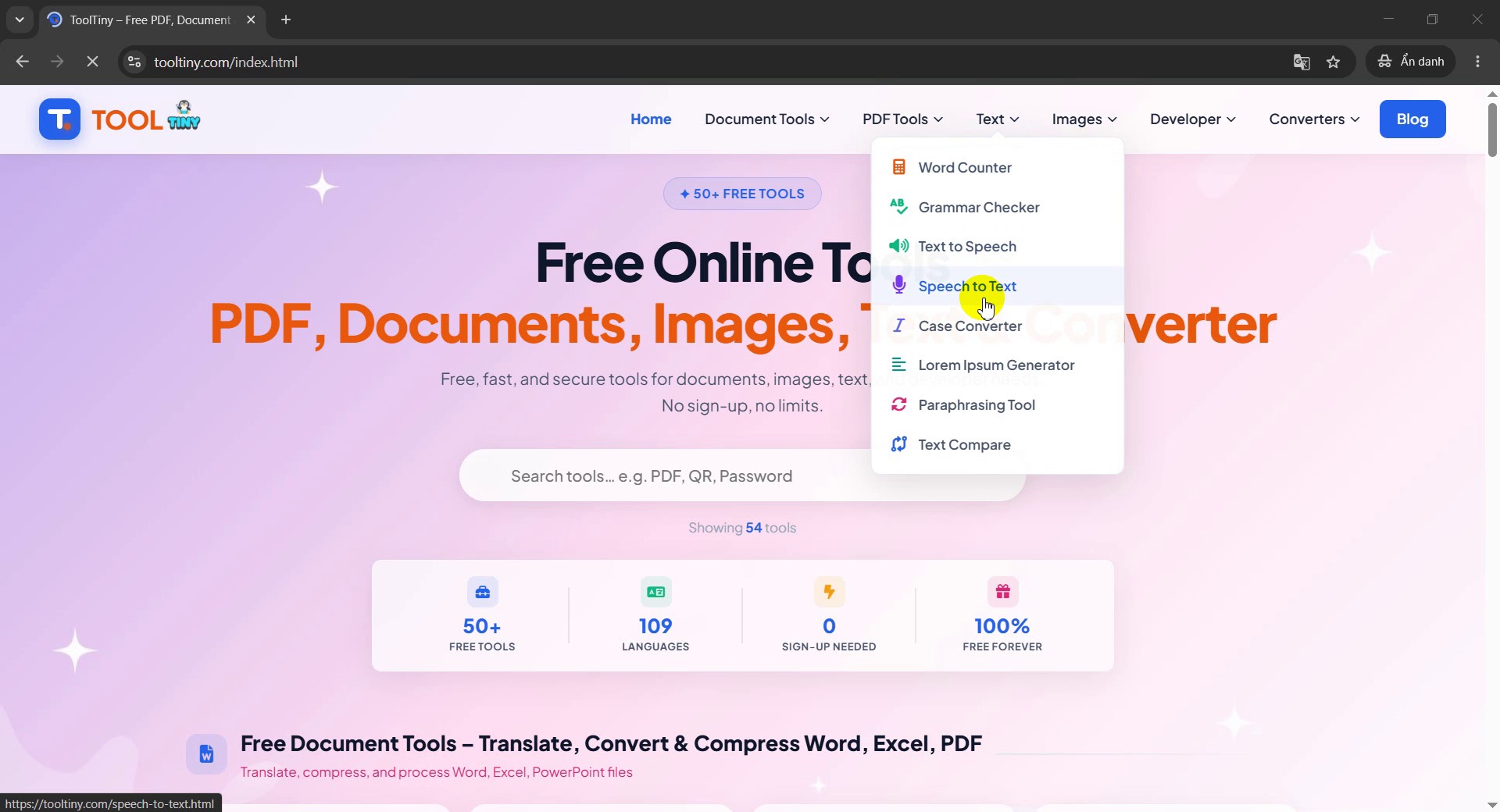
Text → Speech to Text -
Look at the tool page
The page has one upload box that lists the accepted formats (MP3, MP4, WAV, M4A, OGG, FLAC and WebM) and the 25 MB limit. The big green button stays grey until you choose a file.
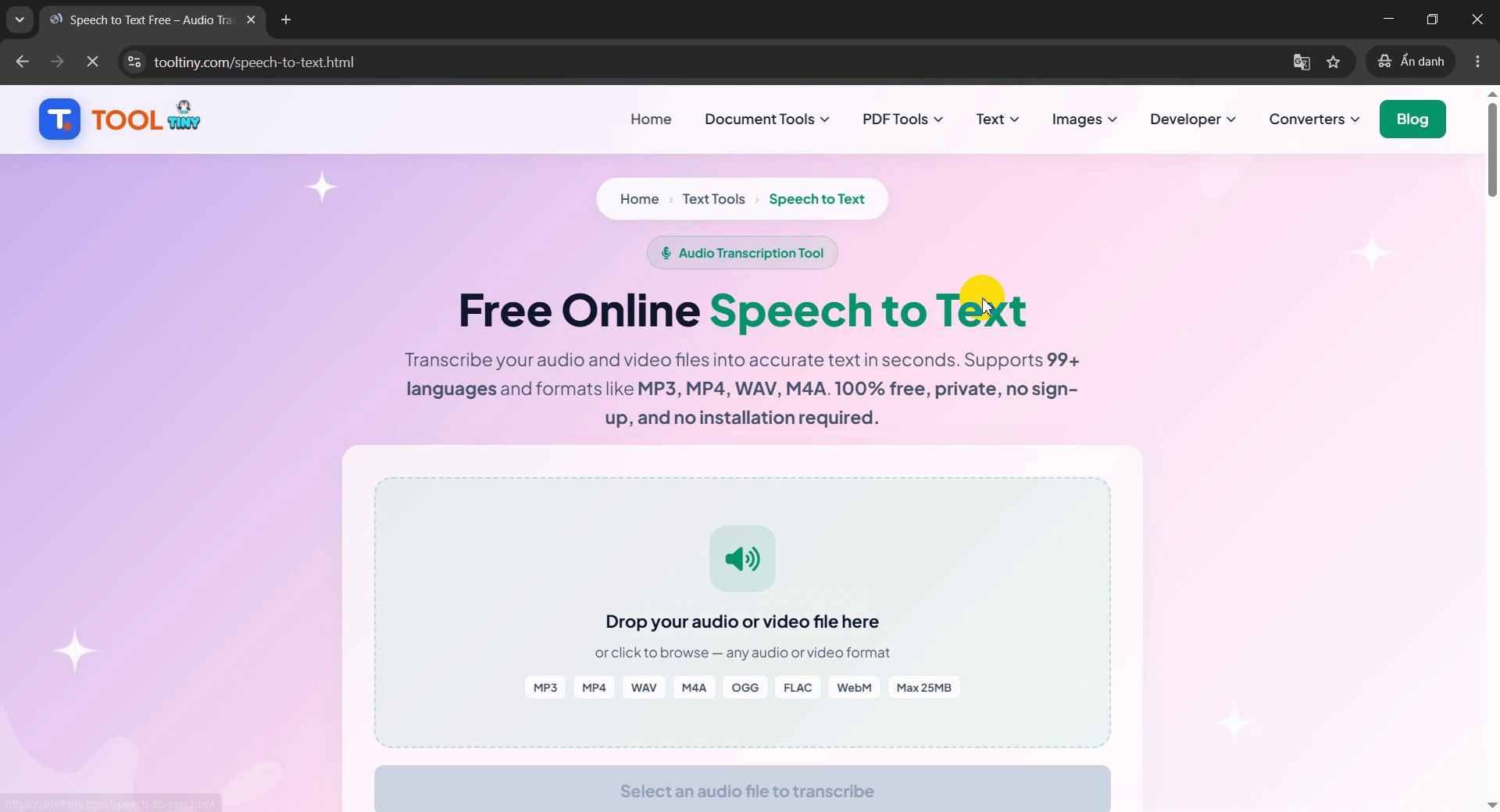
The Speech to Text page -
Click the upload box
Click the box to browse your computer, or drag an audio or video file onto it.
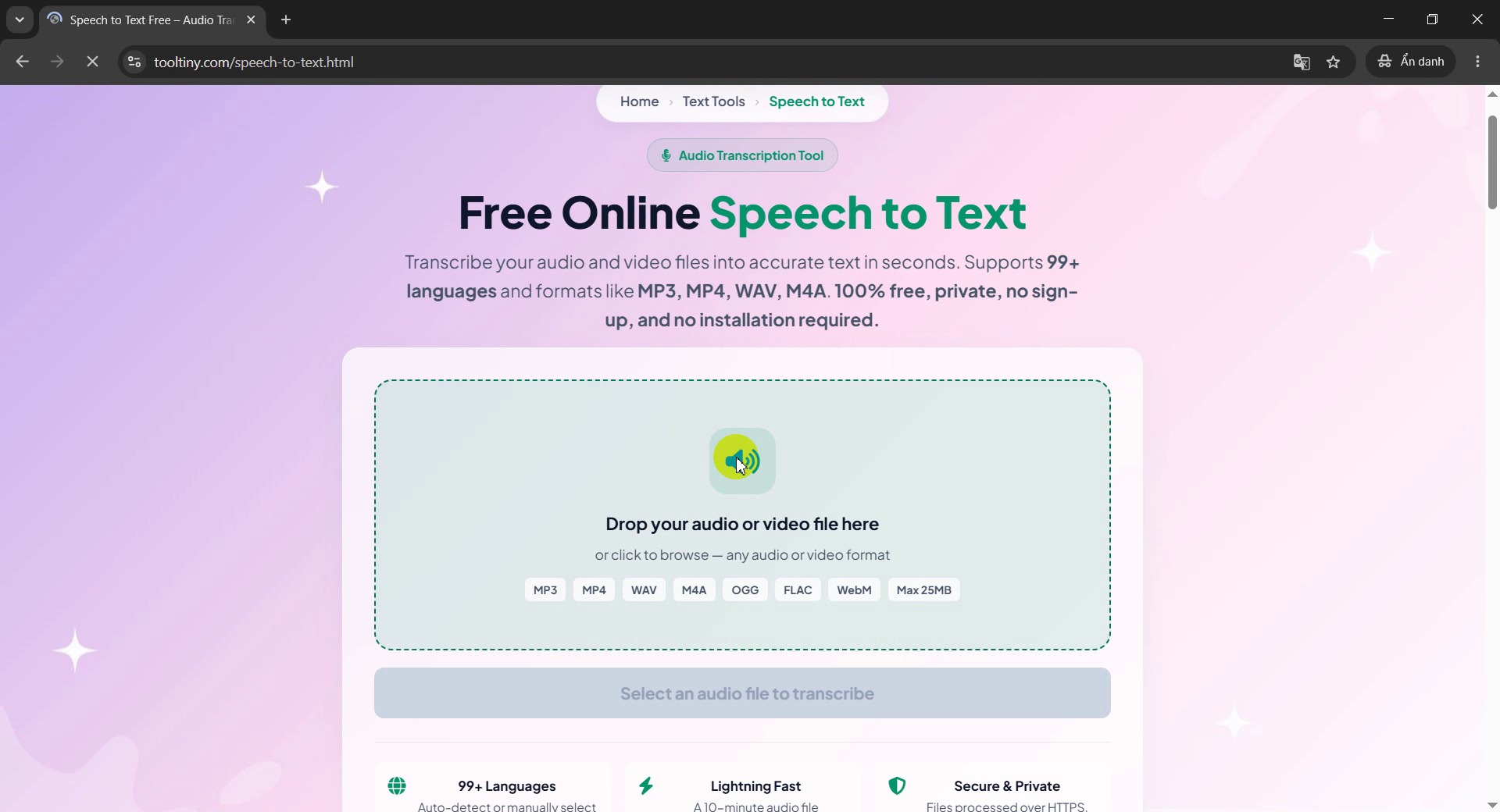
Click the upload box -
Choose your audio or video file
In the window that opens, select the file and click Open. We used test-audio.mp3, an 11-second recording of a short English paragraph.
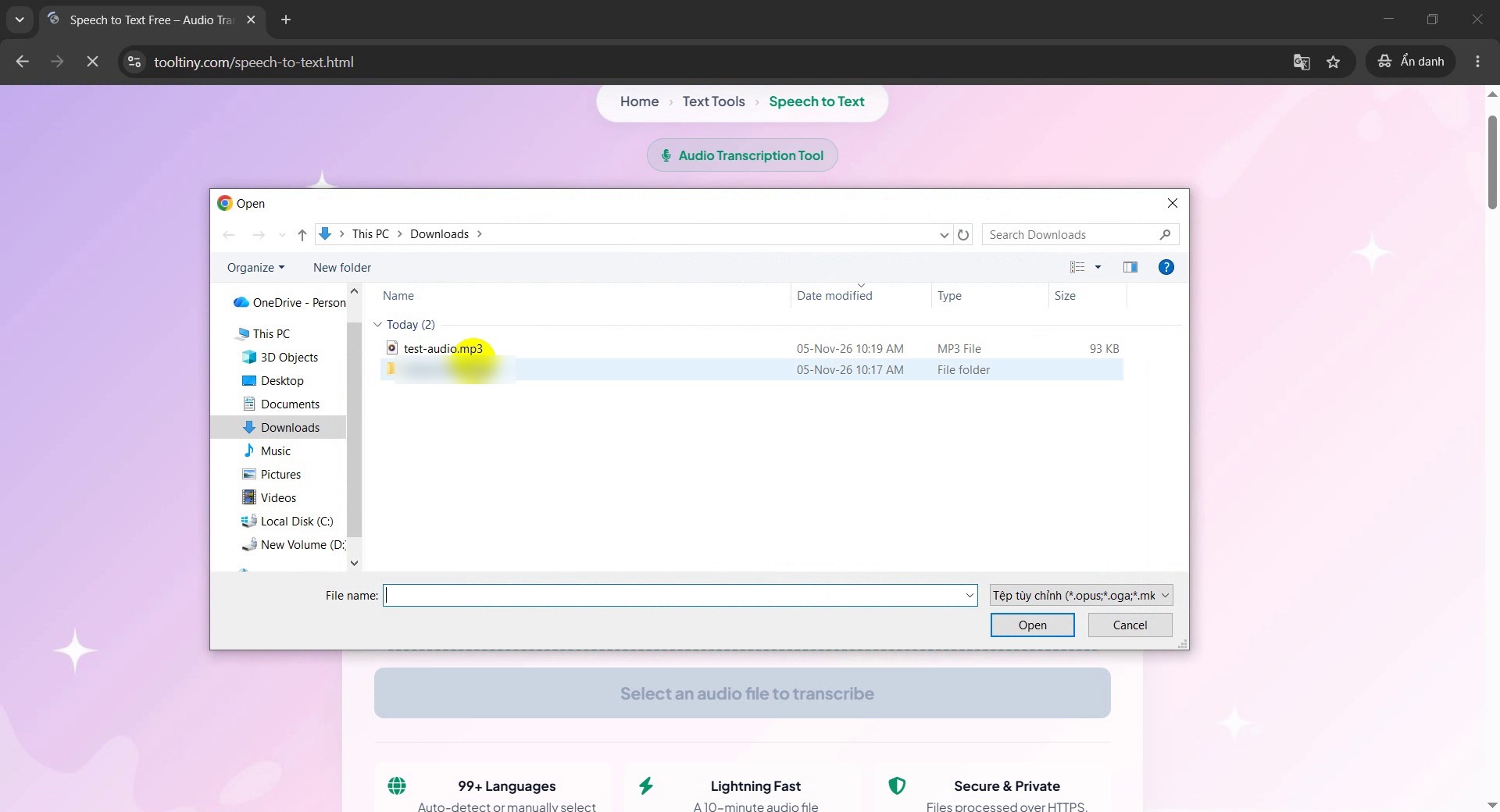
Select the file -
Check the file and the options
The file name, its size and a small player appear, so you can play the recording and make sure it is the right one. Below are two lists: Language, which we left on Auto detect, and Output format, which we left on Plain text.
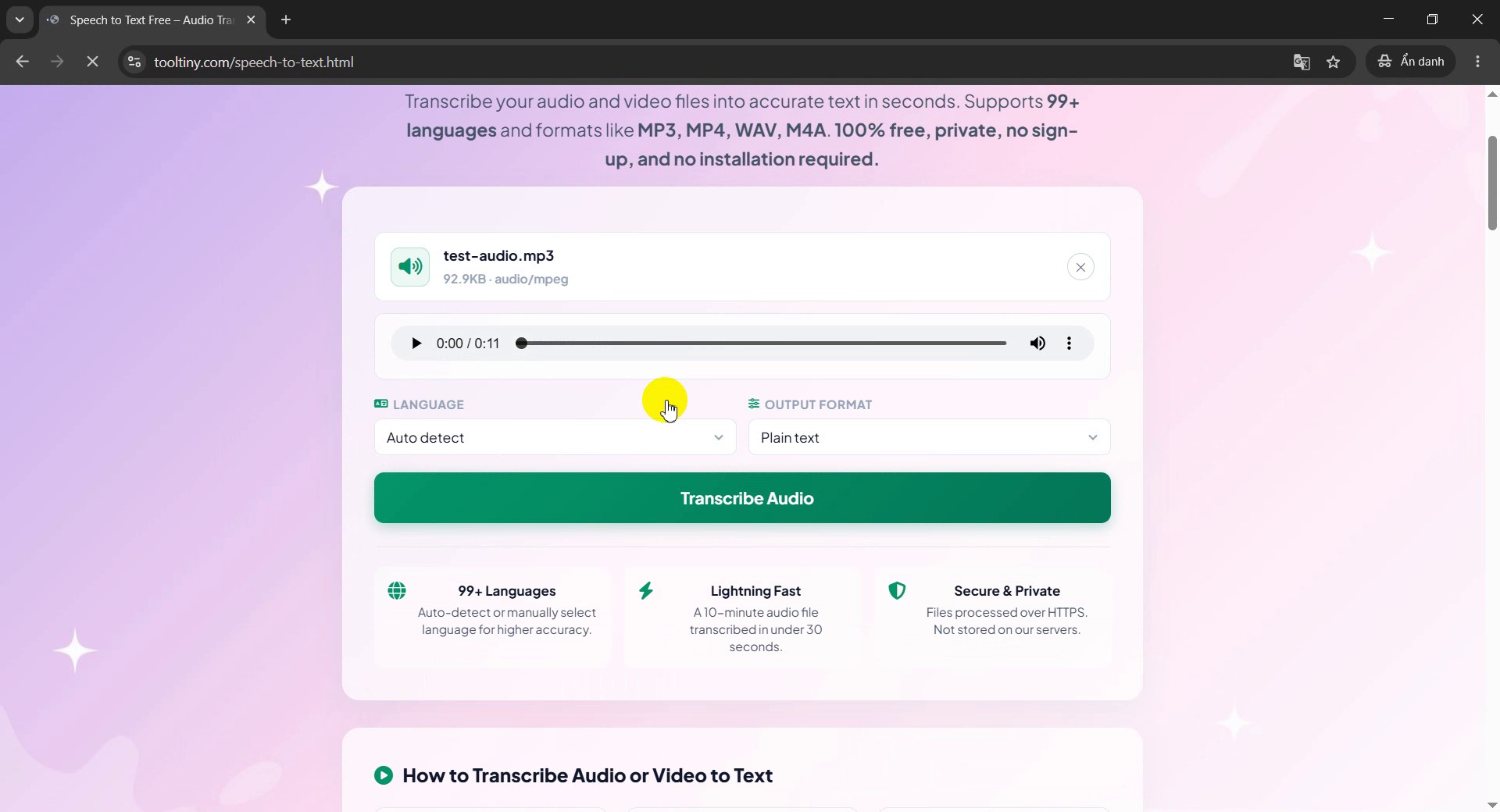
Language and output format -
Click Transcribe Audio
Click the green button. A bar shows the upload, then the button reads Transcribing…. Wait a few seconds.
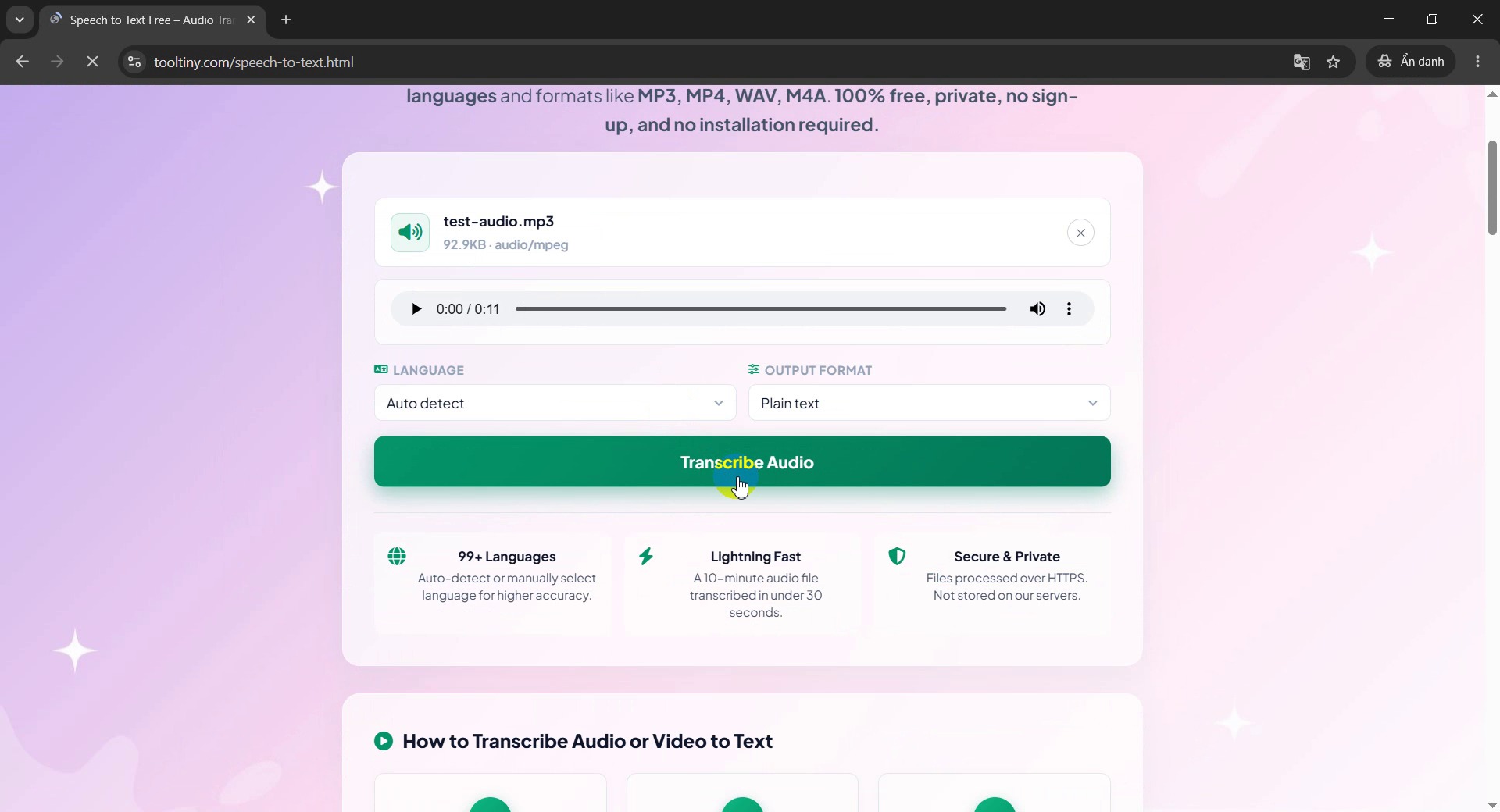
Transcribing… -
Read the transcript
The text appears under Transcription Complete, with a count of words and characters. Our 11-second test gave 29 words and 154 characters. It was correct except that the name ToolTiny was written as two words, “tool tiny”.
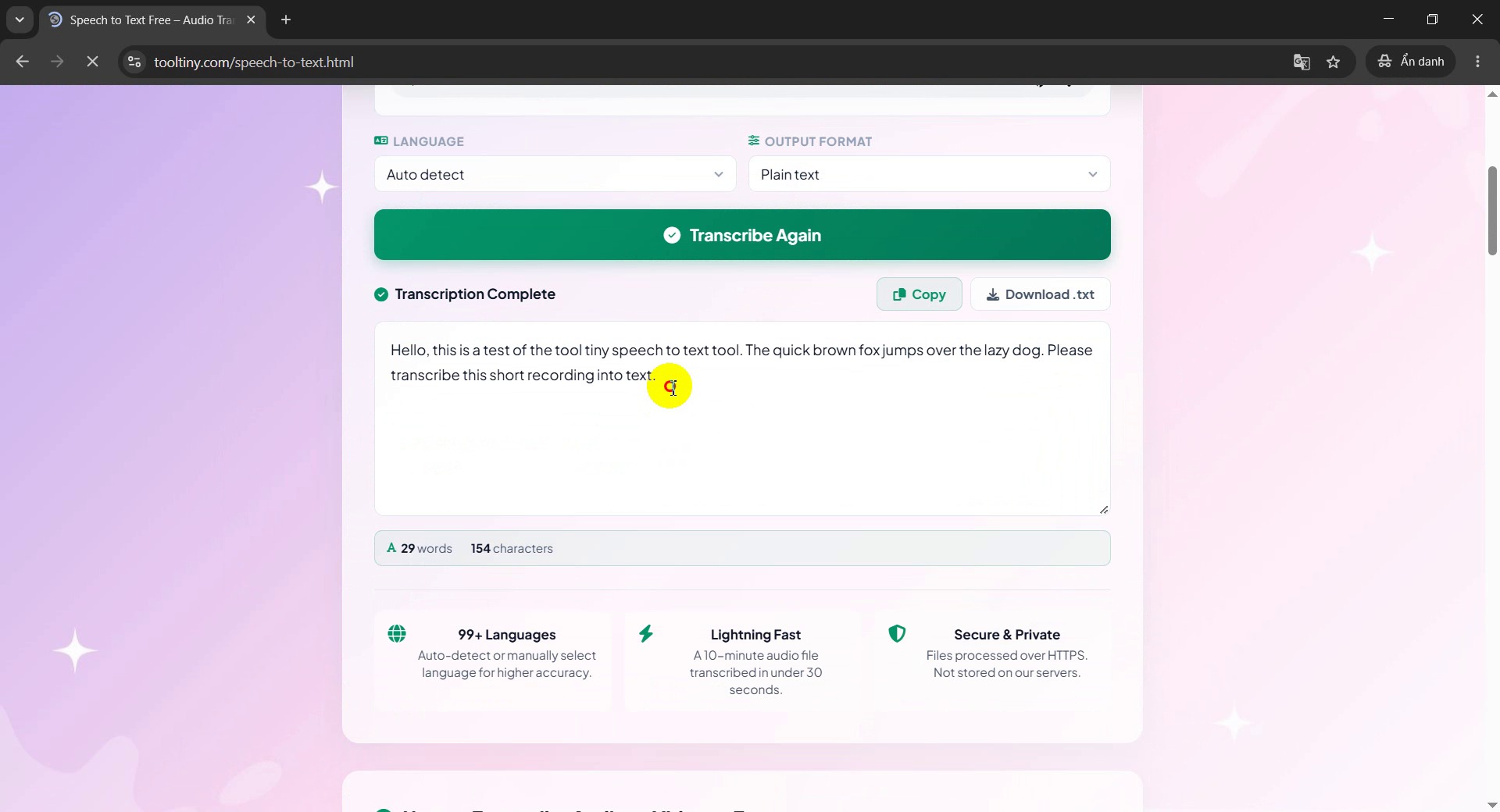
The finished transcript -
Copy or download the text
Click Copy to put the text on your clipboard, or Download .txt to save it as a text file named after your audio file, such as test-audio_transcript.txt. The box is editable, so you can fix a word before you copy.
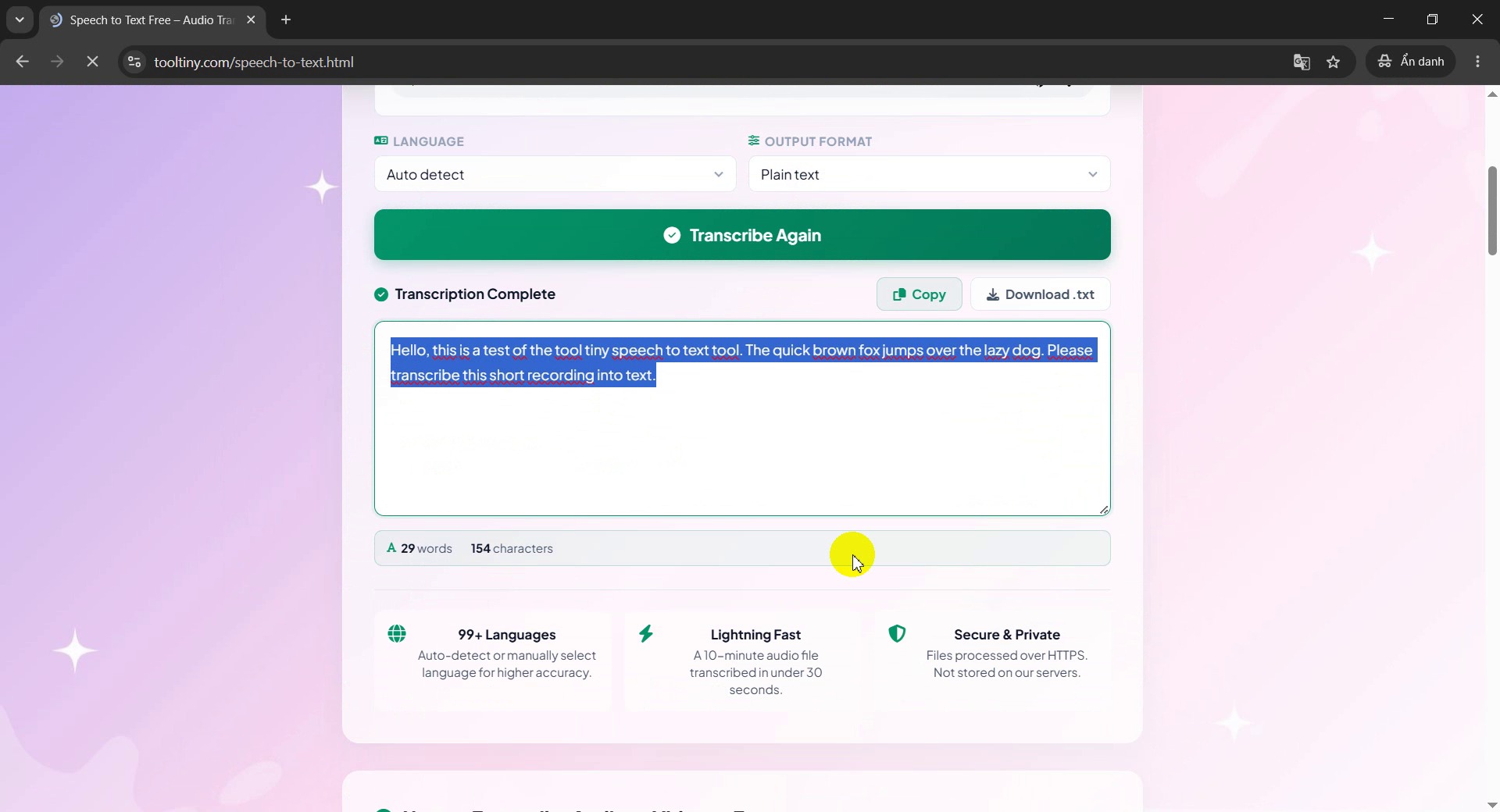
Copy or Download .txt
Plain Text or With Timestamps?
Before you click Transcribe Audio you can choose how the result is written. The choice is in the Output format list.
| Plain text | With timestamps | |
|---|---|---|
| What you get | One block of text | One line per segment, each starting with its time range, such as [0:00 → 0:03] |
| Best for | Notes, articles, quotes, copy and paste | Finding a moment in the recording, drafting captions |
| Counter below the text | Words and characters | Words, characters and number of segments |
Good to Know
- Formats: MP3, WAV, M4A, OGG, FLAC, MP4, WebM, MPEG and MPGA. For a video, the tool transcribes its sound.
- File size: up to 25 MB. For a longer recording, save it as a smaller MP3 or split it into parts.
- Languages: Auto detect, or one of 29 languages in the list: English, Vietnamese, Chinese, Japanese, Korean, French, German, Spanish, Portuguese, Italian, Russian, Arabic, Hindi, Thai, Indonesian, Malay, Dutch, Polish, Turkish, Swedish, Danish, Finnish, Norwegian, Czech, Romanian, Hungarian, Ukrainian, Hebrew and Persian.
- Limits: to keep the service free for everyone there are limits per minute and per day from one connection. If you see “Rate limit reached”, wait a minute and try again.
- Privacy: your file is sent over HTTPS to ToolTiny and passed to an external speech recognition service (Groq, running the Whisper model). ToolTiny does not keep a copy of your audio or your transcript, but the service handles the file under its own privacy policy, so avoid confidential recordings.
- Accuracy: it depends on the recording. Always read the transcript before you use it.
- Cost: free, with no sign-up.
Tips for Better Results
- Record close to the speaker. A phone held near the mouth beats a laptop across the room.
- Reduce background noise. Close windows, turn off music and fans, and avoid echo in big empty rooms.
- One person at a time. Overlapping voices are the hardest case for any transcription tool.
- Choose the language when you know it. Auto detect is handy, but picking the language can help with short clips or strong accents.
- Check names and special words. Brand names, people and technical terms are often spelled wrongly. In our test, ToolTiny became “tool tiny”.
- Proofread the text. Paste it into the Grammar Checker to fix spelling and punctuation, and use the Word Counter to see how long it is.
- Need the reverse? Text to Speech turns written text back into audio, and it can download an MP3 in 19 languages.
Upload an audio or video file, click Transcribe Audio and copy the text. Free, no sign-up.