How to Convert Multiple Images to JPG, PNG, WebP or GIF at Once and Download a ZIP
A website asks for PNG, a form accepts only JPG, a client sends HEIC photos and you need a GIF for a banner. Converting them one at a time is slow. The ToolTiny Image Converter takes up to 50 images at once, converts all of them to the format you choose, shows each result and gives you everything back as one ZIP file. This guide follows a real recording with two photos converted to PNG, GIF and JPG, with the exact file sizes, and it explains what each format does to size, transparency and colours.
When Is Bulk Conversion Useful?
- Upload forms and portals: many accept only JPG or only PNG.
- Phone photos: turn HEIC pictures from an iPhone into JPG that opens everywhere.
- Websites: switch a folder of PNG or JPG files to WebP for a lighter page.
- Design work: get PNG files with transparency from a set of WebP images.
- Documents and slides: use one format for every picture in a report.
If your goal is a smaller file rather than another format, use the Image Compressor instead, as shown in our guide to compressing multiple images. This page is about changing the format.
Watch the Whole Process
The recording opens the tool, adds two photos, previews them, tries PNG, GIF and JPG, downloads the ZIP and opens it on the computer.
How to Convert Multiple Images, Step by Step
-
Open Image Converter
Open the Images menu in the top bar and choose Image Converter, or go straight to tooltiny.com/image-convert.html.
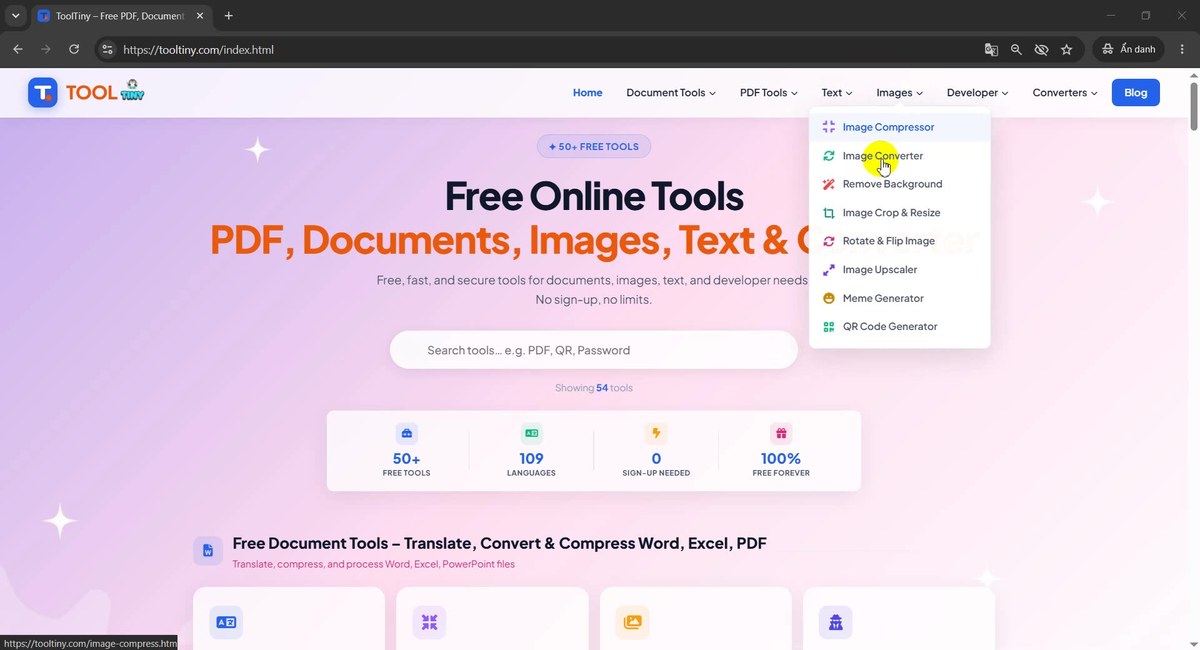
Images → Image Converter -
Find the upload box
The page opens with a large Upload Your Images box that says “Drag & drop up to 50 images here (JPG, PNG, WebP, GIF, BMP, HEIC)”. Drop your pictures on it, click the cloud icon or press Select Images.
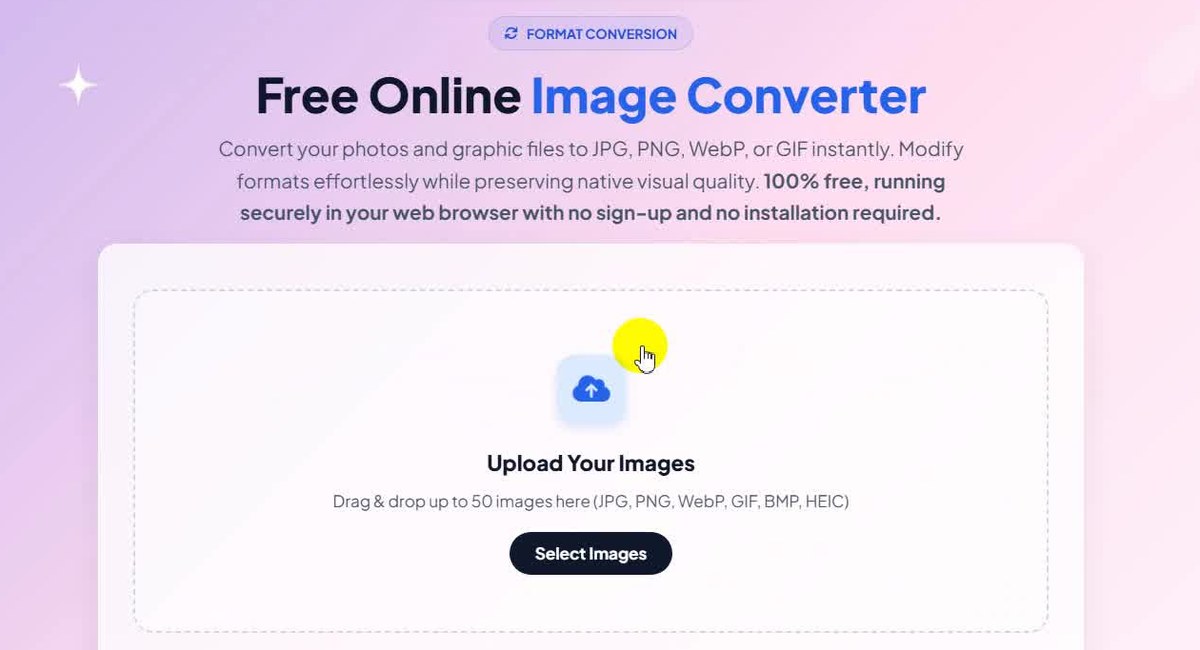
Drag images here or press Select Images -
Select several images
In the file window, select more than one picture: hold Ctrl and click each one, or drag a frame around them. We picked frank.jpg and int.jpg; the file name box lists both. Then press Open.
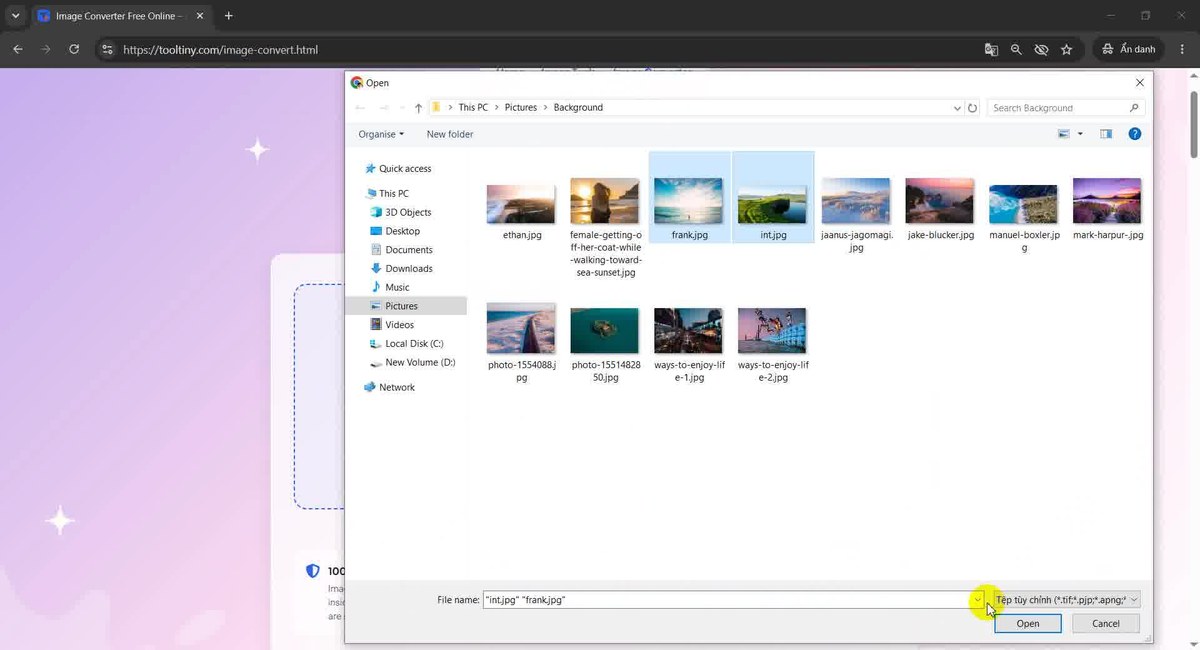
Two pictures selected at once -
Wait for the first results
The images are converted right away, one after another, with no Convert button to press. Because our pictures were JPG, the tool started with PNG. Each picture gets a row with the size before and after. The line above the buttons adds everything up: 2 images · 3.5 MB → 24.6 MB as PNG.
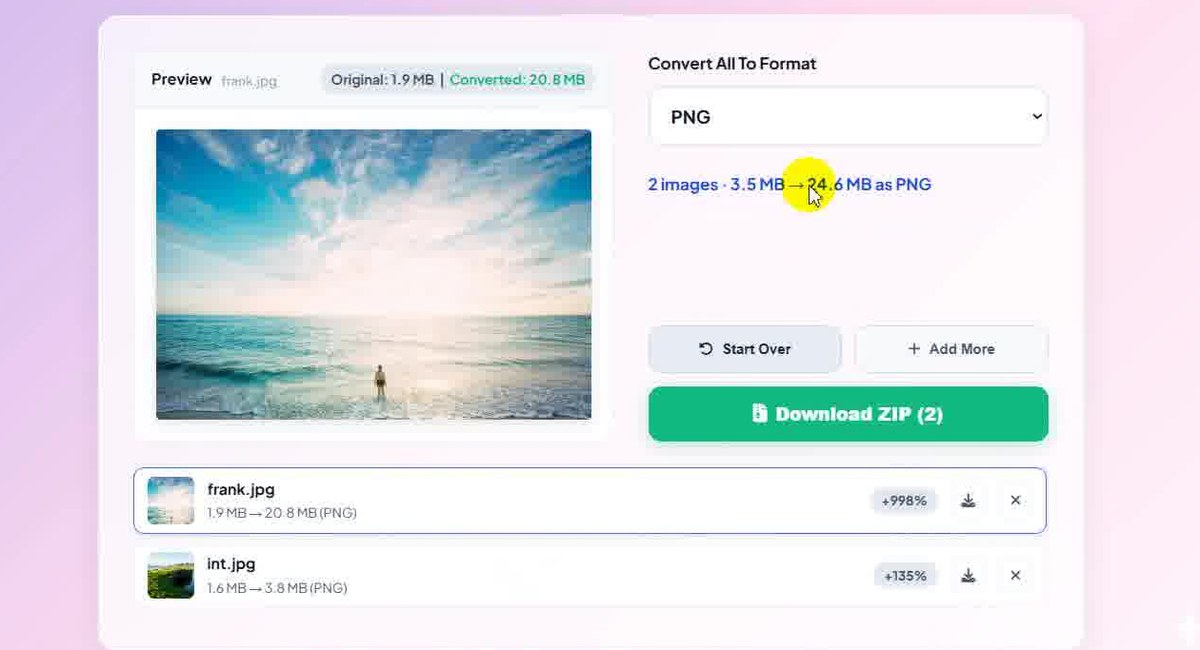
Default result: both pictures as PNG -
Click a row to preview it
Click a row to see that picture in the preview box. We clicked frank.jpg: 1.9 MB became 20.8 MB as PNG. That is not a mistake, PNG stores every pixel without loss, so a photo usually grows (more on that below). Each row also has its own download arrow and a cross to remove it.
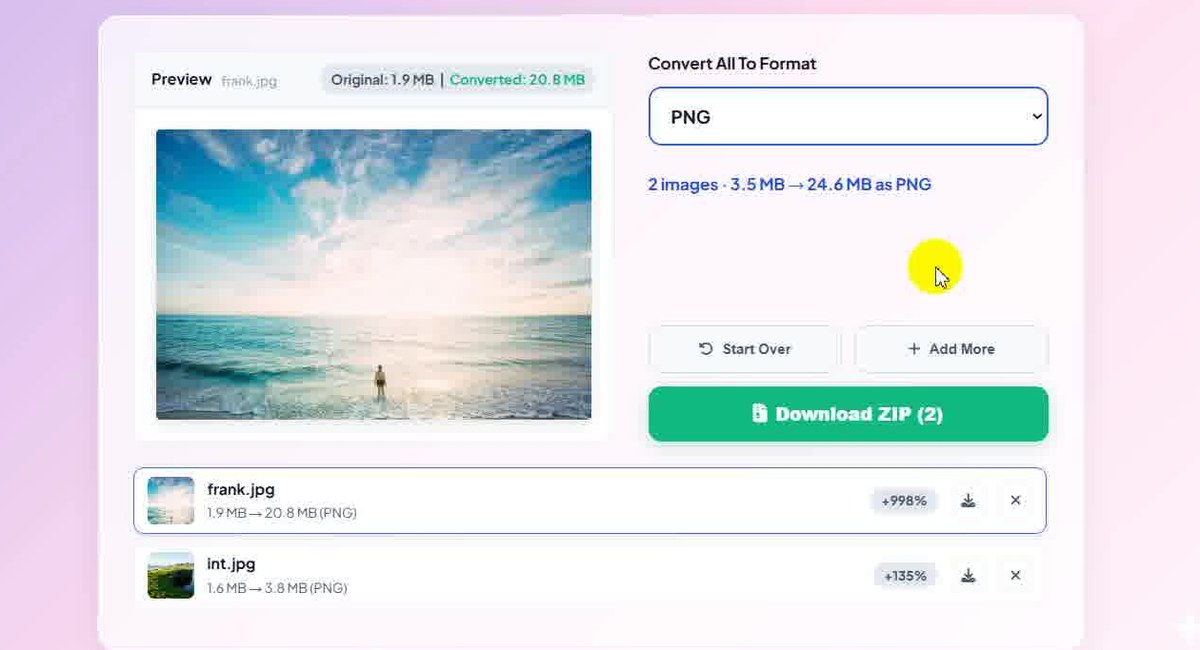
Click a row to check one picture -
Choose another format
Open the Convert All To Format list. It offers JPG (JPEG), PNG, WebP and GIF. The choice applies to every picture in the list, and all rows are converted again as soon as you change it.
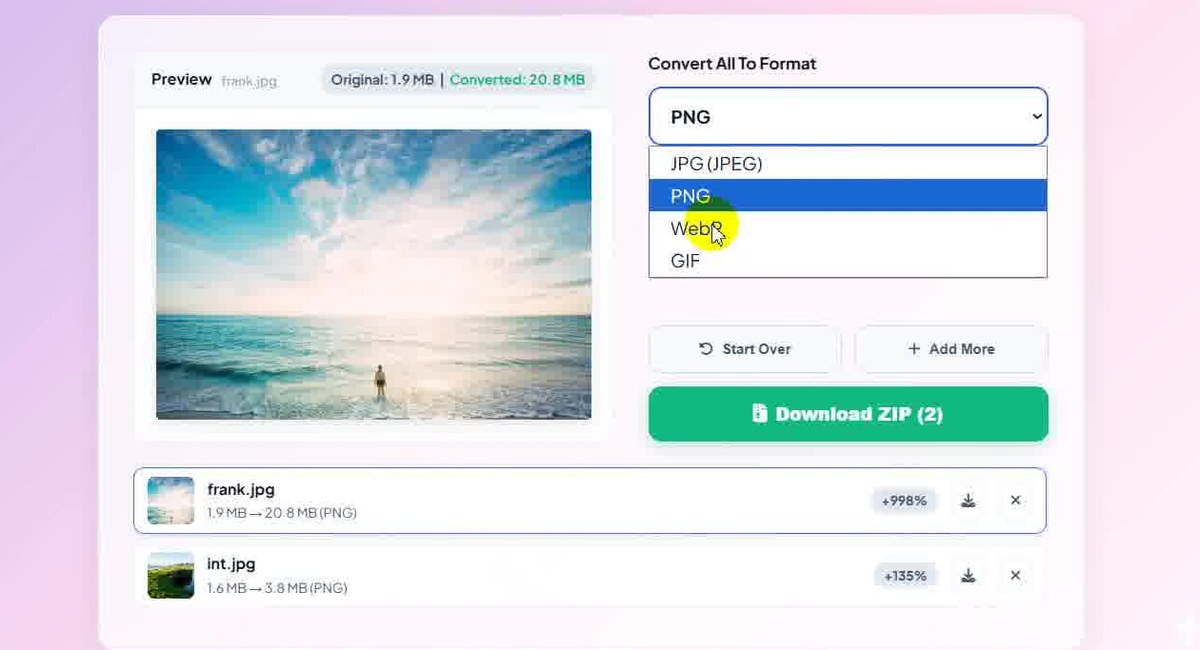
One format for the whole batch -
Try GIF and read its note
We chose GIF. A grey note appears: GIF is limited to 256 colours, so photos can look grainy. Animated GIFs are converted as a single still image. The results: frank.jpg 1.9 MB → 1.5 MB (−20%), int.jpg 1.6 MB → 935.5 KB (−43%), together 5.2 MB.
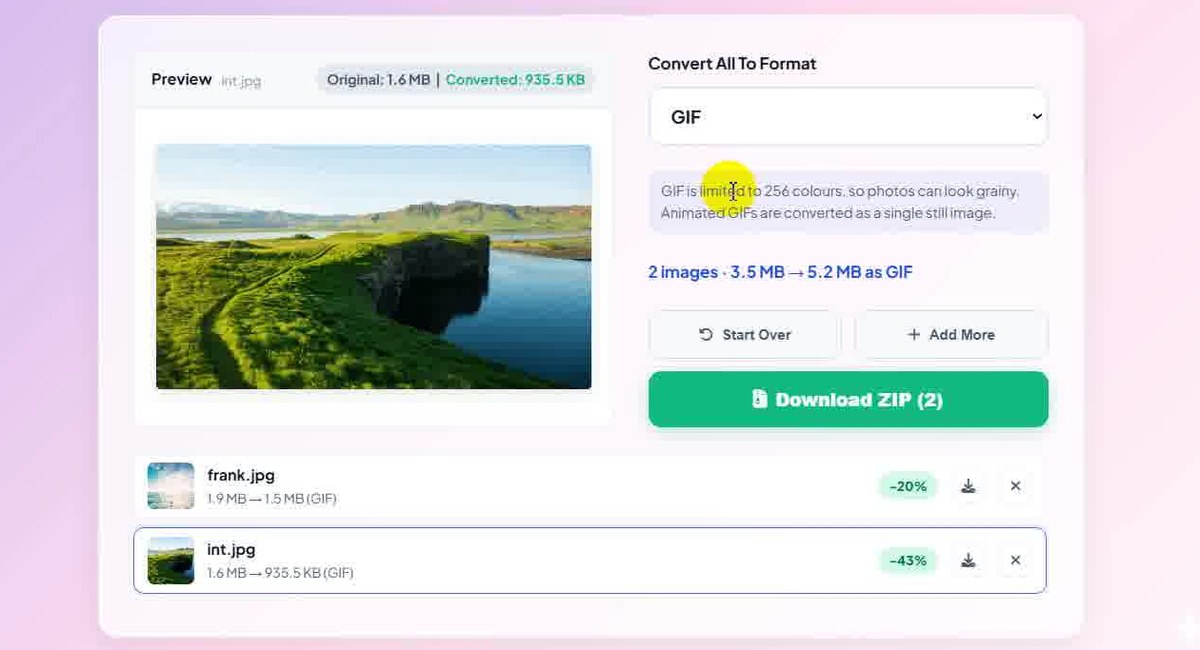
GIF: smaller than PNG, but only 256 colours -
Choose JPG and set the quality
With JPG or WebP an Image Quality slider appears. We left it at 90%. frank.jpg stayed about the same (1.9 MB → 2 MB, +5%) and int.jpg dropped to 503.1 KB (−69%). The total is 3.5 MB → 2.5 MB as JPG. Lower the slider for smaller files.
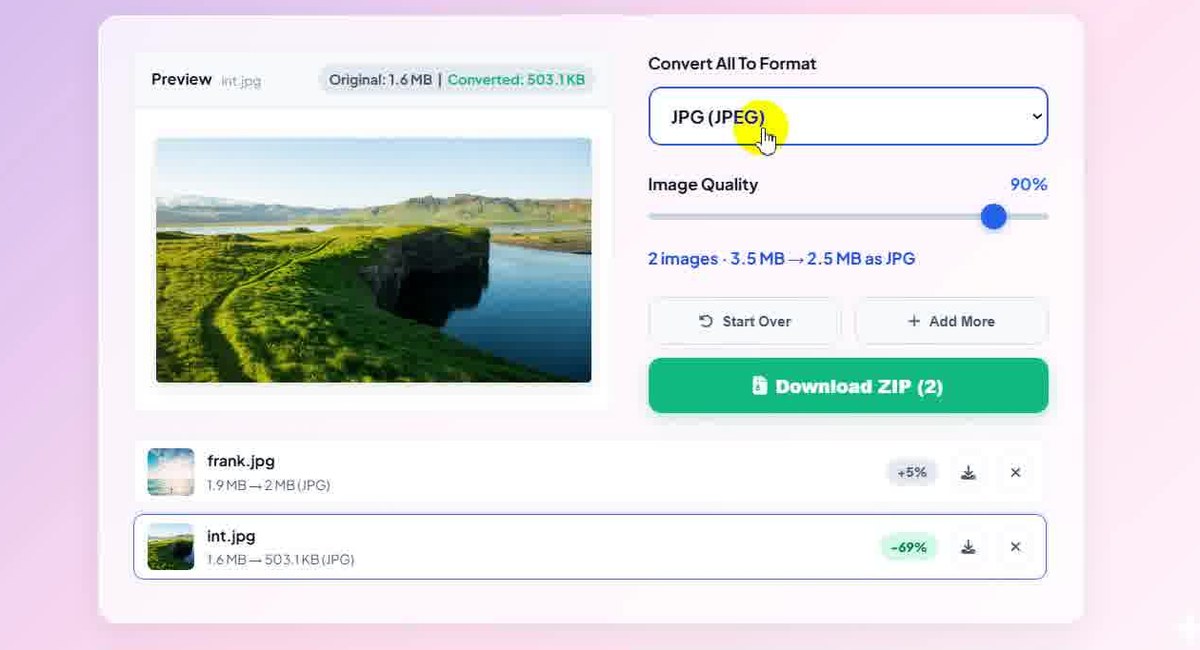
JPG at 90% quality -
Download the ZIP
We went back to PNG and clicked Download ZIP (2). The browser offers tooltiny-converted-images.zip. Choose a folder and press Save. The ZIP is built on your computer, so there is nothing to wait for on a server. With a single image the button just says Download and saves that picture.
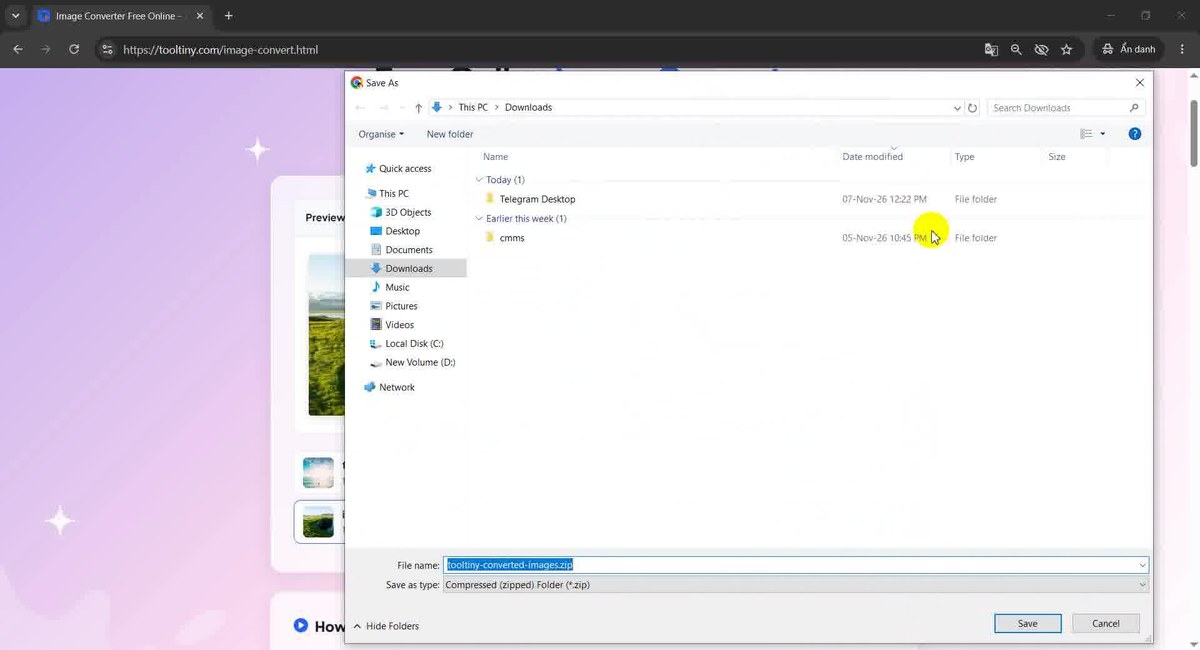
Save tooltiny-converted-images.zip -
Extract the ZIP
Open your Downloads folder, right-click the ZIP and extract it. Windows has Extract All in the same menu; in our recording a ZIP program extracted it into a folder with the same name.
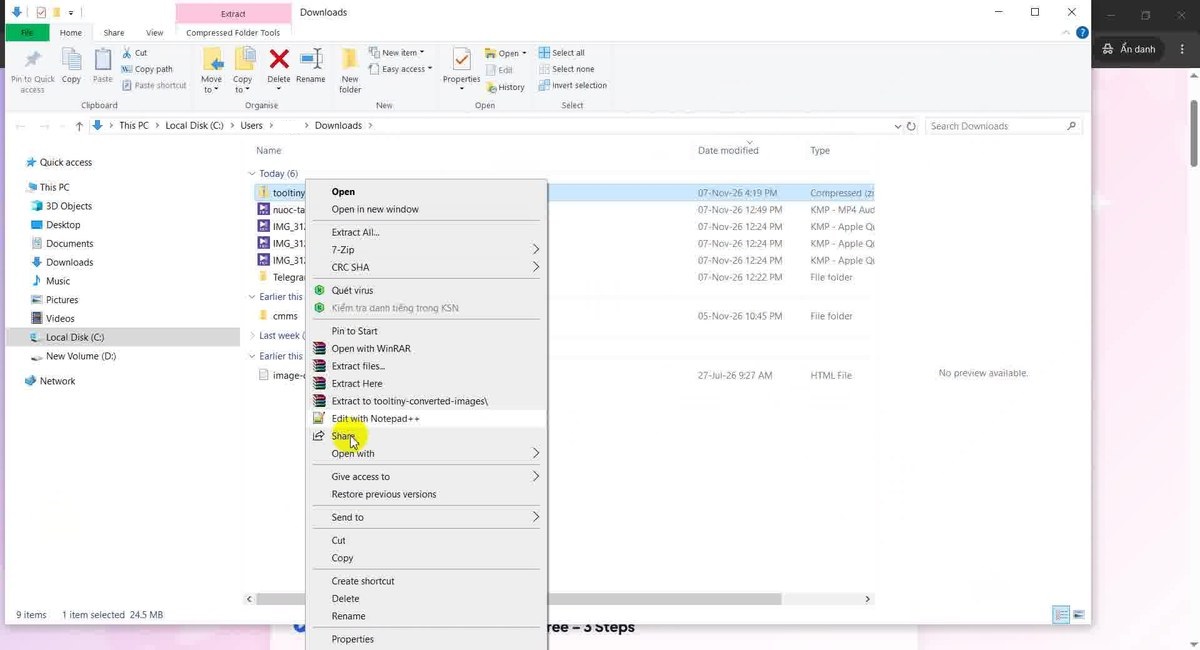
Right-click → Extract -
Check the files
The folder holds frank_converted.png and int_converted.png. Every file keeps its name with _converted added and the new extension. The two PNG files together are about the size of the 24.6 MB the page promised (Windows showed the ZIP as 24.5 MB). Open them to check the result.
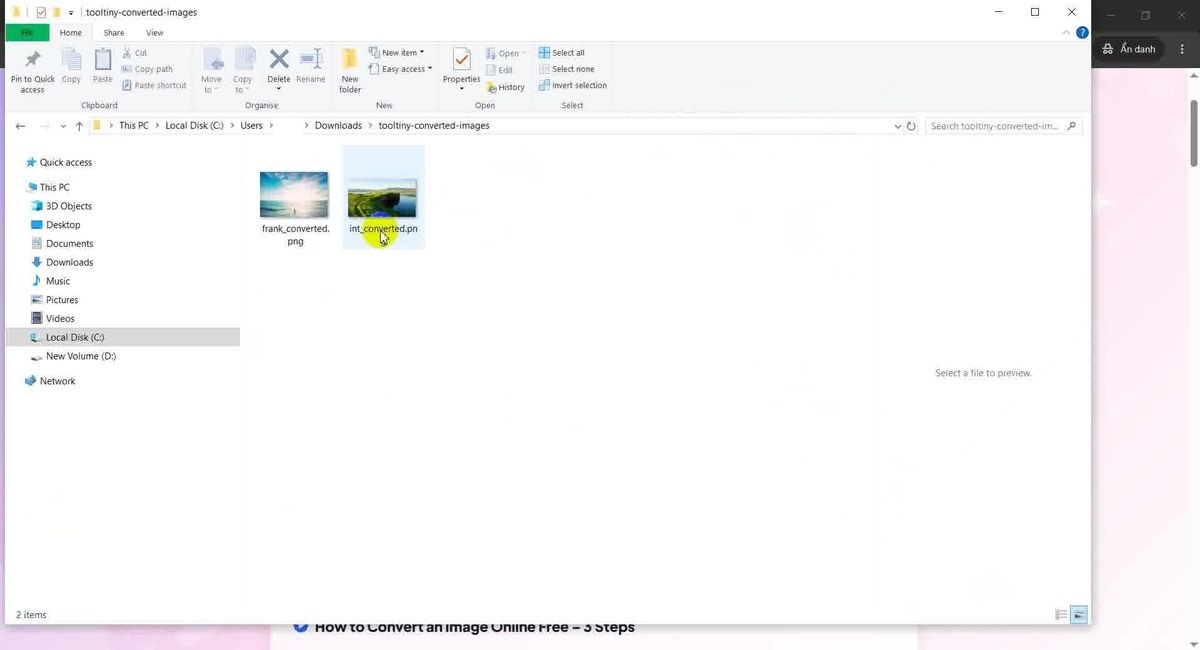
frank_converted.png and int_converted.png
What Happens to the File Size
The same two photos in each format, as shown in our recording:
| Output | frank.jpg (1.9 MB) | int.jpg (1.6 MB) | Total (from 3.5 MB) |
|---|---|---|---|
| PNG | 20.8 MB (+998%) | 3.8 MB (+135%) | 24.6 MB |
| GIF | 1.5 MB (−20%) | 935.5 KB (−43%) | 5.2 MB |
| JPG, quality 90% | 2 MB (+5%) | 503.1 KB (−69%) | 2.5 MB |
The table shows why format matters. PNG kept every pixel and grew the photos by 135% and 998%, while JPG at 90% made the second photo much smaller and the first one about the same. The result depends on the photo and on how it was saved before, so you cannot predict one picture from another. Converting a file that is already a JPG back to JPG re-encodes it and can even make it a little bigger, as with frank.jpg here.
GIF came out smaller than PNG, but only because it reduces the picture to 256 colours. That is why the tool shows a note and why photos can look grainy as GIF. Check the preview before you download.
Which Format Should You Pick?
| Format | Best for | Transparency | Quality slider |
|---|---|---|---|
| JPG | Photos, forms that ask for JPG | No, transparent areas become white | Yes |
| PNG | Logos, screenshots, images you edit again | Yes | No (lossless) |
| WebP | Websites, smaller files with transparency | Yes | Yes |
| GIF | Simple graphics and old systems that need GIF | Yes, on or off only | No |
Not every browser can save WebP files. If yours cannot, the row shows Error and you can pick JPG or PNG instead.
Good to Know
- The work happens in your browser. Your pictures are not uploaded to our server. For GIF output and HEIC input a small helper script is downloaded the first time it is needed.
- Up to 50 images at a time. Very large images use a lot of memory. If the ZIP cannot be built, convert a smaller group.
- Your originals are never changed. You download new copies named with _converted and the new extension. Equal names are numbered, for example (2).
- One image, one click. With a single image the button says Download. Every row also has its own download arrow.
- A broken file does not stop the batch. Its row shows Error and the others carry on. Files that are not images are skipped and named in a message.
- Animated GIFs become still images. Only one picture of the animation is converted.
- Free: no sign-up, no watermark.
Tips for Better Results
- Choose by purpose. JPG or WebP for photos, PNG for graphics and anything with transparency.
- Do not convert JPG to PNG to improve quality. The detail that JPG removed does not come back, the file only gets bigger.
- Check one picture first. Click its row and look at the preview before you download the batch.
- Group similar files. One format fits all, so convert photos and logos in separate batches.
- Lower the quality for JPG and WebP when you want smaller files, and look at the preview as you move the slider.
- Remove what you do not need. The cross on a row takes that picture out of the batch and the ZIP.
- Keep your originals. More guides are on our blog.
Select your images, choose the format and download the ZIP. Free, no sign-up.