How to Convert Images to PDF Online for Free (JPG, PNG, WebP)
Photos of a contract, scanned receipts, screenshots for a report: portals and email often want one PDF, not a pile of pictures. You do not need an app for that. This guide shows how to convert images to PDF online with ToolTiny, how to control the page order, and what a real example looks like: three images that became one 3-page PDF.
When You Need to Convert Images to PDF
- Sending one file. One PDF is easier to email, upload or print than ten photos.
- Phone scans. Photos of paper documents become a proper multi-page PDF.
- Application forms. Many portals accept only PDF, so ID copies or certificates must be converted first.
- Receipts and invoices. Keep a month of receipts together in one file.
- Reports and handouts. Put screenshots or charts in a fixed order that opens the same on every device.
Watch the Whole Process
The recording selects three images, reorders them, converts them to PDF and checks every page in a PDF reader.
How to Convert Images to PDF, Step by Step
-
Open Image to PDF
In the top bar open PDF Tools and choose Image to PDF, or go straight to tooltiny.com/image-to-pdf.html.
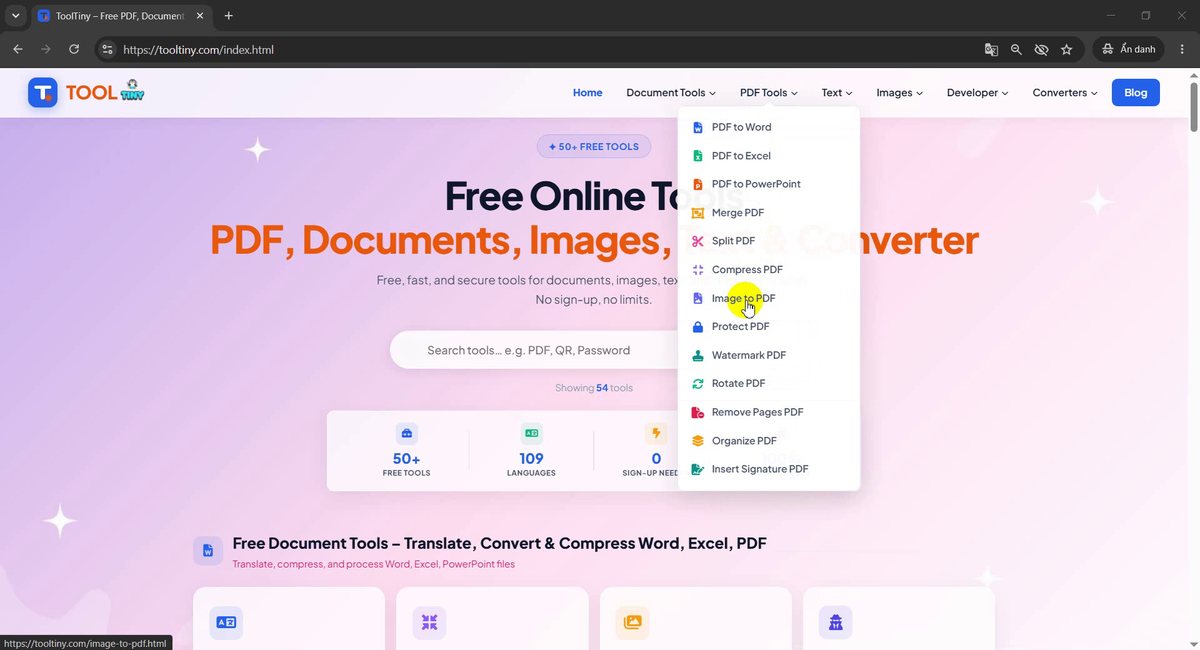
PDF Tools → Image to PDF -
Find the upload box
The page is titled Convert Images to PDF Free Online. The big dashed box says Select Images, and the button under it stays grey until you add at least one image.
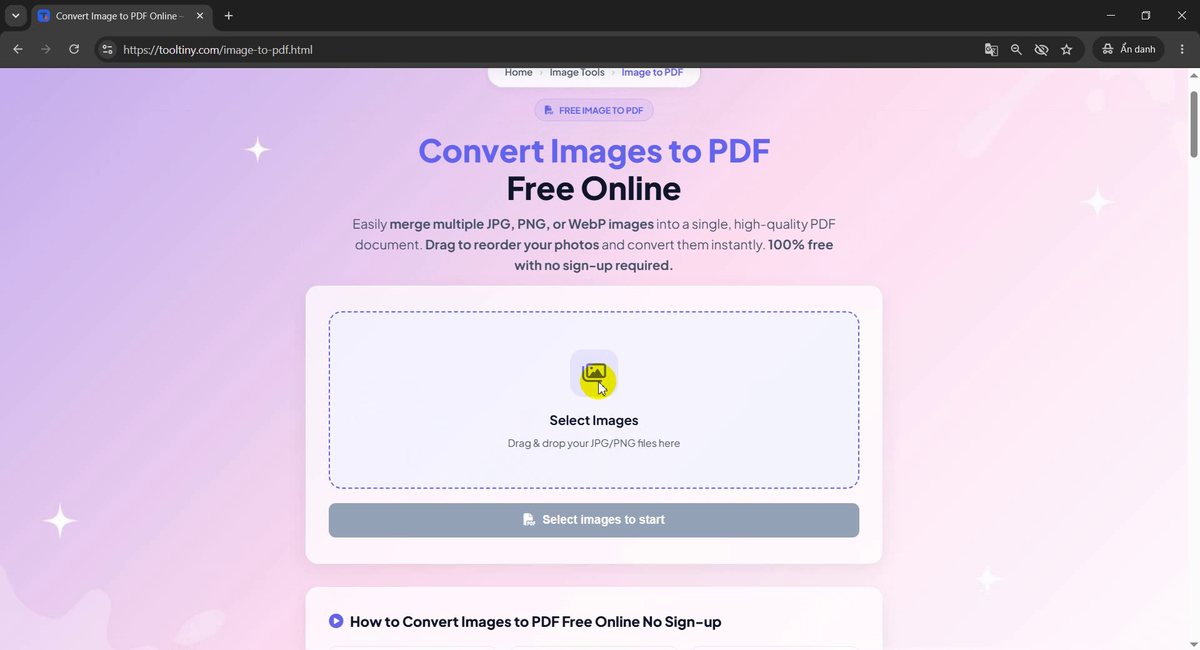
Click Select Images, or drag files into the box -
Select your images
Click the box and pick all your images at once: hold Ctrl (or Shift) in the file dialog. JPG, PNG and WebP work. We picked three sample files: an invoice, a page of meeting notes and a landscape photo.
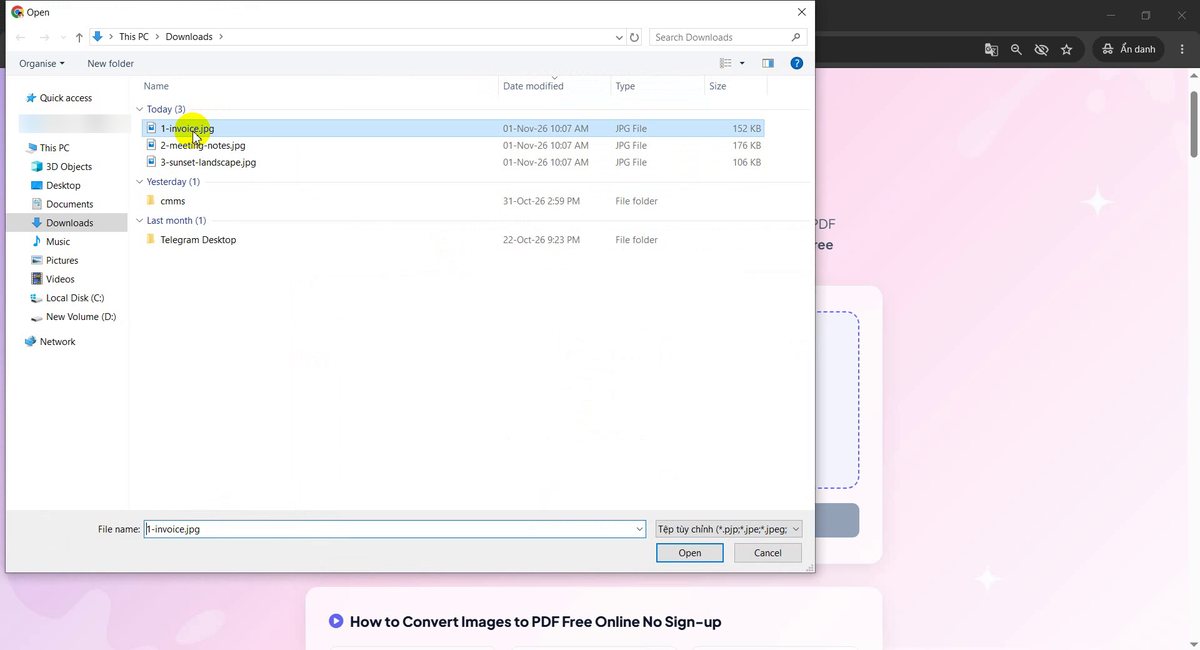
Select several images at once -
Check the list
Your images appear under Selected images (use arrows to reorder) with a number, a thumbnail, a name and a size. The counter shows 3 images and the button now reads Convert 3 Images to PDF. The number is the page number in the final PDF.
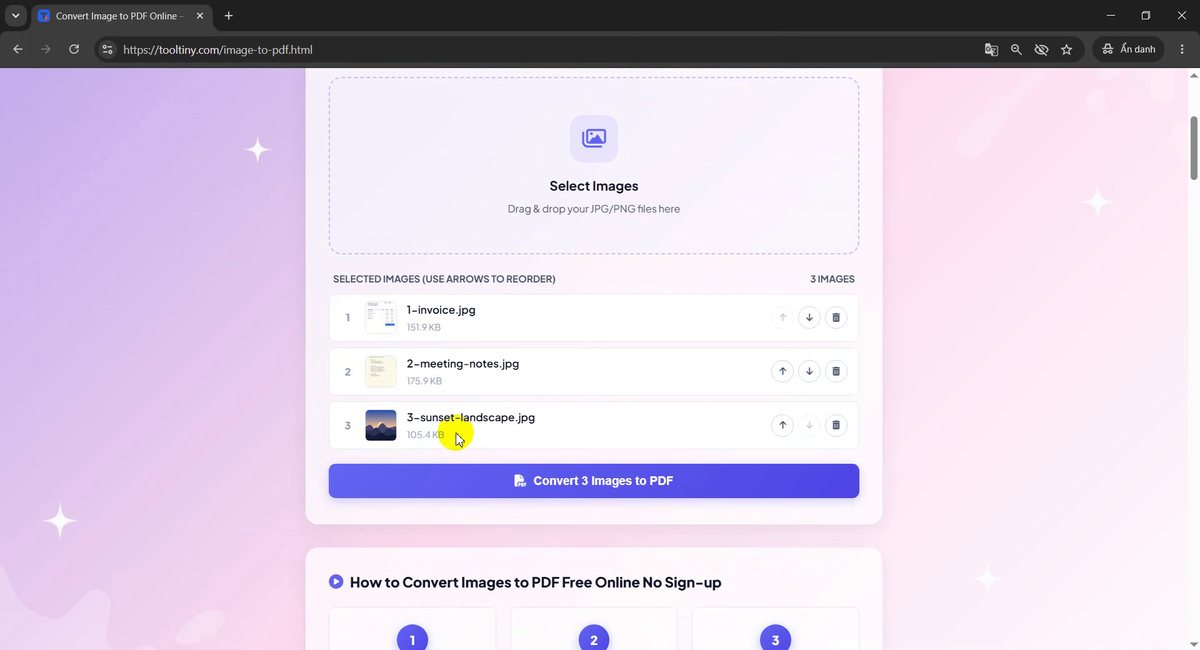
Images in page order -
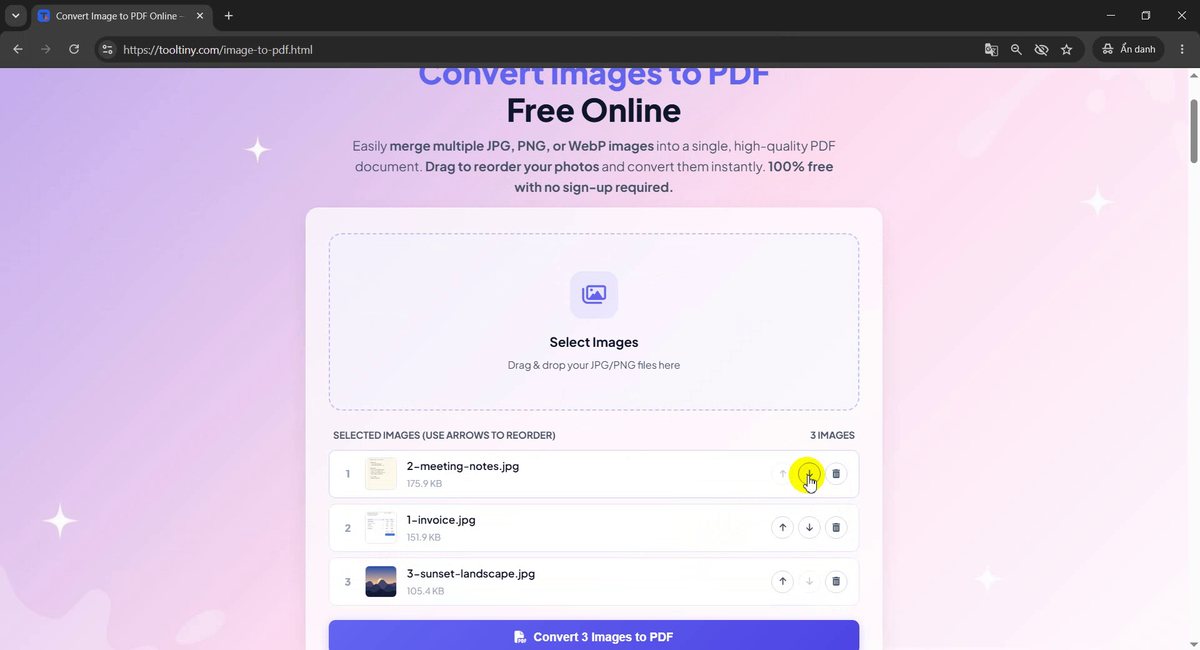
Reorder the pages
Use the up and down arrows on the right of each row to move an image, or the bin icon to remove one. Do this before you convert: the first row becomes page 1. We moved the files around and finished with the invoice first, then the meeting notes, then the landscape photo.
Move images with the arrows -
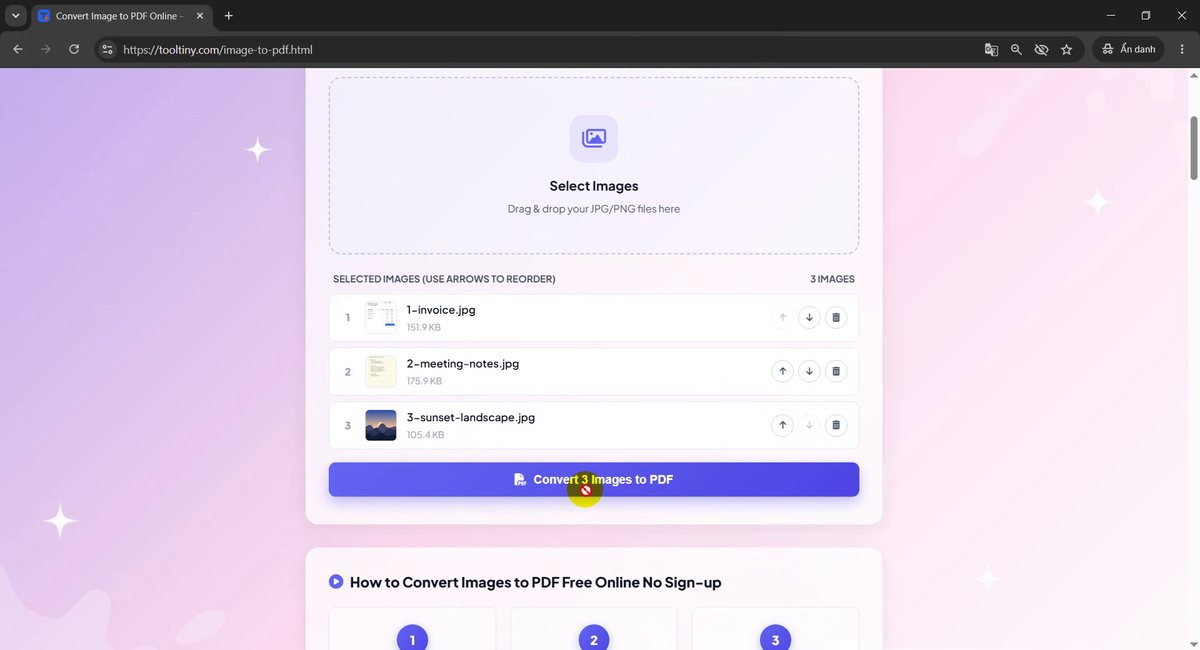
Click Convert Images to PDF
Click the purple button once. For a few images this takes a few seconds, so keep the tab open until it finishes.
Convert 3 Images to PDF -
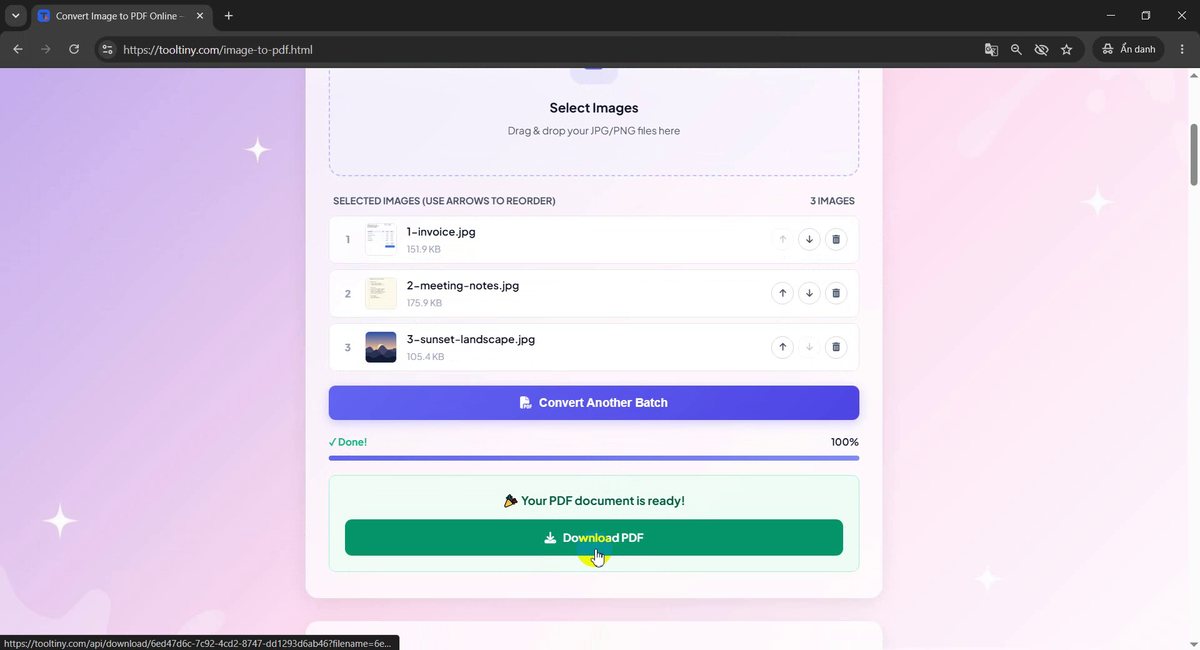
Download the PDF
When the bar reaches 100% you see Done! and Your PDF document is ready!. Click Download PDF. The button Convert Another Batch above it starts a new job.
Download PDF -
Save the file
Your browser asks where to save the file (or saves it straight to Downloads). The PDF is named with a long ID followed by
_images.pdf; you can rename it before saving.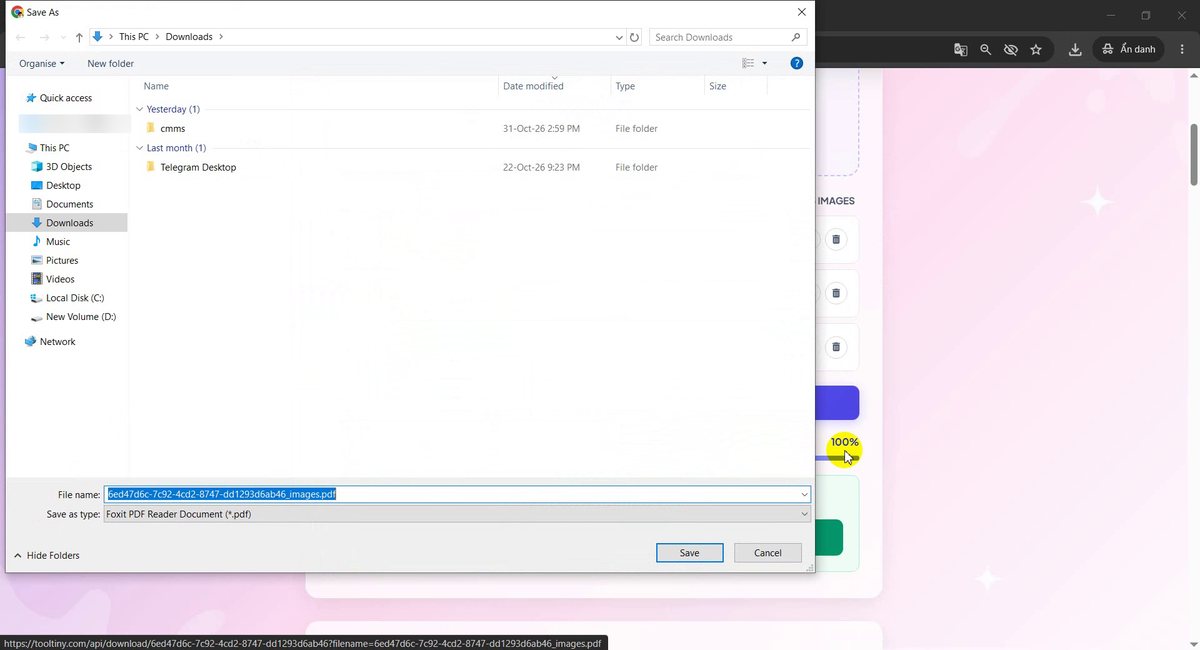
Save the PDF -
Find the PDF
In our Downloads folder the new PDF is 292 KB and sits next to the three original images, which are unchanged. The preview pane already shows the invoice as page 1 and the meeting notes as page 2.
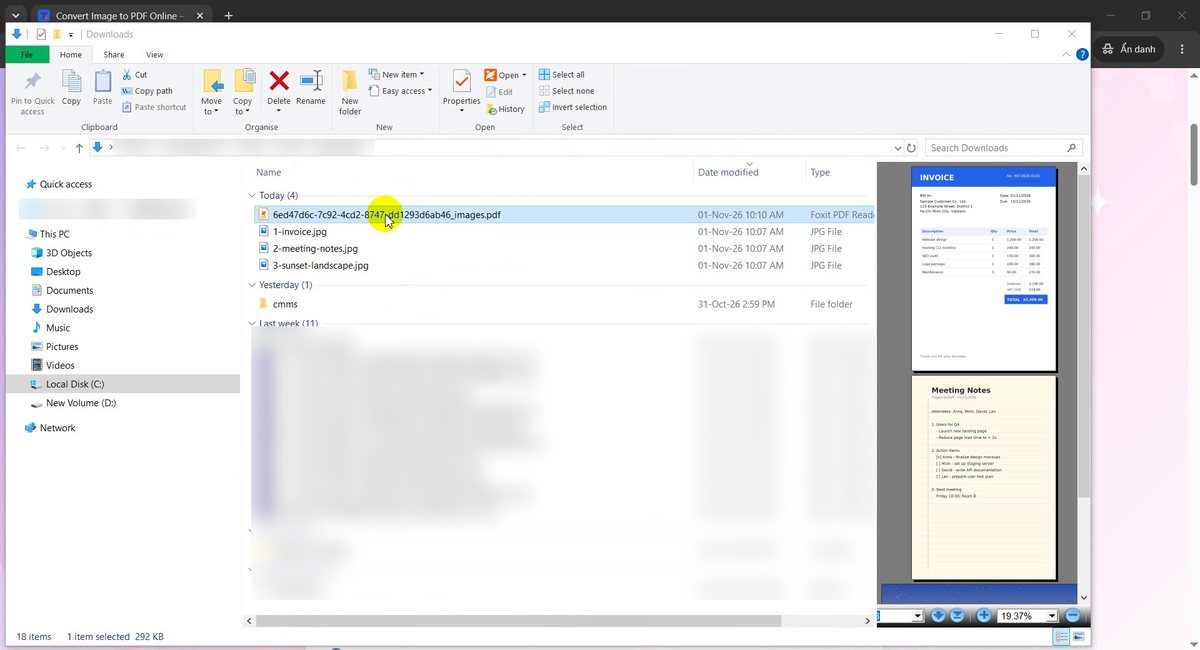
The PDF next to the original images -
Check the first page
Open the PDF in any reader. The counter shows 1/3 and page 1 is the invoice, exactly as the first row of the list.
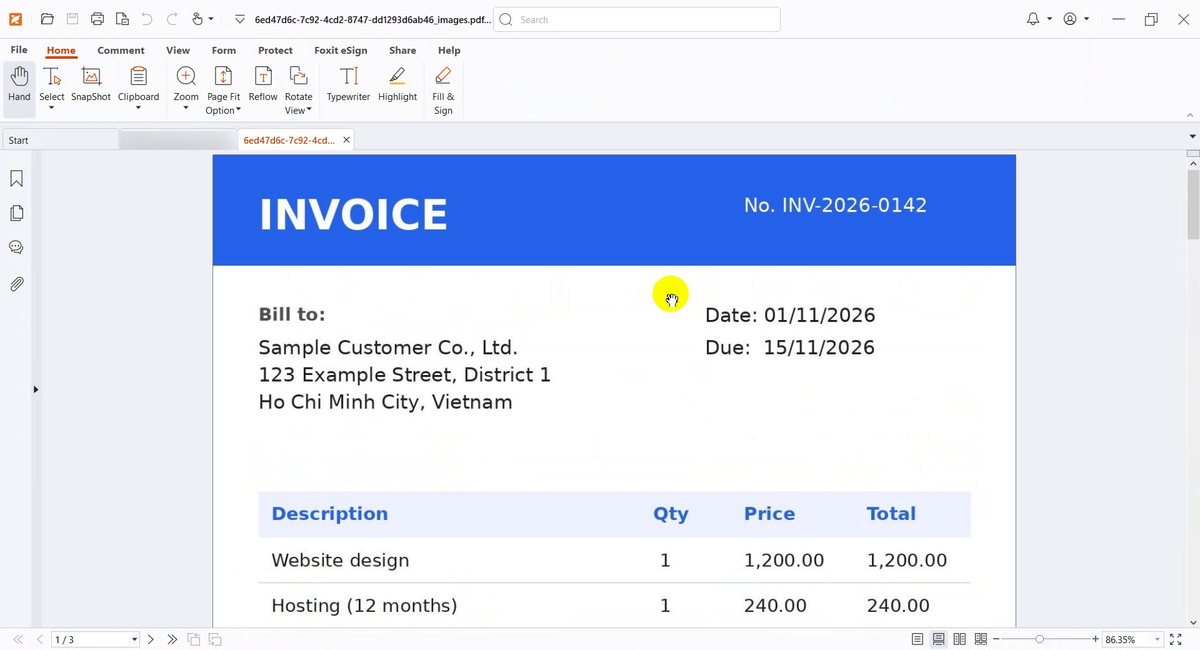
Page 1: the invoice -
Check the last page
Scroll to the end. The reader shows 3/3 and the last page is the landscape photo. It kept its wide shape, so one PDF can mix portrait and landscape pages.
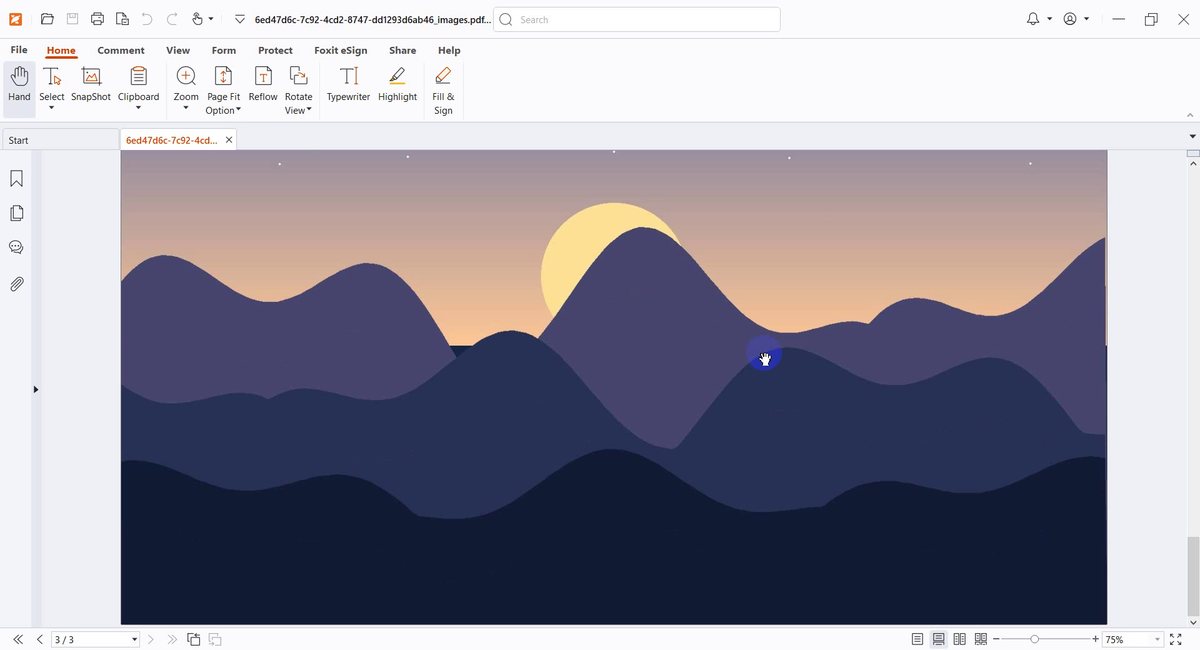
Page 3: the landscape photo
What We Got
The PDF contains one page per image, in the order of the list:
| Page | Image | Shape |
|---|---|---|
| 1 | 1-invoice.jpg | Portrait |
| 2 | 2-meeting-notes.jpg | Portrait |
| 3 | 3-sunset-landscape.jpg | Landscape |
| Result | One PDF (292 KB) | 3 pages |
Page 1 matched the first row of the list and page 3 the last row, and the original images were not changed. If you want a different order, move the rows before you click convert.
Good to Know
- Formats: JPG, PNG and WebP images.
- Many images: select them all at once, or add more after the first batch.
- Page shape: each page takes the shape of its image, so portrait and landscape images can share one PDF.
- Big photos: a phone photo can be several MB. If uploading is slow, shrink the images first with Image Compress.
- Privacy: files are permanently deleted from the servers after processing.
- Cost: free, with no sign-up.
Tips for a Clean PDF
- Name files with numbers. Names like 01-cover, 02-page make the order obvious in the list.
- Check the order first. The number next to each image is its page number.
- Straighten and crop first. Photos of paper look better when the page fills the frame and is well lit.
- Avoid transparent PNGs. PDF pages have no transparency, so save logos or screenshots with a solid background.
- Open the result. Scroll through all pages and confirm the page count before you send it.
- Result too big? Reduce it with Compress PDF.
- Need to add more files later? Combine PDFs with Merge PDF.
- Mind confidentiality. Images are uploaded for processing. Do not upload documents you are not allowed to share.
Select your images, set the order and download one PDF. Free, no sign-up.