How to Merge and Split Excel Files Online for Free (XLSX)
A yearly workbook has twelve monthly tabs, and each branch manager should receive only their own. Or the opposite: four colleagues each send a file and you need everything in one workbook. Doing it by hand means right-clicking tabs, choosing Move or Copy and hoping nothing breaks. This guide shows how to cut a workbook into one XLSX per sheet, and how to combine several workbooks into one, with a free online tool.
When Merging or Splitting Makes Sense
- One sheet per recipient. Send each department, branch or client only the tab that concerns them, instead of the whole workbook.
- Collecting contributions. Each person fills in their own file; you combine them into a single workbook for review.
- Archiving by period. Keep one file per month or quarter rather than one growing workbook.
- Keeping files small. A workbook split by sheet is lighter to email. For a file that is still heavy, try the Document Compressor.
- Protecting other tabs. Sharing a single-sheet file means the other tabs never leave your computer.
How the Tool Treats Your Sheets
The key idea is that it works on worksheets, not on rows. That decides what you can expect from each mode.
| Mode | What you get | Typical use |
|---|---|---|
| Split sheets | A ZIP with one XLSX per worksheet, numbered in tab order | Send each tab to a different person |
| Merge workbooks | One XLSX that holds every sheet of every file, one tab each | Gather monthly or branch files in one place |
Merging does not append rows from several files into one long table. If you need that, merge first and then consolidate the tabs inside Excel. Limits per job: up to 10 files, 20 MB in total, 100 sheets and 250,000 stored cells.
Watch the Whole Process
The recording splits a four-sheet sales workbook into separate files, then merges two of them back into one.
Part 1: Split a Workbook Into One File per Sheet
-
Open Merge / Split Excel
In the top bar open Document Tools and pick Merge / Split Excel, or go to tooltiny.com/merge-split-excel.html.
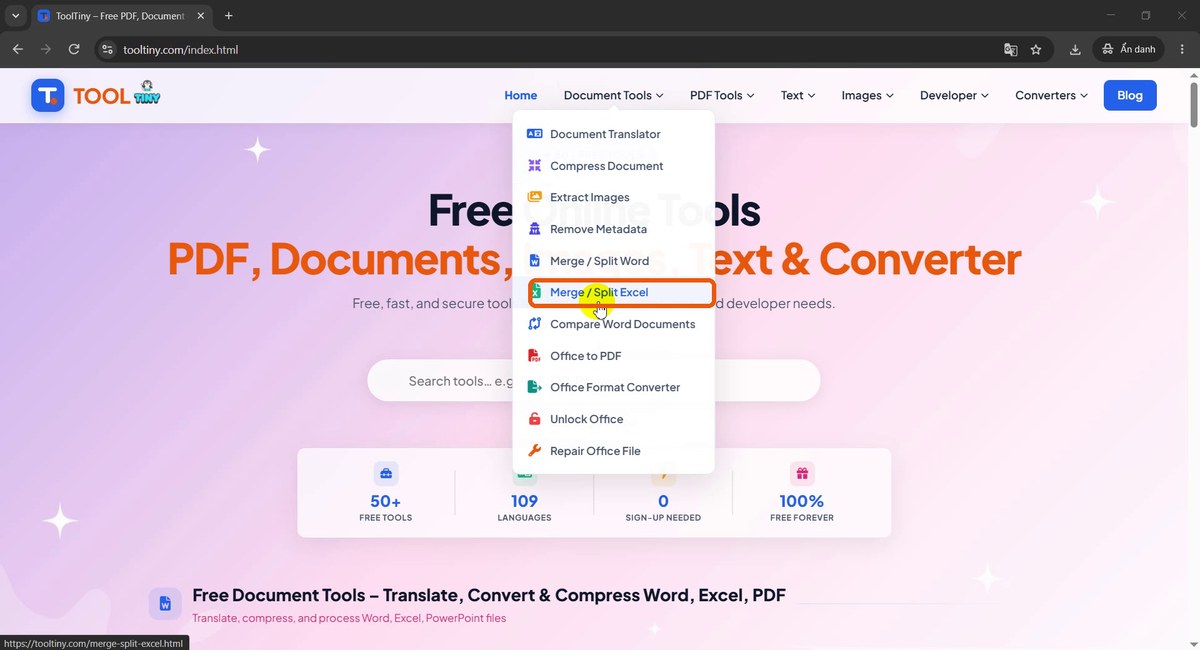
Document Tools → Merge / Split Excel -
Switch to Split sheets
The page opens on Merge workbooks. Click the Split sheets tab; the upload box now takes one workbook.
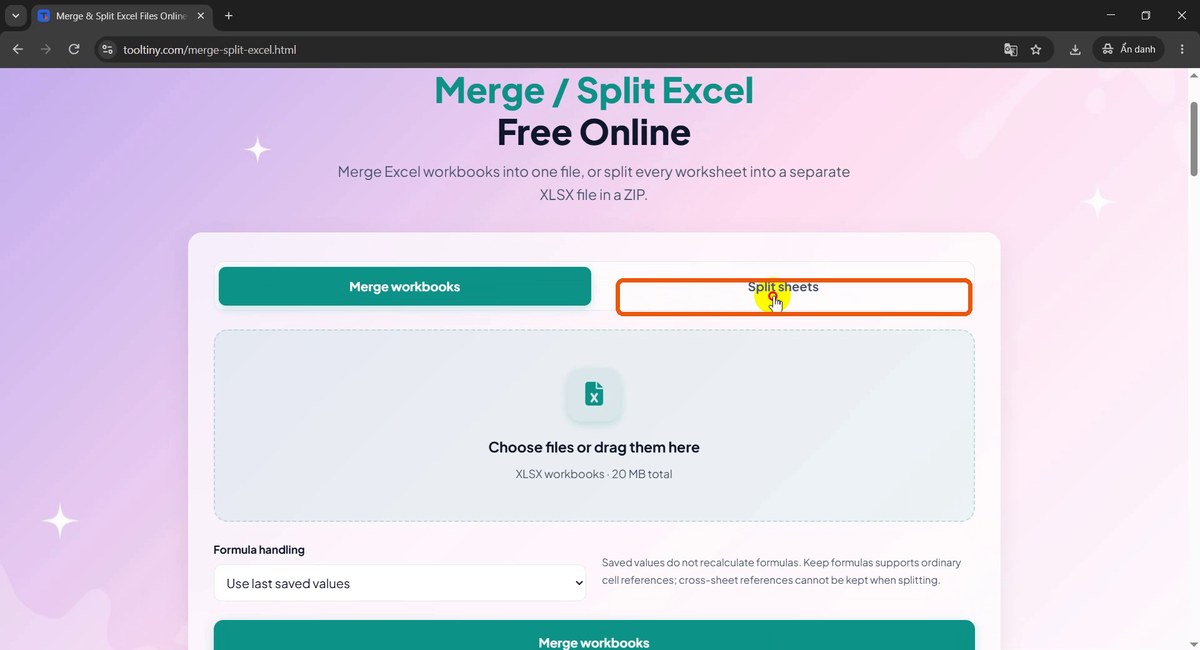
Split sheets tab -
Choose your workbook
Click the box and pick an XLSX. Our test file has four sheets, January to April, each with a small sales table and totals calculated by formulas.
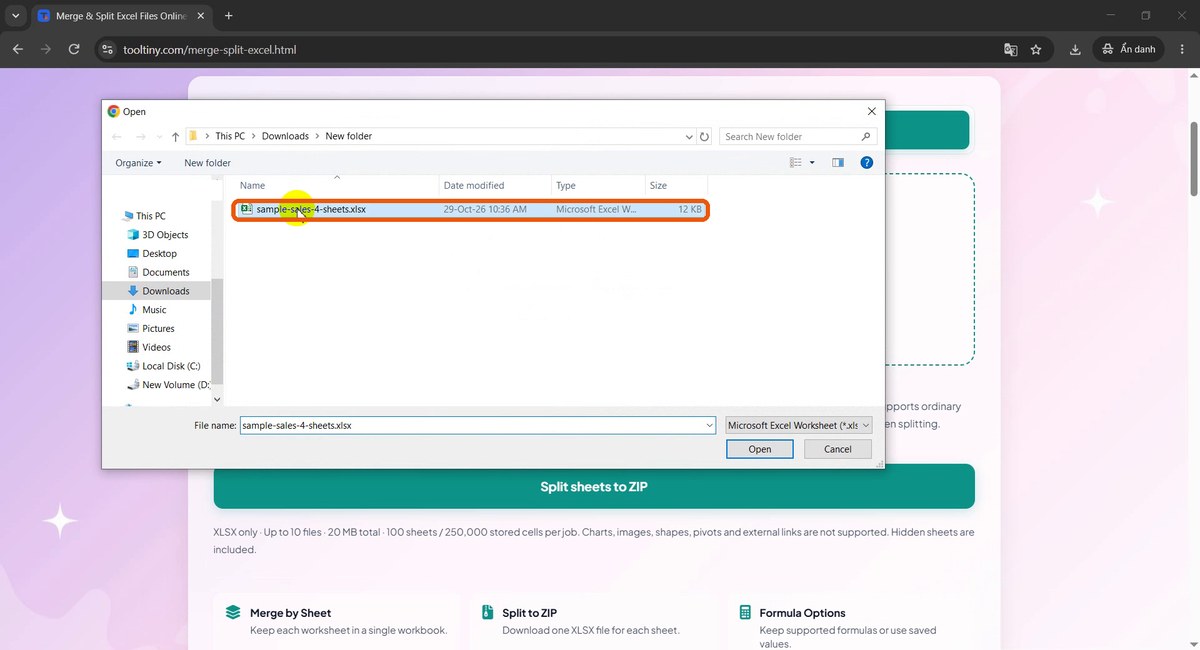
sample-sales-4-sheets.xlsx -
Decide how formulas are handled
Use last saved values writes the numbers Excel last calculated. Keep formulas retains ordinary cell references. Totals that only sum cells on their own sheet survive either way; formulas that reach into another sheet cannot be kept once that sheet is on its own.
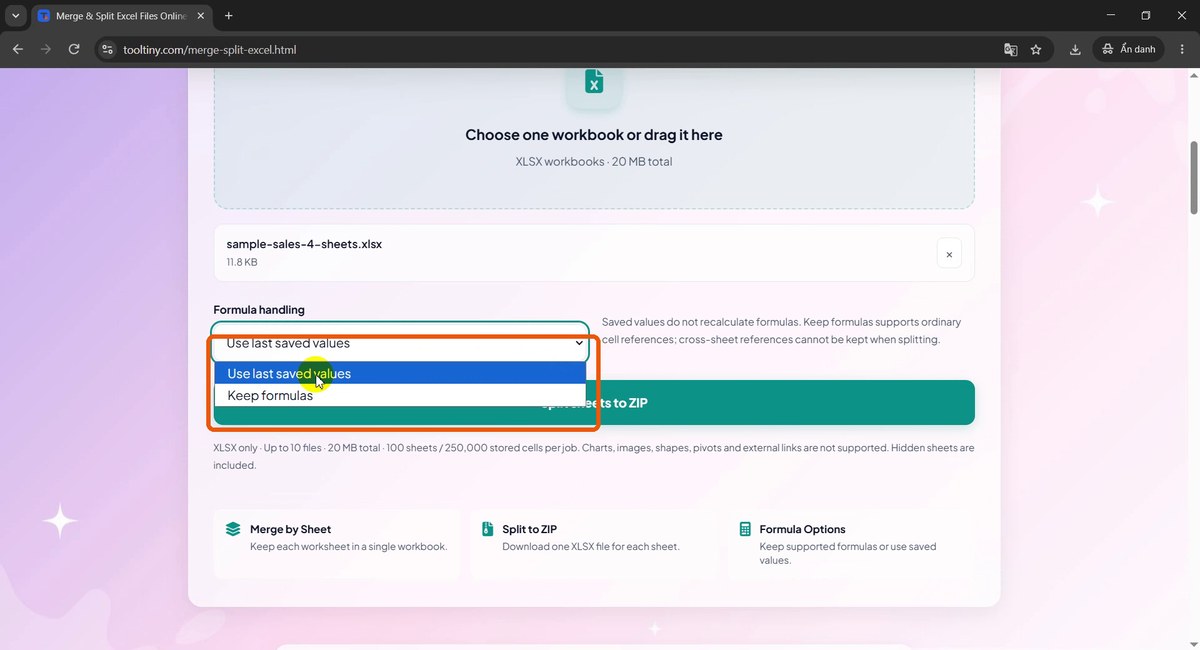
Two formula options -
Click Split sheets to ZIP and download
When the green message says the file is ready, notes below it remind you what is not transferred. Click Download split_sheets.zip.
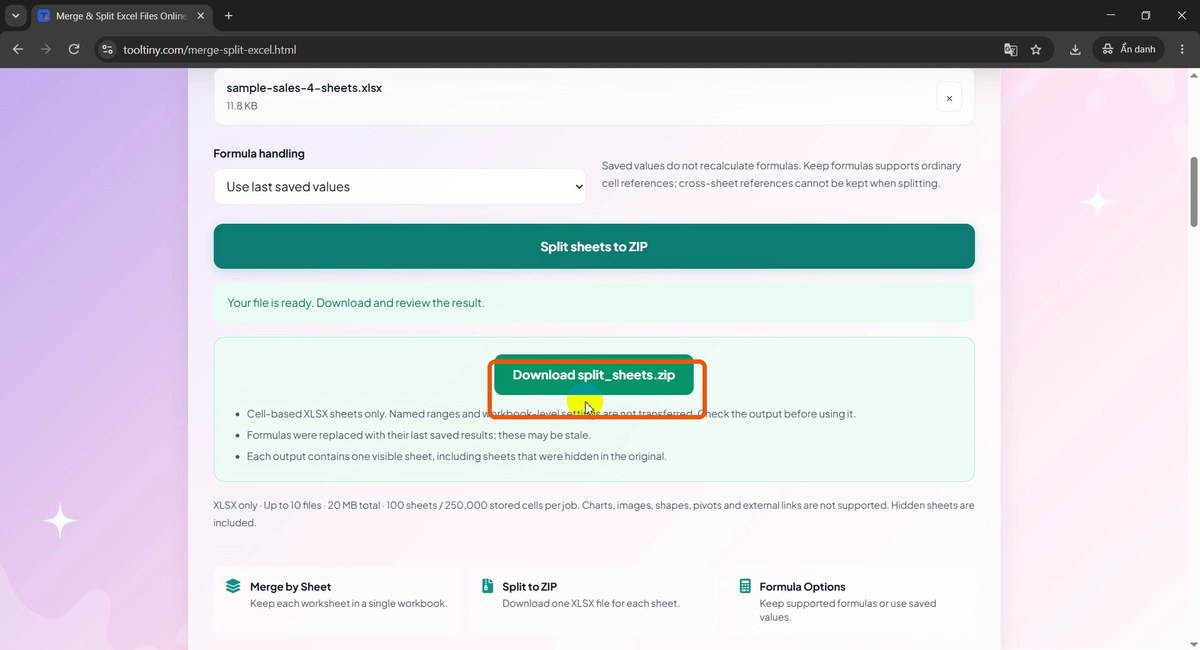
Download split_sheets.zip -
Save the ZIP
Choose a folder in the Save dialog. The archive is always called
split_sheets.zip, so rename it if you run several jobs.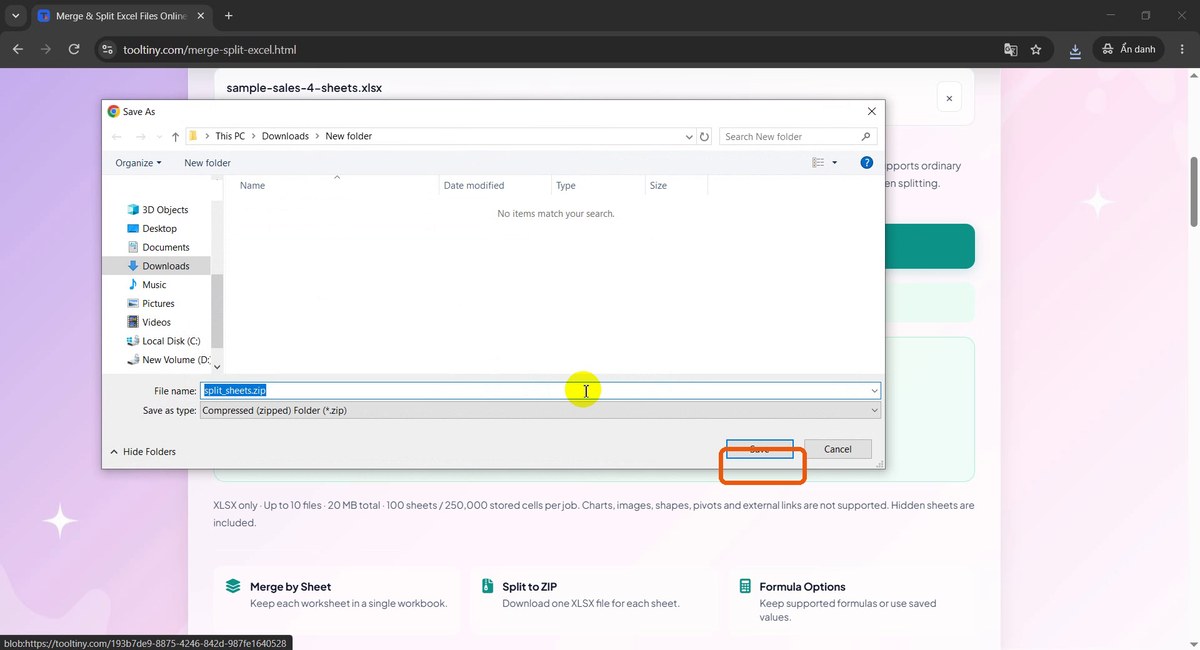
Save the archive -
Extract and look inside
Extract the archive and you get one workbook per sheet:
001_January.xlsx,002_February.xlsx,003_March.xlsxand004_April.xlsx. The number keeps the original tab order.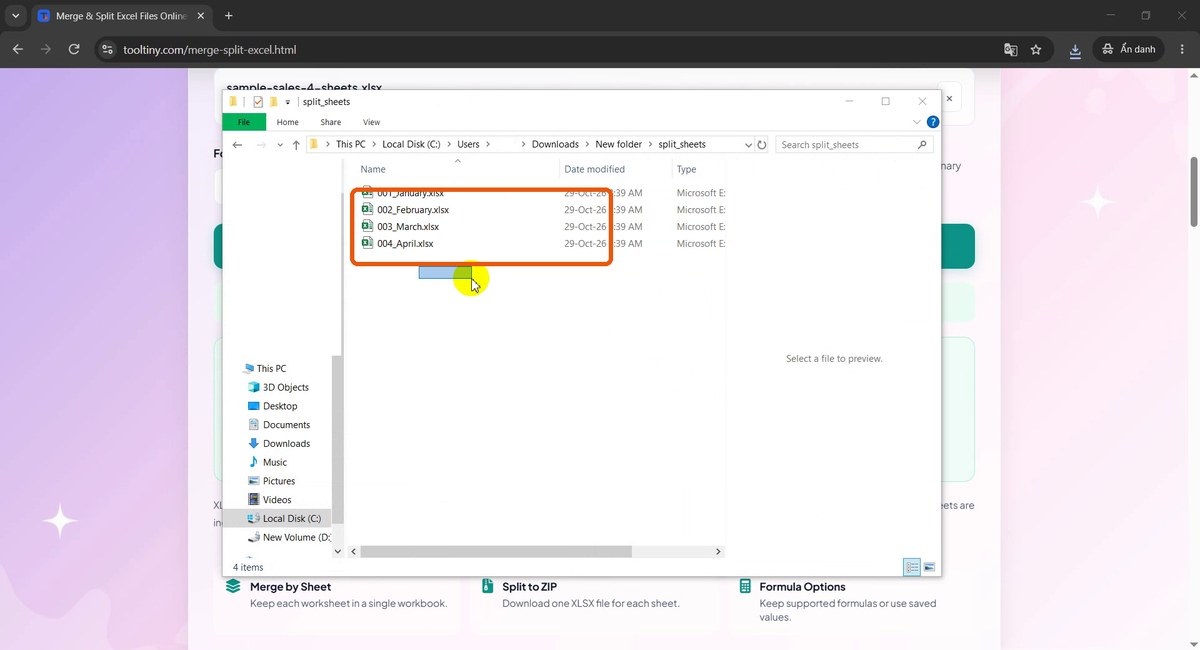
One file per sheet
Part 2: Merge Workbooks Into One
-
Switch to Merge workbooks
Go back to the page and click the Merge workbooks tab. Merging needs at least two files.
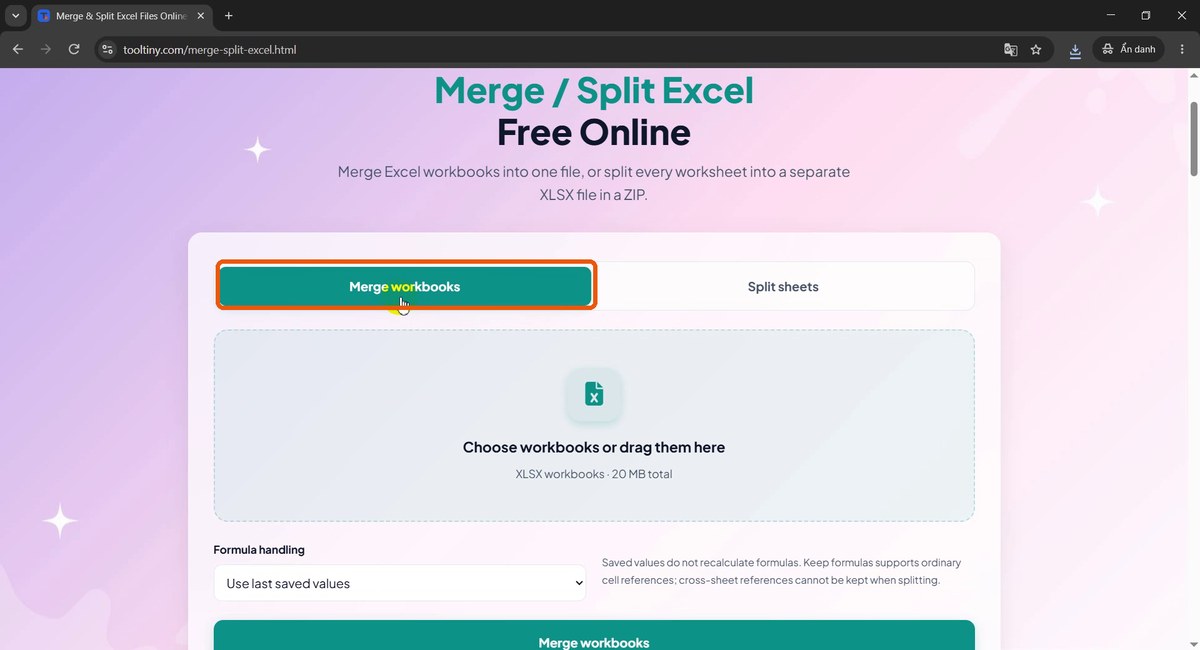
Merge workbooks tab -
Add the workbooks
Click the upload area and select several XLSX files at once with Ctrl or Shift. We picked the January and February files created a moment ago.
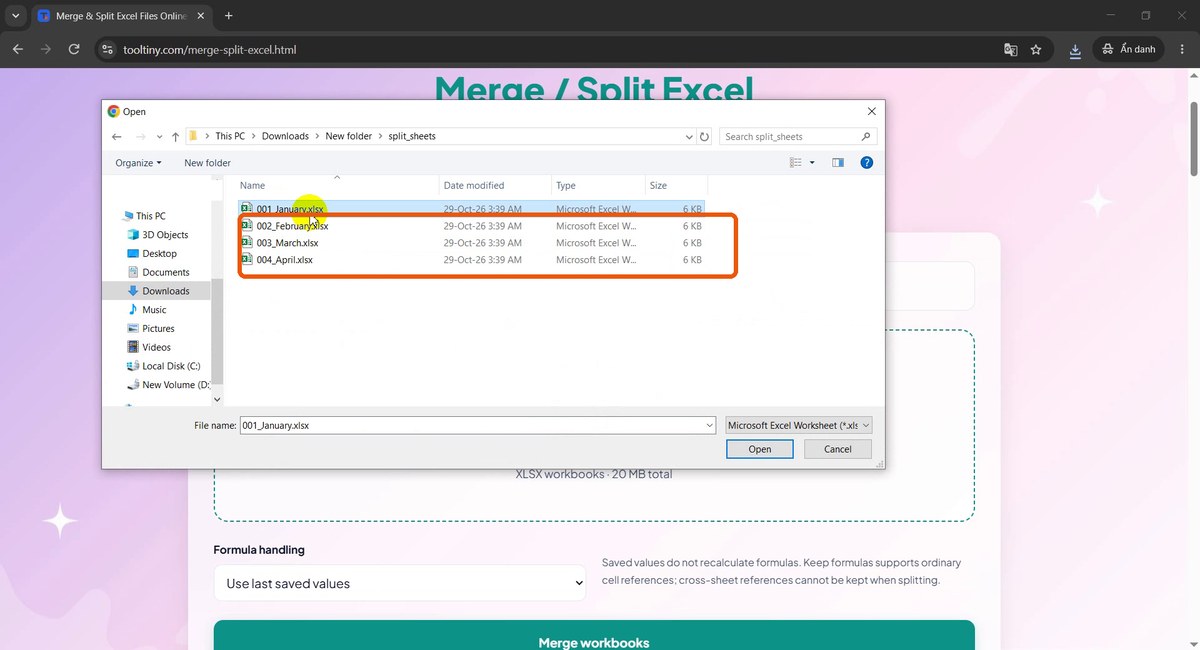
Select multiple workbooks -
Check the order and click Merge
Each file is listed with arrows to move it up or down; the sheets in the merged workbook follow this order. Review the formula option, then click Merge workbooks.
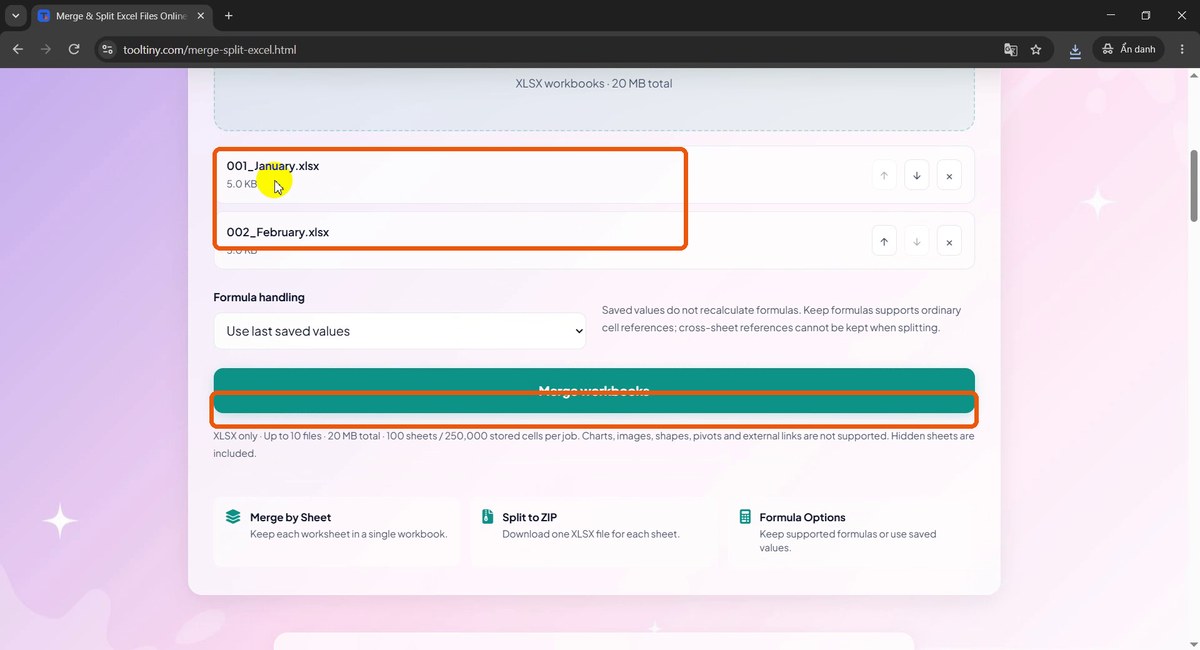
Order and Merge button -
Download the merged workbook
After the success message, click Download merged_workbook.xlsx and save it.
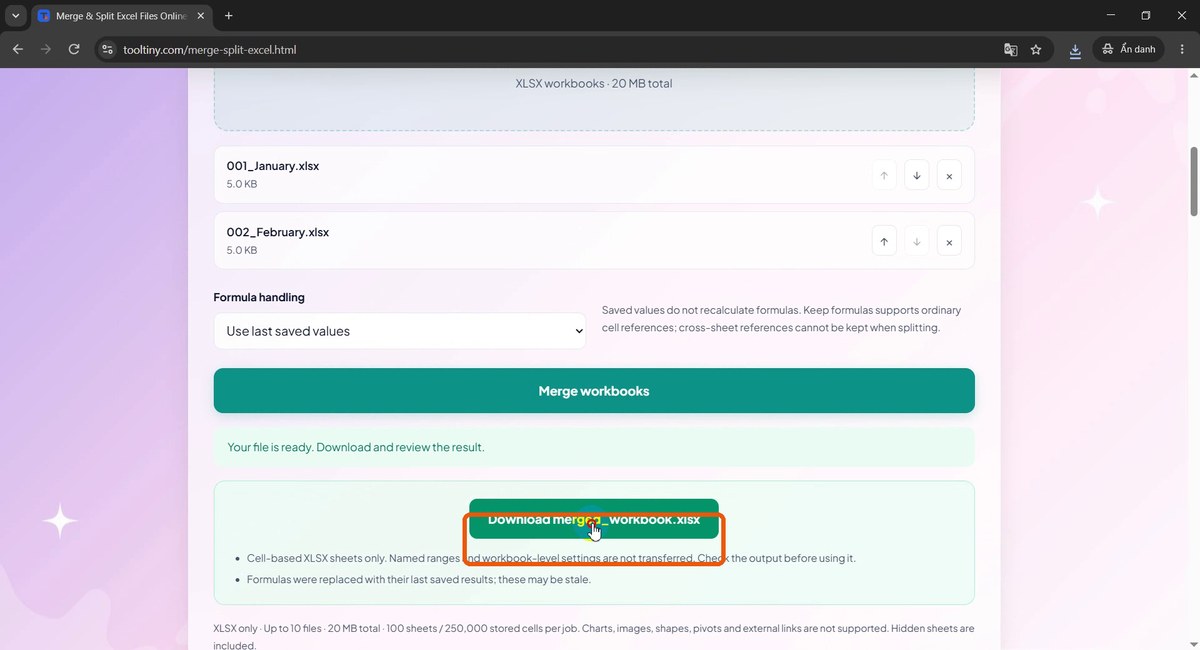
Download merged_workbook.xlsx -
Open it in Excel
The new workbook has the January and February tabs side by side, with the sales table and total intact. Click through each tab once to confirm.
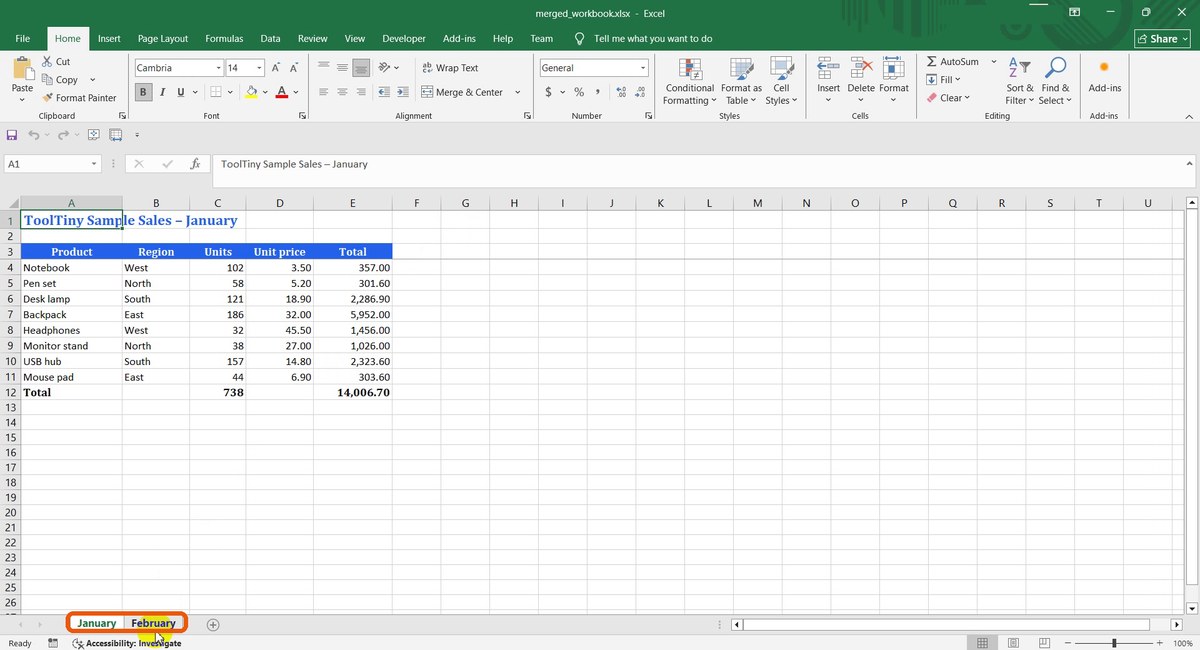
Both sheets in one workbook
What Is Not Carried Over
The tool rebuilds cell data, so anything beyond cells needs a manual check. The page lists these as not transferred:
- Charts, images and shapes
- Pivot tables
- Named ranges and workbook-level settings
- External links
If your workbook relies on charts or pivots, do the split or merge on a copy, then rebuild those objects. Always keep the original file.
Tips for Clean Results
- Prefer saved values for sharing. A formula that points to another sheet breaks when that sheet is no longer there. Use last saved values for files you send out; keep formulas only when each sheet is self-contained.
- Save in Excel first. Saved values are the ones Excel last calculated, so open and save the workbook before uploading to make sure they are current.
- Name tabs clearly. The split files take their names from the tabs, so
2026-01 Hanoiis more useful thanSheet1. - Mind hidden sheets. They are split out like any other tab, so unhide and check them, or delete them, before sending files to others.
- Check the order. In Merge, the arrow buttons set the tab order of the result.
- XLSX only. Save .xls or .xlsm files as XLSX first.
After Merging or Splitting
- Remove hidden author and company details before sharing: how to remove metadata from Office files.
- Working with Word as well? See how to merge and split Word documents.
- Need the pictures out of an Office file? Extract images from Word and PowerPoint.
Combine up to 10 workbooks or split one into a file per sheet. Free, no sign-up.